


 Video Converter Ultimate
 Skjermopptaker
 Videoreparasjon
Beste tilgjengelige GIF til videokonverterere på digitale enheter [2021]
GIF er en velkjent memegenerator for Android- og iOS-enheter. Til tross for dette ryktet er det noen plattformer som Instagram og Twitter som ikke godtar dette formatet. I stedet for å bruke GIF-er bruker vi andre gyldige formater som MOV, MP4, AVI og flere. Likevel kan vi konvertere GIF-en og fortsatt beholde den samme kvaliteten. Så hvis du er klar til å begynne å konvertere og vil vite hva som er de beste appene for å lage GIF‑videoer, fortsett å lese denne artikkelen for å finne ut hvilke verktøy du bør bruke for å konvertere GIF-filer til et nytt videoformat.

Del 1. 2 Beste GIF til Video Converter-applikasjoner for iOS
1. GIF til MP4
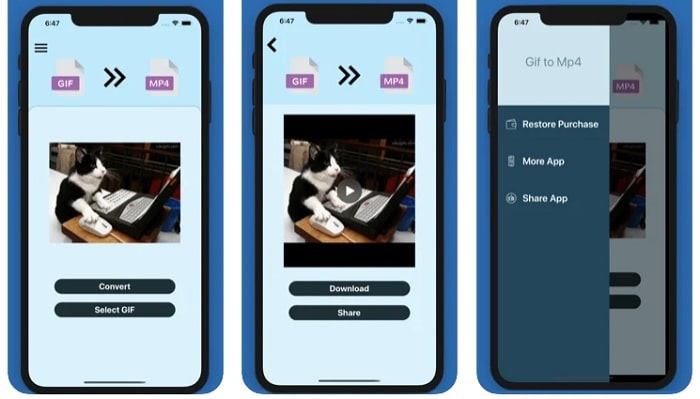
Du kan bruke denne appen til å lage GIF‑videoer på iOS. GIF to MP4 har 4,7 stjerner i vurdering, noe som betyr at det er en god GIF‑konverter. Verktøyet er veldig rett på sak, noe som betyr at du kan bruke det selv om du ikke har noen anelse om hvordan du konverterer. Selv om det får mange lovord, er kundeservicen helt elendig. Det gis ingen svar på brukernes tilbakemeldinger for å forbedre verktøyet. Så hvis du har et spørsmål om denne appen, kan du legge igjen en kommentar nedenfor, men ikke forvent et umiddelbart svar.
2. GIF Cracker - GIF til video
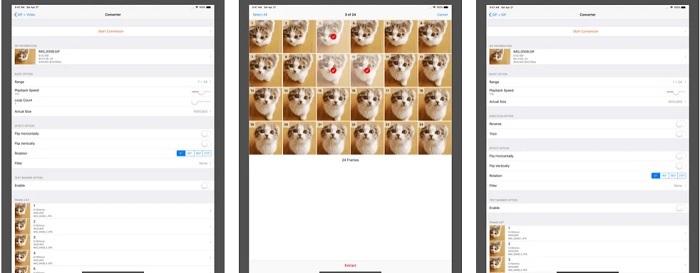
Et annet iOS‑verktøy du kan bruke til å konvertere GIF til et hvilket som helst videoformat du vil, er dette. GIF Cracker støtter flere formater enn det første. I tillegg tilbyr det konvertering fra GIF til bilder, så hvis du vil lage en JPG av GIF-en din, kan du bruke dette. Ved første øyekast kan det virke som om appen er perfekt, men for å være ærlig har også denne appen noen feil. Noen mindre feil er rettet, men ikke alle. Du kan imidlertid kjøpe pro‑versjonen for en bedre opplevelse.
Del 2. 3 Beste GIF til Video Converter-applikasjoner for Android
1. GIF Maker - Video til GIF, GIF Editor
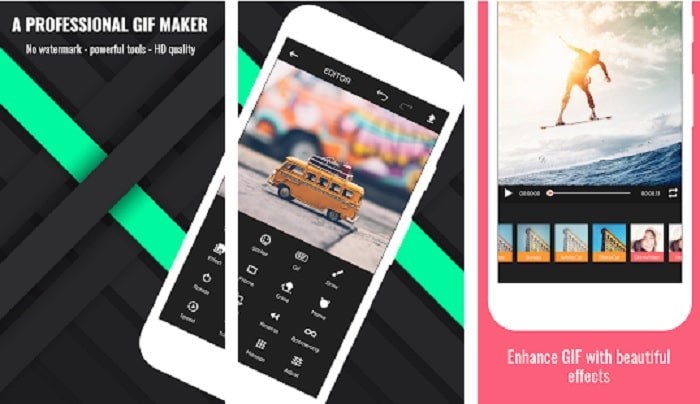
Du kan bruke denne appen til å lage GIF‑videoer. Men ikke bare det – den støtter også redigeringsfunksjoner, slik at du kan lage GIF-er direkte på telefonen. Noen avanserte funksjoner som finnes i videoredigeringsverktøy på datamaskin tilbys ikke her fordi de krever for mye plass. Likevel kan du lage dine egne GIF-er med dette verktøyet, siden det har mer enn 30 effekter, 20 bilder per sekund, mulighet til å legge til emojier eller tekst og klippe video. Det vises imidlertid annonser i appen, så for å fjerne dem må du kjøpe selve appen.
2. GIF til video
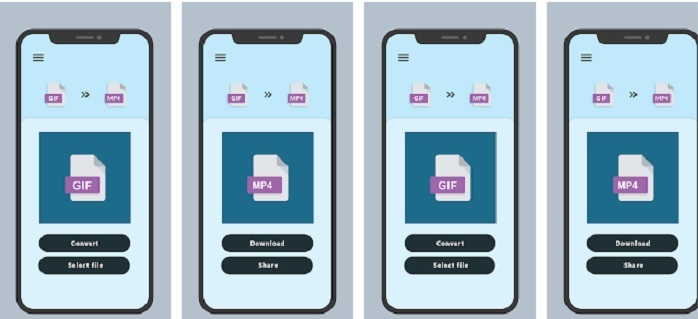
Et av de beste verktøyene for å konvertere GIF til et nytt format. Velg en hvilken som helst GIF fra galleriet ditt og konverter dem alle ved å bruke denne GIF to VIDEO. Akkurat som det første verktøyet på iOS ovenfor, tilbyr det kun konvertering fra GIF til MP4. Men du kan konvertere GIF-er enkelt ved hjelp av dette verktøyet. Det har helt presise kommandoer, så du trenger ikke bekymre deg – det fokuserer bare på konvertering. I tillegg har denne appen nettopp fått en oppdatering fra utvikleren, RAYO INNOVATIONS PRIVATE LIMITED.
3. GIF2VIDEO- overfør GIF til VIDEO
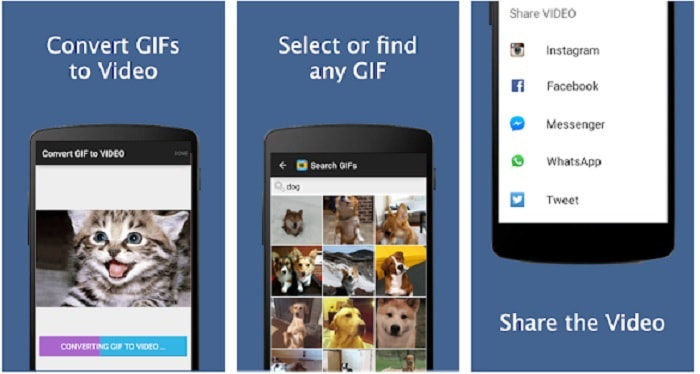
Konverter GIF-en din til et nytt videoformat som kan deles på andre plattformer. Du kan også enkelt finne GIF-en din i søkefeltet ved hjelp av GIF2VIDEO. Dessuten kan du enkelt sette videoformatet til 1:1 eller 4:3. Selv om det gjør jobben effektivt, er grensesnittet litt under standard. I noen tilfeller kan du ikke laste ned GIF-er, og hvis du klarer å laste dem ned, vil kvaliteten bli dårligere.
Del 3. Anbefalt GIF til Video Converter på Windows eller Mac
For eksempel, hvis du vil ha en mer presis metode for konvertering og vil legge til din egen spesielle touch til videoen. Du kan bruke Video Converter Ultimate-verktøyet som er tilgjengelig på PC og Mac, og det er et must å følge trinnene i riktig rekkefølge.
Det er et kjent faktum at mobiltelefoner i dag er som minidatamaskiner. Men ikke alle appene du ser på mobiltelefonen din, er tilgjengelige på datamaskin – og omvendt. Video Converter Ultimate, en GIF‑til‑video‑app for datamaskin, er langt bedre enn noen konverter du finner i Play Store eller App Store. Ingen mobilprogramvare kan gjøre mer enn bare å konvertere. Du kan også forbedre video- og lydkvaliteten både under redigeringen og i etterkant. Hvis du vil oppleve hvor kraftig dette verktøyet er, må du følge trinnene nedenfor nøye. De er alle viktige for å få til den perfekte konverteringen du ønsker.
Trinn 1. Last ned verktøyet til datamaskinen din. Endre innstillingene etter behov og klikk Fullfør for å lagre justeringene.
Gratis nedlastingFor Windows 7 eller nyereSikker nedlasting
Gratis nedlastingFor MacOS 10.7 eller nyereSikker nedlasting
Trinn 2. Kjør programmet på skrivebordet ditt. Klikk på knappen Add Files for å legge til filer. Men hvis du har mer enn to GIF-er, er det bedre å dra og slippe dem inn i verktøyets grensesnitt.
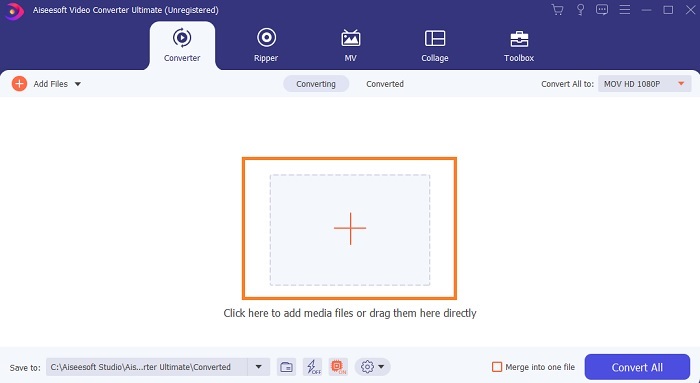
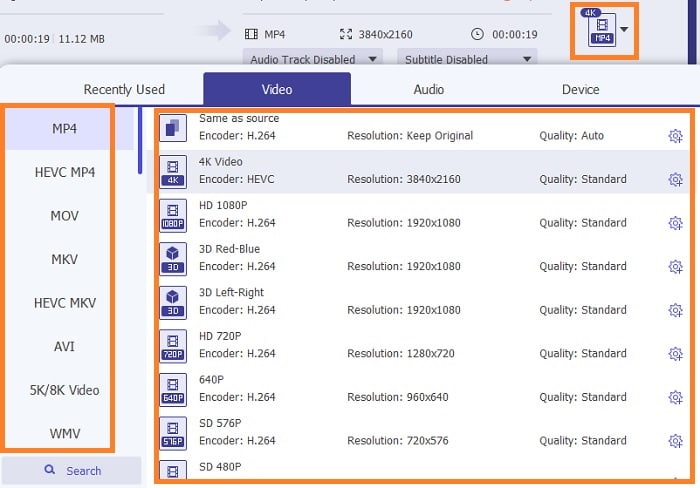
Trinn 3. Velg formatet du ønsker i rullegardinmenyen Convert All to. Deretter klikker du på knappen Convert All for å starte konverteringen.
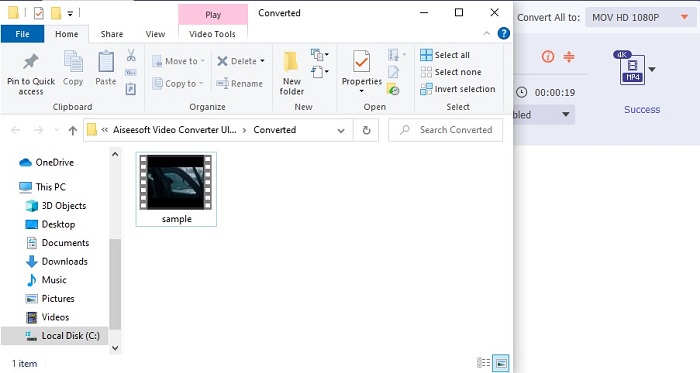
Trinn 4. Selve konverteringen vil bare ta litt av tiden din. Deretter kan du sjekke filen og overføre den til mobilenheten din senere. Etter alt dette er du ferdig og kan nyte den konverterte videoen du nettopp har laget.
Videre lesning
Hvordan konvertere AVI til GIF
Del 4. Vanlige spørsmål om GIF til video-appen
Hvor høy er fps for en enkelt GIF-fil?
Noen av standard GIF-ene kan gå opp til 15 eller 24 bilder per sekund, men på grunn av teknologi kan den nå gå 30 til 50 fps per GIF som tar mer lagringsplass hvis du laster dem ned til telefonen.
Hva er de forskjellige typene GIF-er?
Hvis du ikke la merke til at det er 5 forskjellige typer GIF-er, disse er: replay, reaksjons-GIF, kinograf, teknisk og de perfekte loop-GIF-ene.
Hva er innsiden av en GIF?
Alle GIF-er inneholder en serie bildedata som kan være et animert bilde, korte klipp om filmene og et bevegelig bilde hvis det er på nettet.
Konklusjon
For å konkludere, er alle de valgte verktøyene i denne artikkelen valgt riktig for brukeren å vite. Å lære å lage en GIF er et stort talent som selv du kan gjøre hvis du har dedikasjon og hvis du bruker riktig verktøy. Bruker du for eksempel en hammer til å åpne en boks? Så hvis du bruker en hammer, åpne en boks og ta ut det som er inni. Stoffet på boksen er nå ødelagt. Akkurat som ved konvertering hvis du bruker feil verktøy er det stor mulighet for at konverteringen mislykkes. Så velg det riktige verktøyet for jobben som Video Converter Ultimate.
-
 [Veiledning] Hvordan konvertere M4V-videoer til animerte GIF-er på Windows/Mac
 Hvis du vil lage animerte GIF -filer fra dine favoritt M4V -videoer, kan du lære om to enkle og effektive måter å konvertere M4V -videoer til GIF -er med tilpassede innstillinger.
-
 WebM til GIF - 3 gratis WebM til GIF -omformere for å lage dine egne GIF -er
 Er WebM en GIF? Hvordan gjøre en video til en GIF? Er det noen gratis WebM til GIF -omformer? Dette innlegget deler 3 gratis måter å hjelpe deg med å konvertere WebM til GIF.
-
 Hvordan konvertere MKV -videoer til animerte GIF -er uten Photoshop/FFmpeg
 Etter at du har lastet ned og sett MKV -filmer på datamaskinen din, vil du kanskje dele noen fantastiske øyeblikk med venner eller på Internett som GIF -er. I denne artikkelen kan du lære om de 2 enkleste måtene å konvertere MKV til GIF.
