


 Skjermopptaker
 Videoreparasjon
 Sikker nedlasting
Slik fjerner du bakgrunn fra GIF-er ved å bruke effektive programmer
GIF er en forkortelse for Graphics Interchange Format og brukes mye i nettkommunikasjon, for eksempel når man sender meldinger til noen eller til og med kommenterer på et innlegg. Å fjerne bakgrunnen fra GIF-er eller bilder kan være vanskelig hvis du ikke har programvare som er laget for akkurat den typen oppgave! På grunn av GIF-enes popularitet er flere brukere nysgjerrige på hvordan de kan redigere og lage sine egne GIF-er. Heldigvis har vi samlet pålitelig og brukervennlig nettbasert programvare som kan hjelpe brukere med å fjerne bakgrunnen fra GIF-er.
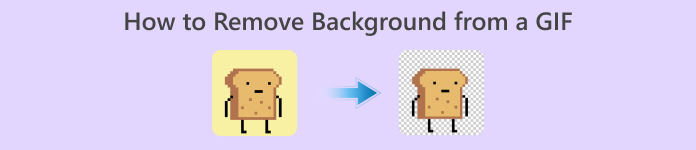
Anbefalt: FVC Free Background Remover
FVC Free Background Remover er et nyttig verktøy når det gjelder å fjerne bakgrunnen fra bildene dine. Det bruker AI til å finne og gjenkjenne personen i bildet. I tillegg er verktøyet tilgjengelig på Windows/Mac. Alt i alt er det et praktisk og pålitelig verktøy du kan bruke når som helst og hvor som helst.
Trinn 1. Last opp bilde/GIF
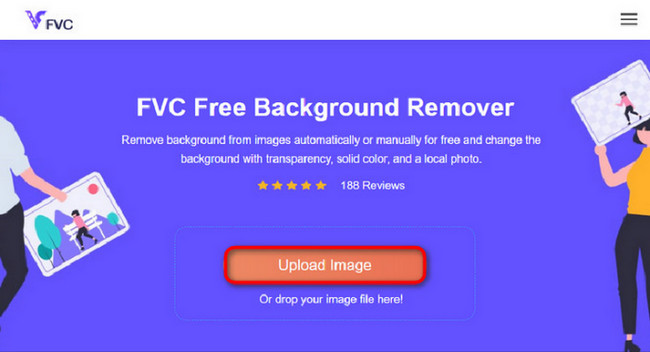
Det første trinnet er å åpne nettleseren på datamaskinen din. Når du åpner det nettbaserte programmet, får du med én gang muligheten til å laste opp bildet ditt. Klikk på Upload Image for å legge til GIF-en du vil fjerne bakgrunnen fra.
Trinn 2. Rediger bilde
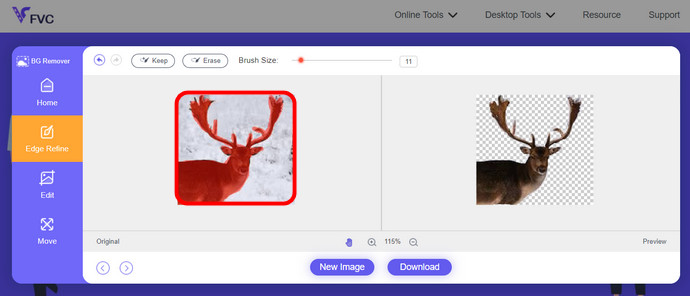
Etter opplasting har du nå lov til å fjerne eventuelle upresise høydepunkter fra AI-gjenkjenningen. Bare klikk og dra musen, og gjør det slik du vil.
Trinn 3. Last ned redigert bilde
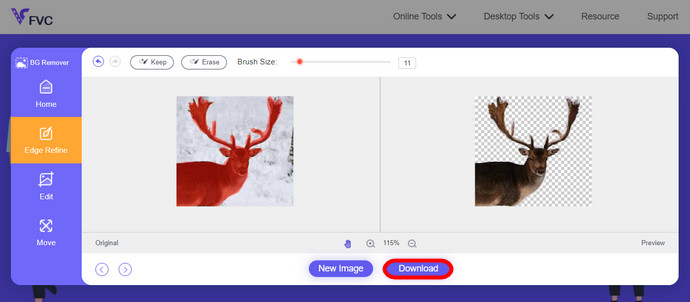
Til slutt klikker du på Download-knappen. Du har nå lykkes med å fjerne bakgrunnen fra bildet ditt.
Del 1. Fjern GIF-bakgrunn ved å bruke EZGIF.com
Denne nettbaserte programvaren er en programvare for redigering og konvertering av bilder/gif. Den kan redigere og konvertere GIF, PNG, WEBP, IMG og mange flere formater. Her kan du redigere GIF-en din med redigeringsprogramvare som følger med programvaren.
Trinn 1. Gå til nettstedet
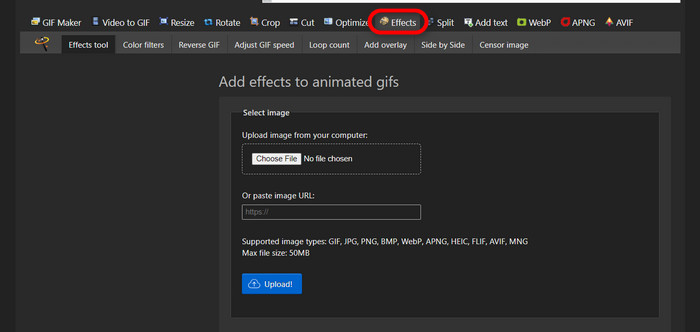
For å bruke dette nettverktøyet åpner du nettleseren og skriver inn lenken. Du får umiddelbart alternativer tilpasset behovene dine. Dette nettstedet gir deg muligheten til å fjerne bakgrunnen fra GIF-en din. Klikk på Effects for å begynne.
Trinn 2. Velg og last opp et bilde/en GIF
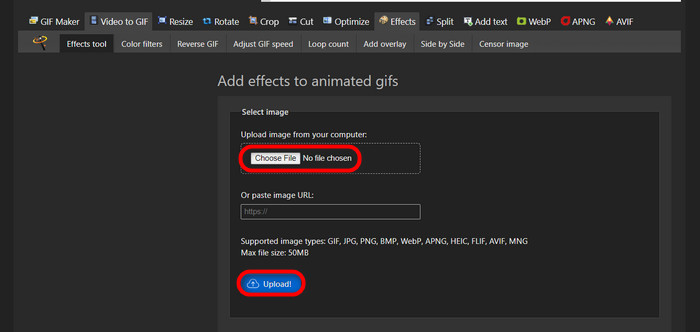
Velg nå filen du vil laste opp. Klikk på Choose Files, finn den i den angitte mappen, og trykk på Upload for å laste opp den valgte filen.
Trinn 3. Rediger bilde
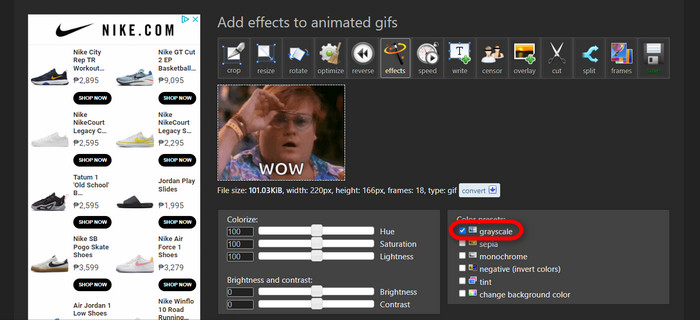
Når du har lastet opp, er du nesten ferdig med å fjerne bakgrunnen fra GIF-en din eller gjøre bakgrunnen på GIF-en svart. Klikk nå på grayscale for å gjøre bakgrunnen mørk.
Trinn 4. Forhåndsvis og konverter bilde/GIF
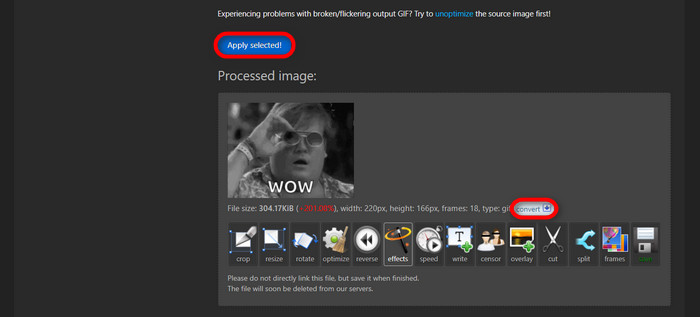
Etter at du har lagt til effekter, endret størrelse og beskåret den nye GIF-en din, klikker du på Apply Selected, og du får en forhåndsvisning av den redigerte GIF-en. Deretter klikker du på convert-knappen for å laste ned filen din.
Del 2. Lag en GIF uten bakgrunn i Remove.bg
Denne siden er også designet for å fjerne enhver bakgrunn fra ethvert bilde. Her gir det deg muligheten til fortsatt å redigere det automatisk fjernede bakgrunnsbildet ditt. Den er drevet med en dyktig AI som kan gjenkjenne hovedmotivet og fjerne bakgrunnen feilfritt.
Trinn 1. Last opp bilde/GIF
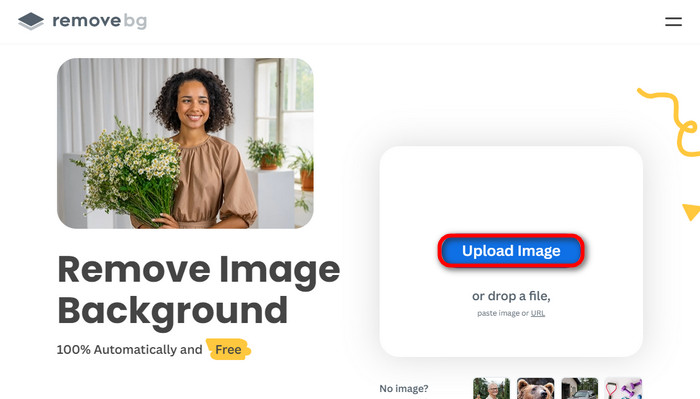
La oss begynne med å laste opp bildet vårt. Åpne den nettbaserte programvaren i nettleseren når du er på siden. Klikk deretter på Upload Image.
Trinn 2. Se gjennom og rediger bilde
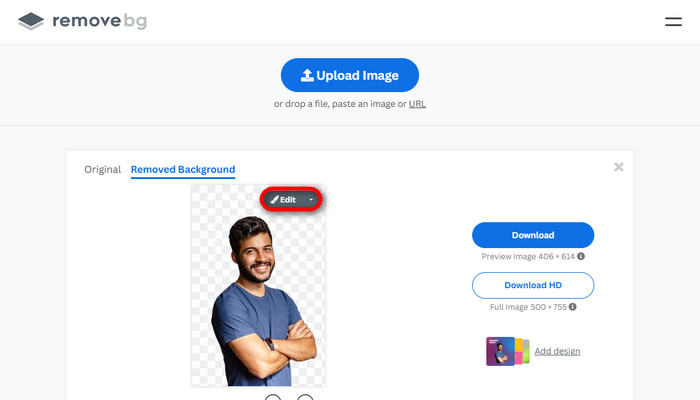
Når bildet ditt er lastet opp, skal bakgrunnen allerede være fjernet automatisk, men du kan fortsatt redigere bildet. Du kan se originalbildet ved å klikke på Original-knappen ved siden av Removed Background-knappen. Brukere kan legge til en svart bakgrunn i bildet sitt uten problemer ved hjelp av denne programvaren.
Trinn 3. Last ned redigert bilde
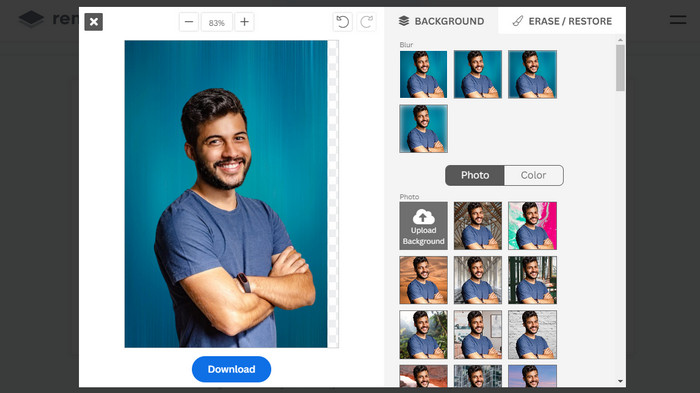
I denne delen er du nå ferdig med redigeringen, og du kan laste ned bilde-filen din. Bare klikk på Download-knappen under bildet ditt.
Del 3. Bruk GIFmagic i GIF-bakgrunnsfjerning
I GIFmagic, spesialeffekter, legge til tekst, animere og mye mer! Disse er alle mulige ved å bruke dette nettbaserte programmet. GIF-er er enkle å jobbe med når det kommer til redigering i denne programvaren!
Trinn 1. Last opp bilde/GIF
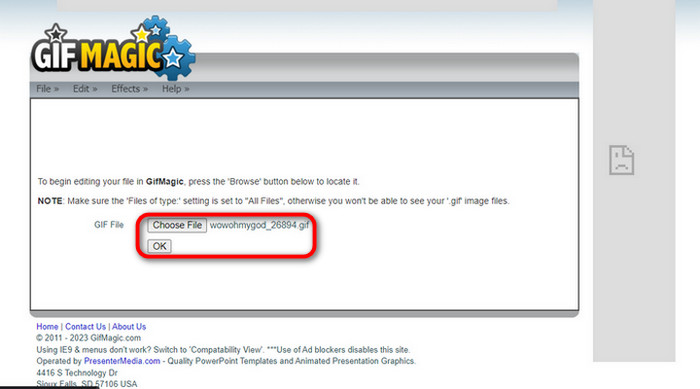
Når du har logget inn, lar nettstedet deg laste opp den valgte filen til programmet. Du kan laste opp .gif- eller .img-filer, noe som er nyttig for andre brukere. For å velge fil klikker du på Upload, og når du har valgt filen din, klikker du på OK-knappen.
Trinn 2. Rediger bilde
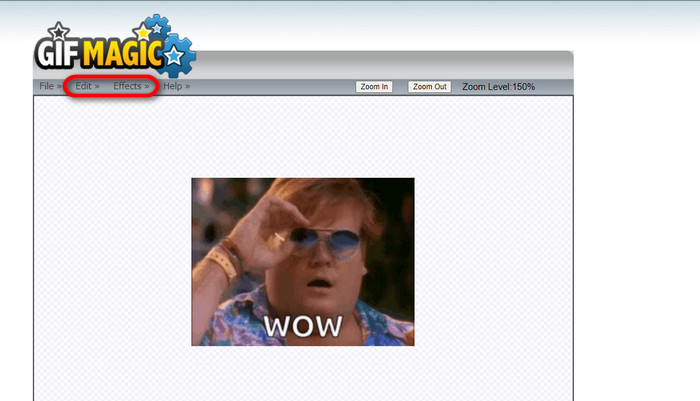
Når du kommer inn på siden, vil du se knappene Edit og Effects ved siden av File-knappen. Filen din kan redigeres i denne delen, så slå deg løs og kos deg med redigeringen.
Trinn 3. Last ned redigert GIF
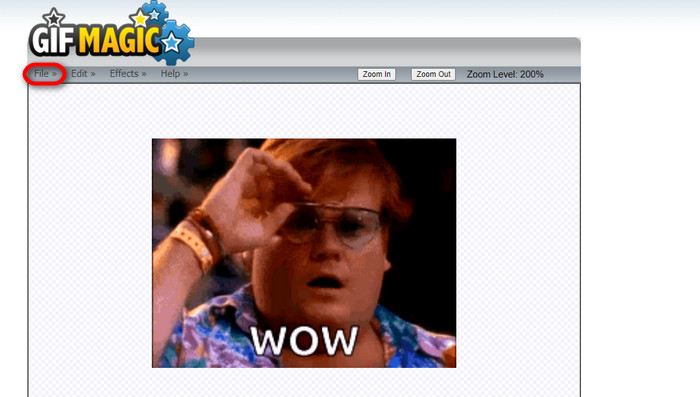
Når du har gjort GIF-en din gjennomsiktig i bakgrunnen, klikker du bare på File-knappen og deretter på Save. Voila! Ferdig og lastet ned.
Del 4. Gjør GIF-bakgrunn transparent ved å bruke LunaPic
LunaPic er et gratis online verktøy som er i stand til å fjerne bakgrunns-GIF-er på nettet. Den kan vurdere og redigere PNG, GIF, JPG, JPEG og mange flere typer bilder. Det er en godt forankret programvare som brukes til redigering på mange plattformer.
Trinn 1. Last opp bilde/GIF
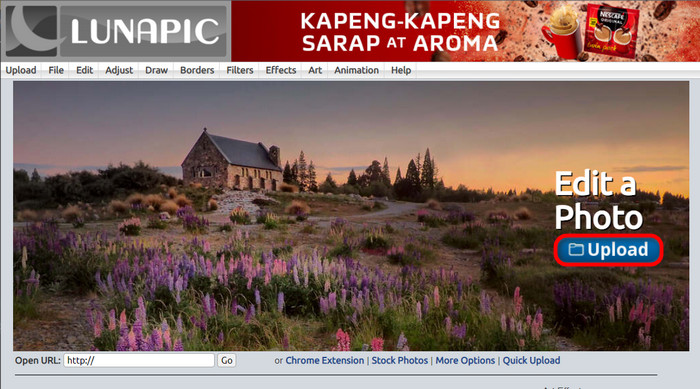
Når du har gått inn på nettstedet i standardnettleseren din eller en hvilken som helst nettleser du foretrekker, laster du opp .img- eller .gif-filen til siden. Bare klikk på Upload-knappen.
Trinn 2. Rediger bilde/GIF
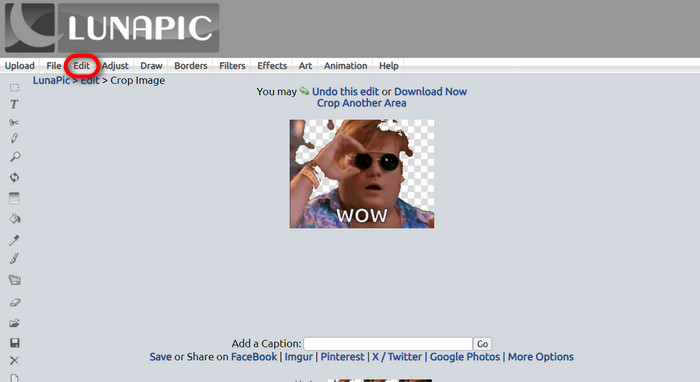
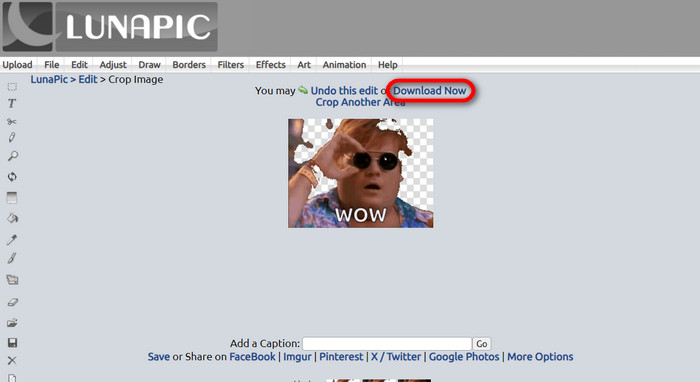
Deretter kan du redigere filen og gjøre GIF-bakgrunnen gjennomsiktig ved å klikke på Edit og deretter Crop Image-verktøyknappen. Begynn å beskjære bakgrunnsbildet.
Trinn 3. Last ned redigert GIF
Etter at du har beskåret bakgrunnen, eller hvis du har forsøkt å lage en hvit bakgrunns-GIF, kan du nå klikke på Download now!-knappen for å lagre den redigerte filen din!
Mer lesing:
4 beste måter å fjerne vannmerket fra en GIF på [online og offline]
Avdekking av toppverktøy for datamaskin, nett og mobil

Video Converter Ultimate
345+ nedlastinger- Nyt å se videoene dine uten de irriterende vannmerkene som blokkerer innholdet ditt.
- Lag videoer av god kvalitet som har høye oppløsninger for bedre visning.
- La deg fjerne et hvilket som helst vannmerke fra alle typer video.
- Gi deg utallige formater du kan konvertere filen til.
Gratis nedlastingFor Windows 7 eller nyereSikker nedlasting
Gratis nedlastingFor MacOS 10.7 eller nyereSikker nedlasting
Del 5. Vanlige spørsmål om fjerning av bakgrunn
Kan jeg konvertere en animert PNG til en GIF?
Ja, det er mulig å konvertere PNG til GIF. Det finnes imidlertid flere typer data som kan konverteres til flere formater så lenge du har riktig program.
Kan jeg endre fargen på GIF-bakgrunnen min etter å ha fjernet den?
Det finnes absolutt mange programmer som tilbyr denne typen funksjoner. Prøv FVC Background Remover for enkel fjerning av bakgrunn.
Kan jeg lage en GIF-bakgrunn gjennomsiktig i maling?
Nei, maling har ikke den typen evne. Men du kan se etter andre programmer som tilbyr den slags jobb.
Hva er en animert GIF med gjennomsiktighet?
En animert GIF med gjennomsiktighet er et bilde som kun viser en viss del av bildet når det er plassert på en bestemt nettside. Den kan ha flere bilder vist hvis den settes inn på et annet nettsted.
Tillater GIF åpenhet?
Ja, men ikke helt gjennomsiktig. Den støtter bare 1-bits gjennomsiktighet.
Konklusjon
Det er nå stor betydning og etterspørsel etter programmer som kan redigere GIF-er, slik som dem som er nevnt ovenfor. Beskjæring, redigering, lagdeling og sletting er nå mulig med bare noen få klikk. Brukere er nå nyskapende og tenker på ting som ingen har gjort før, som for eksempel å lage en GIF med hvit bakgrunn. Det er brukere som disse som er grunnen til at kraftige programmer som dette er utviklet, som FVC Background Remover.
-
 Velg den beste GIF-beskjæreren online og offline for å beskjære GIF-er [2023]
 Å velge det beste beskjæringsverktøyet er et must mens denne funksjonen på GIF-produsenter er tilgjengelig. Så hva er ditt beste valg for å beskjære filer og hvordan du bruker det?
-
 Lær 4 måter å lage GIF-er fra bilder [online og offline]
 Vil du vite hvordan du lager GIF-er fra kompilering av bildene dine? Klikk deretter på denne lenken og les følgende eksempler
-
 Loop GIF med den beste animerte GIF Looper på Windows og Mac
 Vil du vite hemmeligheten for den beste loop GIF-en og lage en? I så fall er du på rett sted. Lær hvordan du lager en løkke med den beste løkkeren som er tilgjengelig.
