


 Video Converter Ultimate
 Skjermopptaker
 Videoreparasjon
 Sikker nedlasting
GIF-splittere: Toppverktøy for å dele og tilpasse animerte bilder
Hvis du noen gang har ønsket å bruke en bestemt del av en GIF, men fant deg fast med hele animasjonen, er du ikke alene. GIF-er er populære for deres evne til å formidle følelser og reaksjoner på kort tid, men noen ganger trenger vi bare en del av tingen for å få frem budskapet vårt. Det er her viktigheten av å dele GIF-filer kommer inn.
Med hjelp av GIF-splittere kan du enkelt hente ut den nøyaktige delen av GIF-en du trenger og bruke den i prosjektet ditt eller i et innlegg på sosiale medier. Dette innlegget gir deg en oversikt over noen av de beste GIF-splitterne som finnes på markedet i dag.

Del 1. Enkel måte å dele GIF-er på
1. FVC Video Converter Ultimate
Hvis du bare trenger å trimme en liten del av en GIF, kan du bruke FVC Video Converter Ultimate. Det er et allsidig program som tilbyr en rekke funksjoner for videokonvertering og -redigering. I tillegg støtter verktøyet et bredt spekter av videoformater og lar brukerne justere videoinnstillinger som oppløsning, bitrate og bildefrekvens. Selv om det ikke har en egen funksjon for å splitte GIF-filer, kan videoklipper-funksjonen utføre denne oppgaven.
FVC Video Converter Ultimate kan være et verdifullt verktøy for de som leter etter en enkel og grei måte å dele GIF-filer på. Med sitt intuitive grensesnitt og brukervennlige videotrimmingsfunksjon, gir den en praktisk løsning for brukere som bare trenger å gjøre mindre endringer i GIF-ene sine. I tillegg kommer den med en rekke andre funksjoner, som batchbehandling og GPU-akselerasjon, som gjør den til et omfattende videokonverterings- og redigeringsverktøy. Hvis du ønsker å lære hvordan du deler GIF-er offline, her er trinnene du kan følge:
Trinn 1. Skaff deg programvaren
For å komme i gang velger du bare en lenke fra listen over gratis Nedlasting-knapper nedenfor. Deretter følger du instruksjonene på skjermen for å fullføre installasjonen av programmet på enheten din. Når installasjonen er ferdig, kan du starte appen og gå inn i hovedmenyen.
Gratis nedlastingFor Windows 7 eller nyereSikker nedlasting
Gratis nedlastingFor MacOS 10.7 eller nyereSikker nedlasting
Trinn 2. Legg til en GIF-bildefil
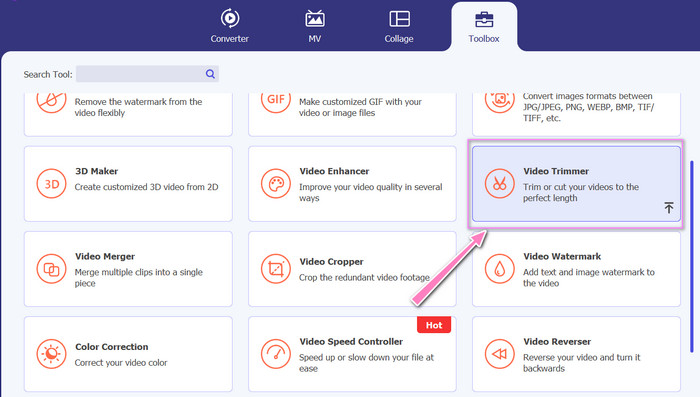
Velg verktøyet Video Trimmer fra menyen Toolbox. Når det er gjort, klikker du på +-knappen for å laste opp en GIF.
Trinn 3. Del GIF-filen
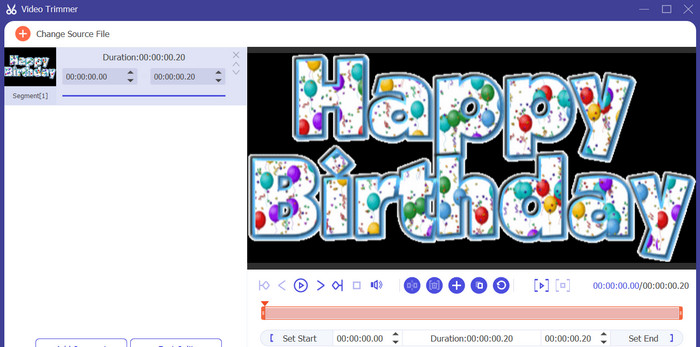
Når GIF-en er lastet opp, vil den vises på programmets grensesnitt for å gjøre endringer. Velg start- og sluttpunktene til GIF-en du vil slette ved å bruke glidebryteren.
Trinn 4. Behold GIF-en du lagde
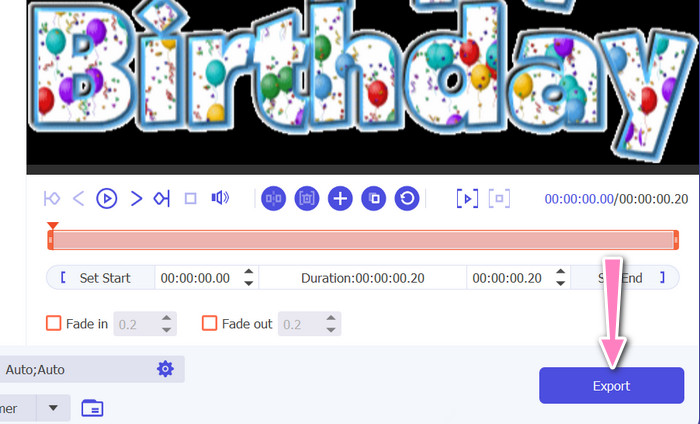
Når du er ferdig med å tilpasse GIF-en, klikker du på knappen Export nederst til høyre i verktøyet for å starte gjengivelsesprosessen.
2. EZGIF
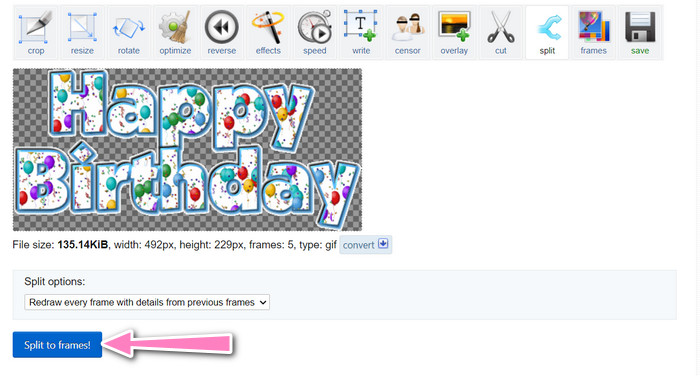
EZGIF er et nettbasert verktøy som tilbyr en rekke funksjoner for arbeid med GIF-filer. Nettstedet gir deg ulike verktøy for å lage, redigere og optimalisere GIF-er, inkludert endring av GIF-størrelse, beskjæring og splitting. Det har også funksjoner for å legge til tekst og spesialeffekter i GIF-ene dine og lar deg til og med konvertere videoer og bilder til GIF-format. Hvis du derfor ønsker å splitte GIF-er til enkeltbilder på nett, er dette et perfekt valg. Dessuten er EZGIF en brukervennlig plattform som ikke krever nedlasting eller installasjon, noe som gjør den lett tilgjengelig fra enhver nettleser. Finn ut hvordan dette verktøyet fungerer og del GIF-er opp i bilder.
Trinn 1. For å splitte en GIF med Ezgif, åpner du EZGIF-nettstedet i nettleseren din.
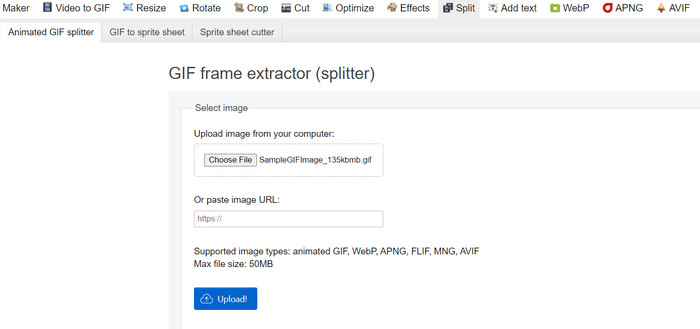
Trinn 2. Velg alternativet Split fra toppmenyen, og juster deretter innstillingene etter behov.
Trinn 3. Klikk på knappen Choose File for å laste opp GIF-filen du vil splitte. Alternativt kan du dra og slippe filen inn i EZGIF-grensesnittet.
Trinn 4. Velg deretter delingsmetoden du vil bruke. Du kan splitte GIF-en etter et bestemt antall bilder (frames), etter bestemte tidsintervaller, eller ved å velge bestemte bilder du vil beholde.
Trinn 5. Juster innstillingene for delingsmetoden du valgte. Klikk på knappen Split to frames! for å starte delingsprosessen. Det finnes også tilgjengelige alternativer for å splitte GIF til PNG eller JPG, avhengig av hva du trenger.
Del 2. Profesjonell måte å dele GIF-filer på
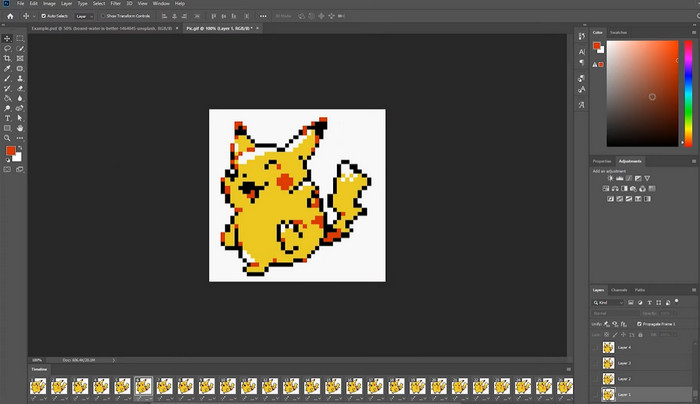
Å dele en GIF i enkeltbilder i Photoshop er fullt mulig. Det gir mye fleksibilitet og kontroll når du jobber med animerte GIF-er. Med Photoshop kan du åpne en GIF-fil og redigere hver enkelt bildesekvens i animasjonen, slik at du kan gjøre justeringer og legge til filtre på hvert bilde separat. Dette betyr at du kan lage komplekse animasjoner, legge til tekst eller grafikk, og justere tidsintervallet for hvert bilde for å skape en jevn og profesjonell animasjon. For å lære mer om redigeringsmulighetene Photoshop tilbyr for GIF-er, kan du se trinnene nedenfor:
Trinn 1. Åpne GIF-filen i Photoshop ved å gå til File > Open og velge filen.
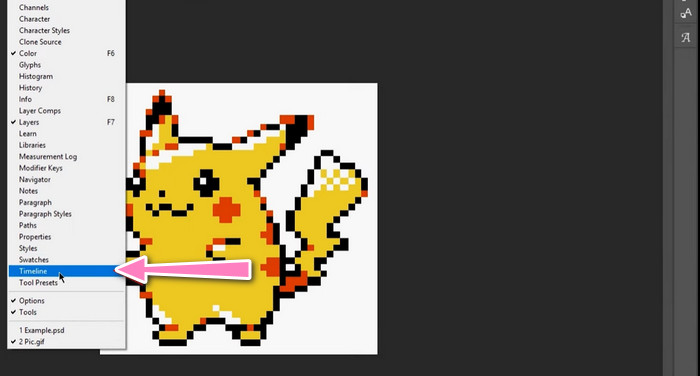
Trinn 2. Når filen er åpnet, går du til Window > Timeline for å åpne panelet Timeline.
Trinn 3. I panelet Timeline skal du se hver bildesekvens i animasjonen representert som et eget lag. Hvis du ikke ser panelet Timeline, klikker du på menyknappen øverst til høyre i panelet og velger Create Frame Animation.
Trinn 4. For å splitte GIF-en klikker du på menyknappen i panelet Timeline og velger Make Frames From Layers. Dette vil opprette en egen bildesekvens for hvert lag i animasjonen.
Trinn 5. Nå kan du redigere hver bildesekvens individuelt ved å velge den i panelet Timeline og gjøre ønskede endringer.
Trinn 6. Gå til File > Export > Layers to Files for å eksportere hver bildesekvens som en egen fil. I eksportdialogen velger du ønsket filformat og målmappen, og klikker deretter på Run for å eksportere filene.
Del 3. Vanlige spørsmål om splitting av GIF-er
Kan jeg dele en GIF i bestemte seksjoner eller tidsintervaller?
Ja, du kan dele en GIF i bestemte seksjoner eller tidsintervaller ved å bruke nettbaserte verktøy eller bilderedigeringsprogramvare.
Kan jeg bruke videoredigeringsprogramvare til å dele GIF-er?
Ja, mange videoredigeringsprogrammer kan brukes til å dele GIF-er. For eksempel er FVC Video Converter Ultimate, Adobe Premiere Pro og Final Cut Pro X populære alternativer.
Hvordan justerer jeg timingen for individuelle bilder i en GIF?
Du kan justere tidspunktet for individuelle rammer i en GIF ved å bruke et nettbasert verktøy eller bilderedigeringsprogramvare som Photoshop.
Konklusjon
Å splitte en GIF-fil kan være en nyttig teknikk for å lage nye animasjoner, redigere eksisterende eller dele bestemte bilder eller deler. Enten du foretrekker å bruke nettbaserte verktøy eller bildebehandlingsprogrammer som Photoshop, finnes det flere alternativer for å splitte GIF-er. Ved å følge trinnene som er beskrevet i denne artikkelen og utforske de ulike tilgjengelige verktøyene, kan du enkelt splitte GIF-ene dine og lage nye animasjoner.
-
 Fremragende metoder for hvordan du deler videoer effektivt
 Denne artikkelen vil forklare hvordan du deler en video i deler. Så hvis du er interessert, klikk på dette innlegget da vi tilbyr deg de enkleste måtene å prøve.
-
 Lær 4 måter å lage GIF-er fra bilder [online og offline]
 Vil du vite hvordan du lager GIF-er fra kompilering av bildene dine? Klikk deretter på denne lenken og les følgende eksempler.
-
 3 enkleste måter å legge til vannmerke til en GIF online og offline
 Å legge til et vannmerke til en GIF kan være så enkelt som 1-2-3 hvis du bruker riktig verktøy. Verktøyene i markedet er for brede, men vi vil presentere de tre verktøyene du kan stole på.
