


 Video Converter Ultimate
 Skjermopptaker
 Videoreparasjon
 Sikker nedlasting
Hvordan konvertere MOV til GIF: En omfattende guide for å øke tilstedeværelse på nettet
For å holde publikums oppmerksomhet i dagens raske digitale verden krever det å lage engasjerende visuelt innhold. Animerte GIF-er er mye brukt på grunn av deres evne til å formidle komplekse konsepter, følelser og merkevaremeldinger på en morsom og minneverdig måte. Men ikke alle videoformater er tilgjengelige via flere plattformer og enheter. For å gjøre dette kan du bruke en MOV til GIF-omformer.
En lett, høykvalitets animasjon som enkelt kan deles på nettstedet ditt, i sosiale medier og i meldingsapper, kan lages ved å konvertere MOV-filene dine til animerte GIF-er. Du kan ytterligere forbedre den markedsføringsmessige effekten av GIF-ene dine ved å legge til tekst, filtre og branding. Å konvertere fra MOV til GIF kan virke komplisert, men det finnes flere konverteringsprogrammer både på nett og som skrivebordsprogrammer som gjør prosessen enklere. Denne artikkelen vil vise deg hvordan du konverterer MOV til GIF og gå nærmere inn på fordelene ved å gjøre det.

Del 1. Konverter MOV til GIF frakoblet
Mens offline verktøy krever en engangsinstallasjon, tilbyr de større fleksibilitet og kontroll over filkonverteringsprosesser. Det er viktig å velge en anerkjent programvareleverandør og holde programvaren oppdatert for å sikre optimal ytelse og sikkerhet. Når det er sagt, ga vi her en liste over programmer for å hjelpe deg med å konvertere MOV til GIF på Mac, Windows og iPhone. Sjekk dem ut for å lære mer.
FVC Free Video Converter har muligheten til å konvertere MOV-videofiler til GIF-bildefiler. Den gjør denne prosessen enkel ved å tilby et enkelt og intuitivt grensesnitt for å velge MOV-filen din og angi utdata-innstillingene for GIF-filen. Når du konverterer MOV til GIF med FVC Free Video Converter, kan du angi utdata-størrelse og kvalitet for GIF-filen, samt bildefrekvens og andre innstillinger. Programvaren tilbyr også en forhåndsvisningsfunksjon som lar deg forhåndsvise GIF-filen før du lagrer den. Alt i alt er FVC Free Video Converter et nyttig verktøy for alle som ønsker å konvertere MOV-videoer til GIF-bilder for ulike formål. Lær mer om dette programmet ved å se på dets nøkkelfunksjoner.
Nøkkelfunksjoner:
◆ Konverter flere videoer samtidig.
◆ Høyhastighetskonvertering med akselerasjonsteknologi.
◆ Designet for å være enkelt å bruke av brukere.
Trinn 1. Skaff programmet på datamaskinen din
For å lære hvordan du konverterer MOV til GIF, bør du laste ned og installere FVC Free Video Converter på datamaskinen din. Du kan få dette programmet ved å klikke på knappen Free Download nedenfor. Du kan velge mellom installasjonsfil for Mac og Windows.
Gratis nedlastingFor Windows 7 eller nyereSikker nedlasting
Gratis nedlastingFor MacOS 10.7 eller nyereSikker nedlasting
Trinn 2. Legg til den aktuelle MOV-filen(e)
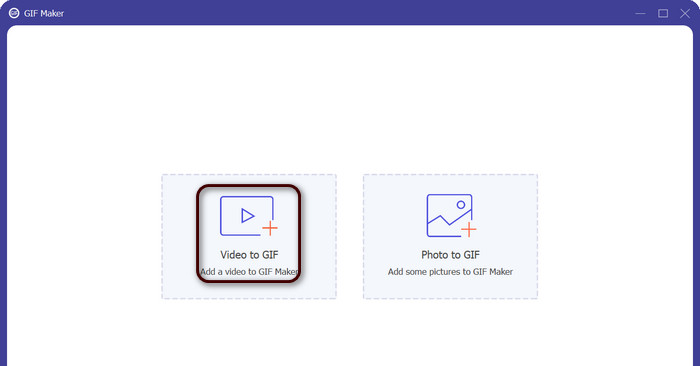
Start programmet for å se hovedgrensesnittet. Gå deretter til fanen Toolbox og klikk på verktøyet GIF Maker. Trykk så på knappen Video to GIF for å legge til MOV-filene du vil bruke.
Trinn 3. Rediger videoen
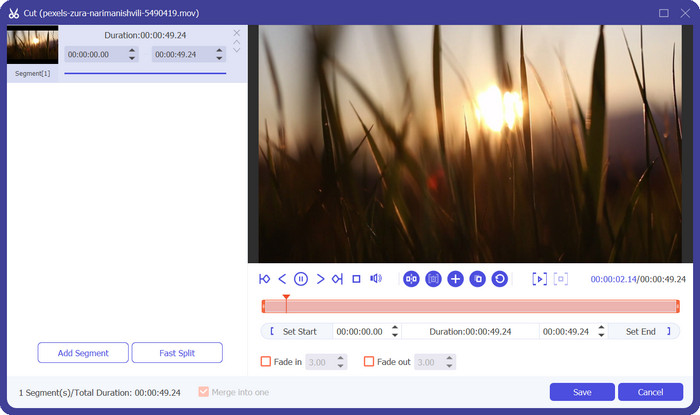
Hvis du ønsker å klippe bort deler av videoen, klikker du på knappen Cut. Bruk nå glidebryteren eller skriv inn spesifikke start- og sluttider for å velge den delen av videoen du vil bruke til GIF-en. Deretter tilpasser du GIF-innstillingene, inkludert utdata-størrelse, bildefrekvens og kvalitet. Du kan også legge til tekst eller klistremerker i GIF-en ved å klikke på knappen Edit.
Trinn 4. Endre MOV til GIF
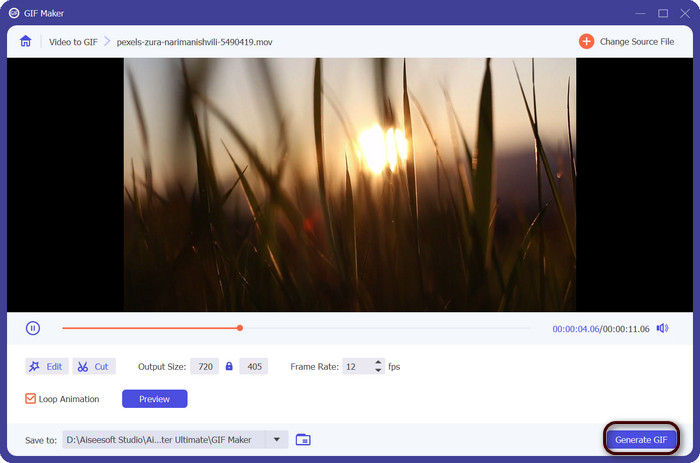
Forhåndsvis GIF-en for å forsikre deg om at den ser ut slik du vil ha den. Klikk på knappen Generate GIF for å opprette GIF-en din. GIF-filen blir lagret på datamaskinen din på stedet du spesifiserte i utdata-innstillingene.
2. FFmpeg
FFmpeg er et allsidig og kraftig programvareverktøy som gir utviklere, mediefagfolk og hobbyfolk en rekke funksjoner for å jobbe med lyd- og videofiler. Med sin kompatibilitet på tvers av plattformer kan du bruke FFmpeg på forskjellige operativsystemer, noe som gjør det til en ideell løsning for prosjekter som krever fleksibilitet og allsidighet. En av de fremtredende funksjonene til FFmpeg er dens evne til å håndtere ulike lyd- og videofilformater, inkludert populære formater som MP4, MOV, AVI og mer. Lær hvordan du gjør MOV til GIF ved å bruke følgende instruksjoner.
Nøkkelfunksjoner:
◆ Konvertering og transkoding.
◆ Støtte for et bredt spekter av video- og lydformater.
◆ Streaming og kringkasting.
◆ Kommandolinjegrensesnitt.
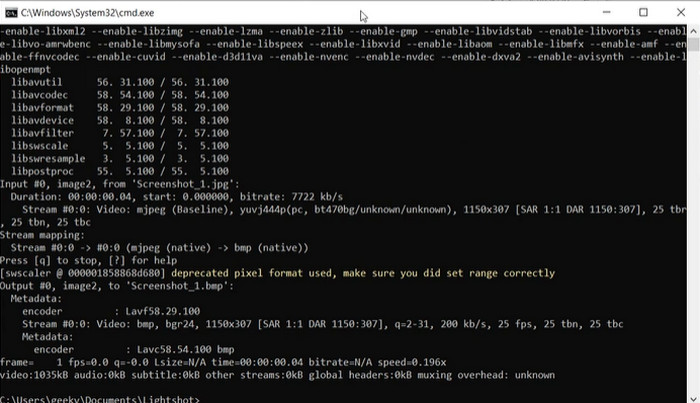
Trinn 1. Åpne ledetekst (Command Prompt) eller et terminalvindu på datamaskinen din. Naviger deretter til mappen der MOV-filen din ligger for å starte FFmpeg-konverteringen fra MOV til GIF.
Trinn 2. Skriv inn følgende kommando: ffmpeg -i input.mov output.gif. Erstatt input.mov med navnet på MOV-filen din, og output.gif med ønsket navn på GIF-filen. Valgfritt kan du tilpasse resultatet ved å legge til flere flagg i kommandoen. For eksempel kan du sette bildefrekvensen for den ferdige GIF-en ved å legge til flagget -r, slik: ffmpeg -i input.mov -r 10 output.gif. Dette setter bildefrekvensen til 10 bilder per sekund.
Trinn 3. Trykk Enter for å kjøre kommandoen. FFmpeg vil konvertere MOV-filen din til en GIF, og den ferdige filen blir lagret i samme mappe som kildefilen. Slik gjør du en MOV om til en GIF.
3. Photoshop
Adobe Systems Photoshop er industristandard programvare for redigering og design av digitale bilder. Tallrike fagfolk innen fotografi, grafisk design og kunst er avhengige av det for å generere og endre digitale bilder, grafikk og kunstverk. Heldigvis gjør Photoshops mange verktøy det enkelt å transformere MOV-videoer til GIF-er. Noen av høydepunktene inkluderer følgende:
Nøkkelfunksjoner:
◆ Videotidslinjefunksjon for import av videofiler.
◆ Eksporter GIF-er i forskjellige størrelser og oppløsninger.
◆ Lag bilde-for-bilde-animasjoner med et animasjonspanel.
Trinn 1. Åpne Photoshop på datamaskinen din og gå til File > Import > Video Frames to Layers. I dialogboksen Import Video to Layers velger du MOV-filen din og klikker Open.
Trinn 2. I dialogboksen Video Layer velger du From Beginning to End hvis du vil bruke hele videoen, eller Selected Range Only hvis du bare vil bruke en del av videoen. Klikk deretter OK.
Trinn 3. Photoshop importerer videorammene som lag. Gå til Window > Timeline for å åpne animasjonspanelet. I animasjonspanelet klikker du på knappen Create Frame Animation.
Trinn 4. Klikk på menyikonet øverst til høyre i animasjonspanelet og velg Make Frames From Layers. I animasjonspanelet kan du justere varigheten for hver ramme ved å klikke på tiden under hver ramme og skrive inn en ny verdi.
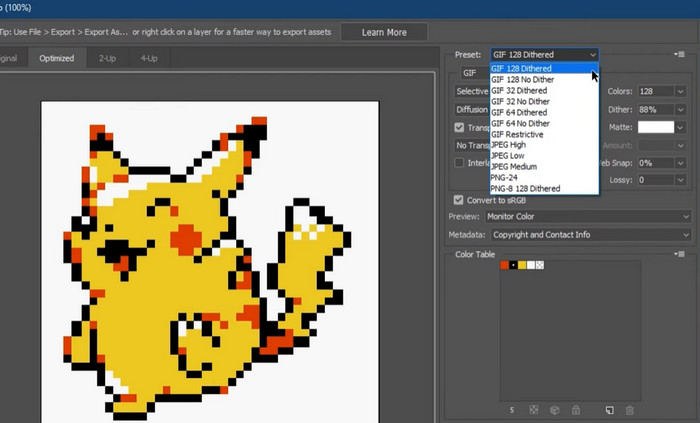
Trinn 5. Når du er fornøyd med GIF-en din, går du til File > Export > Save for Web (Legacy). I dialogboksen Save for Web velger du GIF som filtype. Juster innstillingene etter behov, som størrelse, fargepalett og optimaliseringsalternativer. Klikk Save for å lagre GIF-en. Slik eksporterer du MOV til GIF i Photoshop.
Del 2. Konverter MOV til GIF Online
Å bruke nettbaserte programmer for å konvertere filer gir en praktisk og tilgjengelig måte å konvertere filer på uten å måtte installere programvare eller navigere i kompliserte grensesnitt. Hvis du er nysgjerrig på hvilket program du skal bruke, kan du ta en titt på de beste MOV til GIF online-konvertererne nedenfor.
1. Gratis Video Converter Online
Free Video Converter Online fra FVC tilbyr et enkelt og brukervennlig grensesnitt, som gjør at brukere raskt og enkelt kan konvertere videofilene sine. Brukere kan velge inn-fil og ønsket utdataformat og -kvalitet. Verktøyet lar også brukere tilpasse ulike innstillinger, inkludert videooppløsning, bitrate og bildefrekvens.
Trinn 1. Start med å åpne en nettleser og gå til nettstedet for FVC Free Video Converter Online.
Last ned skrivebordsversjonen for å konvertere filer i batch.
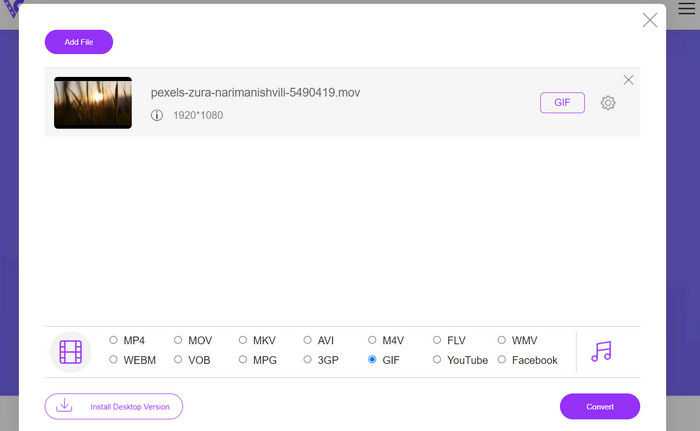
Trinn 2. Klikk nå på knappen Add Files to Convert for å laste opp MOV-videofilen du vil konvertere. Du kan også dra og slippe filen inn i det angitte området.
Trinn 3. Velg utdataformat ved å krysse av for GIF-radioknappen. Trykk på knappen Convert for å starte konverteringsprosessen.
2. CloudConvert
CloudConvert er et nettbasert filkonverteringsprogram som lar brukere konvertere ulike typer filer, inkludert videoer, bilder, dokumenter og mer. Den tilbyr et bredt spekter av konverteringsalternativer, som støtter over 200 filformater, inkludert populære formater som MP4, MOV, GIF og andre.
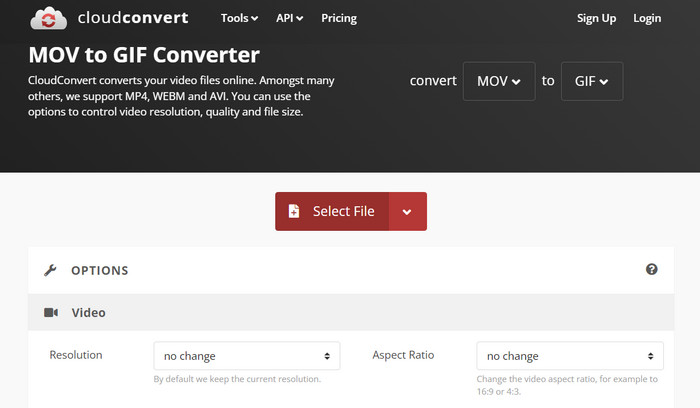
Trinn 1. For å bruke CloudConvert til konvertering fra MOV til GIF, åpner du en nettleser og går til CloudConvert-nettstedet. Klikk på knappen Select Files for å laste opp MOV-filen din.
Trinn 2. Når filen er lastet opp, velger du GIF som utdataformat fra nedtrekksmenyen. Valgfritt kan du tilpasse utdata-innstillingene, som bildefrekvens og bildestørrelse.
Trinn 3. Klikk på knappen Convert for å starte konverteringsprosessen. Når den er ferdig, kan du laste ned den konverterte GIF-filen til datamaskinen din. Slik fungerer dette gratis nettbaserte MOV til GIF-konverteringsverktøyet.
3. EZGIF
EZGIF er en fleksibel nettapp som tilbyr et bredt spekter av alternativer for å jobbe med GIF-er. Programmet er en gratis ressurs for å lage, redigere og optimalisere GIF-er fra videofiler, stillbilder og til og med andre GIF-er. EZGIFs evne til å raskt transformere videofiler til GIF-er er et av de mest tiltalende salgsargumentene. Brukere kan laste opp videoer i formater som MP4, AVI eller MOV og få dem konvertert til GIF-er med innstillinger som bildefrekvens og bildestørrelse som de kan tilpasse etter eget ønske. Bruk EZGIF for MOV til GIF-konvertering ved å følge trinnene nedenfor.
Trinn 1. Start nettleseren din og gå til EZGIF for å konvertere videoen din til en animert GIF.
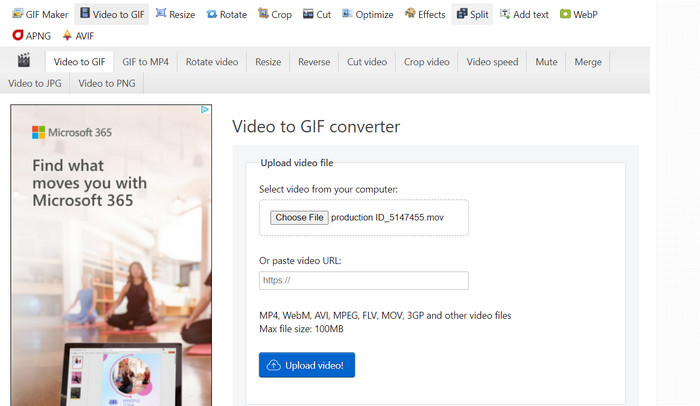
Trinn 2. For å endre en MOV til en GIF klikker du ganske enkelt på Choose File og finner filen du vil endre.
Trinn 3. Bruk de medfølgende glidebryterne til å angi start- og sluttid for GIF-en etter at filen er lastet opp. Du kan også endre størrelsen og bildeteksten til GIF-en. For å starte konverteringen velger du alternativet Convert to GIF.
Videre lesning
[Gratis og på nett] 4 metoder for å konvertere MOV til MP4
Loop GIF med den beste animerte GIF-looperen på Windows og Mac
MOV vs. GIF
MOV-formatet kan brukes til å lagre en film, et TV-program, et kort videoklipp eller en hjemmefilm. Den er faktisk lagret i QuickTime File Format (QTFF), som ble introdusert av Apple i 1991. MOV-filer brukes ofte når folk vil lagre en video med høy kvalitet.
GIF er et vanlig bildeformat for webgrafikk. I tillegg til å lagre små bilder og bilder som inneholder tekst, kan GIF også inneholde og vise grunnleggende animasjoner på nettsteder. Det er et tapsfritt format, og GIF-komprimeringen forringer ikke bildets klarhet.
Del 3. Vanlige spørsmål om MOV til GIF
Hvilke innstillinger bør jeg bruke når jeg konverterer en MOV til en GIF?
Innstillingene du bør bruke når du konverterer en MOV til en GIF vil avhenge av dine spesifikke behov. Vanligvis vil du justere bildefrekvensen, bildestørrelsen og fargedybden for å optimalisere GIF-en for den tiltenkte bruken.
Kan jeg konvertere en del av en MOV-fil til en GIF?
Ja, de fleste verktøy lar deg velge en bestemt del av en MOV-fil som skal konverteres til en GIF. Dette kan være nyttig hvis du bare vil
Hva er noen vanlige bruksområder for GIF-er opprettet fra MOV-filer?
GIF-er laget av MOV-filer kan brukes til en lang rekke formål, inkludert innlegg på sosiale medier, nettstedanimasjoner og e-postmarkedsføringskampanjer.
Konklusjon
Å konvertere MOV til GIF kan være nyttig til en rekke formål, fra å lage engasjerende innhold til sosiale medier til å demonstrere produktegenskaper eller lage veiledninger. Det finnes mange verktøy for å utføre denne konverteringen, fra nettbaserte tjenester som EZGIF og CloudConvert til mer avanserte skrivebordsprogrammer som Photoshop og Adobe After Effects.
-
 5 beste måter å endre bilde til animert GIF [Oppdatert 2023]
 Trenger du et konverteringsbilde til GIF? Denne artikkelen vil gi de fem beste omformerne vi kan finne på markedet. Så la oss finne ut disse verktøyene ved å lese denne artikkelen.
-
 Konverter enkelt MOV til WMV ved å bruke disse fantastiske omformerne
 Vil du konvertere MOV-filen til WMV-fil? Her er de enkle måtene å enkelt konvertere MOV til WMV ved å bruke disse online og offline omformere som vi anbefaler å bruke.
-
 Beste guide for hvordan du klipper ut GIF-er for å krydre innholdet ditt
 Ikke gå glipp av denne må-lese-guiden. Lær hvordan du trimmer og klipper GIF-er for å fange publikums oppmerksomhet med flotte GIF-klippere online og offline.
