


 Video Converter Ultimate
 Skjermopptaker
 Videoreparasjon
 Sikker nedlasting
Hvordan trimme en GIF: Verktøyoversikt og trinn-for-trinn-veiledning
GIF-er er en populær og elsket måte å uttrykke seg på nettet; de er kreative, morsomme og underholdende. Men selv om noen GIF-er faktisk gjenspeiler tankene våre, hender det at GIF-en er for lang, eller at bare en liten del fanger akkurat det vi vil uttrykke. Løsningen? Rediger og klipp den. La oss oppdage raske og enkle måter å trimme en GIF-fil på med ulike verktøy ved hjelp av vår komplette guide, med detaljert verktøysammenligning og app-oversikt, slik at du finner det som fungerer best for deg.

Del 1. Beste metoder for å trimme GIF-er på et skrivebord
1. Video Converter Ultimate
Hvis du vil forbedre bildene og videoene dine, er Video Converter Ultimate det perfekte programmet. Det gir deg mange flotte temaer og maler, samt nyttige verktøy for å redigere og tilpasse videofilene dine. Men kan du trimme en GIF med Video Converter Ultimate? Selvfølgelig. For å bruke Video Converter Ultimate til å trimme GIF-er, følger du disse enkle trinnene.
Trinn 1. Last ned og installer appen
Bruk først den foretrukne nettleseren din til å søke etter Video Converter Ultimate og klikk på den første lenken. Trykk deretter på knappen Free Download for å starte nedlastingen av installasjonsfilen. Når installasjonsfilen er lastet ned, kjør den og installer programmet.
Gratis nedlastingFor Windows 7 eller nyereSikker nedlasting
Gratis nedlastingFor macOS 10.7 eller nyereSikker nedlasting
Trinn 2. Åpne og finn verktøyet Video Trimmer
Start deretter appen. Finn og klikk på Toolbox i menypanelet for å se de nyttige verktøyene som Video Converter Ultimate tilbyr. Du kan søke etter og klikke på Video Trimmer i søkefeltet øverst, eller lete det frem manuelt i listen.
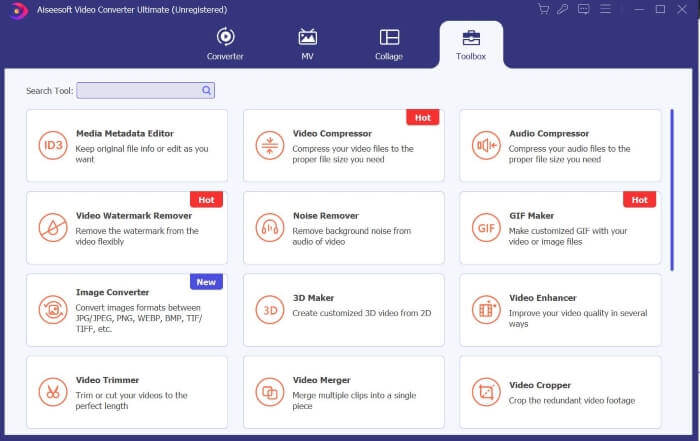
Trinn 3. Last opp filene dine
Klikk på Plus-ikonet for å laste inn filen du vil trimme. Når filen er lastet inn, kan du klippe eller trimme GIF-filen ved å dra eller skyve trimmefeltet til den delen av GIF-en du vil klippe.
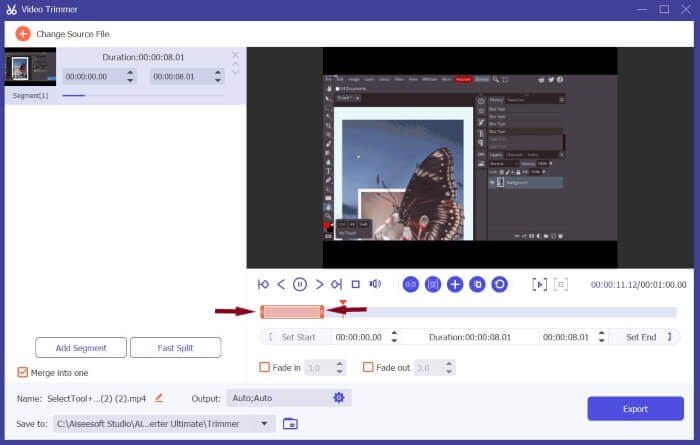
Trinn 4. Still inn formatet til GIF og last ned
Finn Output, klikk på innstillingene og sett formatet til GIF. Etter at du har gjort endringene dine, klikker du på OK for å lagre dem og trykker på Export for å lagre den trimmede filen, og det var det.
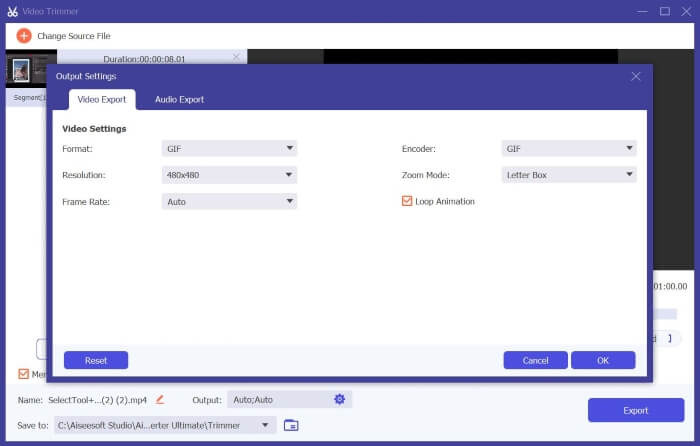
2. Movavi Video Converter
Movavi Video Converter er et robust og pålitelig redigerings- og konverteringsverktøy som lar deg endre og konvertere video- eller bildefilene dine til et hvilket som helst format. Det gir brukere funksjonelle verktøy som AI Upscaling for å forbedre og heve videoene deres. Selv om det er en konverteringsplattform, kan den også brukes til å trimme GIF-er, og her er hvordan.
Trinn 1. Søk etter Movavi Video Converter i den foretrukne nettleseren din og velg den første lenken som vises. På startsiden klikker du på Download for Free for å laste ned installasjonsfilen. Kjør installasjonsfilen, aksepter vilkårene og trykk på Install.
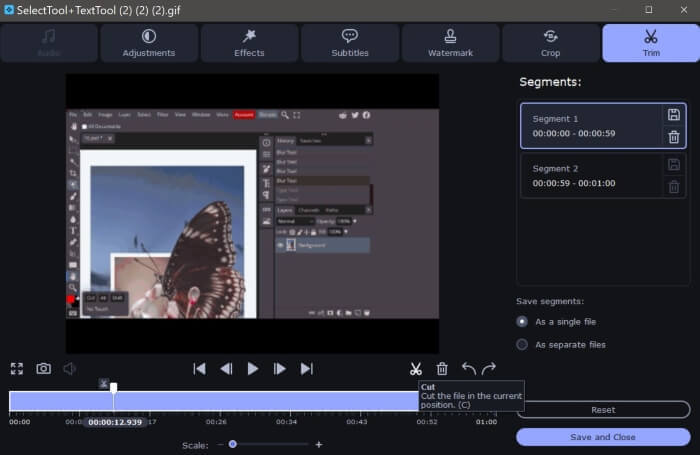
Trinn 2. Når du har installert appen, kan du slippe filer inn i vinduet eller trykke på ikonet Add for å laste inn filene dine. Når filene er ferdig lastet inn, finner og klikker du på Edit for å begynne å trimme filene.
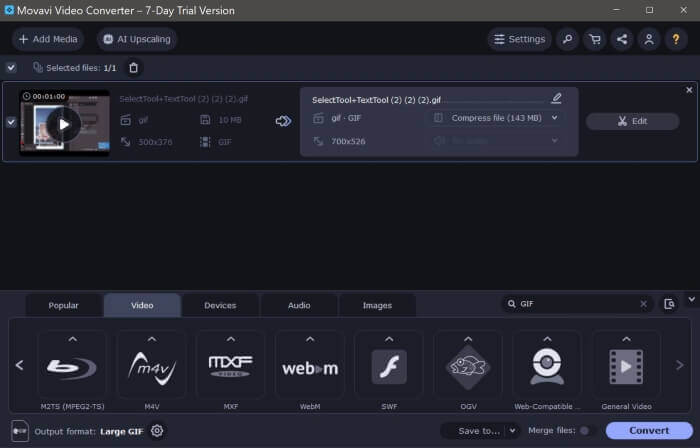
Trinn 3. Deretter finner og bruker du Scissor-ikonet, som er klippeverktøyet, for å trimme GIF-en i ønskede segmenter. Deretter sletter du uønskede deler ved å velge videosegmentet og trykke på Bin-ikonet.
Trinn 4. Til slutt trykker du på Save and Close når du er fornøyd med endringene. Sett deretter utdataformatet til GIF og klikk på Convert. Hvis du bruker gratisversjonen, vises en meldingsboks. Trykk på Convert with Restrictions for å laste ned GIF-filen din gratis, og det var det. Nå kan du bruke den trimmede animerte GIF-en din.
Movavi Video Converter vs. Video Converter Ultimate
For å optimalisere disse verktøyene fullt ut for å passe dine behov, enten det er for video- eller GIF-redigering, her er en rask og omfattende sammenligning for å finne det som passer deg best.
| Movavi Video Converter | Video Converter Ultimate | |
| Brukervennlighet | Enkel å navigere og bruke | Intuitivt og moderne grensesnitt. Enkel å bruke for nybegynnere. |
| Plattformkompatibilitet | Den har Windows- og Mac-versjoner, men ikke en mobilversjon. | Den gir også Windows- og Mac-versjoner som brukere kan laste ned, men har ikke en mobilversjon. |
| Egenskaper | Den tilbyr også grunnleggende og praktiske redigerings- og konverteringsverktøy. | Den gir verdifulle verktøy og funksjoner for å hjelpe brukere raskt og enkelt å redigere og konvertere videoer. |
| Utdatakvalitet | Tilfredsstillende videoutgang, men vannmerket er plassert i midten av videoen, noe som gjør den påtrengende. | Utmerket kvalitet og ingen vannmerker. |
Del 2. Hvordan trimme GIF online
1. EZGIF
Vil du enkelt lage og tilpasse GIF-filer? EZGIF kan være noe for deg. EZGIF er en av de mest populære GIF-redigeringsplattformene som tilbyr konverteringsverktøy, beskjæringsverktøy, trimmeverktøy og optimaliseringsverktøy for å forbedre GIF-filene dine. Her er noen retningslinjer for trimming av GIF-er ved å bruke EZGIF.
Trinn 1. Åpne den foretrukne nettleseren din og søk etter EZGIF. Klikk på den øverste lenken i søkeresultatene. Finn og trykk deretter på Crop i menypanelet. Klikk så på knappen Browse, velg filene dine og trykk på Upload.
Trinn 2. Etter at du har lastet opp filene, klikker du på knappen Cut for å trimme den animerte GIF-en. Bla nedover for å finne Cutting options og velg å cut by time (seconds). Still deretter inn Start- og End-punktene til sekundene du vil klippe GIF-en til, og klikk på Cut Duration.
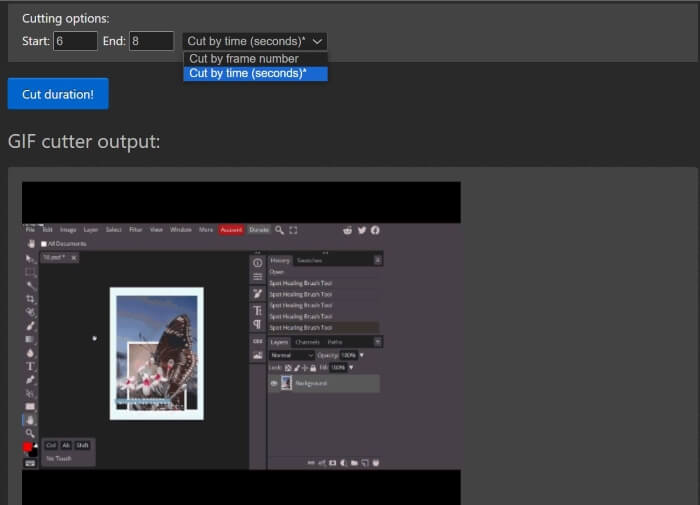
Trinn 3. EZGIF viser en forhåndsvisning av resultatet; du kan redigere Start- og End-punktene til du er fornøyd. Klikk på Save for å laste ned filene dine, og det var det. Du har nå trimmet GIF-en din.
Fordeler
- EZGIF har et grensesnitt som er lett å navigere
- EZGIF gir også en forklaring og veiledning om hvordan du klipper ut GIF-er helt nederst på nettsiden ved å bruke deres nettapplikasjon.
- Gir betydelige verktøy for å tilpasse GIF-er.
Ulemper
- Du må vite nøyaktig hvilken spesifikk sekund, tidsramme og bilderamme du vil kutte.
- Det er upraktisk; med dette verktøyet trenger du en prøv-og-feil-tilnærming.
2. VEED.IO
Veed.io er et kraftig verktøy med ulike avanserte verktøysett; den tilbyr nyttige verktøy som en undertekst- og videogenerator, pluss mange maler og temaer. Hvis du leter etter en ukomplisert og idiotsikker måte å trimme GIF-er på, er Veed.io verktøyet for deg. Slik bruker du Veed.io til å heve GIF-filene dine.
Trinn 1. Bruk favorittnettleseren din til å søke etter Veed.io og klikk på den øverste lenken. Når du er videresendt til Veed.io sin hjemmeside, må du logge inn med Google, Apple eller e-post. Trykk på Sign In for å få tilgang til kontoen din.
Trinn 2. Deretter finner og klikker du på Create Project og Upload files for å laste inn filene du vil trimme.
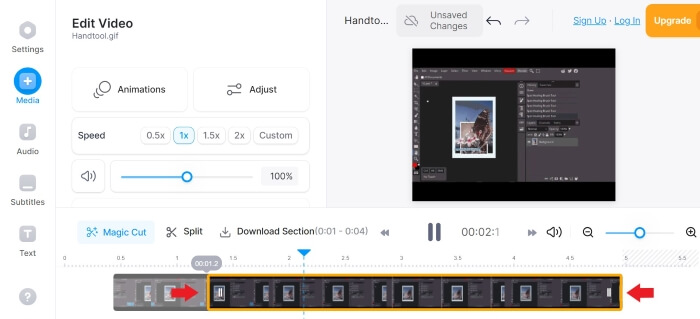
Trinn 3. For å trimme en animert GIF kan du enten klikke på Magic Cut for automatisk å dele GIF-filene inn i engasjerende videoer, eller du kan dra venstre og høyre side av trimmefeltet for å trimme GIF-en. Når du er fornøyd med videoutdataen, klikker du på Done og Export.
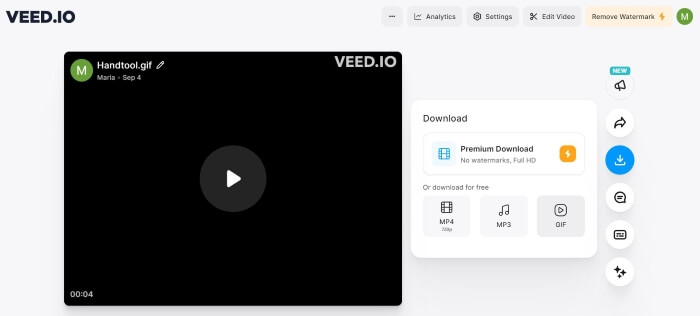
Trinn 4. Etter eksport klikker du på Download-ikonet og setter formatet til GIF for å laste ned og lagre filen i GIF-format, og der har du det. Nå har du den trimmede GIF-en din.
3. Kapwing
Hvis du vil tilpasse GIF-ene dine med AI-verktøy og avanserte funksjoner. Kapwing passer deg best. Det gir brukervennlige AI-verktøy, populære maler, redigeringsverktøy og videogeneratorer for å gjøre GIF- og videoredigeringsreisen til en lek. Her er noen retningslinjer for trimming av GIF-er med Kapwing:
Trinn 1. Søk etter Kapwing GIF Trimmer i den foretrukne nettleseren din og klikk på lenken øverst i søkeresultatene. Trykk deretter på Get Start og registrer eller opprett en konto; du kan registrere deg via Google, Facebook eller e-post.
Trinn 2. For å starte klikker du på Create New Project og trykker på Add Media for å laste opp filene dine. Bla deretter ned til du ser Duration, og velg ønsket varighet. Finn så og trykk på knappen Open Timeline.
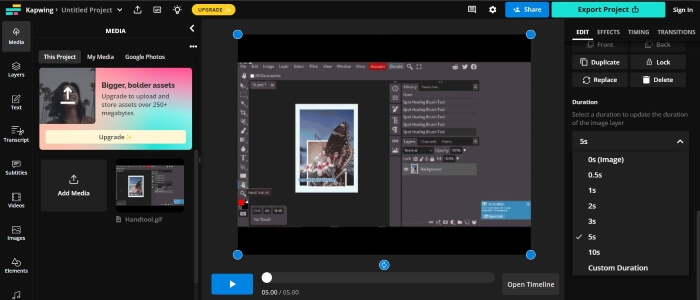
Trinn 3. Flytt og dra avspillingshodet dit du vil klippe, og trykk deretter på Split. Når de er delt, kan du fjerne uønskede deler ved å venstreklikke og trykke på Delete, og så redigere til du er fornøyd.
Trinn 4. Finn og klikk på Export Project, sett formatet til GIF, og juster oppløsning og komprimeringsnivå. Trykk deretter på Export as GIF. Vent noen minutter mens Kapwing eksporterer filen, og klikk på Download for å lagre filen. Der har du det. Nå har du trimmede GIF-er med bare noen få klikk.
Fordeler
- Kapwing er relativt praktisk, spesielt for nybegynnere videoredigerere.
- Det er mange AI-verktøy og funksjoner å velge mellom for å gjøre videoredigering enkelt.
Ulemper
- Det tilbyr en mer kompleks måte å kutte GIF-er på.
- GIF-trimmingsprosessen kan trenge avklaring, spesielt for nye brukere. Du må logge på eller opprette en konto for å bruke Kapwing og laste ned utdataene dine.
Del 3. Hvordan trimme en GIF på Android
1. GIPHY
Giphy er en av de beste kildene og de beste GIF-produsentene på nett og mobil. Det gir brukere klistremerker, temaer, maler og andre verdifulle verktøy for å lage og dekorere GIF-er. Slik kan du trimme GIF-er ved å bruke GIPHYs mobilapp.
Trinn 1. Last ned og installer Giphy-appen fra appbutikken din. Åpne appen, og velg deretter filen du vil trimme fra kamerarullen eller galleriet på telefonen.
Trinn 2. Dra glidebryteren til start- og sluttpunktet for segmentet du vil beholde.
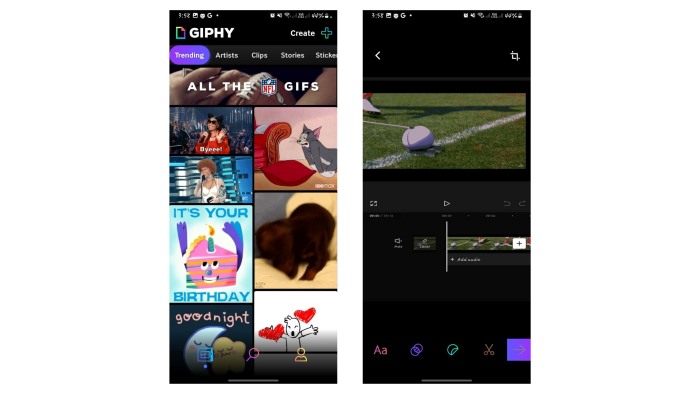
Trinn 3. Etter at du har gjort endringene dine, klikker du på knappen Next og gjør eventuelle nødvendige justeringer etter egne preferanser, og det var det. Nå kan du dele den trimmede GIF-en din med GIPHY.
Fordeler
- Mange maler og verktøy for å hjelpe deg med å redigere.
- Enkel å bruke og navigere.
Ulemper
- Du må laste ned appen for å få tilgang til verktøy.
- Du må melde deg på.
2. Online videokutter
Vil du trimme GIF-er med Android-telefonen din? Online Video Cutter er nyttig når du vil trimme en liten videofil; det krever ikke installasjon; du trenger bare internett og en nettleser for å få tilgang til og bruke den. Følg disse retningslinjene for å bruke Online Video Cutter til å trimme GIF-er med telefonen din:
Trinn 1. Med Android-telefonen din søker du etter Online Video Cutter i den foretrukne nettleseren din. Klikk på den øverste lenken i søkeresultatene. For å laste opp filene dine trykker du på Open File og velger filen du vil trimme.
Trinn 2. Når filen er lastet inn, kan du trimme GIF-filen ved å dra høyre og venstre side av trimmefeltet. Når du har gjort de ønskede endringene, trykker du på Save.
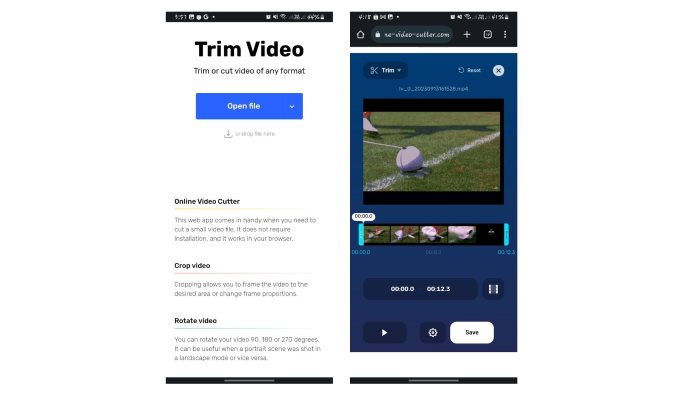
Trinn 3. Deretter klikker du på Save for å laste ned filen til standard nedlastingsmappe.
Fordeler
- Veldig grei og rask trimmeprosess.
- Med dette verktøyet kan du velge kvalitet og format på utdatafilen.
- Cross-platform, noe som betyr at du kan bruke den på hvilken som helst enhet.
Ulemper
- Du kan bare klippe eller trimme videoen ved å bruke Online Video Cutter. Du kan ikke redigere, tilpasse eller legge til effekter ved å bruke denne nettappen.
Mer lesing:
Topp 10 GIF-kompressorer for skrivebord og nettbrukere
Hvordan dele GIF-er og tilpasse favoritt-animerte GIF-filer
Del 4. Vanlige spørsmål om trimming av GIF-er
Hvorfor lar GIPHY meg ikke trimme GIF-en min?
Mens nettapplikasjonen ikke har en trimmefunksjon ennå. GIPHYs mobilapp kan trimme og dele GIF-ene dine på nettet.
Kan jeg bruke verktøyene til å trimme GIF-er på iPhone?
Selvfølgelig kan du. Du kan bruke andre tredjepartsapper eller nettsteder som de ovenfor for å kutte GIF-er på iPhone.
Kan jeg kombinere flere GIF-er til én GIF?
Selvfølgelig kan du. Video Converter Ultimate lar deg kombinere flere GIF-er til én ved å bruke Merge as one-funksjonen.
Kan jeg trimme GIF-er uten å miste kvaliteten?
Ja det kan du. Du kan bruke de pålitelige verktøyene som er oppført ovenfor for å trimme GIF-er uten tap og forbedre kvaliteten.
Reduserer trimming av en GIF filstørrelsen?
Godt spørsmål. Filstørrelsen til en GIF er proporsjonal med lengden. Dermed reduseres filstørrelsen ved å trimme GIF i mindre segmenter.
Konklusjon
Å trimme og tilpasse GIF-ene dine er én måte å løfte opplevelsen din på nettet på, og det finnes mange plattformer og programmer som lar deg trimme filene dine enkelt.
Å trimme GIF-er er gjort enkelt med disse praktiske verktøyene på nett, på datamaskinen eller på mobilen. Velg det som passer best for deg.
-
 De uovervinnelige måtene å legge til GIF-tekst (alle plattformer)
 Bli hos oss og lær de morsomme måtene å legge til tekst i en GIF gratis. Ved å bli, vil du lære løsningene du bør bruke for å få denne prosessen ferdig.
-
 Enkle og raske trinn for hvordan du roterer og snur GIF [2023]
 Du vil rotere og snu din opprettede GIF på nettet, men du har bare minutter til å redigere og sende den inn før fristen. Ikke bekymre deg; denne artikkelen vil hjelpe deg å rotere og snu GIF-er på mindre enn ett minutt.
-
 Omfattende Ezgif-gjennomgang av funksjoner og alternativer
 Hvis du'har brukt Ezgif og fortsatt ikke er klar over hva som er oppe i ermet. Denne Ezgif-anmeldelsen vil hjelpe deg med den bekymringen. Les videre for å lære mer.
