


 Video Converter Ultimate
 Skjermopptaker
 Videoreparasjon
 Sikker nedlasting
6 beste HEIC til JPG-konverterere som skal brukes til å konvertere HEIC til en standard JPG
In this day and age, many of us love to take snaps, whether they are selfies or groupies on our mobile devices, such as iPhones. The vast majority of the images taken on iOS devices are in the format of HEIC because it has become the standard image format for iOS. When you transfer the file to others that are non-iOS, it won't open because that device doesn't support it by default. If you want to send the image file on other devices, you must consider converting it into a JPG format because this format supports widely by many devices. The list below will teach you to convert HEIC to JPG with the five converters you can use to finish the job.

Del 1. Hvordan konvertere HEIC til JPG ved hjelp av nettverktøyene [Online Ways]
Vi tester hver av disse 3 nevnte online HEIC-omformerne for å gi relevant informasjon om dem. Hvis du vil bruke et gratis nettverktøy, er dette delen for deg, men husk at det er noen begrensninger for å bruke en omformer som dette. Enda viktigere, sørg for en stabil internettforbindelse hvis du bruker verktøyene nedenfor for å unngå avbrudd under konvertering. Vennligst les de fullstendige detaljene nedenfor for å kjenne hver av dem.
FVC Gratis HEIC til JPG Converter
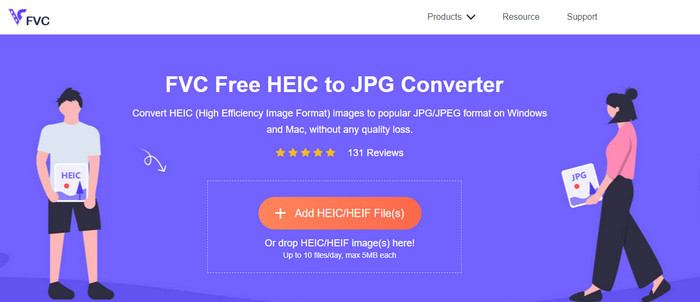
FVC Free HEIC to JPG Converter can help you convert HEIC files to JPG format in less than a few clicks. With this web tool, you won't need to download any additional installer on your drive or even sign up to use it. Although this tool is free to use, there are some limitations, like you can convert up to ten files per day, and the maximum file size for each image should be 5MB or less. Compared to some converters online, this might be enough, especially if you aren't using it often. So, if you want to test the online tool out, you can follow the instructions we include below.
Step 1. First and foremost, click this link to open a new tab on your web browser; this link will lead you to the main website of the online converter.
Step 2. Hit the Add HEIC/HEIF File (s), find the HEIC file on the folder that will show, click it and press Open to upload it.
Step 3. The conversion process will automatically start; you may now click the Download button when converting is finished.
HEIC til JPEG
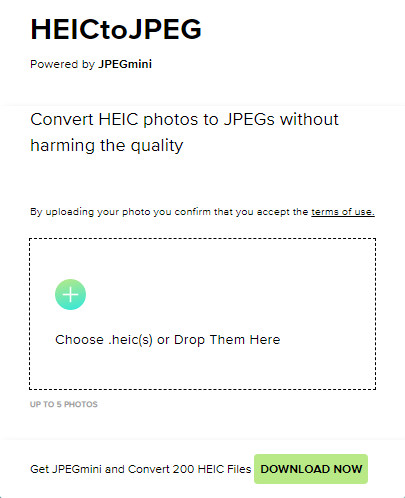
HEIC to JPEG is an online tool you can depend on how to convert HEIC to JPG, same as the online tool we mentioned this is free to access. With this tool, you can convert your HEIC file into a supported JPG then transfer it to the other device that doesn't support HEIC. Even though the tool can convert your HEIC, you will need to keep in mind that there are limitations on how many times you can convert per day. Unlike the online converter abovementioned, this web tool can only convert five HEIC files per day, which is much more limited than the other converters. If you want to use it, follow the steps given.
Step 1. Search the web converter on your search engine and open it.
Step 2. Click the plus button to upload the HEIC file you have on your desktop.
Step 3. Wait for the uploading process and optimizing, then click Download JPEG.
Image.convert-online
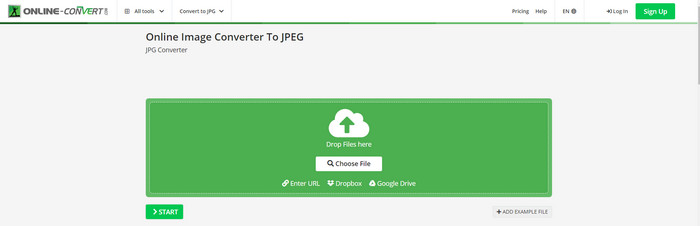
Image.convert-online allows you to convert HEIC to JPG online with the other optional setting to adjust the quality of the picture. Far from the first two converts, you can use on the webS, and you can use this web tool without limitation and convert your HEIC files here more than what the other two offer. Also, you can enhance the quality of the image and choose the compression you want to have. However, this tool's image editing features aren't as pro as the other dedicated editor you can use. Nonetheless, it is still a great HEIC converter you can use.
Step 1. Open your favorite browser, type the Image.convert-online, then click to open.
Step 2. Click Choose File and insert the HEIC file on the web tool.
Step 3. Adjust the image settings and compression; click Start if everything is settled in, then click Download to save it to your desktop.
Del 2. Hvordan konvertere HEIC-fil til JPG eller JPEG på Windows og Mac [Offline Ways]
Hvis du har en dårlig internettforbindelse, er ikke nettverktøyet vi nevnte ovenfor det beste valget for å løse og håndtere dette problemet. Så hvis du vil løse problemet uten å bruke en internettforbindelse, kan du lese og følge trinnene vi legger til hvert verktøy nevnt nedenfor. Les dem nøye for å vite hvordan du konverterer HEIC på skrivebordet ditt ved å bruke offline måter.
Aiseesoft HEIC Converter – Beste valget for konvertering av HEIC-filer
Aiseesoft HEIC Converter is the tool that you will ever need in regards to how to change HEIC to JPG problem you will encounter on your desktop. If you want the best tool for converting the HEIC file, then there is no doubt that this is the tool that can help you. With its straightforwardness, you won't need to be a professional to use the tool because, with just a few clicks, you can have the converted HEIC at your reach.
I tillegg til konverteringsevnen støtter dette verktøyet en lynkonverteringsprosess, så du trenger ikke bekymre deg lenger fordi du umiddelbart kan få JPEG. Overraskende nok kan verktøyet konvertere flere HEIC-filer samtidig hvis du har forskjellige HEIC-filer. Utrolig, ikke sant? Hvis du er overrasket over beskrivelsen vi nevner, må du fortsette å lese de påfølgende trinnene, da vi tilbyr en enkel å følge opplæringen for å konvertere HEIC til JPG på Windows og Mac med suksess.
Step 1. After downloading the software, follow the installation process, then open it.
Step 2. You can drag and drop the HEIC files in here for an easier process of uploading the file here, or you can either click the Add HEIC, find the file on your desktop, then click Open to place it.
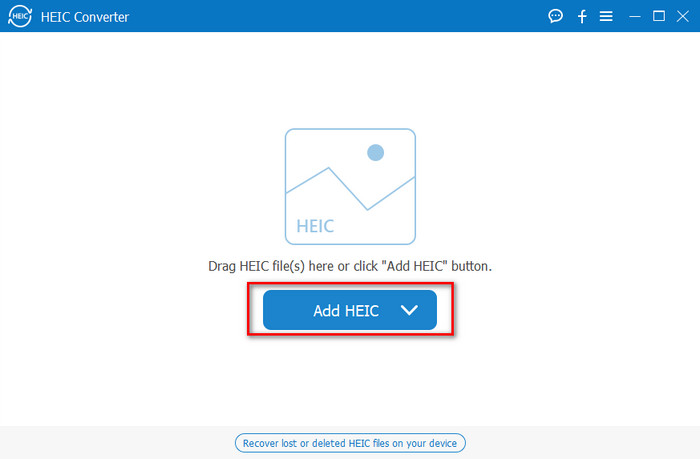
Du legger til så mange du vil ha en HEIC-fil her fordi dette verktøyet samtidig kan konvertere HEIC-filen til en JPG.
Step 3. After uploading the HEIC file, click the drop-down button at the upper right corner of the interface and choose the JPEG/JPG.
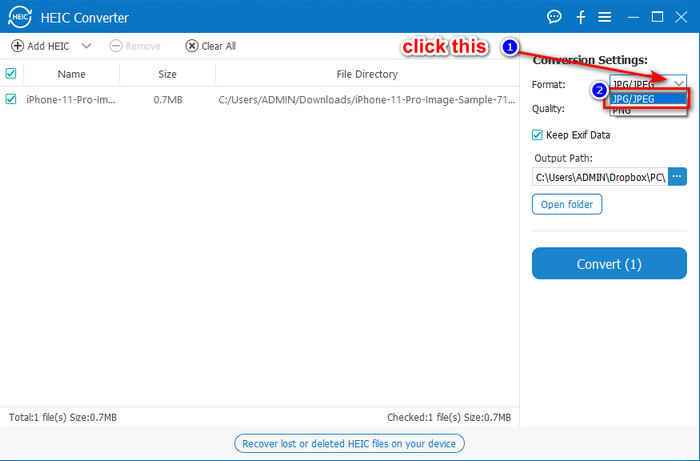
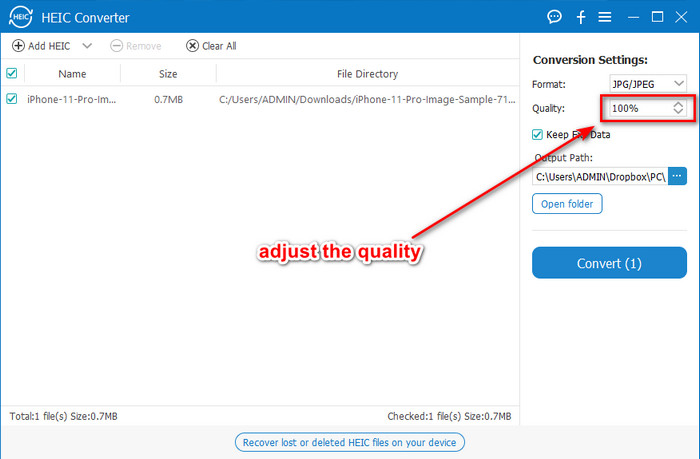
Optional. Unlike on some converters, here, you can adjust the quality of the HEIC image by changing it on the Quality before you export it.
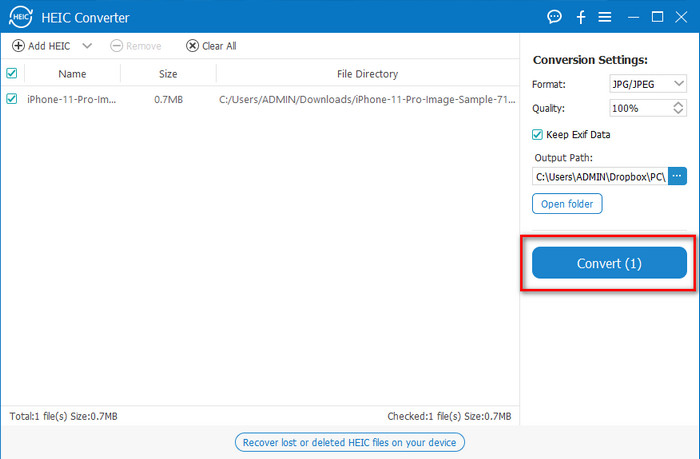
Step 4. If everything is done and you're ready to convert the HEIC to JPG, you can now click the Convert button. The conversion process will begin; waiting is unnecessary because of the ultra-fast converting process this tool supports. As easy as that, you can now share the file in another format but in the .jpg extension.
Det er alt for å konvertere HEIC-bildet ditt til JPG. Du kan også bruke dette verktøyet til å konvertere HEIC til PNG i en batch.
Forhåndsvisning
Preview is the native image viewer you can use to view and change the HEIC format. However, the converting this tool can do isn't usual that will take a process like the other tool in this article. If you use this default image viewer, you can change the file extension of the HEIC into .jpg.
Bortsett fra evnen til å se og konvertere, kan den også kryptere PDF-filer og begrense bruken av filen, bildekorrigeringen og andre. Du kan følge trinnene nedenfor for å konvertere HEIC til JPG på macOS hvis du er en Mac-bruker.
Step 1. Open your Finder, locate the Preview, then open the HEIC file using the tool.
Step 2. Once you open the file with the Preview, go to the File menu and choose on the list Export.
Step 3. Click format and select either JPEG or JPEG-2000, and click Save if you are finished.
GIMP
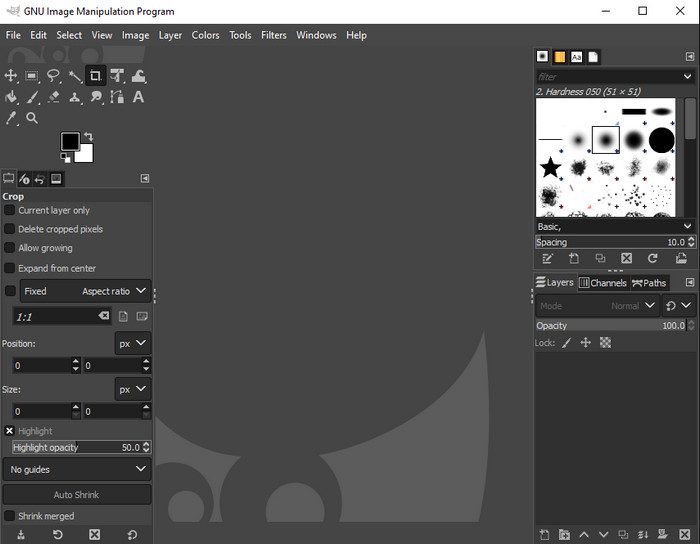
GIMP is a dedicated image editor you can download on your Windows and Mac. This tool supports editing the HEIC file; you have to make it look better, like adjusting the saturation, contrast, etc. Same as the Preview available on Mac, this tool performs not as a converter, but it can change the file extension of HEIC into a JPE, JPEG, JPG, or another image format you want.
Det er ikke mye dette verktøyet å tilby når det gjelder konvertering, men hvis du vil lære hvordan du konverterer HEIC til JPG på PC, kan du kopiere trinnene vi legger til nedenfor.
Step 1. Download the software on your Windows or Mac, then launch it after the downloading process.
Step 2. Go to the File menu, click Open, select the HEIC file you have on your desktop and upload it.
Step 3. Back to the File menu, click Export As, then a panel of Export Image will show, click Select File Type (By Extension), then click the JPEG on the list. Lastly, click Export if you are done.
Del 3. Vanlige spørsmål om konvertering av HEIC til JPEG
Etter å ha konvertert HEIC-bilder til JPG, fjerner det gjennomsiktigheten?
Yes, the transparency of HEIC will is unavailable after you convert the format to JPG. After all, JPEG or JPG doesn't support transparency like the PNG. Instead, you can use the Aiseesoft HEIC Converter to convert HEIC into a transparent PNG. In step 3, after clicking the drop-down button, choose the PNG instead of the JPG/JPEG, follow the succeeding steps to export the file.
Hva er HEIC-formatet?
HEIC is a known format containing image files but in a smaller file size than the JPG, but the quality is preserved and high-quality. Apple Inc now uses this format as a native image format on their iOS and Mac products. If you want to know more about the said format, you can click this link to learn more about the HEIC file format.
Kan jeg batchkonvertere HEIC til JPG?
You can use the Aiseesoft HEIC Converter, a dedicated batch HEIC file converter you can download on your Windows and Mac. Upload as many as you want HEIC files in here, then convert them all into JPG or PNG without degrading their quality. Also, there isn't a limitation on how many times you can convert, and the file size doesn't matter with this tool.
Konklusjon
Du kan nå håndtere å konvertere HEIC-filene til et JPG-format med informasjonen og trinnene. Velg om du vil bruke en online HEIC til JPG-konverter eller den offline; Uansett hva du velger, er suksess ved siden av deg når du leser denne artikkelen grundig.
If you haven't decided yet on what to use, we suggest that you download the Aiseesoft HEIC Converter, for it is the best HEIC converter among the rest on the list. You can test the tool by downloading it on your desktop, see if it fits you, and solve the problem by following the steps above.
-
 Beste MOV til DivX gratis å bruke omformere for Mac og Windows
 Vi har løsningen for deg hvis du er ute etter MOV til DivX gratis omformere. Denne artikkelen presenterer de beste MOV til DivX-konvertererne for Mac og Windows.
-
 Gratis WMV til DivX-konvertere brukerens beste valg
 Her er de beste gratis WMV til DivX-konvertererne som brukere stort sett bruker. Denne artikkelen gir deg de beste måtene å konvertere WMV-filen til DivX.
-
 Tips om hvordan du endrer videometadata på iPhone innen rekkevidde
 Har du problemer med å endre videometadata på iPhone-enheter? Heldigvis snakker denne artikkelen om den beste måten å endre videometadata på iPhone.
