


 Video Converter Ultimate
 Skjermopptaker
 Videoreparasjon
Hvordan klippe ut et bilde i Photoshop
Du kan gjøre mye i Photoshop; det er som et komplett verktøy for bildebehandling. Hvis du har brukt Photoshop og fortsatt er kjent med alle funksjonene, eller er en som prøver å utforske frilaggings‑funksjonene det tilbyr, er vi her for å støtte deg! Lær og forstå hvordan du frilegger (klipper ut) et bilde i Photoshop raskt og enkelt. Oppdag også andre metoder for å frilegge bilder på nettet hvis Photoshop ikke passer til ressursene og ferdighetene dine.

Del 1. Hvordan klippe ut et bilde i Photoshop
Å lære å kutte bilder i Photoshop er viktig fordi det lar enkeltpersoner skille og manipulere forskjellige elementer i et bilde nøyaktig. Denne ferdigheten er grunnleggende for oppgaver som fjerning av bakgrunn, lage collager og å gjøre målrettede forbedringer under bilderedigering. Enten i grafisk design, produktfotografering eller digital kunst, gir evnen til å kutte bilder fleksibilitet og kreativ kontroll, slik at både fagfolk og entusiaster kan oppnå ønskede visuelle resultater i forskjellige prosjekter.
Slik klipper du et bilde i Photoshop:
Trinn 1. Åpne et bilde i Photoshop ved å gå til fanen File (Fil).
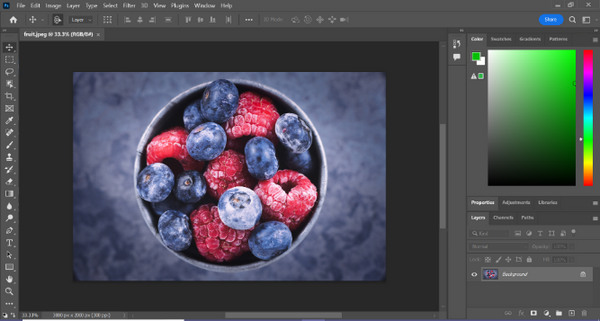
Trinn 2. Velg verktøyet Object Selection (Objektmarkering) og dra musen over objektet for å markere området du vil klippe ut.
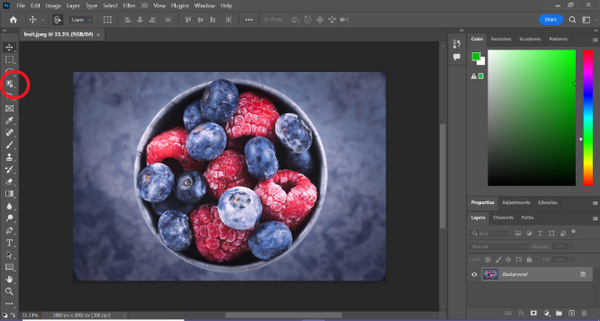
Trinn 3. Klikk Select and Mask (Velg og masker).
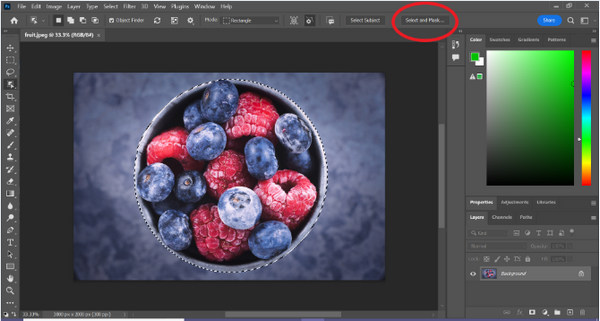
Trinn 4. Juster markeringsinnstillingene, som for eksempel myk kant (feather), om nødvendig.
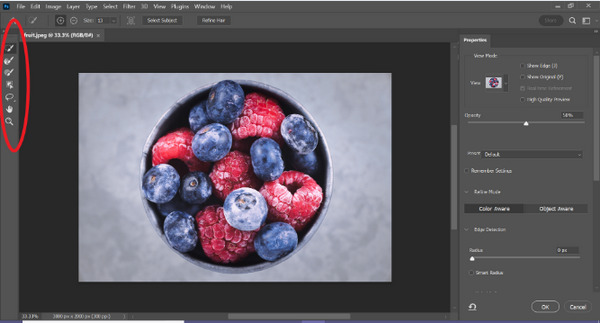
Trinn 5. Klikk på ikonet Mask for å frilegge bildet ditt og lagre det redigerte bildet.
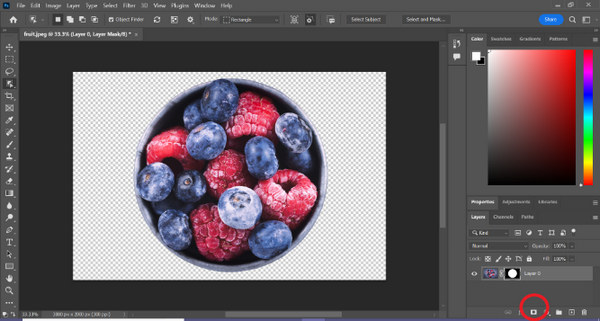
Med denne enkle veiledningen kan du nå frilegge (klippe ut) et bilde i Photoshop raskt og enkelt. Følg bare trinnene og nyt en problemfri prosess for presis bildebehandling. Du kan også endre bildefargen for å erstatte den utklipte delen.
Del 2. Hvordan klippe ut et bilde uten Photoshop Online?
Hvis du ikke har Photoshop installert på datamaskinen din, er det en måte du kan klippe ut et bilde på nettet. Mens Photoshop er et kvalitetsverktøy for å redigere bilder, spesielt for å kutte ut et bilde perfekt, krevde det ferdigheter og øvelse for å mestre det. Så hvis dette verktøyet er ute av hendene dine, kan du bruke disse metodene for å enkelt kutte ut et bilde.
Metode 1: FVC Online Background Remover
FVC Online Background Remover er allsidig og brukervennlig, laget for automatisk å fjerne bakgrunner fra bilder i formater som PNG, JPG og JPEG. Dette verktøyet forenkler prosessen med å lage gjennomsiktige bakgrunner og tilbyr tilpasningsmuligheter, slik at brukere kan bruke en pensel for å velge bestemte områder som skal fjernes eller beholdes.
I tillegg lar FVC Free Background Remover brukere endre bildets bakgrunn til en solid farge etter eget valg eller til og med erstatte det med et annet bilde. Verktøyet går utover bakgrunnsfjerning, og tilbyr enkle redigeringsfunksjoner som beskjæring, flytting, vending og rotasjon, slik at brukerne kan forbedre den generelle appellen til bildene sine. Nedenfor er trinnene for hvordan du bruker dette.
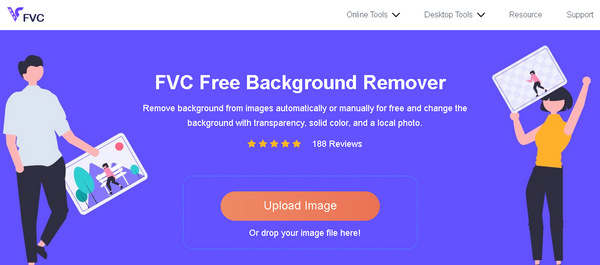
Trinn 1. Gå først til deres offisielle nettsted og klikk på Upload Image (Last opp bilde).
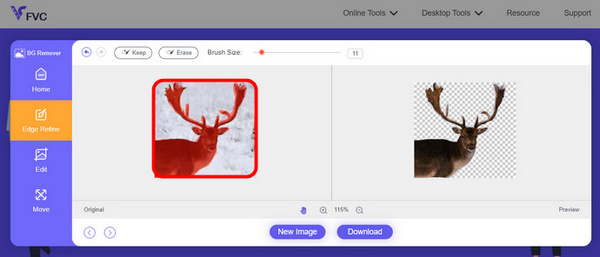
Trinn 2. Vent på at prosessen fullføres. Deretter kan du redigere bildet ditt ved å finjustere kantene og flytte motivet.
Trinn 3. For å lagre resultatet, klikk på knappen Download (Last ned).
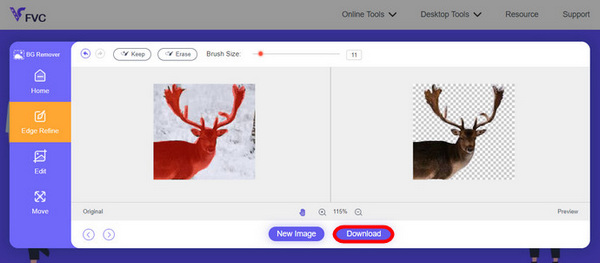
FVC Image Background Remover er virkelig et foretrukket verktøy for å klippe ut et bilde. I tillegg til at det er gratis, er verktøyet svært brukervennlig for å legge til bakgrunn på et bilde. Som du ser, trenger du bare å følge noen få enkle trinn, så kan du enkelt fjerne bakgrunnen på bildene dine uten stress.
Metode 2: Bruke iPhone iOS 16-funksjonen
iPhone iOS 16 har flere nye funksjoner og oppdateringer. En av dem er bildet som er kuttet ut. Denne bildeutskjæringsfunksjonen lar brukere isolere motivet på et bilde og lage bildeutskjæringer direkte på iPhones.

Trinn 1. Åpne et bilde i Bilder‑appen på iPhone.
Trinn 2. Trykk og hold inne motivet i bildet, og en skinnende hvit kontur vil vises.
Trinn 3. Kopier og lim deretter inn bildet i Notater, meldingsapper eller SMS. Du kan også sende det direkte via AirDrop til en annen iPhone‑enhet.
Denne bildeutskjæringsfunksjonen er bare tilgjengelig i iOS 16 og nyere på iPhone XS, iPhone XR og nyere.
Del 3. Vanlige spørsmål om å klippe ut et bilde i Photoshop
Hvordan kutte noen ut av et bilde og legge dem i et annet i Photoshop?
For å klippe ut en person fra et bilde i Photoshop og plassere vedkommende i et annet, følger du disse trinnene:
1. Bruk Lasso‑ eller Pen‑verktøyet til nøye å tegne rundt personen.
2. Høyreklikk og velg Layer via Copy (Lag via kopiering) for å duplisere det markerte området.
3. Åpne målbilde, opprett et nytt lag, og lim inn det kopierte laget der.
4. Juster størrelse og posisjon etter behov, og finpuss kantene for en sømløs integrering.
Hvordan klipper du ut noe i Photoshop og gjør det gjennomsiktig?
For å klippe ut noe i Photoshop og gjøre det gjennomsiktig:
1. Bruk Pen‑verktøyet eller Magic Wand (Tryllestav) for å markere objektet.
2. Trykk Delete for å fjerne det markerte området.
3. Lagre bildet som PNG.
4. Sørg for at det slettede området vises som et rutemønster (sjakkbrett), noe som indikerer gjennomsiktighet.
Hvordan trekker du fra en form i Photoshop?
For å trekke en form fra en annen i Photoshop:
1. Lag to former ved hjelp av Shape‑verktøyet eller et hvilket som helst markeringsverktøy.
2. Sørg for at begge formene ligger på separate lag.
3. Velg det øverste laget, gå til Path Operations i verktøylinjen, og velg Subtract Front Shape.
4. Den øverste formen blir trukket fra den nederste, og det lages en ny form med det fratrukne området.
Kan jeg kutte ut komplekse objekter med fine detaljer i Photoshop?
Ja, Photoshop tilbyr avanserte verktøy som pennverktøyet for presise valg av intrikate objekter. Zoom inn for nøyaktighet, lag ankerpunkter rundt objektet og avgrens banen for detaljerte utskjæringer.
Hva er forskjellen mellom Layer via Cut og Layer via Copy når du klipper et bilde i Photoshop?
Layer via Cut fjerner det valgte området og plasserer det på et nytt lag. Mens, Layer via Copy dupliserer det valgte området til et nytt lag, og lar originalen være intakt. Velg basert på om du vil beholde originalen eller ikke under skjæreprosessen.
Konklusjon
Det er enkelt, ikke sant? Nå som du vet hvordan du frilegger (klipper ut) et bilde i Photoshop, kan du videreutvikle den ferdigheten og utforske andre funksjoner i Photoshop. I tillegg kan du prøve andre metoder for å klippe ut et bilde på nettet ved å bruke FVC Online Background Remover eller via iPhone‑enheten din. Å klippe ut et bilde er nå enklere enn noensinne, så ikke gå glipp av denne muligheten – øk kreativiteten din ved å følge denne veiledningen.
-
 Slik fjerner du vannmerke fra bilde i Photoshop [Trinn]
 Photoshop er et av de populære redigeringsverktøyene. Få gratis opplæringen her ved å bruke Photoshop for å fjerne vannmerket fra bilder. Oppdag også alternative måter.
-
 Hvordan beskjære i Photoshop: Nybegynnerveiledning [2025]
 Oppdag hvordan du beskjærer bilder i Photoshop med denne enkle veiledningen. Lær også hvordan du velger områder, justerer sideforhold og mer for bildebeskjæring.
-
 Hvordan endre farge i Photoshop | 2025 omfattende veiledning
 Vil du ta kreativiteten din til neste nivå ved å lære hvordan du endrer bakgrunnsfarge i Photoshop? Denne artikkelen har alt du trenger å vite. Les den nå!
