


 Video Converter Ultimate
 Skjermopptaker
 Videoreparasjon
 Sikker nedlasting
Ultimate instruksjoner for å fjerne Canva Watermark [Løst]
Nett- og profesjonelle brukere som trenger å lage bilder, presentasjoner og videoer av høy kvalitet, bruker ofte Canva. Dette programmet har mange fordeler, blant annet et stort utvalg av verktøy, maler, design, temaer og mer. Dessverre har pro-elementene nå vannmerker. Pro-elementene krever betaling for å brukes uten vannmerke. Heldigvis vil denne artikkelen vise deg de beste metodene du kan prøve for å fjerne Canva-vannmerker uten å kjøpe pro-elementene. Les derfor gjennom artikkelen for å få en idé om hvordan du fjerner Canva-vannmerker.

Del 1: Beste nettverktøy for å fjerne Canva-vannmerker
Hvis du vil lære hvordan du fjerner Canva-vannmerker gratis, kan du bruke FVC Free Watermark Remover. Dette nettbaserte verktøyet kan fjerne alle objekter fra bildet ditt uten at du trenger å bruke en krone. Det kan også slette Canva-vannmerkene dine enkelt ved hjelp av vannmerkefjerningsverktøy som Brush, Polygonal og Lasso. I tillegg kan du også fjerne vannmerker ved å bruke beskjæringsverktøyet, spesielt når vannmerkene ligger langs kanten av bildet. Du trenger heller ikke å bekymre deg for hvilke bildeformater som støttes, fordi det støtter nesten alle formater, som JPG, PNG, BMP og flere. Med sitt intuitive grensesnitt og grunnleggende arbeidsmåte kan vi si at FVC Free Watermark Remover passer perfekt for alle brukere, også nybegynnere. Denne delen vil hjelpe deg med hvordan du fjerner Canva-vannmerker fra bildet ditt ved å bruke alle vannmerkefjernerne, som Brush-, Lasso- og Polygonal-verktøyene.
Du kan bruke børsteverktøyet hvis du vil fjerne vannmerker som om du bare børster dem. Du kan til og med endre størrelsen på børsten basert på dine preferanser. Du kan bruke lassoverktøyet til å velge vedlagte deler av bilder eller former. Til slutt kan du bruke Polygonal-verktøyet hvis du vil fremheve vannmerkene som en rektangelform for å fjerne dem enkelt uten å følge mønsteret til vannmerket.
Bruker Brush Tool
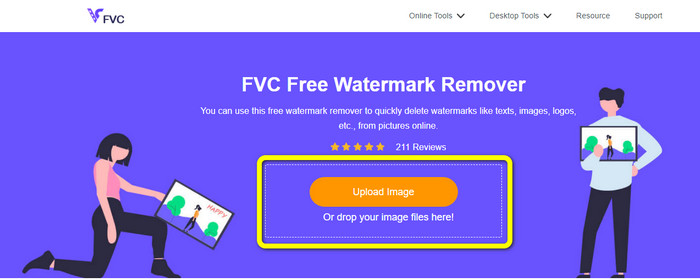
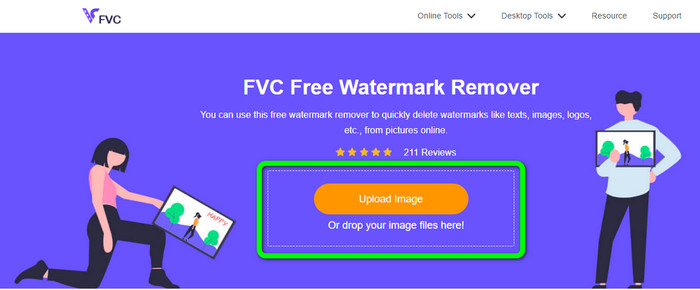
Trinn 1: Det første du må gjøre, er å gå til nettstedet til FVC Free Watermark Remover. Klikk deretter på knappen Upload Image for å laste opp bildet ditt med Canva-vannmerke. En annen måte å laste opp et bilde på er å slippe bildefilen inn i boksen.
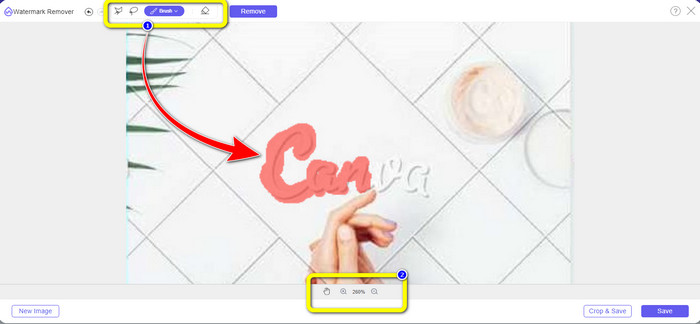
Trinn 2: I den første boksen øverst velger du Brush-verktøyet. Bruk deretter dette verktøyet til å markere Canva-vannmerkene på bildet ditt. Under Brush-verktøyet kan du justere størrelsen på penselen. I den andre boksen nedenfor kan du zoome inn og ut på bildet for å se små vannmerker.
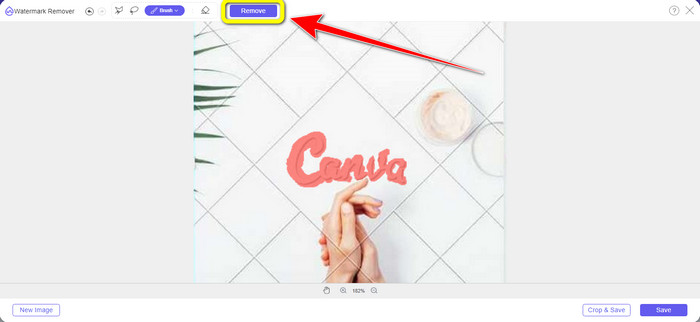
Trinn 3: Når du er ferdig med å markere Canva-vannmerkene på bildet, klikker du på knappen Remove slik at programmet kan gå videre til fjerningsprosessen. Vent deretter i noen sekunder.
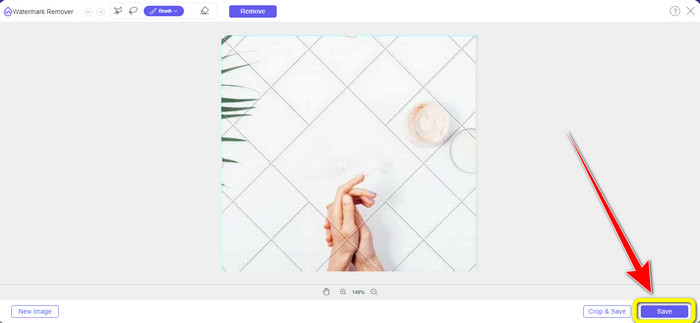
Trinn 4: Etter fjerningsprosessen kan du se at Canva-vannmerket er borte. Klikk på knappen Save for å lagre bildet ditt.
Bruker Lasso Tool
Trinn 1: Etter at du har lastet opp bildet ditt med Canva-vannmerke, velger du Lasso-verktøyet fra vannmerkefjerningsverktøyene. Bruk deretter musen til å markere Canva-vannmerket.
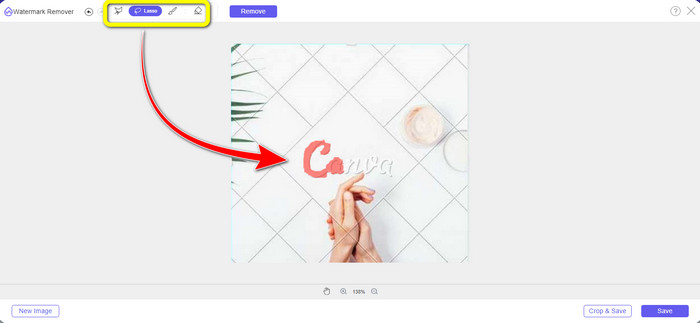
Trinn 2: I den gule boksen under bildet kan du klikke på ikonet + eller - for å forstørre bildet og se det tydeligere. Klikk deretter på knappen Remove når du er ferdig med å markere Canva-vannmerket med Lasso-verktøyet.
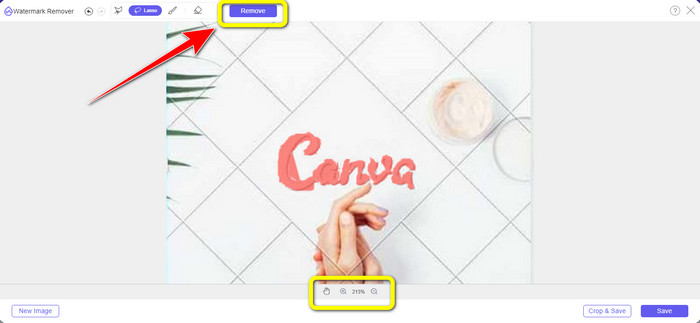
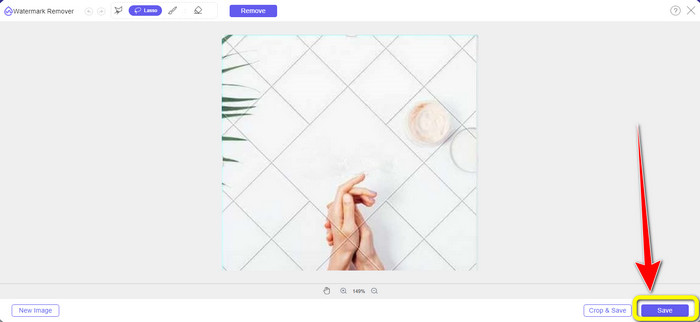
Trinn 3: Etter fjerningsprosessen, og når Canva-vannmerket er slettet, klikker du på knappen Save for å lagre det endelige bildet ditt.
Bruke polygonalt verktøy
Trinn 1: Når du er ferdig med å legge til bildet ditt i FVC Free Watermark Remover, velger du Polygonal-verktøyet fra vannmerkefjerningsverktøyene.
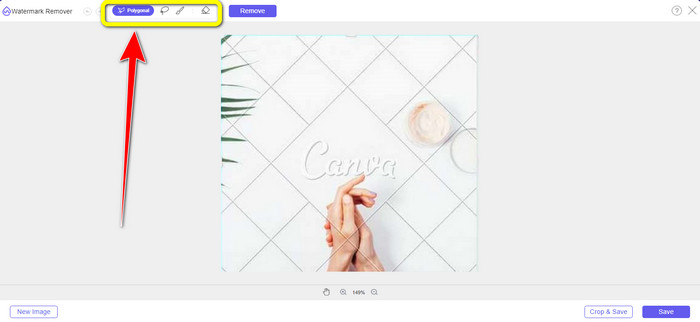
Trinn 2: I denne delen bruker du Polygonal-verktøyet til å markere Canva-vannmerket i bildet ditt.
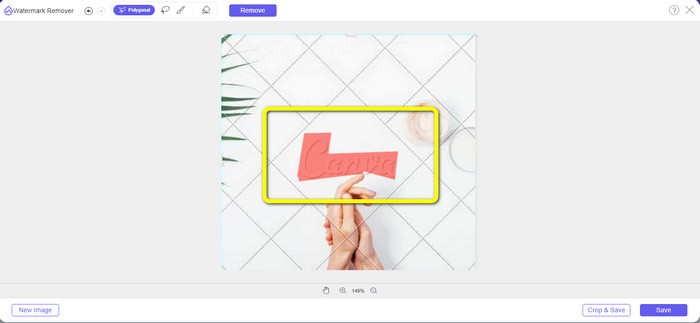
Trinn 3: Etter markeringsprosessen kan du fjerne Canva-vannmerket ved å klikke på knappen Remove.
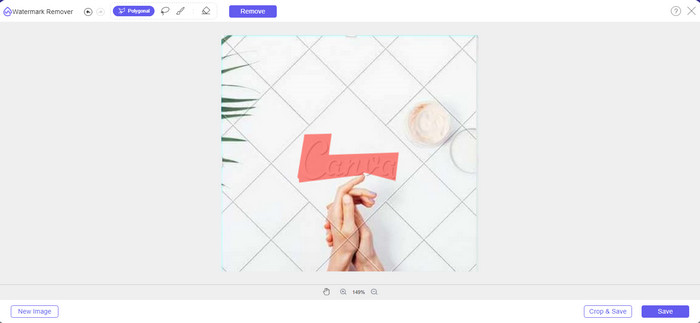
Trinn 4: Etter fjerningsprosessen kan du gå videre til den neste og siste metoden: å lagre bildet ditt ved å klikke på knappen Save.
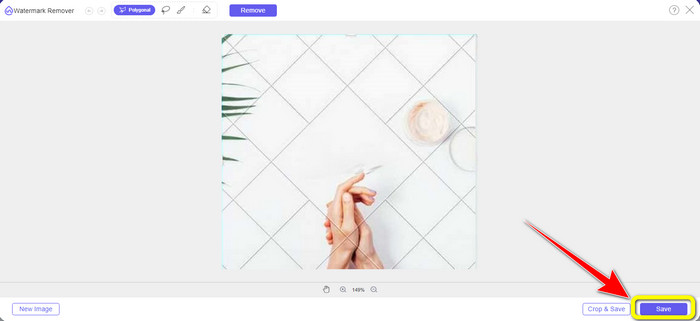
Ved å bruke disse tre verktøyene for fjerning av vannmerker kan du raskt fjerne Canva-vannmerkene fra bildet ditt. La oss bruke beskjæringsverktøyet denne gangen for å fjerne Canva-vannmerket fra bildet ditt.
Bruke beskjæringsverktøyet
Verktøyet Cropping er den beste måten å kutte bort vannmerker på, spesielt hvis vannmerket ligger langs kanten eller i hjørnet av bildet. Følg veiledningen nedenfor for å lære hvordan du fjerner Canva-vannmerker ved hjelp av Cropping-verktøyet.
Trinn 1: Klikk på knappen Upload Image. Deretter kommer mappen din opp på skjermen. Velg bildet med Canva-vannmerket du vil fjerne.
Trinn 2: Etter at du har valgt bildefilen, klikker du på knappen Crop&Save. Gå deretter videre til neste prosess.
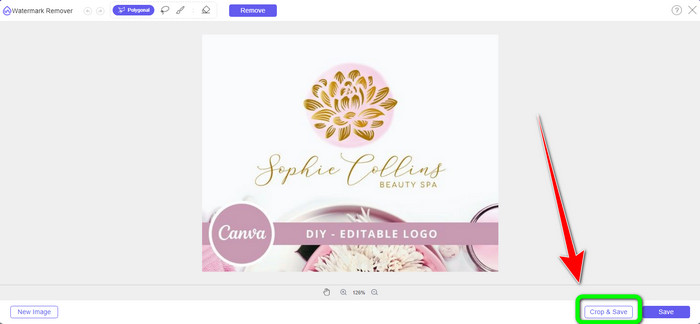
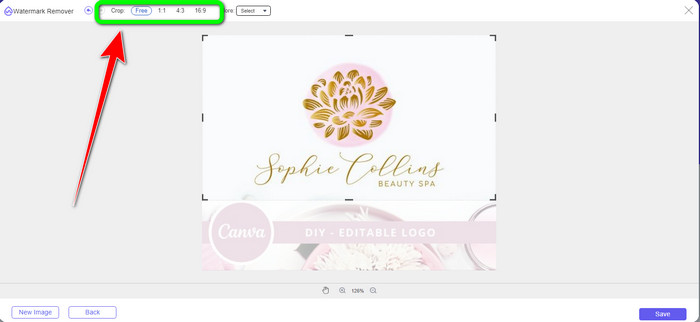
Trinn 3: I denne boksen kan du deretter velge hvordan du vil beskjære bildet. Hvis du velger alternativet Free, kan du beskjære bildet manuelt slik du vil.
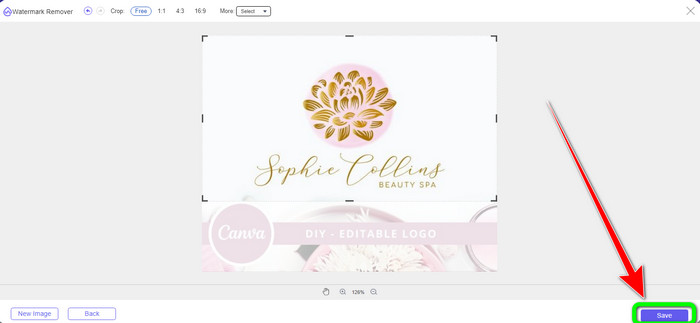
Trinn 4: Etter at du har beskåret bildet for å kutte bort Canva-vannmerket, kan du klikke på knappen Save for å lagre det endelige bildet ditt.
Del 2: Fjern Canva-vannmerker ved hjelp av Photoshop
En annen måte å fjerne Canva-vannmerket fra bilder er å bruke Adobe Photoshop. Den kan også slette eventuelle forstyrrende objekter fra bildet ditt, inkludert vannmerker, logoer, tekst, klistremerker og mer. Dessuten har dette verktøyet en rask fjerningsprosess, slik at du ikke trenger å bruke mer tid på å eliminere uønskede objekter fra bildet ditt. Dessuten er programvare som Adobe Photoshop mye brukt til grafisk design, rasterbilderedigering og digital kunst. Lagdeling gir dybde og allsidighet til utviklings- og redigeringsprosessene og gir viktige redigeringsverktøy som, når de kombineres, kan gi enestående resultater. Adobe Photoshop er imidlertid ikke lett å bruke, spesielt hvis du er en ny bruker. Photoshop er en avansert redigeringsprogramvare som passer for avanserte brukere. Det betyr at ikke-profesjonelle brukere vil finne det komplisert når de bruker verktøyet. Adobe Photoshop er heller ikke gratis. Den kan bare tilby en syv-dagers gratis prøveperiode. Deretter må du kjøpe applikasjonen for å bruke den kontinuerlig.
Følg trinnene nedenfor for å fjerne Canva-vannmerket ved hjelp av Adobe Photoshop.
Trinn 1: Last ned Adobe Photoshop på datamaskinen din og installer det. Start deretter programmet.
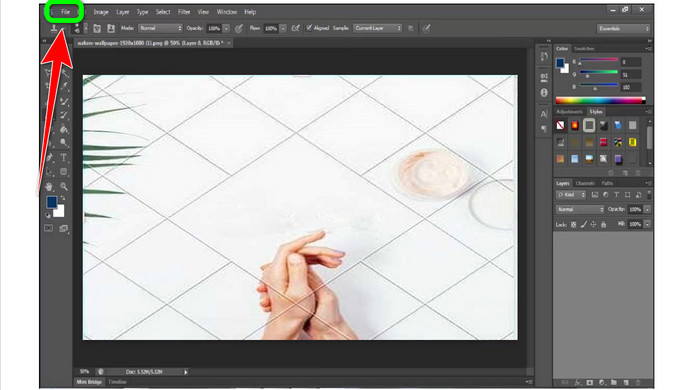
Trinn 2: Gå til File > Open for å sette inn bildet med Canva-vannmerket.
Trinn 3: På venstre side av grensesnittet velger du Clone Stamp Tool.
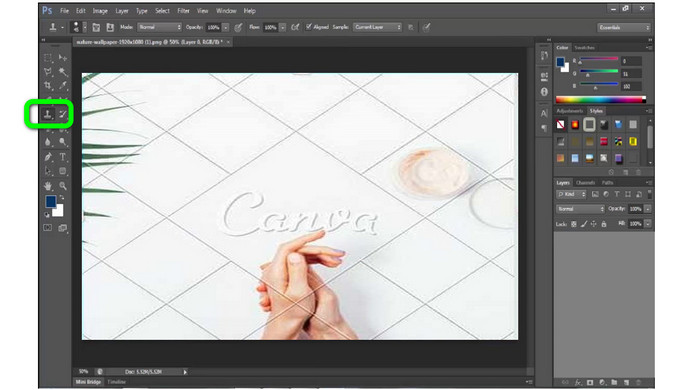
Trinn 4: Etter at du har valgt Clone Stamp Tool, bruker du musen til å klikke på Canva-vannmerket til du har fjernet alle vannmerkene.
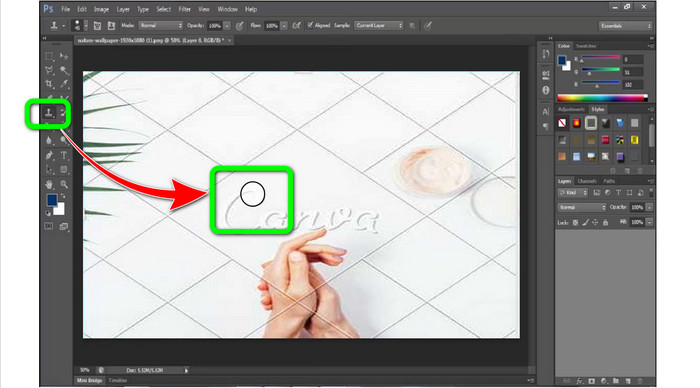
Trinn 5: Når Canva-vannmerket er borte, går du til File > Save.
Relatert til:
Enkle trinn for hvordan du fjerner WOW Slider-vannmerket [Løst]
Enkle metoder for å fjerne Shootproof-vannmerket
Del 3: Vanlige spørsmål om fjerning av Canva-vannmerker
1. Hvordan fjerner jeg det gratis vannmerket Canva?
For å fjerne vannmerket fra alle designene dine, må du kjøpe Canva Pro. Et annet alternativ er å bruke en gratis prøveversjon av Canva Pro, som vil slette vannmerket. Du kan også fjerne vannmerket ved å lagre designet som en PDF- eller PNG-fil.
2. Hva er forskjellen mellom Canva og Canva Pro?
I Canva er planen helt gratis. Du kan få gratis maler, layouter, grafiske elementer, bilder og mer. Men i gratisversjonen er det begrensninger, som mangelen på merkevareverktøy, ingen filtre og begrensede utdataalternativer. I Canva Pro er det flere flotte funksjoner du kan glede deg over. Den tilbyr flere maler, arkivbilder, grafikk og videoer. Å bruke Canva Pro er bedre enn gratisversjonen.
3. Hva er den beste måten å fjerne Canva vannmerket på?
Bruk FVC Free Watermark Remover. Dette verktøyet kan raskt hjelpe deg med å fjerne Canva-vannmerkene fra bildet ditt. Det kan også slette andre uønskede elementer, som logoer, tekst, emojier osv.
Konklusjon
Canva er et fantastisk verktøy for grafisk design. Men det legger igjen vannmerker på nesten alle bilder. Hvis du vil fjerne Canva-vannmerker, kan du bruke FVC Free Watermark Remover. Det er gratis og enklere å bruke enn Photoshop.
-
 Enkleste metoder for hvordan du fjerner vannmerke fra bilder
 Er du irritert over vannmerkene på bildene dine? Ikke bekymre deg! Denne artikkelen vil gi enkle og enkle metoder for å fjerne vannmerker fra bildene dine
-
 Måter på hvordan du enkelt kan fjerne Reddit-vannmerker fra bilder
 Hvis du er her, ser du kanskje etter en utmerket Reddit vannmerkefjerner. I så fall vil vi vise deg den enkleste metoden for å fjerne Reddit-vannmerker
-
 Slik fjerner du vannmerke i Lightroom Mobile [Løst]
 Vil du lære hvordan du fjerner vannmerker fra bilder i Lightroom? Her er de enkleste metodene du kan prøve ved å bruke mobiltelefoner og datamaskiner
