


 Video Converter Ultimate
 Skjermopptaker
 Videoreparasjon
 Sikker nedlasting
Beste Opus til MP3 Converter: En omfattende gjennomgang og sammenligning
Hvis du vil at musikken din skal være kompatibel med flere enheter, bør du vurdere å bytte fra Opus til MP3. MP3-lydformatet støttes overalt, så du kan spille av MP3-filer på nesten hva som helst. For å sikre at musikken din er tilgjengelig på flest mulig enheter, konverter Opus-filene dine til MP3.
Motsatt kan fordelene med Opus-formatet utnyttes hvis du konverterer MP3 til Opus. Opus er ofte anerkjent som ideell for streaming, online spill og stemmekommunikasjon på grunn av høykvalitetslyd, effektive komprimering og minimale latens. Hvis du konverterer MP3-ene til Opus, kan du redusere størrelsen på dem uten å miste noe av den utmerkede lydkvaliteten. Når det er sagt, vil du her oppdage verktøyene du kan bruke for å få utført konverteringen. Sjekk dem ut nedenfor.

Del 1. Konverter OPUS til MP3 eller MP3 til OPUS Online
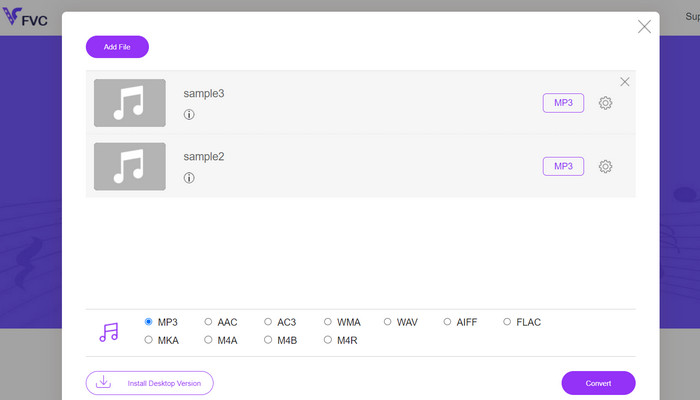
Nesten alle de vanligste video- og lydformatene kan konverteres til formatet du ønsker ved hjelp av Free Audio Converter Online, et nettbasert multimediekonverteringsprogram. Det er nettbasert, men du kan likevel konvertere flere videoer samtidig. Dette nettprogrammet er mer allsidig enn det ser ut ved første øyekast, ettersom det ikke bare konverterer filer, men også lar brukerne justere en rekke lydinnstillinger. Dette nettbaserte verktøyet har ikke bare et intuitivt grensesnitt, men selve konverteringsprosessen krever nesten ingen teknisk kunnskap. Du kan følge trinnene nedenfor for å lære hvordan denne beste nettbaserte Opus til MP3-konverteren fungerer.
Nøkkelfunksjoner
◆ Filformatkonvertering: Den støtter ulike populære formater som MP3, WAV, AAC, FLAC, OGG og mer.
◆ Batch-konvertering: Denne funksjonen lar deg konvertere hele mapper eller en gruppe lydfiler på én gang.
◆ Tilpasningsalternativer: Det gir ytterligere tilpasningsalternativer, for eksempel justering av lydbithastighet, samplingsfrekvens, kanalkonfigurasjon eller til og med trimming eller splitting av lydfiler.
Trinn 1. Gå først til Free Audio Converter Online-siden fra FVC på https://www.freevideoconverter.online/audio-converter.
Trinn 2. Velg Opus-filen du vil endre ved å klikke på knappen Add Files to Convert. Du kan også dra og slippe filen hvor som helst på siden.
Trinn 3. Etter at du har lastet opp filen, velger du bare MP3 fra menyen under Audio-format for å angi ønsket filformat. Du kan også batchkonvertere Opus til MP3 ved å laste opp flere filer.
Trinn 4. Du kan bare klikke på ikonet Settings for å finjustere bithastighet, samplingsfrekvens og kanalvalg for utdatafilen. Klikk deretter på knappen Convert for å starte prosessen.
Del 2. Konverter OPUS til MP3 eller MP3 til OPUS offline
1. Video Converter Ultimate
Hvis du ønsker å konvertere videofilene dine til MP3 eller et annet lydformat, er Video Converter Ultimate et svært godt valg. Det er ikke bare begrenset til MP3-konvertering; det fungerer med et bredt utvalg av filtyper, inkludert WAV, WMA, AAC, FLAC, OGG og RA. Det er gratis og enkelt å bruke. I tillegg går selve konverteringen av lydfilen så raskt at du får den konverterte filen på svært kort tid.
Video kan konverteres til forskjellige andre videoformater og lydformater. Du trenger ikke å være en teknisk ekspert for å sette opp dette; i tillegg tar det bare noen få minutter. Konverter filer raskt og nyt det intuitive brukergrensesnittet.
Nøkkelfunksjoner
◆ Konvertering av høy kvalitet: Programvaren sikrer utdata av høy kvalitet ved å bevare den originale video- og lydkvaliteten under konvertering. Den støtter tapsfri konvertering for visse formater, og sikrer minimalt tap av kvalitet.
◆ Batch-konvertering: Video Converter Studio muliggjør batch-konvertering, slik at du kan konvertere flere filer samtidig.
◆ Enhetsspesifikke forhåndsinnstillinger: Programvaren tilbyr en rekke enhetsspesifikke forhåndsinnstillinger, noe som gjør det enkelt å konvertere videoer for spesifikke enheter som smarttelefoner, nettbrett, spillkonsoller og mer. Dette sikrer optimal kompatibilitet og avspillingskvalitet.
Trinn 1. For å forsikre deg om at verktøyet dekker behovene dine, kan du først prøve gratis prøveversjon. Installer deretter programmet på datamaskinen og gjør deg kjent med grensesnittet.
Gratis nedlastingFor Windows 7 eller nyereSikker nedlasting
Gratis nedlastingFor MacOS 10.7 eller nyereSikker nedlasting
Trinn 2. Klikk på ikonet Add Files eller Plus, og finn deretter lydfilen på datamaskinen for å laste den opp. Ved å dobbeltklikke på filen starter du importprosessen til programmet. Du kan også dra og slippe videoen fra filutforskeren på datamaskinen inn i programmet.
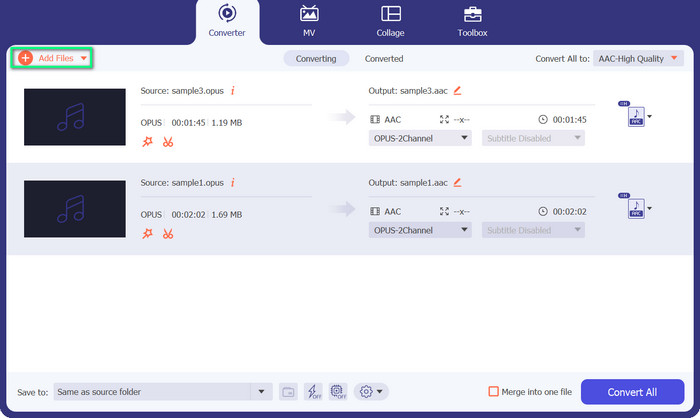
Trinn 3. Om filen er i MP3- eller Opus-format, er umiddelbart synlig. Nå skal vi endre Opus-filen til MP3. Knappen Convert All to finner du øverst til høyre i verktøyet. Se deretter etter Opus- eller MP3-formatet i Audio-menyen. Velg deretter Convert All for å starte konverteringsprosessen.
2. VLC
VLC er en mangefasettert mediespiller som har integrerte lyd- og videokonverteringsfunksjoner. Verktøyet er pålitelig for å konvertere Opus til MP3 og andre formater på grunn av dets støtte for ulike formater, brukervennlig grensesnitt og tilpasningsmuligheter. VLC tilbyr en strømlinjeformet og effektiv konverteringsprosess med minimale ulemper, noe som gir forbedret kompatibilitet, fildeling og musikkglede på flere enheter.
Nøkkelfunksjoner
◆ Cross-Platform-kompatibilitet: VLC er tilgjengelig for ulike operativsystemer, inkludert Windows, macOS, Linux, Android, iOS og mer. Du kan nyte funksjonene på forskjellige enheter og plattformer.
◆ Lyd- og videokonvertering: VLC har innebygde konverteringsmuligheter, slik at du kan konvertere lyd- og videofiler fra ett format til et annet.
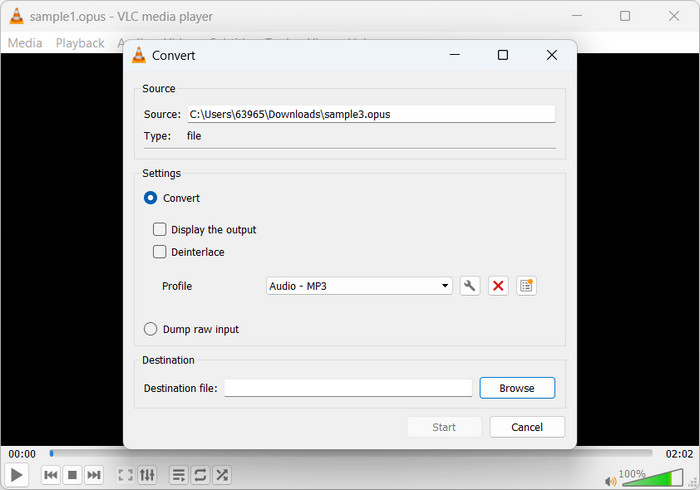
Trinn 1. Start favorittmediespilleren din. For å konvertere eller lagre medier går du til Media i hovedmenyen og klikker på Convert/Save.
Trinn 2. Velg Opus-filen du vil konvertere ved å klikke på knappen Add i fanen File og bla deg frem til den. Klikk ganske enkelt på knappen Convert/Save.
Trinn 3. Velg Audio - MP3 som utdataformat for profilen i fanen Profile. For å endre bithastighet eller samplingsfrekvens, blant andre lydparametere, kan du velge en profil og deretter klikke på alternativet Edit selected profile.
Trinn 4. Velg hvor du vil lagre MP3-filen etter at den er konvertert. For å starte konverteringen klikker du på knappen Start. Slik konverterer du Opus til MP3 i VLC.
3. FFmpeg
FFmpeg er en åpen kildekode-programvarepakke og kommandolinjeverktøy som brukes til multimediedatabehandling. Programvaren tilbyr et omfattende utvalg av biblioteker og programmer for å administrere ulike lyd-, video- og streamingformater. FFmpeg forenkler konvertering fra Opus til MP3 på Linux-systemer.
Nøkkelfunksjoner
◆ Støtte for multimediaformat: FFmpeg støtter et stort utvalg multimedieformater, inkludert lyd-, video- og streamingprotokoller.
◆ Tilpasning og automatisering: FFmpeg tilbyr omfattende tilpasningsalternativer gjennom kommandolinjeparametere, slik at du kan finjustere konverteringsprosessen i henhold til dine spesifikke krav.
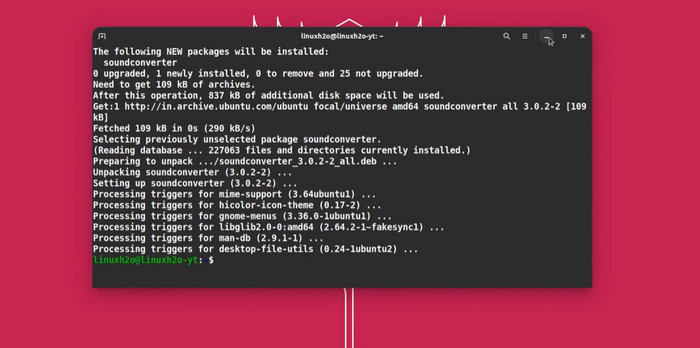
Trinn 1. Installer det på Linux. Du kan installere FFmpeg via pakkebehandleren i Linux-distribusjonen din. På Ubuntu fungerer sudo apt-get install ffmpeg.
Trinn 2. Åpne Terminal – Linux Terminal. Bruk cd-kommandoen for å gå til katalogen der Opus-filen ligger. Hvis Opus-filen ligger i mappen Music i hjemmekatalogen din, bruker du cd ~/Music. Konverter Opus til MP3 FFmpeg konverterer Opus til MP3 med denne kommandoen: input.opus ffmpeg -c: a libmp3lame output.mp3
Erstatt input.opus med Opus-filen din og output.mp3 med MP3-filnavnet ditt.
Trinn 3. Kjør FFmpeg. FFmpeg leser Opus-filen, bruker libmp3lame og lagrer MP3-filen. Konverteringstiden avhenger av Opus-filens størrelse og kompleksitet. Terminalen viser fremdriften for konverteringen. Slik konverterer FFmpeg Opus til MP3.
Mer lesing:
Praktisk veiledning i hvordan du konverterer videoer til MP3-format
De beste verktøyene du kan bruke til å batchkonvertere MP3 til M4R-filer
Del 3. OPUS vs. MP3
Nå, her er en detaljert sammenligning av de to lydformatene når det gjelder komprimeringsforhold, lydkvalitet, kompleksitet og lisens.
| Opus | MP3 | |
| Kompresjonsforhold | Høyt komprimeringsforhold, og tilbyr mindre filstørrelser | Moderat komprimeringsforhold, noe som resulterer i større filstørrelser |
| Lydkvalitet | Utmerket lydkvalitet, selv ved lave bithastigheter | God lydkvalitet, men kan vise merkbare artefakter ved lave bithastigheter |
| Kompleksitet | Relativt kompleks kodek sammenlignet med MP3 | Enklere kodek, allment forstått og implementert |
| Tillatelse | Opus er en åpen og royaltyfri lydkodek | MP3 har patentlisenskrav for bruken |
Del 4. Vanlige spørsmål om OPUS og MP3-konverterere
I hvilke scenarier foretrekkes Opus fremfor MP3?
Opus foretrekkes i scenarier som krever lav latens, høykvalitetslyd ved lave bithastigheter, for eksempel talekommunikasjon, videokonferanser, streaming og sanntidsapplikasjoner der det er avgjørende å bevare klarhet og minimere forsinkelser.
Kan Opus og MP3 oppnå åpenhet?
Opus har potensialet til å oppnå gjennomsiktighet, noe som betyr at den komprimerte lyden ikke kan skilles fra originalen. MP3 når imidlertid vanligvis ikke gjennomsiktighet, og artefakter kan være merkbare, spesielt ved lavere bithastigheter.
Når er MP3 ofte brukt?
MP3 brukes ofte til generell musikkavspilling, podcaster, lyddistribusjon og diverse andre applikasjoner der en balanse mellom god lydkvalitet og rimelige filstørrelser er ønsket. Den har en lang historie med kompatibilitet og bred støtte.
Konklusjon
Å konvertere Opus til MP3 er fordelaktig når MP3-kompatibilitet og bred støtte er nødvendig. Opus gir lyd av høy kvalitet og effektiv komprimering ved lave bithastigheter, men MP3 er et velkjent og bredt støttet lydformat på en rekke enheter og programmer. Konvertering fra Opus til MP3 øker kompatibiliteten og gjør det enklere å spille av filer på ulike enheter og plattformer.
-
 5 MP3-kuttere for å kutte hvilken som helst lyd enkelt [2023 Oppdatert]
 Trenger du en MP3-kutter for å trimme lyden? I så fall, les denne artikkelen fordi vi tilbyr verktøyene du kan stole på som gir enkel skjæring av lyden.
-
 Konverter MP3 til OGG og nyt overlegen lydkvalitet
 Ønsker du å forbedre lydkvaliteten til musikkfilene dine samtidig som du reduserer størrelsen? En MP3 til OGG-omformer er den perfekte løsningen. Sjekk dem ut i dette innlegget.
-
 FLAC vs. MP3: Hvilket lydfilformat regjerer
 Dette innlegget vil sammenligne de viktigste forskjellene mellom FLAC vs. MP3. Det inkluderer lydkvalitet, filstørrelse, kompatibilitet og mer.
