


 Video Converter Ultimate
 Skjermopptaker
 Videoreparasjon
 Sikker nedlasting
VLC til MP4-konverterere: Raskeste og perfekte verktøy du bør vite
The VLC Media Player is not just your ordinary media player for watching movies and listening to tunes, for it is a lot more versatile than you think. If you are a VLC fan, chances are you have a bunch of movies stored in its library. Did you know that you can actually use VLC to convert your videos into different formats like MP4? Thus, if you ever thought about converting these movies or videos in VLC to MP4 format so that you can watch them on your phone or other portable devices, then you are in luck! This post will teach you the quickest and easiest conversion process that you can do on your computer. So, cutting this to the chase, proceed to read the entire content below to catch the learning ASAP!

Del 1. Raskeste måten å konvertere VLC-filer til MP4
If you are looking for great software that handles video conversions like a champ without sacrificing quality, then look no further since we have let you meet this FVC Video Converter Ultimate. This ultimate converter not only swiftly transforms VLC videos into various formats like MP4, MKV, WMA, AVI, MOV, and more, but it does so without any loss in image quality. Furthermore, it is super fast, up to 120x faster, since it comes with hardware acceleration support.
Men vent, det er mer! Denne VLC til MP4-konverteren fungerer også som en førsteklasses videoredigerer. Editoren lar deg beskjære, klippe, rotere, legge til vannmerker og mange andre redigeringer du kjenner. Bortsett fra det kommer den med nøkkelfunksjoner du ikke vil gå glipp av. Funksjoner som hjelper deg med å lage fantastiske videokollasjer med klippene, bildene og sangene dine! I mellomtiden, la oss gå til en rask konverteringsprosess brakt til deg av FVC via trinnene nedenfor.
Step 1. Let’s start by grabbing the software on your computer. You may use the Download buttons below according to your system device. Yes, you can convert VLC to MP4 on Mac or Windows with this software.
Gratis nedlastingFor Windows 7 eller nyereSikker nedlasting
Gratis nedlastingFor MacOS 10.7 eller nyereSikker nedlasting
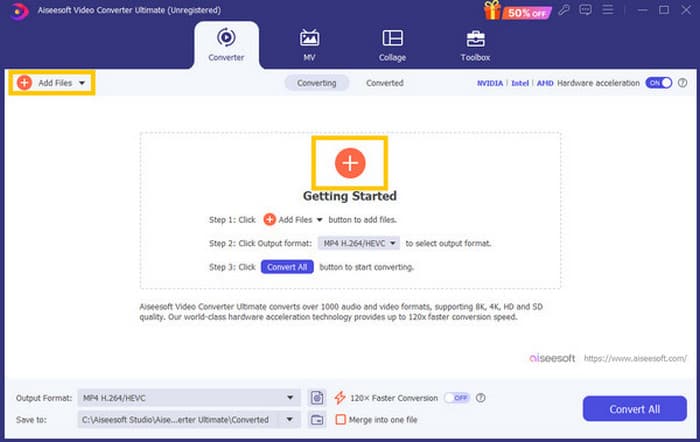
Step 2. After your acquisition, launch the software and start importing all the VLC files that you need to convert. Simply click the red Plus button at the center of the workspace or the Add Files button at the upper right part.
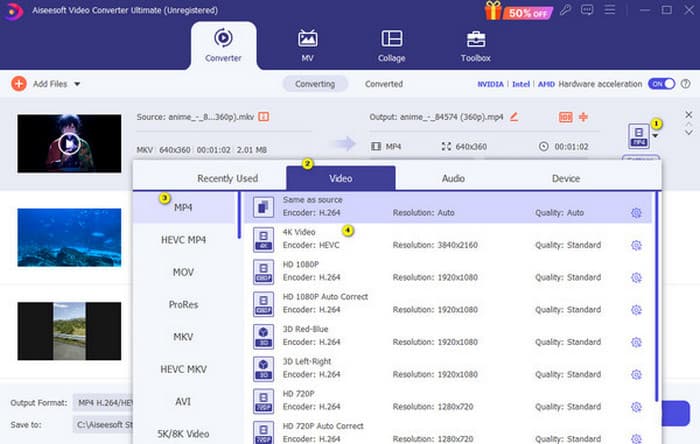
Step 3. After the bulk importation of files, it’s time to change the output format to MP4. To do so, click the inverted triangle button at the tail part of each file. Then, navigate to Video>Select MP4>Select Encoder.
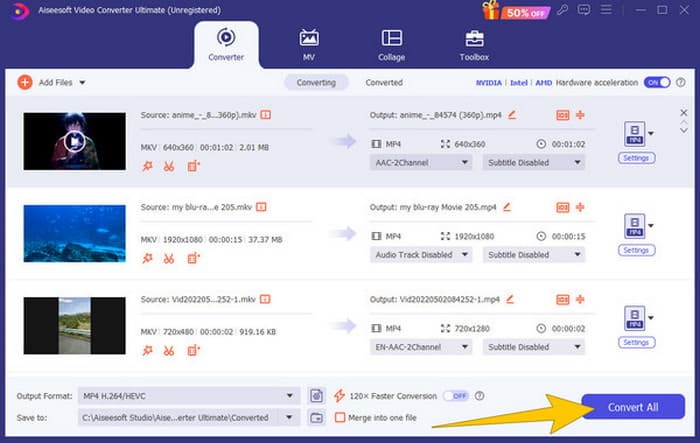
Step 4. As easy as that, you can now navigate the Convert All button to start the ultrafast conversion process.
Fordeler
- En god multifunksjonell programvare for å konvertere, redigere og lage videofiler.
- Den tilbyr en gratis prøveversjon som gir deg samme konverteringskraft.
- Det tillater bulk VLC-filkonvertering.
- Konverter VLC-filene dine til 120x raskere.
- Ulike inn- og utdataformater støttes.
Ulemper
- Du må kjøpe et abonnement for de avanserte funksjonene.
Del 2. Fullfør trinnene for å konvertere filer til MP4 i VLC
Siden du jobber med VLC-filer, er det virkelig et godt alternativ å konvertere dem ved å bruke VLC selv. Imidlertid, i motsetning til den forrige VLC til MP4-konverteren, kan VLC være litt utfordrende å betjene når det kommer til konvertering. Dette er grunnen til at vi har gjort prosessen enklere å følge med de omfattende trinnene vi har gitt nedenfor.
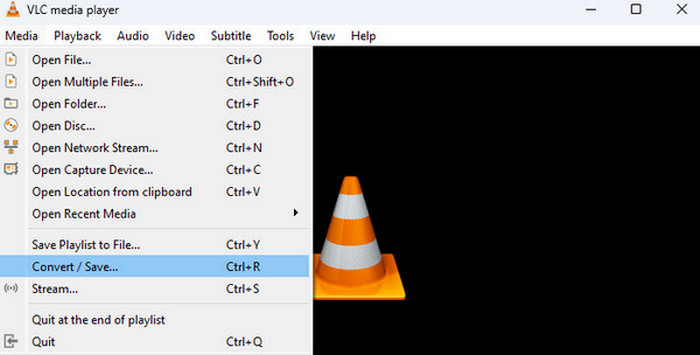
Step 1. Open the VLC on your computer device, then bring the video file on, too. How? Navigate to the Media menu and click the Convert/Save sub-menu.
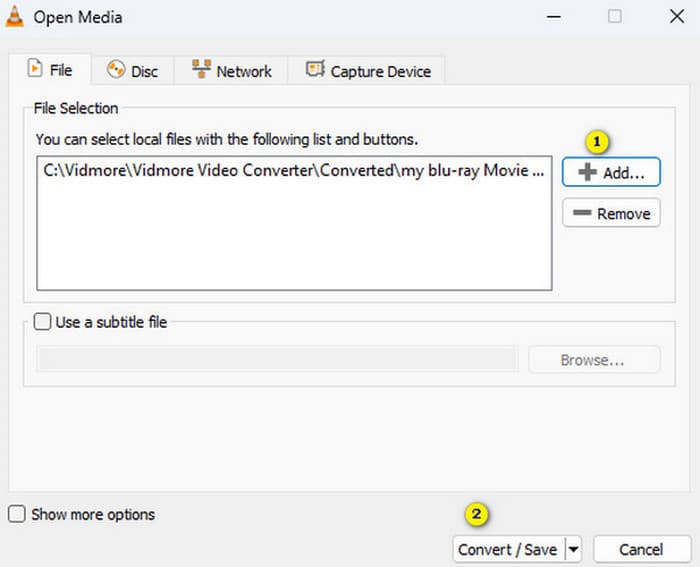
Step 2. On the Open Media window, click the +Add button to bring the file on. When the file is loaded, click the Convert/Save button at the bottom.
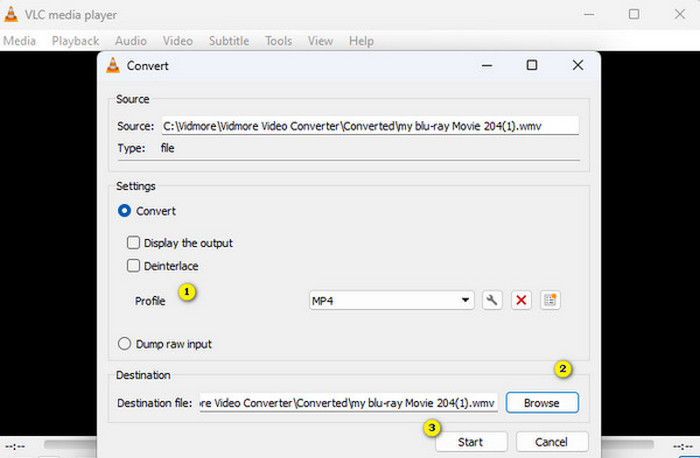
Step 3. After that, VLC will bring you to the next window, where you need to choose the MP4 as your output format. To do this, go to the Profile section. Then, go to the Browse section to set your file destination, then click the Start button to start the conversion process.
Fordeler
- Det er en gratis omformer og mediespiller.
- Det er en VLC til MP4-omformer på tvers av plattformer.
- Du kan jobbe direkte med VLC-filene dine uten et tredjepartsverktøy.
- Du kan jobbe med ulike videoformater.
Ulemper
- Konverteringsprosessen er ikke så rask.
- Den kommer med en filstørrelsesbegrensning ved konvertering.
Del 3. Konverter filer fra VLC til MP4 Online
Suppose you want to go the extra mile to convert video files online. If that’s the case, you must learn to convert files with FVC Free Video Converter Online. This web-based converter is all about making multimedia conversion easy and free. It can convert almost any video and even audio file to various formats without losing quality. With this converter, you can quickly turn your HD videos into popular formats while preserving their original clarity. Furthermore, it lets you convert multiple files in a jaw-dropping, fast conversion process!
Dette verktøyet tilbyr også redigeringsfunksjoner der du kan justere videoinnstillingene som bildefrekvens, bitrate og oppløsning, samt lydinnstillinger som bitrate og volum. Dette betyr at du kan tilpasse videoene dine akkurat slik du vil og eksportere dem uten tap i kvalitet! Følg trinnene nedenfor for å konvertere fra VLC til MP4 online.
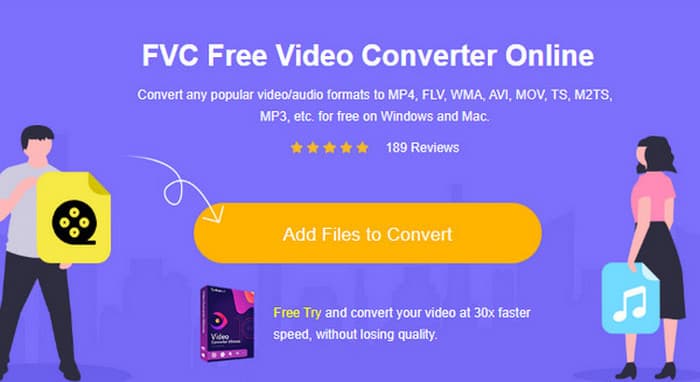
Step 1. Upon reaching the official website of the online converter, click the Add Files to Convert button. This will enable you to upload your initial video files.
Step 2. When your files are shown, click them and choose MP4 as your output format from the options given at the bottom of the interface.
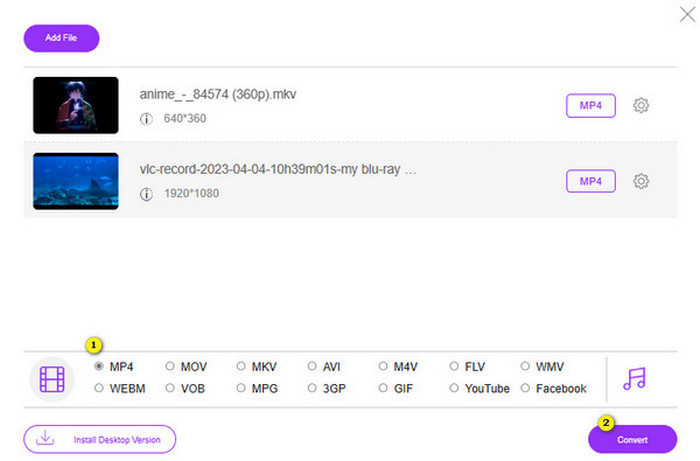
Step 3. After setting all the files into MP4, it’s time to click the Convert button.
Fordeler
- Det er så mye mer tilgjengelig å bruke.
- Det krever ingen programvareinstallasjon.
- Du kan konvertere alle filene dine samtidig.
Ulemper
- Du må ha en stabil internettforbindelse for en luftig konverteringsprosess.
Del 4. Vanlige spørsmål om VLC til MP4-konvertering
Hvordan konverterer du VLC til MP4 på Mac?
Use the Mac version of FVC Video Converter Ultimate to convert your video files to MP4 without a quality lost.
Kan jeg bruke VLC til å konvertere krypterte eller DRM-beskyttede videoer?
No. Unfortunately, VLC cannot convert encrypted or DRM-protected videos to MP4 or any other format.
Gjør VLC en tapsfri konvertering?
VLC tilbyr alternativer for å justere video- og lydinnstillinger for å opprettholde den beste tapsfrie konverteringen.
Konklusjon
You see, converting your VLC to MP4 is actually pretty simple as long as you know the right things to do. But if you're aiming for fast and top-notch quality output, you must cling to a powerful converter like the FVC Video Converter Ultimate. This converter won’t require you to use detailed settings just to produce nice outputs, which you are likely to have with VLC.
-
 Prosess for å rippe og spille inn DVD med VLC for å digitalisere spillbart format
 VLC støtter mange lyd-videokomprimerte filformater, inkludert innspilling på DVDer. Bare fortsett å rulle for mer diskusjon og detaljer helt til slutt.
-
 Utmerkede måter mulige | Slik fikser du VLC-lydforsinkelse [2024]
 Har du vanskelig for å se favorittfilmen din på VLC-mediespilleren din på grunn av lydusikkerheten? Fortsett å lese denne artikkelen for å vite alle mulige måter å fikse VLC-lydforsinkelse på.
-
 Hvordan bruke VLC til å reparere videoer | Din ultimate guide
 Har du ødelagte videoer fast på filene dine? Utforsk den ultimate guiden til VLC-videoreparasjon for å reparere videoene dine og få dem til å spille igjen enkelt.
