


 Video Converter Ultimate
 Skjermopptaker
 Videoreparasjon
Forenklet veiledning Hvordan konvertere DV til WMV på Windows og PC
DV-filer er standard rå kringkastingsformater som ofte brukes på videokameraer. Etter at dette debuterte som et standardformat for videokameraer, introduserte Sony og Panasonic et mer profesjonelt format som skiller seg fra DV-formatet. Selv om DV-filen er utmerket til redigering, må du bruke et program for å kunne spille den av på Windows. Nedenfor presenterer vi derfor to konvertere du kan bruke til å konvertere DV til WMV og se den uten problemer.

Del 1. Bruk den mest utrolige konverteren til å konvertere DV til WMV
FVC Video Converter Ultimate kan hjelpe deg med å konvertere formatet til en nyere versjon. Dette verktøyet støtter en rekke ulike funksjoner i tillegg til konvertering. Så hvis du skaffer deg denne konverteren, kan du forvente å kunne gjøre mer enn bare å konvertere. Dessuten, hvis du trenger en umiddelbar konverteringsprosess, er dette det beste valget for å konvertere DV til WMV, AVI, MOV, MP4, MKV og over 200 andre medieformater. Vil du oppleve en ny type konverteringsverktøy som gir profesjonelt resultat uten bryderi? I så fall vil denne demonstrasjonen hjelpe deg å se hvordan du konverterer filen til et nytt WMV-format.
Trinn for hvordan du konverterer DV til WMV med FVC Video Converter Ultimate:
Trinn 1. Last ned FVC Video Converter Ultimate til harddisken på datamaskinen din, klikk på nedlastingsknappen, følg installasjonstrinnene og start deretter verktøyet.
Gratis nedlastingFor Windows 7 eller nyereSikker nedlasting
Gratis nedlastingFor MacOS 10.7 eller nyereSikker nedlasting
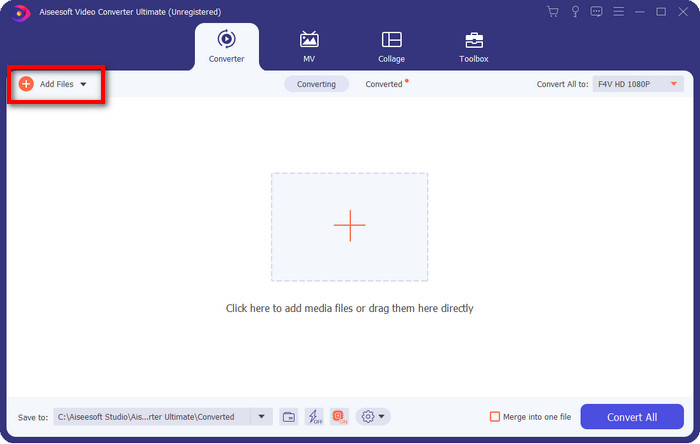
Trinn 2. Etter at alt er satt opp, legger du til filen i konverteren ved å klikke på Add Files, finn DV-filen som er lagret på datamaskinen i mappen som åpnes, og klikk Open.
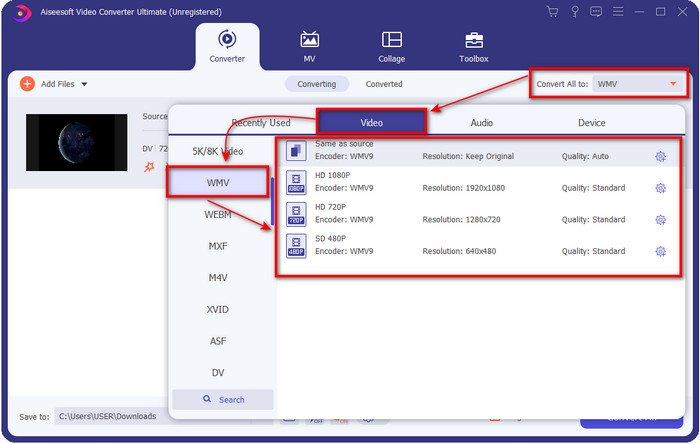
Trinn 3. Endre format ved å klikke på nedtrekksknappen øverst til høyre i brukergrensesnittet. Velg deretter WMV-formatet i listen som vises, og nå kan du velge kvaliteten på videoresultatet.
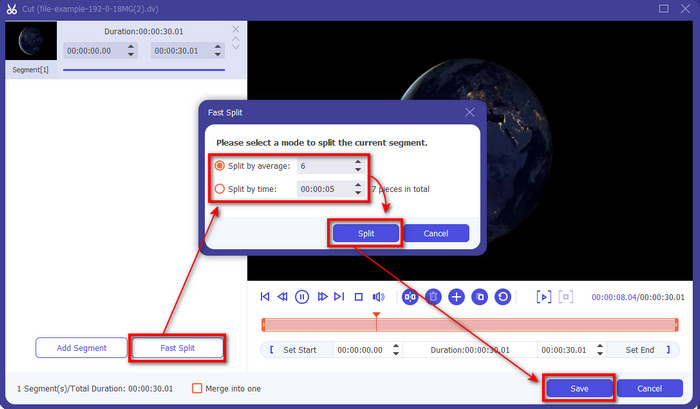
Vil du dele videoene dine i ulike segmenter? I så fall trykker du på sakseknappen, klikker på Fast Split for å angi hvor mange segmenter du vil ha og hvor lange de skal være, og trykker på Split for å fortsette. For å lagre resultatet av delingen du har gjort, klikker du på Save.
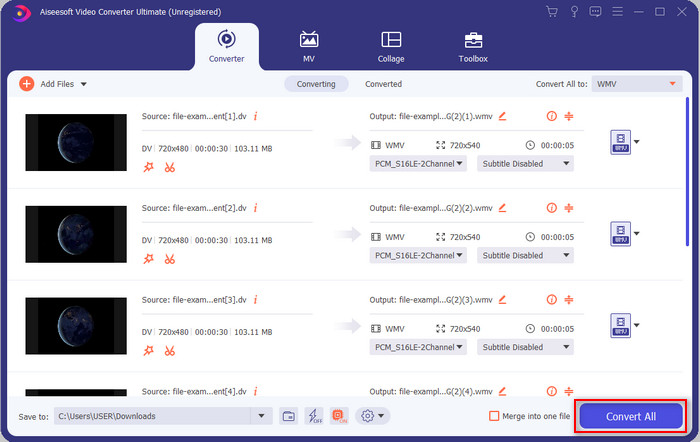
Trinn 4. Klikk på Convert All for å starte konverteringen av DV-filen. Etter prosessen vil en ny mappe vises på skjermen med den nye WMV-filen.
Del 2. Bruk Online Converter for å konvertere DV til WMV Online
Leter du etter en nettbasert løsning for å konvertere DV til WMV uten bryderi? Da har FVC det du trenger med FVC Free Video Converter Online. Denne nettbaserte konverteren hjelper deg med å konvertere, men du må bruke den i nettleseren i stedet for å laste den ned. Dessuten er den enkel, gratis og sikker, slik at konverteringen blir bedre. Vil du vite hvordan du bruker dette nettverktøyet? Følg da trinnene nedenfor for å lære hvordan du konverterer på nettet.
Trinn 1. Du kan klikke på denne lenken for å åpne den nettbaserte konverteren, og en ny fane åpnes.
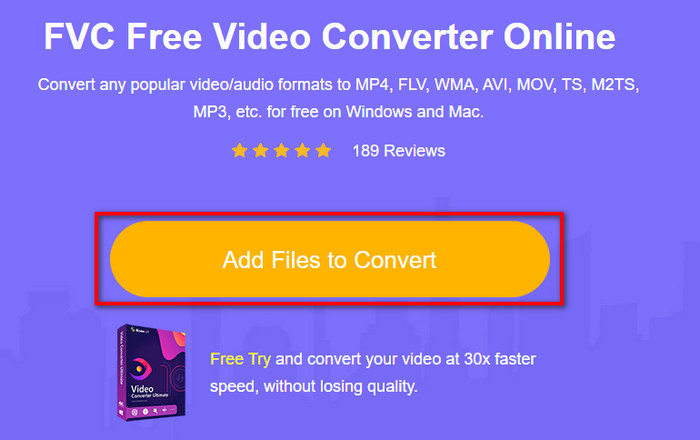
Trinn 2. Klikk på Add Files to Convert på nettstedet; en mappe vil umiddelbart vises på skjermen, velg DV-filen og trykk på Open.
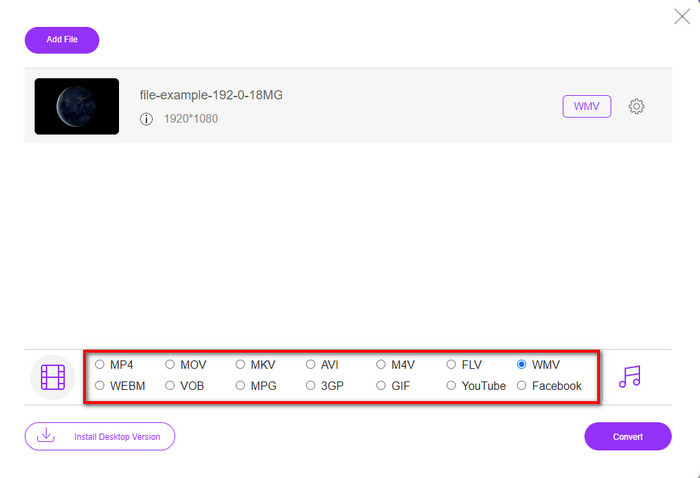
Trinn 3. Når filen er lastet opp, velger du formatet i listen nedenfor eller klikker på WMV for å lagre den som WMV-format.
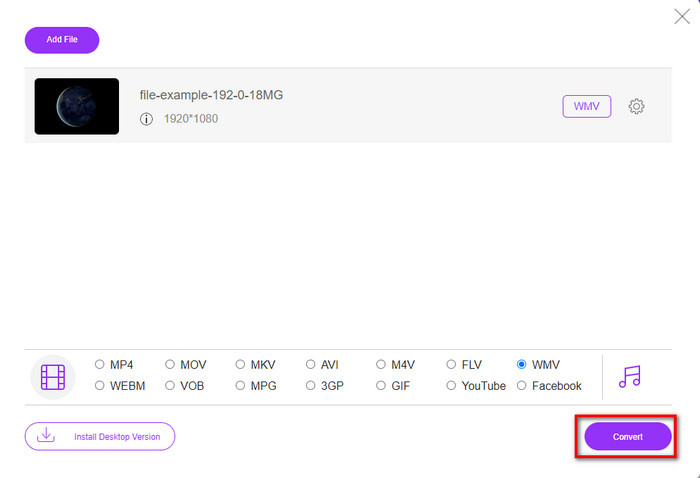
Trinn 4. Ved å klikke på Convert starter konverteringsprosessen. Etter prosessen lastes filen automatisk ned til harddisken på datamaskinen din.
Del 3. Hva er forskjellen mellom DV og WMV
Forskjellen mellom DV og WMV er lett å forstå på mange måter. Så hvis du vil vite hva disse er, må du lese informasjonen på listen nedenfor.
Opptak av video på et videokamera, DV er det beste valget fordi det kan lagre denne typen innhold. Dette formatet kan også inneholde viktige detaljer som metadata, underkode, klokkeslett og datokoding. Videre bruker dette formatet en intraramme-komprimering innenfor hver ramme, og på grunn av det er det ideelt for detaljert redigering. Selv om formatet er utmerket og lagret på DV-bånd, er kompatibiliteten dette formatet får dårlig, og filstørrelsen er enorm sammenlignet med WMV. På den annen side er WMV det beste formatet å bruke som videoavspilling på Windows. Og nå tilpasser den versjon 9-formatet for HD DVD og Blu-ray Disc, det er nå kjent som VC-1.
Del 4. Vanlige spørsmål om DV til WMV-konvertering
Hvorfor kan jeg ikke bruke DV på Mac-programvare?
DV-formatet støttes ikke på Mac, spesielt ikke i iMovie og QuickTime Player. Men du kan konvertere DV-filen din til MOV-format for å få den til å fungere på macOS. Hvis du ikke vet hvordan du konverterer DV til MOV, bør du bruke 5 minutter eller mindre på å lese denne artikkelen for å finne ut hvordan.
Er DV-filer fortsatt det beste formatet for redigering?
DV-formater er kjent for å være en av de beste beholderne innen redigering. Fordi DV lagrer video av høy kvalitet og lagrer hvert bilde for mer tilgjengelige redigeringsformål. Men i dag er evnen til dette formatet allerede tatt i bruk av de fleste formater. Så hvis du spør om det fortsatt er det ideelle, så er svaret nei på grunn av den dårlige kompatibiliteten til dette formatet.
Hvordan gjøre DV-filene mine mindre?
Som du kanskje allerede vet, er DV-filer svært store fordi dette formatet bruker en spesiell komprimering. Det er derfor helt vanlig å se etter en kompressor for å gjøre filen mindre for å spare plass på disken. Har du problemer med å velge og utføre hvordan du komprimerer DV-filer? I så fall kan du klikke på denne lenken.
Konklusjon
Alle konverterne som er presentert ovenfor vil hjelpe deg i prosessen med å konvertere DV til WMV-format. Nå kan vi avslutte denne gjennomgangen, siden vi allerede har fått nok kunnskap om hvordan du konverterer DV-filene dine. Nå må du velge hvilken konverter som passer best for deg. Valget er ditt; uansett hvilken konverter du bruker, vil disse FVC-verktøyene garantere at du lykkes. FVC Free Video Converter Online eller FVC Video Converter Ultimate – begge vil gjøre konverteringsprosessen problemfri.
-
 Beste strategi for hvordan du konverterer DV-fil til AVI-format med detaljerte trinn
 Vil du konvertere DV-filen til AVI? Les deretter denne artikkelen for å vite det unike verktøyet du kan bruke til å konvertere og en mediespiller for å spille av DV-en din på PC eller Mac.
-
 Nyttige DV til FLV-konverterere for å konvertere DV til FLV [2022]
 Hvis du leter etter de beste og enkle verktøyene du kan bruke til å konvertere DV til FLV, her er den beste artikkelen du kan lese. Ha en utmerket innsikt, graver gjennom all informasjonen i denne artikkelen.
-
 Topp 3 måter å konvertere FLV til WMV på Windows og Mac
 Leter du etter den beste måten å konvertere FLV til WMV uten å miste kvaliteten på PC eller Mac? Du er heldig siden vi deler her tre metoder for å gjøre jobben enkelt.
