


 Video Converter Ultimate
 Skjermopptaker
 Videoreparasjon
Hvordan senke oppløsningen til en video på Windows, Mac og mobiltelefoner
Videos on 1080 and 720 HD have the best resolution you would love to use, especially watching. Although these resolutions are best, sooner or later, you will need to convert the video resolution into less to save some space on your drive. But the question is how to convert the video resolution to lower it? This article will identify the leading video resolution converter to lower the video resolution on Windows, Mac, Online, Android, & iPhone.

Del 1. Hvorfor må du senke videooppløsningen
Som en forberedelse før vi senker videooppløsningen, la oss først finne årsaken til at vi må endre for å senke oppløsningen til en video. Informasjonen vi gir nedenfor er det vanligste tilfellet du trenger for å redusere oppløsningen.
Årsak 1. Støttes ikke på mobile enheter
Noen mobile enheter støtter ikke høyere videooppløsning fordi mobilen din ikke gjenkjenner den. Noen ganger trodde vi at videoen ikke åpnet på grunn av formatkompatibiliteten, men dette er en annen grunn bak det. Hvis du vil spille av videoen, må du huske oppløsningen til videoen du har lagret på telefonen.
Årsak 2. Ta deg tid til å laste filen på en mediespiller
Hver mediespiller kan spille av videoen din i høyest mulig oppløsning, men ikke alle kan laste videoen med høy kvalitet umiddelbart. Selv om det er morsommere å se en video med høy oppløsning enn å se en lavere. Å lære hvordan du senker oppløsningen til en video er et must hvis du vil se videoen umiddelbart med liten eller mindre belastning på mediespilleren.
Grunn 3. Video med høy kvalitet spiser mye plass
Denne grunnen er ikke ny for oss; video med høy kvalitet er mer sannsynlig å ha en enorm filstørrelse. På grunn av utskriften av høy kvalitet, må du forvente at filstørrelsen er stor. For eksempel er 720 og 1080 noen av de beste kvalitetene, men filstørrelsen på 720 videoer er mye mindre enn 1080 videoer. På den annen side er oppløsningen på 1080 mye høyere enn 720.
Nå som vi har ideen om hvorfor vi må redusere videooppløsningen, vil den påfølgende informasjonen nedenfor lære deg de forskjellige settene med verktøy du kan bruke for å redusere oppløsningen til videoen din. Hold ballen i gang for å få en helhetlig idé om det.
Del 2. Den enkleste måten å redusere videooppløsningen på skrivebordet
If you need a user-friendly video converter that can help you quickly change the video resolution, then Video Converter Ultimate will offer this to you. This tool supports 200+ formats with different presets you can choose from. Want to know what impressed us about this converter? With this tool, you can create presets that can go up to 4k or as low as 360 resolution. Moreover, you don't need to be a professional video editor to learn how to convert video to a lower resolution; by following the steps below, you can convert resolution successfully.
Step 1. Kindly click the appropriate button to get the version you are currently using, whether Windows or Mac. Open the download file to install the software follow the installation process to install it properly. After installation, open the Video Converter Ultimate and proceed to the next step.
Gratis nedlastingFor Windows 7 eller nyereSikker nedlasting
Gratis nedlastingFor MacOS 10.7 eller nyereSikker nedlasting
Step 2. Upload the video with the highest resolution by dragging and dropping it on the tool's interface. But you can click the + button to open the folder, locate the file and click Open to upload the video.
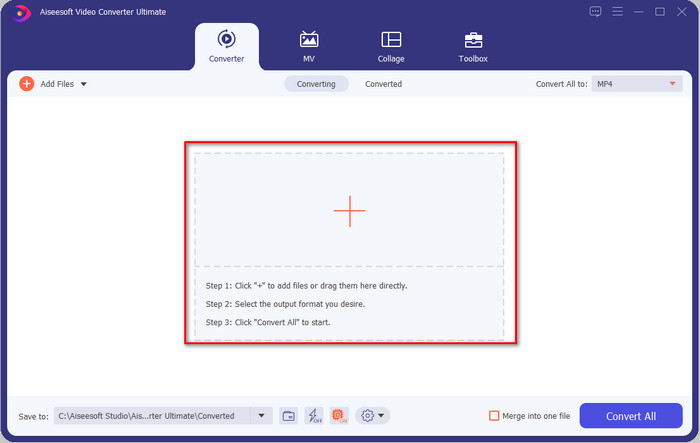
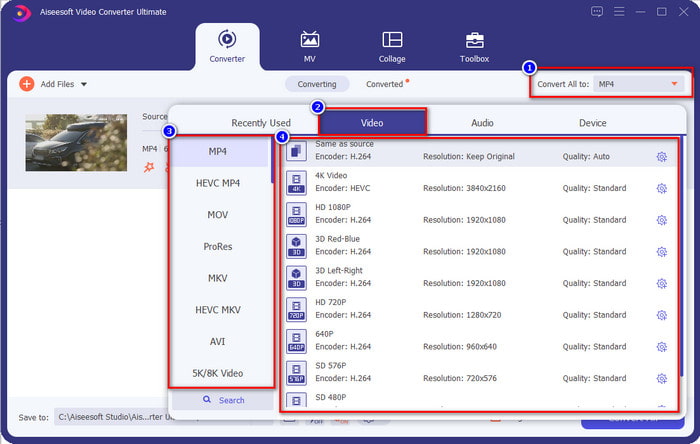
Step 3. Click Convert All to, and a setlist of the premade format will show. You can select different formats such as MP4, MOV, AVI, MKV, and 200+ more with different resolutions, click the format you want, and proceed.
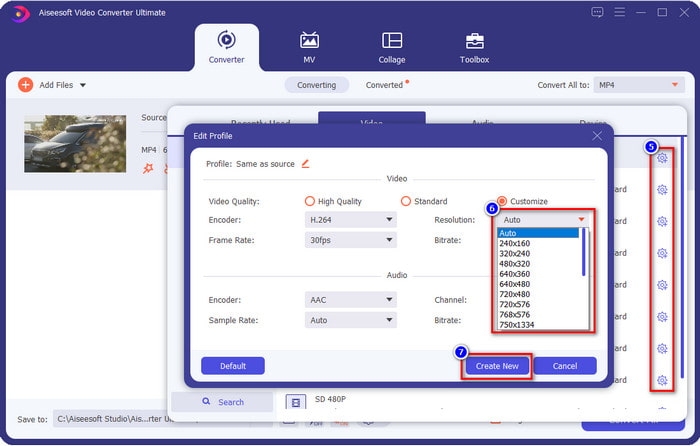
What if the resolution you want to achieve is not on the pre-made list? No need to worry; you can create your resolution. After clicking the Convert All to, choose the format you want and click the gear with a plus icon. Click the drop-down button, select the resolution you want, click Create New, and click the preset you've made.
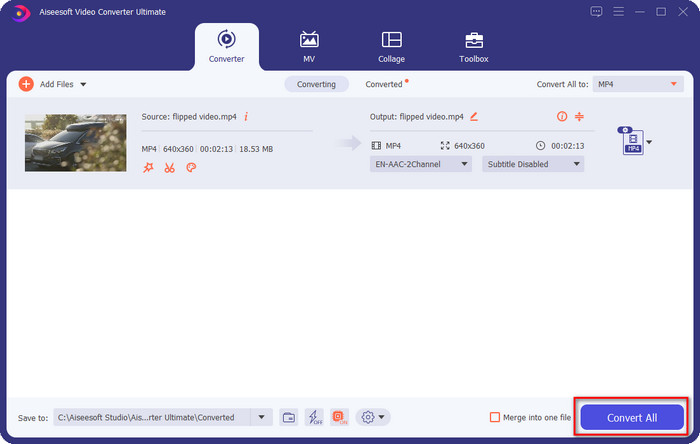
Step 4. To start lowering your video resolution, hit the Convert All button. With the ultra-fast conversion, the download will take less than a minute. And voila, the resolution of your video is now lowered, all thanks to the ultimate tool.
Del 3. Gratis måte å konvertere videooppløsning til lavere oppløsning på nettet
If you are looking for a way to convert HD video to lower resolution online, then you can use the FVC Free Video Converter Online as a solution. This web tool supports numerous formats you can upload and export into. Unlike the ultimate tool, you won't need to download this tool to convert the high-resolution video into a lower one. However, the tool doesn't have an ultra-fast converting process, and the supported format is not as many as the ultimate tool. So, if you want to try and use this web tool, you can follow the steps below.
Step 1. To go to the main webpage of FVC Free Video Converter Online, click this link.
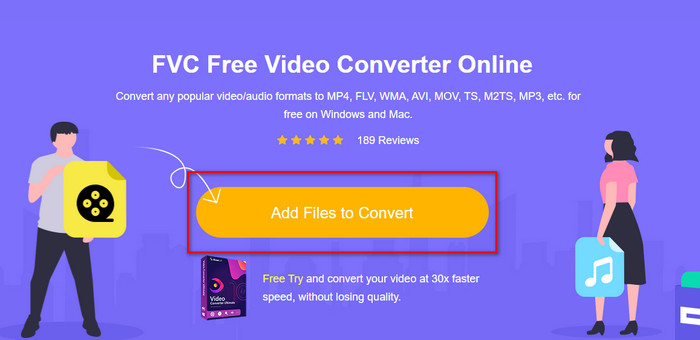
Step 2. Press Add Files to Convert to upload the video you want to lower the resolution. Additionally, if this is your first time using the tool, you must download the launcher. After that, click the Add Files to Convert again to upload the file.
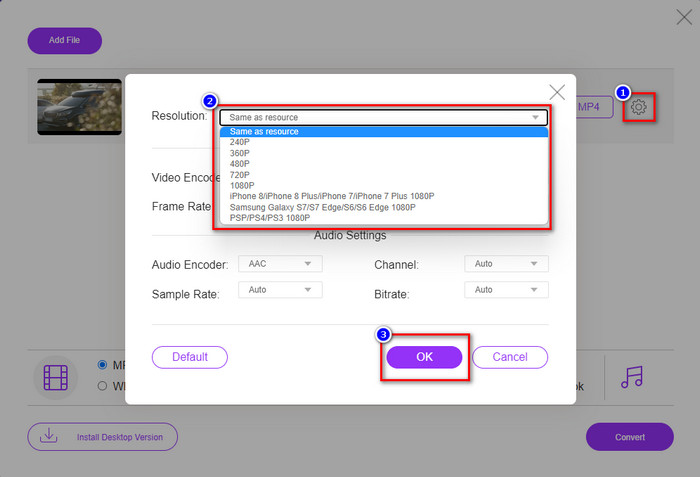
Step 3. Click the gear icon on the right side of the window that will show. Choose the resolution you want by clicking the drop-down button and pressing OK to save.
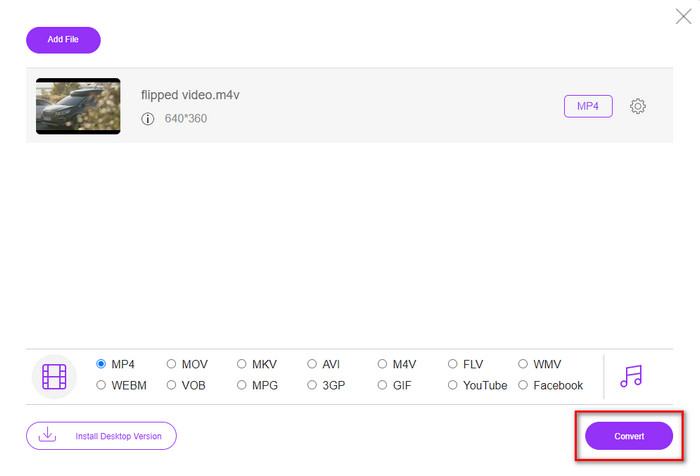
Step 4. To export the lower-quality video, click Convert and wait to download it on your drive.
Del 4. 2 beste apper for å redusere videooppløsning på iPhone og Android
Video Format Factory (kun for Android-brukere)
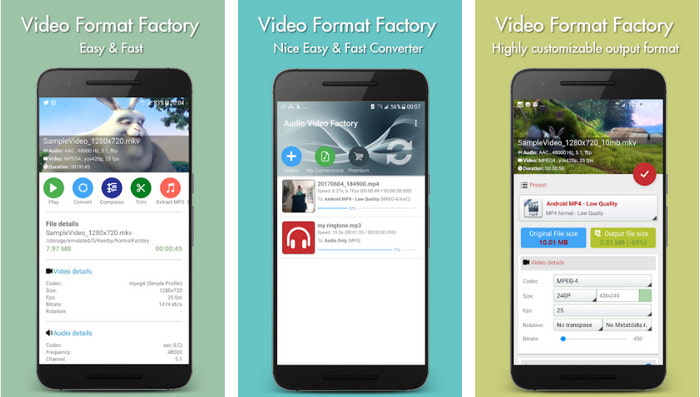
Hvis du trenger å lære hvordan du reduserer videooppløsningen på Android, kan Audio Video Factory hjelpe deg. Med denne appen kan du enkelt konvertere videooppløsningen til videoen din gratis. Noen annonser vil imidlertid dukke opp mens du konverterer, og du kan ikke bruke verktøyets fulle potensial hvis du ikke kjøper det. Så for å lære deg hvordan du bruker det, følg trinnene.
Step 1. Download the app on Playstore, then open it.
Step 2. Click Add to upload the video, choose where your video is, and click the video. After that, click Convert; click the Size and choose the resolution you want.
Step 3. Scroll up and click Convert Now to begin the process.
Lavere kamera med svært lav oppløsning (kun for iOS-brukere)
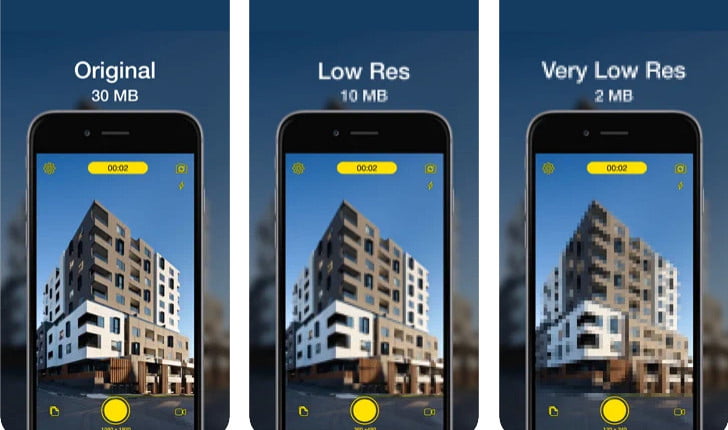
If you are an iOS user, you can still learn how to reduce the resolution of the video on the iPhone by using the Lower- Very Low Res Camera. Unlike the tools in this list, you can shoot a video with a lower resolution if you download this app on the App Store. However, the tools have some limitations, and it has pop-up ads while using the app.
Step 1. Download the app on the App Store, then click it to open.
Step 2. Click the file's icon and select the video you want to convert; after clicking the video, press Resize.
Step 3. Select the Recording Quality, and the process of converting it will begin.
Del 5. Vanlige spørsmål om senking av videooppløsning
Støtter VLC 4k-oppløsning?
Yes, VLC 3.0 supports playing videos that are on 4k resolution. But did you know there are many things VLC can do? If you want to explore VLC more, click this link and learn about VLC and its other perfect alternatives to use.
Hva er de andre verktøyene jeg kan bruke til å konvertere videooppløsning?
This review will learn the 8 of the best video resolution converters you can use on different platforms. By clicking this link, you will have more detailed information and different varieties of converter choices.
Hva er den høyeste videooppløsningen jeg kan ha?
8k videooppløsning er den høyeste videooppløsningen du kan bruke på TV. Denne oppløsningen er 4x skarpere enn 4k og 16 ganger bedre enn 1080.
Konklusjon
Finally, we now have a clearer idea on how to lower the video resolution in your platform; whether you are using a Windows, Mac, Online, Android, or iPhone, you can use the converters in this list. But if you want a tool that can change your resolution without reducing the quality, we recommend using the FVC Video Converter Ultimate. As we present above, there are many reasons you should use this tool, and if you still do not believe us, you can download the tool and try if it works, as we explain in this post.
-
 Ultimate guide Hvordan endre videooppløsning tilgjengelig på tvers av plattformer
 Trenger du å endre videooppløsningen til videoen? I så fall kan du lære de forskjellige måtene du enkelt kan gjøre for å endre videooppløsningen til videoen du ser på.
-
 Topp 8 videooppløsningsomformere for bruk i multiplattformer [Oppdatert 2022]
 Har du ingen anelse om den beste videooppløsningskonverteren på enheten din? I så fall kan du lese denne artikkelen fullt ut for å vite mer om tilgjengelige videokonverterere.
-
 Beste 1080p HD-videospiller for Windows / Mac / iOS / Android i 2021
 Hvis du leter etter en videospiller for å se 1080p HD-videoer på datamaskinen din, sjekk våre valg av de beste 1080p HD-videospillerne for Mac, Windows PC, iOS og Android.
