


 Video Converter Ultimate
 Skjermopptaker
 Videoreparasjon
 Sikker nedlasting
Endre størrelsen på video for Instagram for å øke engasjementet og Instagram-tilstedeværelsen
Er du lei av klossete beskårne videoer på Instagram-feeden din? Det er på tide å øke innholdsspillet ditt og få videoene dine til å skille seg ut! Med fremveksten av videoinnhold er det viktigere enn noensinne å sikre at det visuelle bildet ditt er perfekt optimalisert for Instagram. Men ikke bekymre deg. Du trenger ikke å være en profesjonell redaktør for å beskjære videoene dine som en proff.
I denne veiledningen går vi gjennom alt du trenger å vite for å beskjære videoene dine til Instagram i henhold til de nødvendige spesifikasjonene, slik at du kan lage imponerende innhold som fanger oppmerksomheten til følgerne dine. La oss komme i gang!

Del 1. Instagram Video Aspect Ratio Standard
Standarden for Instagram-videoformat er 1:1, noe som betyr at bredden og høyden på videoen skal være lik. Dette kvadratiske sideforholdet er standardinnstillingen for Instagram-videoer og er det mest brukte formatet på plattformen. Instagram støtter imidlertid også andre sideforhold, inkludert 4:5, 16:9 og 9:16.
Disse forskjellige størrelsesforholdene gir mer fleksibilitet når du lager videoer, men det er viktig å merke seg at visse forhold kan føre til at videoene dine blir beskåret eller endret størrelse på måter som kan påvirke kvaliteten negativt. Derfor kan dette være det best mulige svaret for de som har spørsmål som "hvorfor beskjærer Instagram videoen min?" Ved å følge standarden for Instagram-videoformater kan du sikre at videoene dine ser polerte og profesjonelle ut og er optimalisert for visning på plattformen.
Del 2. Endre størrelse på video for Instagram offline
FVC Video Converter Ultimate er et utmerket valg for å beskjære videoene dine til Instagram. Programmet tilbyr en rekke funksjoner og verktøy som gjør det enkelt å lage imponerende innhold som er optimert for plattformen. En av de mest fremtredende funksjonene i FVC Video Converter Ultimate er støtten for flere bildeformater, inkludert 1:1, som er standard bildeformat for Instagram.
Dette betyr at du kan beskjære videoene dine perfekt for Instagram uten å bekymre deg for tap i kvalitet eller oppløsning. Dette verktøyet er en flott app for å beskjære videoer for Instagram, spesielt for innlegg, ruller og historier. Dessuten kan du dra nytte av andre sideforhold som 16:9, 4:3, 21:9 og mye mer. Følg disse enkle trinnene for å lære hvordan du beskjærer videoer for Instagram:
Trinn 1. Skaff programmet og installer det
Last først ned appen til datamaskinen din ved å klikke på knappen Free Download i henhold til operativsystemet ditt. Installer deretter og start programmet etter at installasjonen er fullført.
Gratis nedlastingFor Windows 7 eller nyereSikker nedlasting
Gratis nedlastingFor MacOS 10.7 eller nyereSikker nedlasting
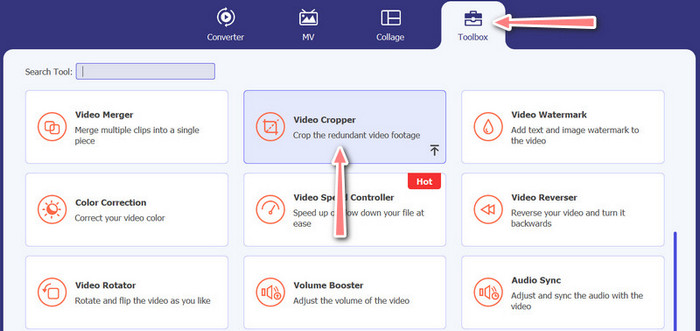
Trinn 2. Gå til Toolbox og Video Cropper
Gå nå til programmets verktøykasse ved å klikke på fanen Toolbox. Dette panelet viser en samling alternativer. Velg deretter Video Cropper-alternativet.
Trinn 3. Importer en video som skal beskjæres
Legg til videoen du vil beskjære ved å klikke på Plus-ikonet i opplastingsområdet for Video Cropper-alternativet. Deretter blir du ført til et annet panel der du kan beskjære den opplastede videoen.
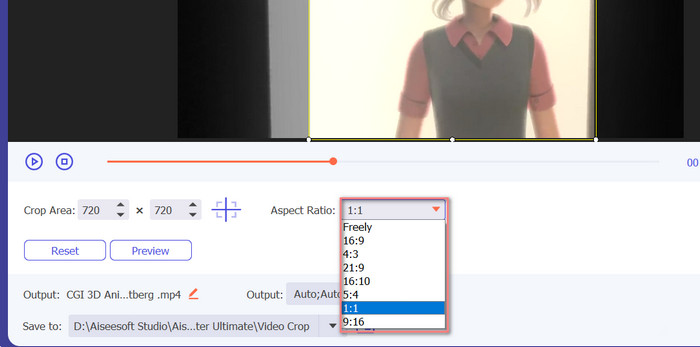
Trinn 4. Beskjær videoen
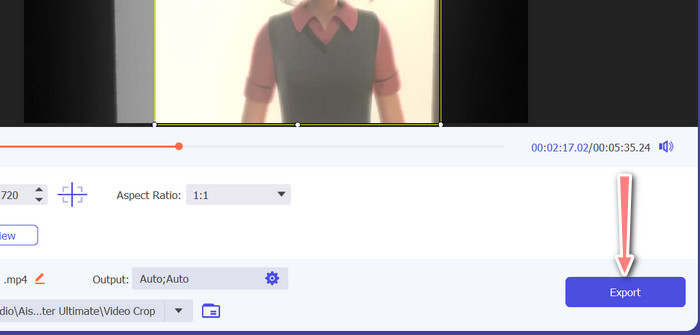
Velg bildeformatet du vil bruke for videoen din. For Instagram er standard bildeformater 1:1 (kvadratisk) og 4:5 (vertikalt). Du kan velge ønsket bildeformat ved å klikke på rullegardinmenyen under videoforhåndsvisningen. For å eksportere klikker du på Export-knappen nederst til høyre i grensesnittet. Deretter kan du dele den med følgerne dine eller legge den ut på Instagram-kontoen din.
Del 3. Beskjær video for Instagram Online
Kapwing er en populær online videoredigerer perfekt for alle som raskt og enkelt ønsker å beskjære videoene sine for Instagram uten å måtte håndtere komplisert programvare. For ikke å nevne, Kapwing er designet for å være brukervennlig, så selv om du ikke er en erfaren videoredigerer, kan du fortsatt bruke plattformen til å lage innhold av høy kvalitet. Her er trinnene for hvordan du bruker Kapwing til å beskjære video for Instagram gratis:
Trinn 1. Gå til Kapwing-nettstedet og klikk på knappen Start Editing.
Trinn 2. Last opp videoen du vil beskjære ved å dra og slippe den inn i Kapwing-editoren, eller ved å klikke på knappen Upload og velge filen fra datamaskinen din.
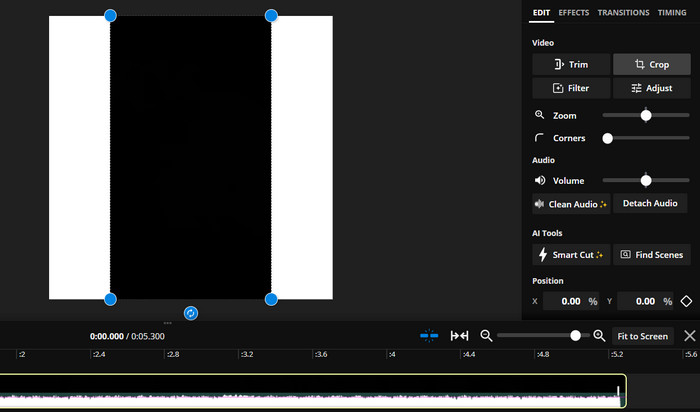
Trinn 3. Klikk på verktøyet Crop i menyen til høyre. Velg deretter bildeformatet du vil beskjære videoen til ved å velge et av forhåndsinnstilte alternativer eller lage et egendefinert bildeformat. Bruk håndtakene i videoforhåndsvisningen til å beskjære videoen til ønsket størrelse. Merk at du også kan bruke denne fremgangsmåten for å beskjære videoer til Instagram-innlegg.
Del 4. Beskjær videoer for Instagram på Android
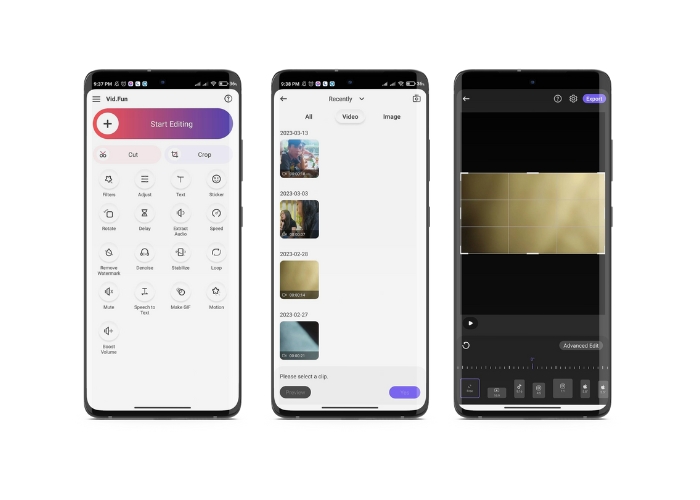
Vid.fun lar deg beskjære videoene dine til perfekt størrelse for Instagram, enten du bruker en smarttelefon eller et nettbrett. Appen er fullpakket med funksjoner som hjelper deg å lage videoer av høy kvalitet, inkludert en kraftig videobeskjærer som gjør det enkelt å beskjære videoene dine med bare noen få trykk. I tillegg tilbyr den en rekke bildeformater å velge mellom, slik at du kan være sikker på at videoene dine ser flotte ut på Instagram. Her er en veiledning om hvordan du beskjærer videoer for Instagram Reels ved hjelp av denne appen på Android-enheten din.
Trinn 1. Last ned og installer Vid.fun fra Google Play Store. Start den deretter. Trykk på Crop-ikonet på hovedskjermen.
Trinn 2. Legg til en mediefil ved å velge fra bildegalleriet på enheten din. Velg deretter bildeformatet du ønsker ved å velge fra menyen nederst på skjermen. Alternativt kan du bruke håndtakene i videoforhåndsvisningen til å justere beskjæringen og plassere videoen slik du vil.
Trinn 3. Forhåndsvis den beskårne videoen for å forsikre deg om at den ser ut slik du ønsker. Når du er fornøyd med beskjæringen, trykker du på knappen Export øverst til høyre.
Mer lesing:
Konkret veiledning – 2 metoder for å kombinere videoer til Instagram
Ulike måter å poste GIF på Instagram [nett- og programbasert verktøy]
Del 5. Vanlige spørsmål om å endre størrelse på videoer for Instagram
Hva skjer hvis videoen min ikke samsvarer med det nødvendige sideforholdet for Instagram?
Hvis videoen din ikke samsvarer med det nødvendige sideforholdet for Instagram, vil den enten vises med svarte linjer på sidene eller topp og bunn, eller den vil automatisk beskjæres for å passe til rammen.
Kan jeg beskjære en video som allerede er lastet opp til Instagram?
Nei, du kan ikke beskjære en video som allerede er lastet opp til Instagram. Du må beskjære videoen før du laster den opp til Instagram.
Kan jeg beskjære en video uten å miste kvalitet?
Ja, du kan beskjære en video uten å miste kvalitet så lenge du ikke beskjærer for mye. Beskjærer du for mye, vil kvaliteten bli dårligere fordi det reduserer oppløsningen på videoen.
Konklusjon
Å beskjære en video for Instagram Story, innlegg eller Reels er viktig for å sikre at videoen ser bra ut og passer til det nødvendige bildeformatet. Med de riktige verktøyene, som FVC Video Converter Ultimate, Kapwing eller Vid.fun, kan du enkelt beskjære videoer for Instagram til riktig bildeformat.
-
 Hvordan legge til og lage et Instagram-filter før du legger ut bilde og
 Hva er filtrene på Instagram? Hvordan bruke det? Hvordan lage en? Disse spørsmålene vil ha enkle svar i dette innlegget, så les dem.
-
 Beste teknikker for å øke hastigheten på en video på Instagram som en proff
 Vil du laste opp en raskere video på Instagram? I dette tilfellet vil denne artikkelen gi de beste teknikkene du kan bruke for å øke hastigheten på videoer enkelt.
-
 Endre størrelsen på bilder for Instagram på skrivebord, iPhone eller Android
 Hvis du vil endre størrelsen på bildene dine for Instagram, vil vi vise deg fremgangsmåten for hvordan du gjør det. Les for å lære trinnene for å endre størrelse på bilder for Instagram.
