


 Video Converter Ultimate
 Skjermopptaker
 Videoreparasjon
 Sikker nedlasting
Hvordan trimme MP4-videoer enkelt og #91Mac og Windows-løsning
I dag er det svært nyttig å klippe eller dele opp en video, spesielt når du vil fjerne unødvendige og kjedelige partier fra en lang video. Hvis du er en som ønsker å trimme MP4‑videoer, men ikke vet hvordan eller hvilke verktøy du skal bruke, hjelper vi deg videre! I denne artikkelen får du lære om 6 videoklippingsverktøy som kan hjelpe deg med enkelt å kutte bort uønskede deler av videoer på Windows og Mac.

Del 1: Slik trimmer du MP4 på Windows og macOS med MP4-trimmer med alle funksjoner
Hvis du bruker Windows eller macOS og vil klippe en video med et fullverdig MP4‑klippeverktøy, er FVC Video Converter Ultimate perfekt for deg. Dette er egentlig et videokonverteringsverktøy, men det kommer med mange funksjoner, blant annet en videotrimmer. Med denne funksjonen kan brukere dele opp eller klippe alle MP4‑videoer, spesielt de som er unødvendig lange, eller som inneholder uønskede deler eller segmenter. I tillegg kan du manuelt velge delen av videoen du vil klippe, eller trimme segmentet automatisk ved hjelp av den raske klippefunksjonen. Til slutt støtter dette kraftige verktøyet en rekke videoformater for å sikre kompatibilitet med video som MP4, MKV, MOV, FLV, AVI, MP3 osv. Enten du klipper bort overflødig materiale, henter ut bestemte klipp eller finjusterer timingen, er FVC Video Converter Ultimate et ideelt verktøy for sømløst å trimme MP4‑videoer på både Windows og macOS.
Trinn 1. Last ned og installer FVC Video Converter Ultimate på Windows‑ eller Mac‑datamaskinen din.
Gratis nedlastingFor Windows 7 eller nyereSikker nedlasting
Gratis nedlastingFor MacOS 10.7 eller nyereSikker nedlasting
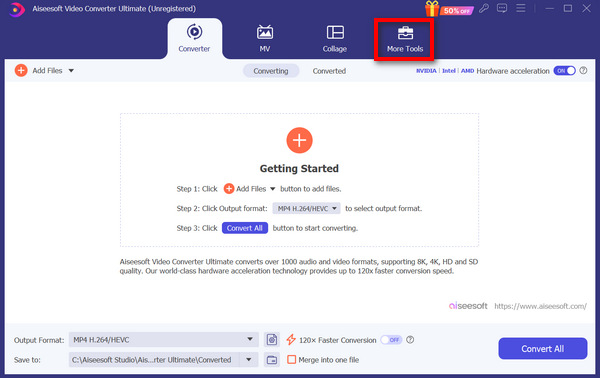
Trinn 2. Klikk deretter på Verktøykasse og se etter Video Trimmer.
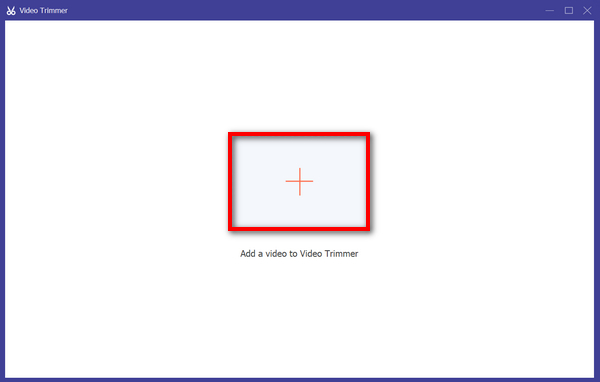
Trinn 3. Klikk nå på knappen Legg til en video i Video Trimmer for å legge til MP4‑filen du vil trimme.
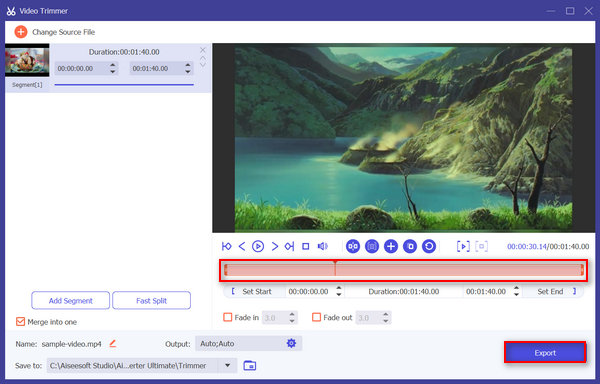
Trinn 4. For å trimme videoen kan du gjøre det manuelt ved å justere eller flytte start‑ og sluttmarkøren på klippet ved å dra dem fra venstre til høyre, eller ved å skrive inn start‑ og sluttidspunktet for den delen av MP4‑videoen du vil trimme.
Den prosessen kutter automatisk delen av videoen basert på tidspunktet når du vil starte og avslutte trimmen.
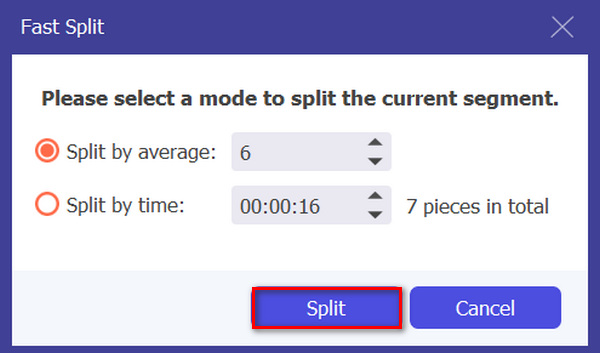
Samtidig, hvis du vil klippe ved hjelp av funksjonen for rask klipping, klikker du bare på Fast Slip-knappen ved siden av knappen Legg til segment. Deretter velger du en modus for hvordan du vil dele opp segmentet. Hvis du velger å dele etter gjennomsnitt, angir du bare antallet, men hvis du vil dele etter tid, angir du tidsintervallet. Etter dette klikker du på Split-knappen.
Trinn 5. Til slutt, for å eksportere den trimmede videoen, klikker du på Eksporter-knappen.
Når det gjelder trimming av MP4-videofiler, er FVC Video Converter Ultimate virkelig en god løsning. Det intuitive grensesnittet sikrer at du enkelt og nøyaktig kan klippe MP4-videoene dine, og de ulike trimmealternativene gir deg fleksibilitet med hensyn til hvordan du enkelt vil klippe videoene dine.
Fordeler
- Støtter et bredt spekter av videoinngangsformater.
- Nøyaktig trimming.
- Intuitivt redigeringsgrensesnitt.
- Opprettholder kvaliteten på den trimmede videoen.
- Har slått sammen til en funksjon.
Ulemper
- Tilgang til alle funksjonene kan være begrenset med gratisversjonen.
Del 2: Hvordan trimme MP4 online gratis
Hvis du leter etter en måte å trimme MP4-videoer på nettet, er det gratis og tilgjengelige verktøy du kan bruke. Vel, å bruke en online videotrimmer kan være ekstremt nyttig, spesielt hvis du raskt trenger å redigere videoene dine uten behov for spesialisert programvare eller nedlastinger. Uten videre, følgende er de fem gratis online videotrimmerne i 2025:
Ezgif
Ezgif er et gratis og enkelt verktøysett som lar brukere trimme GIF og MP4 på nett, helt gratis. Det har også et svært enkelt og brukervennlig grensesnitt. Imidlertid kan grensesnittet til tider virke litt uoversiktlig og overveldende for nye brukere. Likevel er dette verktøyet fortsatt godt egnet når du vil trimme korte videoer.
Trinn 1. Gå først til deres offisielle nettsted.
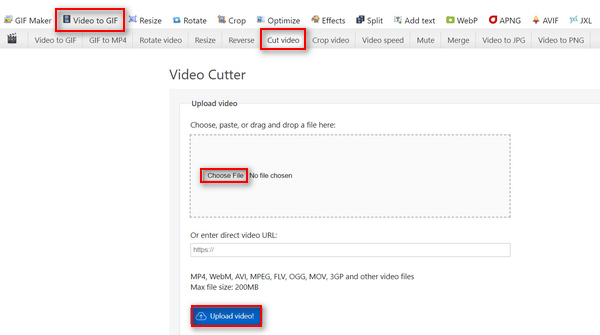
Trinn 2. Klikk på Video to GIF, velg Cut Video, og last opp MP4‑videoen du vil trimme fra enheten din ved å klikke på Choose File-knappen, eller lim inn URL-en til MP4‑videoen i feltet nedenfor.
Trinn 3. Når videoen er lastet opp, trimmer du videoen. Husk å angi start‑ og sluttidspunktet for delen av videoen du vil trimme.
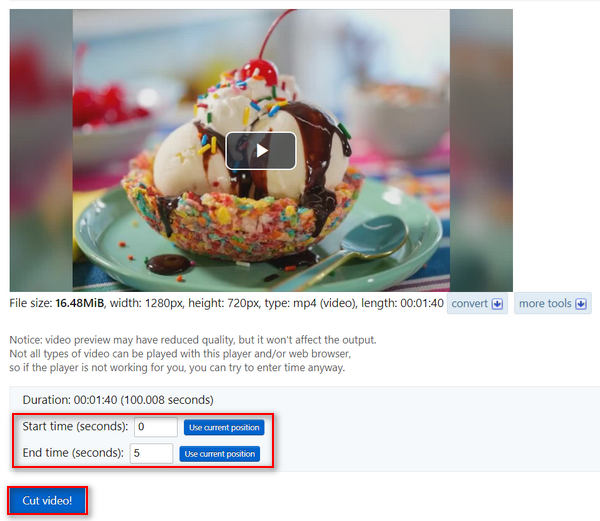
Trinn 4. Når du har angitt når videoen skal starte og slutte, klikker du på knappen Cut the Video.
Ezgif Video Cutter er et flott verktøy når du vil trimme MP4-videoer som ikke krever kompleks trimming. Så hvis du trenger en mer avansert og kompleks MP4-trimmer, er ikke dette noe for deg.
Fordeler
- Enkel å bruke.
- Støtter flere formater, som MP4, WebM, AVI, MPEG, FLV, OGG, MOV og 3GP.
- Fungerer på URLer.
Ulemper
- Slurvete grensesnitt.
- Størrelsesgrensen er bare opptil 200 MB.
Fastreel
Fastreel er et enkelt online videoredigeringsverktøy som kan brukes til å enkelt trimme MP4-videoer på grunn av det brukervennlige og intuitive grensesnittet. Brukere kan enkelt navigere i verktøyet, og de trenger bare å dra og slippe filene sine og deretter enkelt fjerne delene de ikke vil ha. Dessuten støtter dette verktøyet ulike videoformater som MP4, MOV, MKV, AVI og WMV-filer. Til slutt, med dette verktøyet kan du lagre og laste ned de redigerte videoene dine gratis.
Trinn 1. Gå til deres offisielle nettsted.
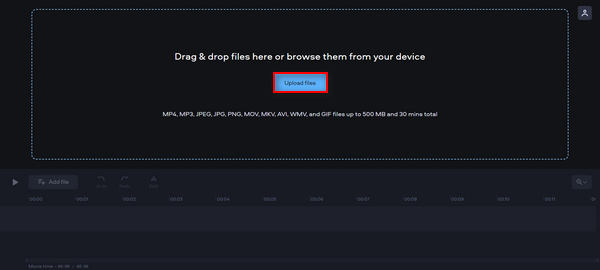
Trinn 2. For å laste opp MP4‑videoen du vil trimme, klikker du på knappen Add Files.
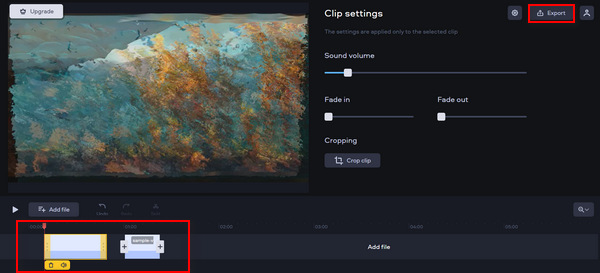
Trinn 3. For å trimme MP4‑videoen, flytt den røde markøren dit du vil klippe, og klikk på ikonet Scissors.
Trinn 4. Til slutt, etter at du har trimmet MP4‑videoen, klikker du på Export-knappen for å lagre den.
Dette verktøyet kan utrolig enkelt trimme MP4-videoer. Noen ganger tar det imidlertid tid å laste opp videoen du vil trimme.
Fordeler
- Brukervennlig og intuitivt grensesnitt.
- Nøyaktig redigering.
- Støtter flere videoformater.
Ulemper
- Det går tregt å laste opp videoen.
- Lagrede videoer vil ha et vannmerke.
- Størrelsesgrensen er bare opptil 500 MB.
Online videokutter
Online Video Cutter er et nettbasert videoredigeringsverktøy du kan bruke til å trimme MP4‑videoer på nett. Med dette verktøyet kan du enkelt trimme MP4‑videoer og videre redigere dem med andre redigeringsfunksjoner. Dessuten, sammenlignet med andre gratis MP4‑klippeverktøy, kan denne gratis nettbaserte MP4‑trimmeren håndtere betydelig større videofiler, med støtte for opptil 4 GB videofiler.
Trinn 1. Gå til deres offisielle nettsted.
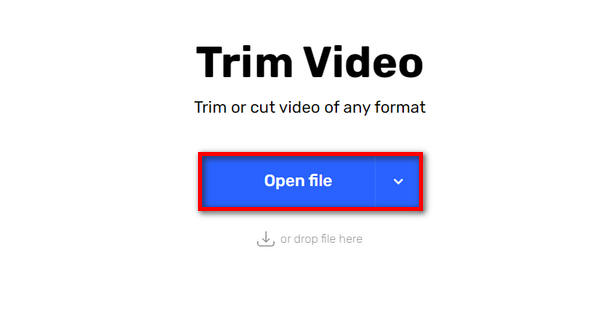
Trinn 2. For å legge til MP4‑videoen du vil trimme, klikker du på knappen Open File.
Trinn 3. For å trimme MP4‑video med dette verktøyet, klikker du på menyen Trim or Cut øverst, og velger deretter delen av videoen du vil justere, ved å flytte både start‑ og sluttmarkøren. Når du er ferdig, klikker du på knappen Trim or Cut nedenfor og deretter på Save for å eksportere videoen.
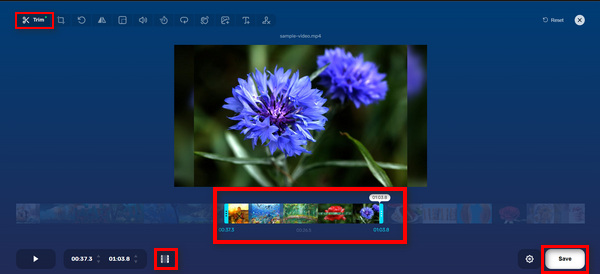
Med sin store størrelsesgrense, enkle grensesnitt og andre redigeringsfunksjoner, er Online Video Cutter virkelig et lovende gratis online MP4-trimmerverktøy.
Fordeler
- Kan forhåndsvise videoer i 5 sekunder.
- Støtter minst maksimalt 4 GB videostørrelsesfil.
- Har andre redigeringsfunksjoner i videotrimming-grensesnittet.
Ulemper
- Det går tregt å laste opp videoen.
- Lagrede videoer vil ha et vannmerke.
- Størrelsesgrensen er bare opptil 500 MB.
Kapwing
Kapwing er et brukervennlig online videoredigeringsverktøy som enkelt kan brukes til å trimme MP4-videoer. En eksepsjonell funksjon ved dette verktøyet er at det støtter YouTube-videoer, slik at brukere kan trimme MP4-video direkte fra YouTube ved å lime inn URL-adressen i systemet.
Trinn 1. Gå til deres offisielle nettsted.
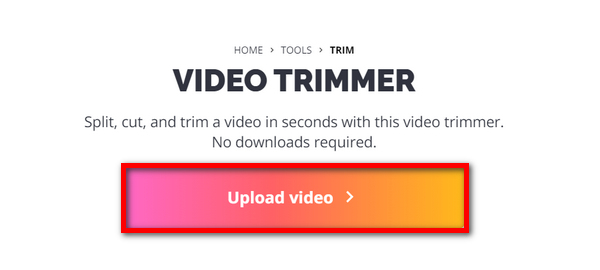
Trinn 2. Klikk på Upload Video-knappen for å gå til hovedgrensesnittet.
Trinn 3. Der har du to alternativer for hvordan du kan legge til filer. Enten laster du opp MP4‑videoen ved å klikke på Click to Upload-knappen, eller du limer inn YouTube‑URL‑en hvis videoen du vil trimme, ligger på YouTube.
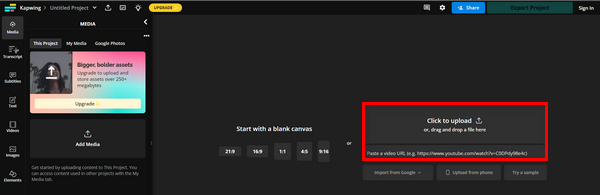
Trinn 4. Klikk nå på menyen Trim for å bli sendt videre til et nytt vindu der du kan trimme videoen.
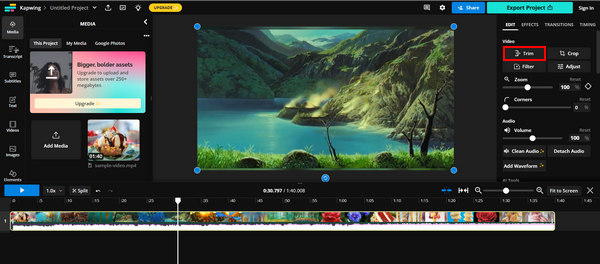
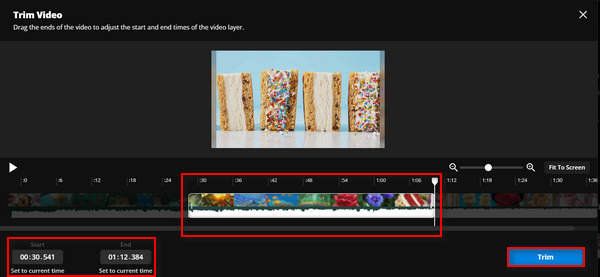
Trinn 5. For å trimme videoen flytter du trim‑markørene til hvor du vil at trimmen skal starte og slutte, eller du kan bare skrive inn tidspunktet for når trimmen skal begynne og slutte. Deretter klikker du på Trim-knappen.
Trinn 6. For å lagre filen, klikker du på Export Project.
Sørg for at du har opprettet en konto slik at du kan eksportere den trimmede videoen.
Fordeler
- Lett å bruke.
- Støtter populære videoformater som MP4-filer, MOV-videoer, WMV og mer.
- Legg til gratis.
Ulemper
- Må registreres.
- Tillater kun opptil 250 MB.
FreeConvert
FreeConvert.com er en nettbasert videoredigeringsplattform som tilbyr ulike verktøy for konvertering og redigering av multimediefiler. En av de mest fremtredende funksjonene er videotrimmeren, som lar brukere trimme MP4 og andre videoformater på opptil 1 GB. Med sitt intuitive grensesnitt er det ingen tvil om at brukere enkelt kan navigere seg gjennom hele klippeprosessen.
Trinn 1. Gå til deres offisielle nettsted.
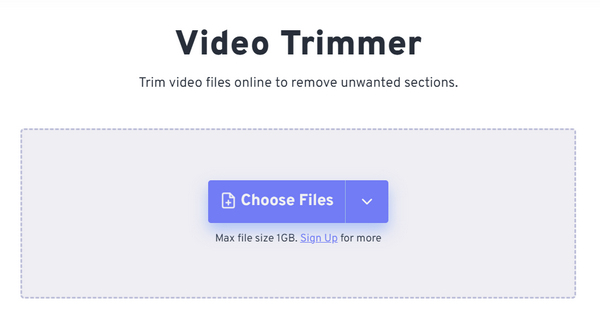
Trinn 2. Klikk på rullegardinmenyen Choose Files og legg til MP4‑videoen du vil trimme, fra Device, Dropbox eller Google Drive. Du kan også bare lime inn lenken til videoen du vil trimme.
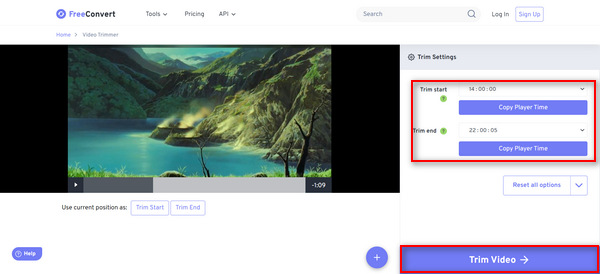
Trinn 3. For å trimme videoen angir du tiden når du vil at trimmen skal begynne, og når den skal slutte. Deretter klikker du på knappen Trim Video.
FreeConverter er et flott gratis online MP4-verktøy som er tilgjengelig i dag. Selv om det er gratis, er annonser det som er vanskelig å håndtere i dette verktøyet. Så hvis du er en som ikke vil ha det, er ikke dette verktøyet for deg.
Fordeler
- Ingen vannmerke.
- Krever ingen registrering.
- Støtter mer enn 40 videoformater inkludert MP4, MOV, AVI og WebM.
Ulemper
- Har for mange annonser.
Del 3: Vanlige spørsmål om MP4 Trimmer
Hva er forskjellen mellom å trimme en video og dele en video?
Trimming av en video er når du fjerner en del av begynnelsen eller slutten av en video. På den annen side er det å dele en video når du skal klippe et videoklipp i to separate deler.
Bør jeg betale for programvare for å trimme videoene mine?
Dette avhenger virkelig av dine spesifikke behov og preferanser. Selv om det er mange programvarealternativer for betalt videoredigering tilgjengelig med avanserte funksjoner, er det også gratis online verktøy som tilbyr grunnleggende trimmingsmuligheter uten behov for betaling. Men hvis du vil ha en mer avansert redigeringsfunksjon, kan det være verdt det å investere i betalt videotrimming.
Reduserer trimming av video kvaliteten?
Dette avhenger av trimmeverktøyet som brukes. Trimming av en video reduserer ikke kvaliteten nevneverdig så lenge trimmingsprosessen gjøres riktig og videoen er lagret i samme format og oppløsning. Men hvis den trimmede MP4-videoen omkodes eller lagres i en lavere oppløsning, vil kvaliteten på videoen reduseres.
Konklusjon
Å trimme MP4‑videoer er nå blitt vanlig for de fleste av oss, særlig når det gjelder redigering og forbedring av video. Enten du er nybegynner eller erfaren bruker, kan det å lære hvordan du drar nytte av trimming av videoer, bidra til å forbedre kvaliteten på videoinnholdet ditt betydelig, spesielt i denne digitale tidsalderen. Hvis du vil mestre dette, ikke nøl – begynn å trimme videoene dine i dag!
-
 5 MP3-kuttere for å kutte hvilken som helst lyd enkelt [2025 Oppdatert]
 Trenger du en MP3-kutter for å trimme lyden? I så fall, les denne artikkelen fordi vi tilbyr verktøyene du kan stole på for enkel lydklipping.
-
 Hvordan trimme en video med TikTok [Detaljerte instruksjoner]
 Vil du vite hvordan du forkorter en video med TikTok? Deretter vil vi tilby enkle måter. Du vil også lære andre metoder ved å bruke offline applikasjoner/programmer.
-
 3 utmerkede metoder for hvordan du trimmer video på Android
 Vil du bruke Android-enheten din til å klippe en video? Da er dette innlegget for deg. Vi vil diskutere verdifulle måter å forkorte en video på Android.
