


 Video Converter Ultimate
 Skjermopptaker
 Videoreparasjon
[Løst] Hvordan sette et filter på en video på enklest mulig måte
I stedet for å gjøre komplisert redigering kan du bruke filtre for å redigere bildene med mindre innsats. Å legge filtre på en video er en flott måte å gi prosjektet ditt en bestemt tone på, gjøre det mørkere eller lysere, få det til å se røft eller glatt ut, eller noe helt annet. Likevel er ikke alle filterapper like gode å bruke, så i dag skal vi introdusere verktøy du allerede kjenner til, som du kan bruke til å legge et filter på alle videoene du har. Nå har vi mye å gå gjennom om hvordan legge et filter på en video; vi går rett på sak – god lesning.

Del 1. 1. vei. Hvordan sette filtre på videoer ved hjelp av Video Converter Ultimate
Video Converter Ultimate har de mest avanserte, men likevel lettfattelige redigeringsfunksjonene du kan bruke. Det er et alt‑i‑ett‑verktøy som kan brukes til nesten alle videoproblemer. Dette ultimate verktøyet gir deg en enkel måte å legge et filter på en video når som helst du trenger det – følg veiledningen nedenfor for å bruke verktøyet.
Trinn 1. Ved å laste ned programvaren til datamaskinen får du det ultimate alt‑i‑ett‑verktøyet på Windows eller Mac. Etter nedlasting følger du installasjonsprosessen for å sette opp verktøyet, og starter det deretter.
Gratis nedlastingFor Windows 7 eller nyereSikker nedlasting
Gratis nedlastingFor MacOS 10.7 eller nyereSikker nedlasting
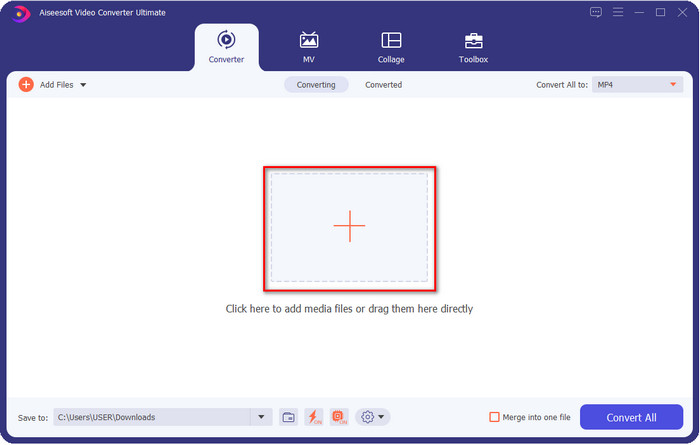
Trinn 2. I verktøyets grensesnitt klikker du på +-knappen for å laste opp videofilen du vil ha et vannmerke på. Finn filen i datamaskinens mappe som vises på skjermen, klikk på filen og trykk Open for å laste den opp til programmet.
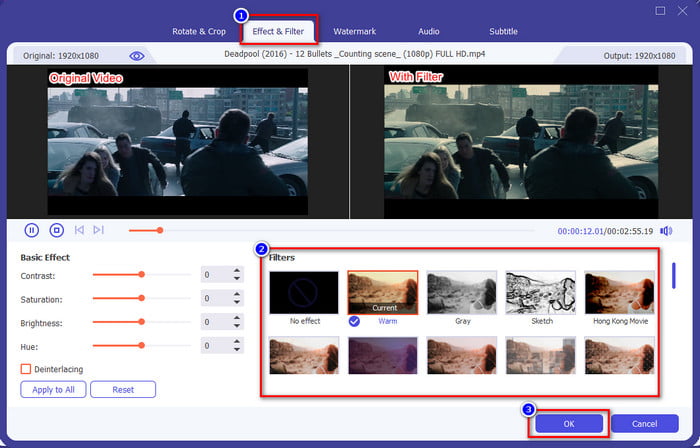
Trinn 3. Etter at du har lastet opp videofilen, klikker du på tryllestav-knappen for å gi videoen litt ekstra glans. Gå til delen Effects & Filters for å se hvilke filtre og effekter som er tilgjengelige; du kan bruke dem fritt. I tillegg anbefaler vi at du prøver alle for å se hvilket filter som passer best til videoen. Når du har valgt filteret du vil bruke, klikker du OK for å bruke endringene.
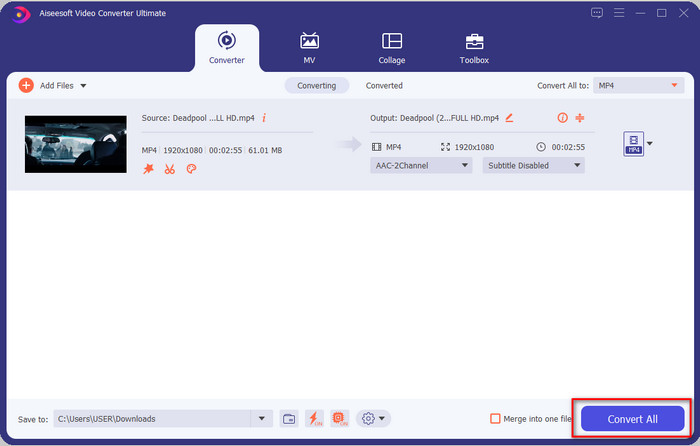
Trinn 4. Etter at du har lagt til et skjønnhetsfilter i en video, eller det filteret du ønsker, klikker du Convert All, og videoen med filteret begynner å rendres. Dermed har du nå lagt til et filter på videoen din med den beste videoredigereren du kan bruke på Windows og Mac.
Relatert:
Del 2. 2nd Way. Slik legger du til et filter til en video ved hjelp av iMovie på iPhone og Mac
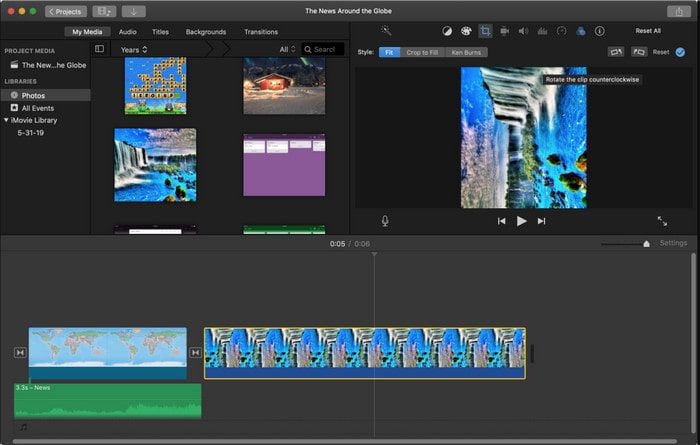
iMovie er et førsteklasses videoredigeringsprogram du kan bruke gratis på Mac. Det har også et middels stort utvalg av videofiltre på listen som kan få videoen din til å se fantastisk ut. Dessuten er dette verktøyet tilgjengelig både på Mac og iPhone, så i dag skal vi vise to fremgangsmåter og lære hvordan du legger et filter på en video på iPhone og Mac.
1. alternativ. Legg til filtre til videoer med Mac
Trinn 1. Åpne iMovie, sett inn videofilen ved å klikke på knappen import, og dra deretter filen til Timeline.
Trinn 2. Klikk på videoen på tidslinjen og, i forhåndsvisningsruten, klikk på tre sirkler, deretter Clip Filter og velg filteret du vil ha fra listen.
Trinn 3. For å lagre videoen med filteret klikker du på eksportknappen og finner deretter Export File.
Andre alternativ. Legg til filtre til videoer ved hjelp av iPhone
Trinn 1. Start iMovie‑appen på telefonen, klikk på pluss-symbolet, og klikk deretter Movie. Legg til filen som ligger i Bilder‑appen din, og fortsett.
Trinn 2. Klikk på videoen på tidslinjen og klikk på filter-knappen. Prøv filtrene som er tilgjengelige i denne appen, og velg ett.
Trinn 3. Klikk deretter på Done, klikk på eksportknappen og deretter Save Video for å eksportere den til Bilder‑appen din.
Del 3. 3rd Way. Hvordan sette et filter på en video ved hjelp av Adobe Premiere Pro
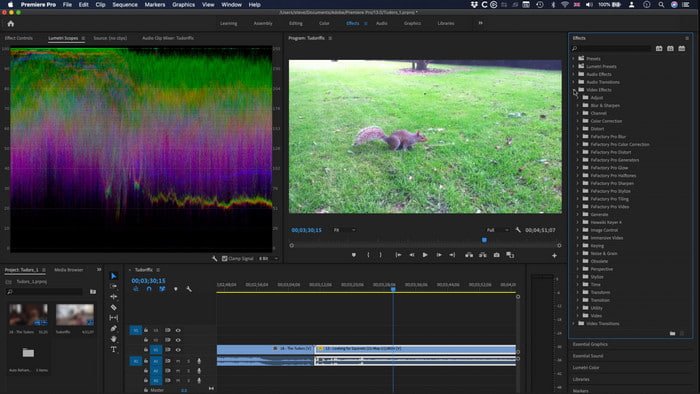
Med proffverktøyet på denne listen kan du nesten gjøre alt for å løfte videoen din til neste nivå. Adobe Premiere Pro gir brukerne effektiv videoredigering og de mest avanserte filtrene du kan bruke for å få videoen din til å skille seg tydelig ut fra andres. Lær nå hvordan du legger et filter på en video i Premiere ved å følge veiledningen nedenfor.
Trinn 1. Last ned videoredigeringsprogrammet til disken din, klikk på File for å legge videoen til i verktøyet.
Trinn 2. Legg videofilen til på tidslinjen, gå til panelet Effects, åpne Lumetric Presets, der du finner fem ulike sett med filtre. Klikk og dra filteret til videotidslinjen for å se om det ser bra ut; hvis ikke, trykker du Ctrl + Z for å angre, og gjør det samme med de andre filtrene for å teste dem alle.
Trinn 3. For å lagre videoen må du klikke på File og deretter Save.
Del 4. Vanlige spørsmål om å legge til filter på videoer
Hvorfor må jeg bruke et filter på video?
For å se hva som er det andre potensialet arbeidet ditt kan gå inn i. Filtre lages og brukes ikke bare for å forskjønne, men også fotografiske detaljer. Dessuten, hvis du er nybegynner eller ikke har noen erfaring med videoredigering, kan et filter hjelpe deg med å forbedre tonen i fotograferingen i henhold til dine behov.
Gjør filtre videoen min større i filstørrelse?
Ja, det kan legge til filstørrelse på videoen fordi du legger til et videoelement. Filstørrelsen vil imidlertid ikke påvirke for mye fordi du bare legger til et filter. Likevel, hvis du utfører ytterligere redigering, for eksempel å slå sammen en til en annen video, vil filstørrelsen øke fordi du kombinerer en annen video.
Støtter Instagram videofiltre?
Instagram har en egen liste med innebygde filtre du kan bruke før du legger ut noe på Instagram. Hvis du ikke vet hvor du finner dem eller hvordan du bruker dem, kan du lese denne artikkelen for å få svar på alle disse spørsmålene om de beste Instagram-filtrene.
Konklusjon
Til slutt har vi lært tre forskjellige måter å legge et filter på video på; med hjelp av disse verktøyene kan du laste dem ned eller bruke dem direkte på en datamaskin. Verktøyene som er presentert i dette innlegget, kan hjelpe deg med ulike oppgaver, spesielt redigering, fordi de er blant de aller beste videoredigererne. Men hvis du vil ha det enkleste verktøyet som likevel gir deg det beste resultatet, bør du velge Video Converter Ultimate. Hvorfor? Fordi dette er det eneste verktøyet som tilbyr mindre kompliserte trinn du kan følge for å legge filtre til videoen din. For å få fullt utbytte av verktøyet må du kjøpe det og laste det ned fra den offisielle nettsiden til FVC.
-
 Hvordan legge til lyd og musikk til video gratis på datamaskinen / telefonen
 Denne artikkelen viser 4 enkle måter å legge til lyd til video gratis. Uansett hvilket lydspor du vil legge til i videoen din, kan du få tilfredsstillende resultater her.
-
 Gjør GIF til videoformat: Konverter GIF-memer til video [2021]
 Bestem hvordan du transformerer GIF til videoformat ved hjelp av verktøyene som er oppført nedenfor. Velg hvilken og lær hvordan du gjør det, ettersom vi samler nok bevis på dem.
-
 Fantastisk GIF til videoapper for Android og iOS -enheter
 Visste du at du kan konvertere GIF-er til alle videoformater du vil bruke telefonen din? Velg de beste appene på Android eller iOS.
