


 Video Converter Ultimate
 Skjermopptaker
 Videoreparasjon
 Sikker nedlasting
Hvordan rotere videoer på Android på få minutter med de beste metodene
Elsker du å fange livets dyrebare øyeblikk med Android‑enheten din, men hater når videoene blir skjeve eller havner opp ned? Det er et vanlig problem, men heldigvis er det lett å fikse. Du trenger ingen avanserte ferdigheter innen videoredigering. Alt du trenger er Android‑enheten din eller en effektiv Android‑app for å rotere videoer og noen få minutter av tiden din.
Mot slutten av innlegget vil du kunne rotere videoene dine som en proff og aldri trenger å se sidelengs videoer igjen. Når det er sagt, la oss komme i gang og lære hvordan du roterer videoer på Android!

Del 1. Hvordan rotere videoer i Galleri Android
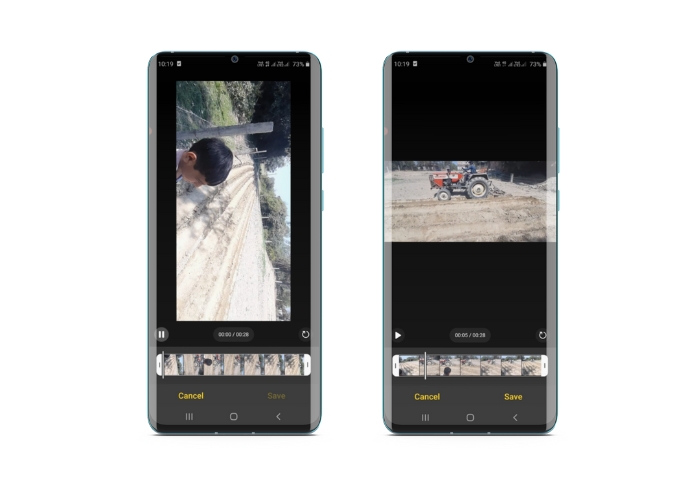
Android Gallery-appen har en rekke verktøy for å redigere videoer som kan hjelpe deg med å gjøre videoene dine bedre. Med Galleri-appen kan du trimme, beskjære, rotere og til og med legge til filtre og effekter til videoene dine. Enten du vil fjerne uønskede deler, justere sideforholdet eller legge til litt kreativ stil, har Galleri-appen deg dekket. Og den beste delen? Du trenger ingen tidligere videoredigeringserfaring for å bruke disse funksjonene. Grensesnittet er intuitivt, noe som gjør det enkelt for alle å lage fantastiske videoer rett fra sin Android-enhet. Se de gitte trinnene for å lære hvordan du roterer videoer i Galleri på Android.
Trinn 1. Åpne Galleri‑appen på Android‑enheten din. Finn videoen du vil rotere, og trykk på den for å åpne den.
Trinn 2. Trykk på redigeringsikonet (det ser ut som en blyant) nederst på skjermen. Nå vil du se en rekke redigeringsverktøy nederst på skjermen, inkludert Klipp, Beskjær, Filtre og Juster.
Trinn 3. For å rotere videoen, velg Juster‑verktøyet. Nå vil du se en rekke justeringsalternativer, inkludert lysstyrke, kontrast, metning og mer. Se etter alternativet Roter og trykk på det.
Trinn 4. Hvert trykk på Roter‑knappen vil rotere videoen 90 grader mot høyre. Dermed kan du bruke Android til å rotere videoer med 90 grader. Fortsett å trykke til videoen har ønsket retning. Når du er fornøyd med rotasjonen, trykker du på lagreikonet for å bruke endringene.
Del 2. Hvordan rotere videoer i PowerDirector Android-appen
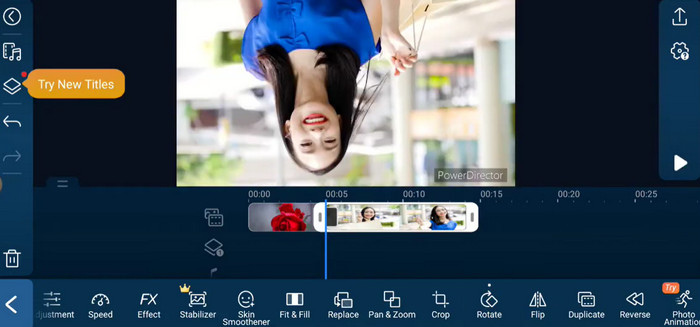
PowerDirector er en videoredigeringsapp som er tilgjengelig på Android-plattformen. Det er en funksjonsfylt applikasjon som lar brukere redigere videoer på smarttelefoner og nettbrett. Denne appen lar brukere rotere videoene sine i alle retninger, enten det er med eller mot klokken. Dette er spesielt nyttig for videoer som er tatt i feil retning, for eksempel vertikale videoer som må roteres til liggende modus. Følg den enkle veiledningen nedenfor for å mestre hvordan du roterer videoer i PowerDirector på en Android-enhet.
Trinn 1. Start PowerDirector‑appen på Android‑enheten din. Trykk deretter på knappen Opprett et videoprosjekt for å starte et nytt prosjekt.
Trinn 2. Velg videoen du vil rotere ved å trykke på knappen Legg til media og bla etter videoen i enhetens lagring. Dra og slipp deretter videoklippet ned på tidslinjen.
Trinn 3. Deretter trykker du på videoklippet på tidslinjen for å velge det. Trykk nå på knappen Rediger som vises over tidslinjen.
Trinn 4. Trykk på Roter‑knappen i redigeringsmenyen som vises. Bruk knappene Roter til venstre og Roter til høyre for å rotere videoen i ønsket retning. Til slutt trykker du på knappen Ferdig for å lagre endringene du har gjort i videoen.
Del 3. Hvordan rotere videoer i VLC Android App
VLC er en velkjent mediespiller som kan brukes på mange plattformer, inkludert Android. Det er en kraftig og fleksibel app som fungerer med mange ulike mediaformater og har en rekke funksjoner, som for eksempel muligheten til å rotere videoer. I tillegg kommer den med andre nyttige funksjoner, som å justere avspillingshastighet, legge til undertekster og bruke lyd‑ og videofiltre. Her er trinnene for hvordan du roterer videoer i VLC på en Android‑enhet.
Trinn 1. Åpne VLC‑appen på Android‑enheten din. Trykk deretter på knappen Video i menylinjen nederst.
Trinn 2. Velg videoen du vil rotere fra enhetens lagring. Deretter trykker du på knappen Flere alternativer øverst til høyre på skjermen.
Trinn 3. Til slutt trykker du på Roter for å få tilgang til alternativene for videorotasjon. Velg hvilken retning du vil rotere videoen (med eller mot klokken).
Del 4. Hvordan rotere Android-videoer på datamaskinen
Ser du etter en kraftig videokonverterer som kan gjøre alt? Da trenger du ikke lete lenger enn til FVC Video Converter Ultimate. Denne banebrytende programvaren er utviklet for å gi deg full kontroll over videoene dine. Med muligheten til å rotere videoer kan du justere orienteringen på videoen med 90, 180 eller til og med 270 grader, eller etterligne en Android‑funksjon for fullskjermsrotasjon av video. Men det er ikke alt denne appen kan gjøre. Den utfører prosessen uten noe kvalitetstap. Her er en veiledning i hvordan du bruker dette programmet til å rotere videoer på PC‑en din.
Trinn 1. Skaff deg en kopi av programmet og installer det
Først må du få en kopi av programmets installasjonsprogram og sette det opp på datamaskinen. Etter det, start den med en gang.
Gratis nedlastingFor Windows 7 eller nyereSikker nedlasting
Gratis nedlastingFor MacOS 10.7 eller nyereSikker nedlasting
Trinn 2. Legg inn en video som skal roteres
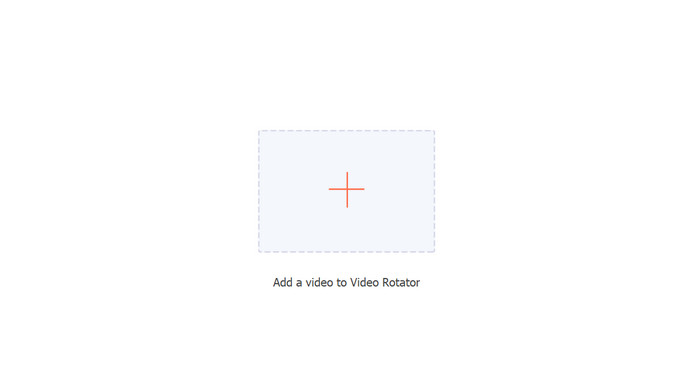
Programmets Video Rotator kan deretter åpnes fra fanen Verktøykasse. Hvis du velger dette alternativet, blir du bedt om å legge til en video på kontoen din. For å laste opp en video trykker du bare på +-knappen nå.
Trinn 3. Velg en roteringsmetode
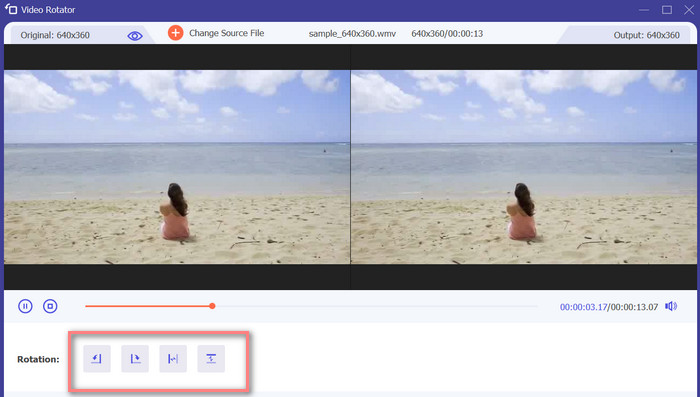
For å begynne, bestemme hvordan du vil at videoen skal roteres. Vend horisontalt, vend vertikalt, roter 90 grader og vend 90 grader er de fire alternativene. Bare velg ønsket rotasjonsmetode.
Trinn 4. Eksporter videofilen
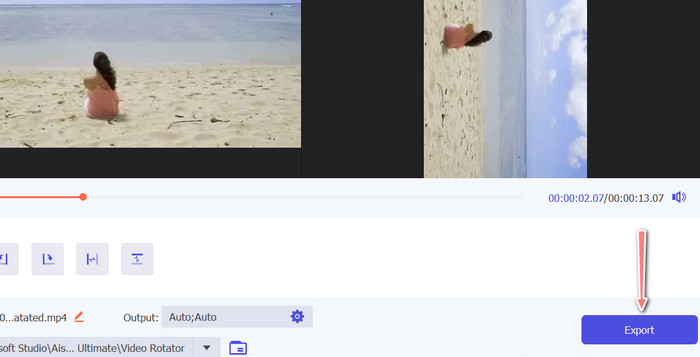
Når du er ferdig med alle endringene, kan du justere lyd‑ og videoinnstillingene fra utdata‑menyen. Deretter huker du av for knappen Eksporter for å fullføre prosessen.
Del 5. Vanlige spørsmål om roterende videoer på Android
Kan jeg rotere en video ved å bruke Androids standard videospiller?
Nei, den innebygde videospilleren på de fleste Android‑enheter har ikke mulighet til å rotere videoer. I dette tilfellet kan Galleri‑appen hjelpe deg.
Vil rotering av en video på Android-enheten min påvirke kvaliteten?
Hvis du bruker en videoredigeringsapp av høy kvalitet på Android-enheten din, vil ikke kvaliteten forringes ved å rotere filmen.
Vil det å rotere en video på Android-enheten min endre sideforholdet?
Rotering av en video på Android-enheten din kan endre sideforholdet avhengig av retningen til den originale videoen og graden av rotasjon som brukes.
Konklusjon
Å rotere videoer på Android‑enheten din kan være et nyttig verktøy når det gjelder videoredigering og deling. Det er imidlertid viktig å merke seg at rotasjon av en video kan påvirke sideforholdet og kvaliteten på originalvideoen, avhengig av hvilken Android‑app for å rotere video som brukes og graden av rotasjon som brukes. Derfor er det viktig å bruke en anerkjent videoredigeringsapp, som FVC Video Converter Ultimate, som ikke komprimerer eller reduserer oppløsningen på videoen under rotasjonsprosessen.
-
 Guide for hvordan du reparerer videoer som ikke spilles av på Android -telefoner
 Vil du vite hva som er årsakene til at videoer på Android-enheten din ikke kan spilles av? Og i så fall, er det noen måter å løse problemet på på egen hånd? Fortsett å lese for å vite mer.
-
 Enkleste måter å øke hastigheten på en video på Android-enhetene dine [2023]
 Visste du at du kan øke hastigheten på en video på Android? Så hvis du vil vite hvordan du øker hastigheten på en video på Android-telefonen din, kan du lese denne oppskriften.
-
 3 utmerkede metoder for hvordan du trimmer video på Android
 Vil du bruke Android-enheten din til å klippe en video? Da er dette innlegget for deg. Vi vil diskutere verdifulle måter å forkorte en video på Android.
