


 Video Converter Ultimate
 Skjermopptaker
 Videoreparasjon
 Sikker nedlasting
Raskeste og enkleste måter å forkorte video med de beste verktøyene
Trimming eller forkorting av en video er viktig fordi den fremhever bare de nødvendige klippene fra videoen din. Å trimme en video betyr å ta av begynnelsen av slutten av et videoklipp. Dette grunnleggende elementet i redigering er nødvendig for at du ikke skal miste publikums oppmerksomhet. Så hvis du vil trimme eller forkorte den lange videoen din, vil du i denne artikkelen lære hvordan du forkorter en video.

Del 1. 2 metoder for å forkorte en video på en trimmer ved å bruke den beste appen
FVC Video Converter Ultimate er det beste skrivebordsverktøyet for å trimme videoen din. Dette verktøyet har et intuitivt grensesnitt og er gratis å bruke. Denne offline‑konverteren lar deg legge til segmenter i videofilen din. I tillegg har den en funksjon der du raskt kan dele opp videoen i ulike deler etter eget ønske. Og hvis du leter etter et verktøy som kan slå sammen flere filformater til én fil, kan dette programmet gjøre det for deg.
Dessuten tilbyr dette verktøyet mange avanserte funksjoner, som GIF‑lager, videofusjon, fjerning av vannmerke i video osv. Og det som er enda bedre, er at det støtter en rekke filformater, inkludert MP4, WMV, FLV, AVI, MPG, WebM, MKV og over 1000 andre formater. Så hvis du vil bruke dette programmet til å forkorte videoen din, har vi to metoder du kan følge.
Metode 1. Bruk FVCs videotrimmer
Trinn 1. Last først ned FVC Video Converter Ultimate ved å klikke på Last ned-knappen nedenfor. Følg installasjonsprosessen, og start deretter programmet.
Gratis nedlastingFor Windows 7 eller nyereSikker nedlasting
Gratis nedlastingFor MacOS 10.7 eller nyereSikker nedlasting
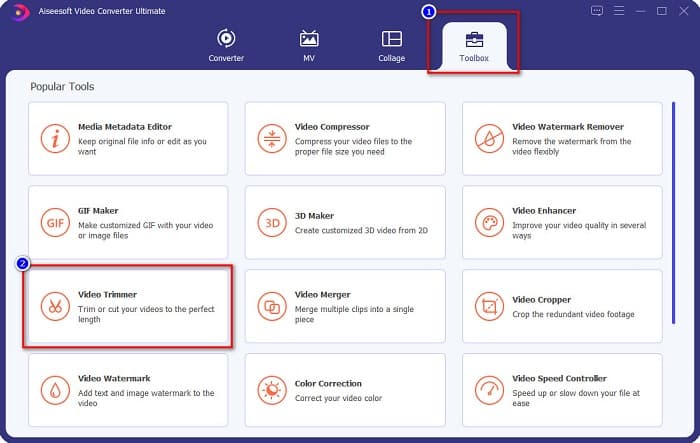
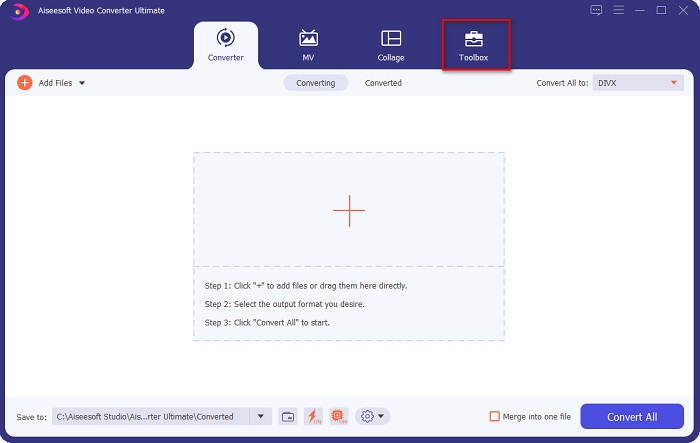
Trinn 2. Velg deretter panelet Verktøykasse som ligger øverst i programgrensesnittet. Klikk deretter på Videotrimmer i verktøykassen.
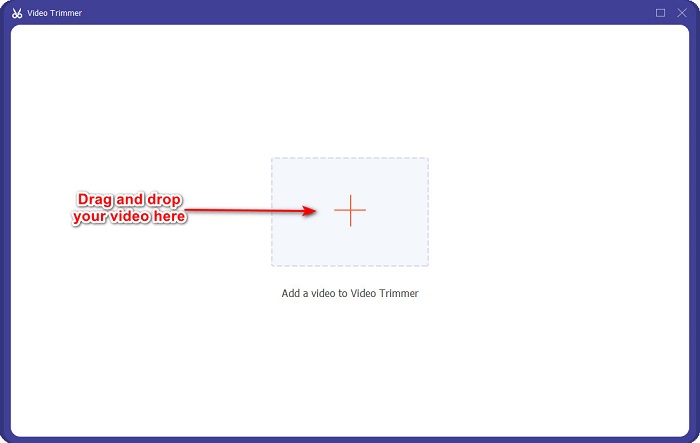
Trinn 3. Klikk så på +-knappen på neste skjermbilde, eller dra og slipp videoen din til +-symbolet.
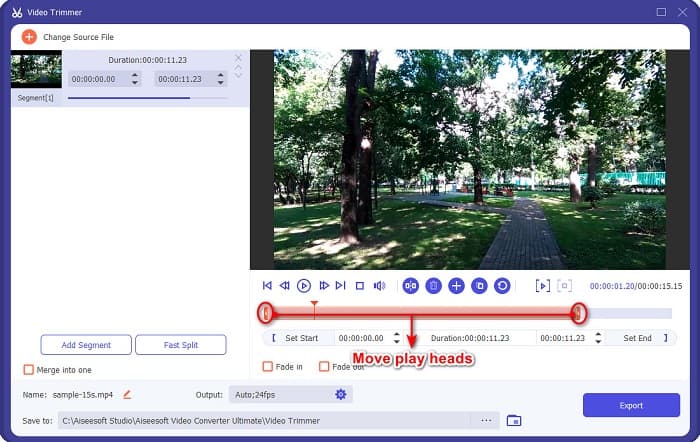
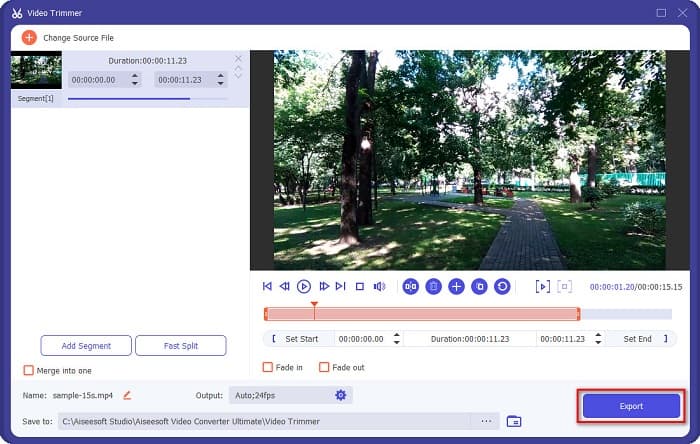
Trinn 4. Flytt deretter avspillingshodene til ønsket lengde. Pilhodet viser hvor forhåndsvisningen av videoen din befinner seg. Avspillingshodene angir lengden på videoen. Du kan se midlertidige endringer i videoen i forhåndsvisningen.
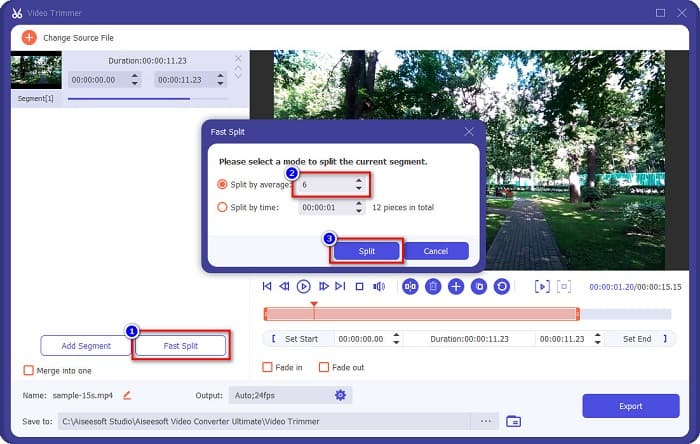
Valgfritt. Hvis du vil ha en enklere måte å dele opp videoen i segmenter på:
1. Klikk på knappen Hurtigdeling.
2. Velg hvor mange deler du vil at videoen skal deles inn i, og klikk deretter på Del.
3. Hvis du ikke vil dele videoen din, fortsett til neste trinn.
Trinn 5. Til slutt klikker du på Eksporter-knappen for å bruke endringene på videoen. Deretter lagres resultatet automatisk i filene på datamaskinen din.
Metode 2. Bruk FVCs Video Speed Changer
FVC Video Converter Ultimate har også en funksjon der du kan endre hastigheten på videoen din med 0,125x, 0,25x, 0,5x, 0,75x, 1,25x, 1,5x, 2x, 4x og 8x hastigheter. Og hvis du vil forkorte lengden på videoen, juster videoen til en høy hastighet. For mer detaljerte trinn, følg veiledningen nedenfor.
Trinn 1. Åpne FVC Video Converter Ultimate. Klikk på alternativet Verktøykasse i hovedgrensesnittet til programmet.
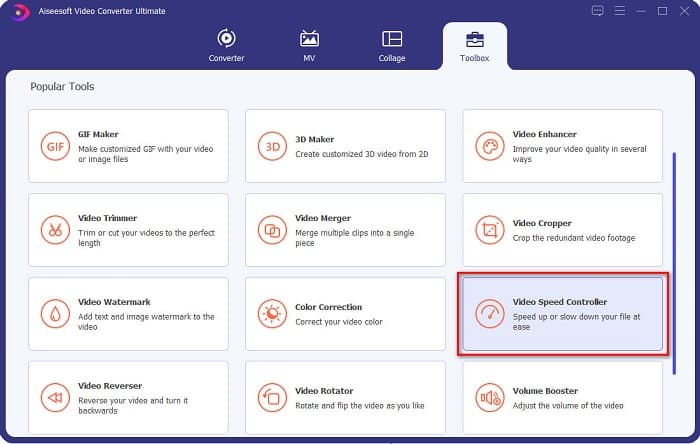
Trinn 2. Klikk deretter på Kontroller for videohastighet, og gå videre til neste trinn.
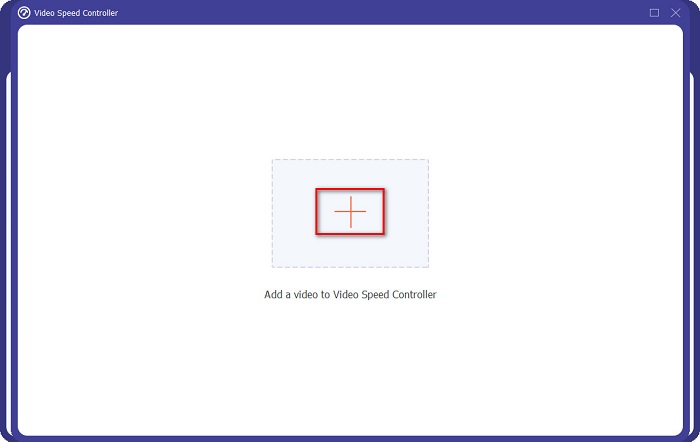
Trinn 3. Klikk deretter på +-knappen for å laste opp videoen du vil trimme. Datamaskinens mapper vises, der du velger videoen og laster den opp til programgrensesnittet.
Trinn 4. For å forkorte videoen velger du hastighet fra 1,25x til 8x hastighet.
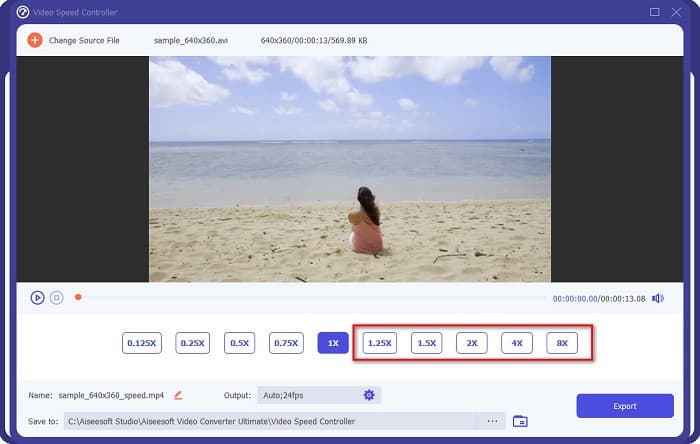
Trinn 5. Som siste trinn klikker du på knappen Eksporter for å lagre endringene i videoen. Deretter lagres resultatet automatisk i filene på datamaskinen din.
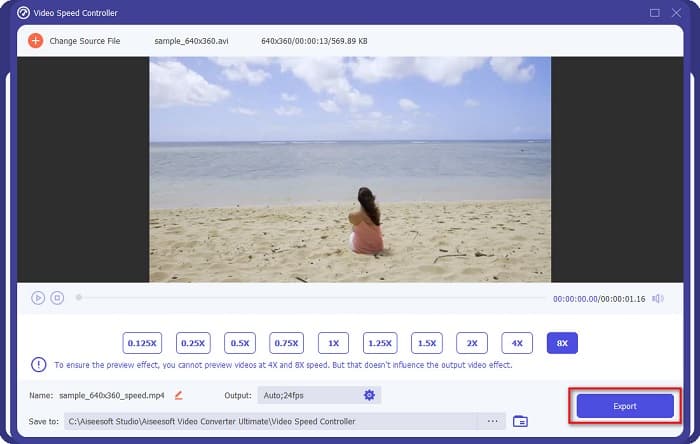
For kortere videolengde, velg 8x hastighet.
Fordeler
- Den støtter en rekke filformater, inkludert MOV, MKV, AVI, MP4, WMV, WMA, MPEG og 1000+ formater.
- Den har et brukervennlig programvaregrensesnitt.
- Den lar deg raskt dele videoen din med bare noen få klikk.
- Kan lastes ned på alle tverrmedieplattformer, som Windows, Mac og Linux.
Ulemper
- Kjøp appen først før du får tilgang til de andre funksjonene.
Del 2. 2 Online videotrimmer å prøve
Hvis du vil trimme videoen uten å laste ned noe, finnes det videotrimmere på nett du kan bruke. Vi listet opp de beste videotrimmerne på nettet som mange bruker i denne delen.
Trim video
Trim Video er et nettbasert verktøy for videotrimming som er lett å bruke på grunn av sitt intuitive brukergrensesnitt. Det er et praktisk verktøy fordi det ikke krever installasjon, i motsetning til andre nettbaserte verktøy. I tillegg har det en funksjon der du kan rotere videoen 90, 180 eller 270 grader. Videre trenger du ikke å tvile på datasikkerheten din, fordi dette verktøyet er personvernbeskyttet. Men siden det er en nettbasert applikasjon, inneholder det annonser som kan virke distraherende.
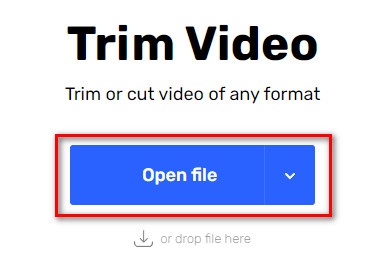
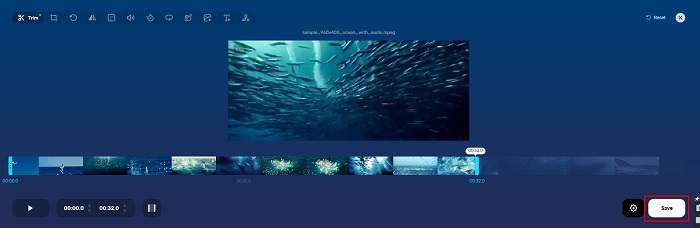
Trinn 1. Søk etter nettbasert videotrimmer i nettleseren din. Klikk deretter på nettstedet Trim Video. I hovedgrensesnittet til programmet klikker du på knappen Åpne fil.
Trinn 2. Juster deretter avspillingshodene til ønsket lengde.
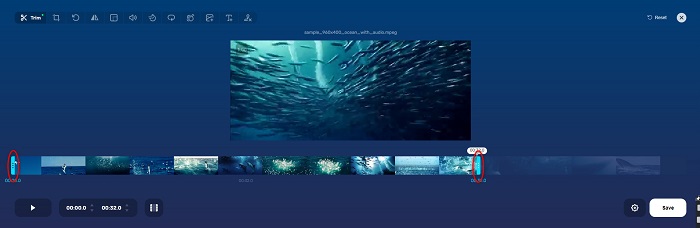
Trinn 3. Klikk på Lagre-knappen for å endre lengden på videoen din.
Fordeler
- Den har en brukervennlig GUI.
- Den har funksjoner for å beskjære og rotere videoen din.
- Det er trygt å bruke.
Ulemper
- Den inneholder irriterende annonser.
- Den har langsom lasting og opplastingsprosess.
Clideo
Et annet nettbasert verktøy for videotrimming er Clideo. Dette nettverktøyet har et enkelt brukergrensesnitt, noe som gjør det brukervennlig. Det støtter også de fleste standard filformater, som AVI, MP4, VOB, MPG, MOV osv. I tillegg har dette verktøyet høy sikkerhet, noe som betyr at dataene dine er trygge og ikke kan vises av andre. Dessuten inneholder ikke Clideo noen annonser som kan distrahere deg.
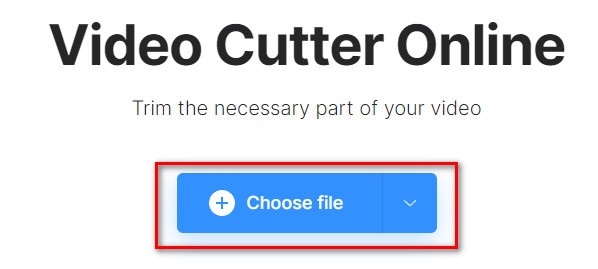
Trinn 1. I nettleseren du bruker, søker du etter Clideo video trimmer. I det første grensesnittet til programmet klikker du på knappen Velg fil. Datamaskinens mapper vises, der du velger videoen du vil forkorte.
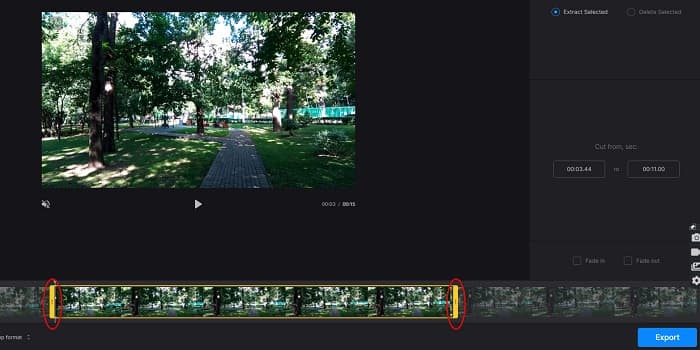
Trinn 2. Flytt avspillingshodene til lengden du vil at videoen skal ha.
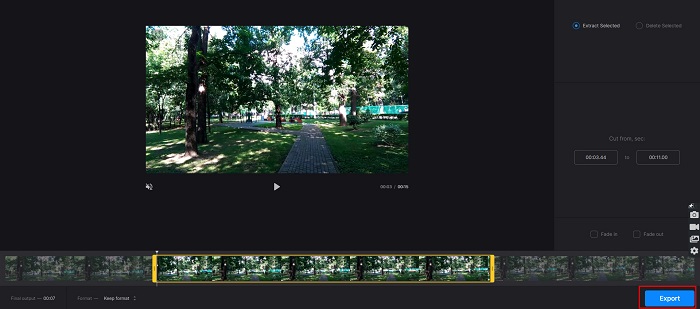
Trinn 3. Til slutt klikker du på Eksporter-knappen for å endre videolengden på videoen din.
Fordeler
- Den har et brukervennlig grensesnitt.
- Det er trygt å bruke.
- Den inneholder ingen annonser.
Ulemper
- Du kan oppleve treg prosess når internettforbindelsen din er treg.
Del 3. Vanlige spørsmål om hvordan du forkorter video
Hvordan forkorte video på iPhone?
Først åpner du Foto-appen og velger videoen du vil trimme. Trykk deretter på Rediger. Flytt deretter glidebryterne til ønsket videolengde og trykk på Ferdig for å lagre endringer fra videoen.
Påvirker trimming av videoen kvaliteten?
Nei. De fleste trimmeverktøy påvirker ikke kvaliteten på videoen. Men hvis du er sikker på et verktøy som ikke påvirker kvaliteten når du forkorter videoen, bruk FVC Video Converter Ultimate.
Påvirker forkorting av videoen filstørrelsen?
Ja. Jo kortere videoen din er, jo mindre filstørrelse har den. Derimot, hvis videoen din er lang, inneholder den en enorm filstørrelse.
Konklusjon
Det var alt om hvordan du kan forkorte en video ved å bruke en trimmer og en videohastighetsendrer. Alle de nevnte verktøyene gir svært gode resultater og sikrer deg den beste ytelsen. Men hvis du er på utkikk etter det beste verktøyet med mange funksjoner og som er svært populært når det gjelder å forkorte videoen din, er FVC Video Converter Ultimate det beste verktøyet for deg.
-
 Hvordan klippe og slå sammen sanger på nettet - 4 beste måter du bør vite
 Når du vil klippe og slå sammen sanger på nettet for å lage et stykke musikk, kan du lære mer om de 4 beste nettverktøyene for å klippe ut sangene og kombinere filer fra artikkelen.
-
 Oppdag den beste MP4 -trimmeren med prosedyre og informasjon
 Vil du lære hvordan du klipper videoer som vloggerne du ser på? Fortsett deretter å lese dette innlegget for å vite hvilke MP4-trimmere du kan bruke.
-
 5 MP3-kuttere for å kutte hvilken som helst lyd enkelt [2022 Oppdatert]
 Trenger du en MP3-kutter for å trimme lyden? I så fall, les denne artikkelen fordi vi tilbyr verktøyene du kan stole på som gir enkel skjæring av lyden.
