


 Video Converter Ultimate
 Skjermopptaker
 Videoreparasjon
Hvordan lage sakte film med Sony VEGAS som en profesjonell redaktør
Du vil føle deg som en profesjonell redigerer når du bruker Sony VEGAS, fordi det faktisk finnes mange verktøy tilgjengelig i dette programmet. Men som nybegynner som ønsker å lære mer om Sony VEGAS, kjenner du åpenbart ikke til noe i programmet, og du vil begynne å redigere helt fra bunnen av. Med en nyttig forklaring vil denne artikkelen lære deg alt om det nevnte programmet og alle detaljene, til og med fremgangsmåtene, slik at du som nybegynner får kunnskap om hvordan du kan lage saktefilmvideoer med Sony Vegas.

Del 1. Hvordan lage en sakte film i Sony VEGAS
VEGAS fra Sony er et brukervennlig program. Det har avanserte verktøy, setter brukerens behov i fokus og lar deg tilpasse arbeidsmiljøet ditt. Dokkområdet lar deg flytte og legge til vinduer etter behov, slik at verktøyene du trenger er lett tilgjengelige. Med VEGAS Pro trenger du ikke bruke et eget redigeringsvindu for ting som å legge til visuelle spesialeffekter og en annen for redigering. Denne kraftige programvaren gir deg kontroll med multikamera-redigering, maskering og bildestabilisering, slik at redigeringen din ikke begrenses av tilgjengelige verktøy. Mange verktøy er tilgjengelige, inkludert undertekster, filtre, effekter og optimalisering av bilde- og videohastighet. Profesjonelle redigerere kan jobbe med videoprosjekter med letthet ved hjelp av disse verktøyene. Med dette programmet kan du justere hvitbalansen, legge til en saktefilm-effekt og lage komposittbilder med chroma key. En av de mange nyttige funksjonene er muligheten til å senke eller øke avspillingshastigheten på videoen din. For å få full oversikt over potensialet i Sony VEGAS Pro 10 og verktøyene som kan kontrollere avspillingshastigheten, følger her eksempelsteg for at du skal kunne lage saktefilmvideoer på riktig måte:
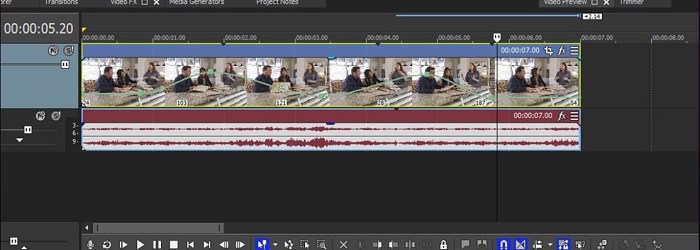
Trinn 1: Legg til et nytt klipp på tidslinjen ved å dra det dit. Insert/Remove Envelope, og klikk deretter på Velocity, som du finner ved å høyreklikke på videohendelsen på tidslinjen. En grønn linje som representerer Velocity Envelope kan ses i videohendelsen.
Trinn 2: Slå på avmerkingsboksen ved siden av riktig linje. Du blir informert via et popup-vindu om at avspillingshastigheten er satt til 100%, som er standard. Avspillingshastigheten reduseres når du drar linjen mot høyre. Når du drar mens du holder CTRL nede, reduseres endringsstegene, slik at du kan gjøre finere justeringer. Fra 99% til 0% sakte film er det ingen bevegelse eller et frosset bilde. Hvis du senker prosenten under 0% til et negativt tall, vil videoen spilles av baklengs.
Trinn 3: Velg en Velocity Envelope på 25 prosent. Legg deretter til et punkt ved å velge Add Point fra hurtigmenyen når du er i videohendelsens envelope. Hold CTRL nede mens du drar punktet til 50%-merket. Etter det nye punktet forblir Velocity Envelope flat.
Trinn 4: Spill av videoen ved å klikke og dra i venstre kant av videoen. Med en hastighet på 25% i starten øker videoen gradvis til en hastighet på 50%, før den spilles av ved denne 50%-hastigheten resten av videoen. Øk antallet punkter og angi når de skal gjentas. Når du spiller av videoen, endres hastigheten etter hvert som du beveger deg mellom de ulike punktene. Envelope Velocity påvirker ikke lyden. Fordi lyden ikke vil være synkronisert med videoen dersom du fjerner lydhendelsen, er det som regel best å la den være.
Trinn 5: Velocity Envelopes kan brukes sammen med CTRL-trimming eller med en endring i Playback Rate. Som tidligere nevnt har CTRL-trim en saktefilmgrense på 4x, som tilsvarer 14 hastigheter. Resultatet blir en multiplikator hvis du bruker en Velocity Envelope. Bruk en Velocity Envelope og reduser hendelsens hastighet til 10% hvis Playback Rate er satt til 0,250 eller 4x sakte film. Dette gir deg en effektiv 40x sakte film.
Del 2. Effektive måter å lage sakte film på
Du kan oppleve at Sony VEGAS er litt komplisert og vanskelig å forstå når det gjelder å redigere avspillingshastigheten på en video eller lage supersakte videoer. Derfor anbefaler vi å bruke Video Converter Ultimate, det beste alternativet til all betalt og gratis programvare som finnes. Dette programmet er gratis å laste ned og brukervennlig, og introduserer ulike verktøy som kan brukes i redigeringsprosessen. Ett av de fremhevede verktøyene er Video Speed Controller. Dette verktøyet gir deg full frihet til å redigere avspillingshastigheten på en video. Hvis du vil øke eller redusere hastigheten på videoen, velger du bare de hastighetsalternativene du vil bruke på videoen din. Nå som du kjenner til temaene, følger her fremgangsmåten du må følge:
Trinn 1: Du kan laste ned Video Converter Ultimate ved å klikke på Free Download nedenfor for å laste ned programvaren. Installer den på datamaskinen og start den deretter.
Gratis nedlastingFor Windows 7 eller nyereSikker nedlasting
Gratis nedlastingFor MacOS 10.7 eller nyereSikker nedlasting
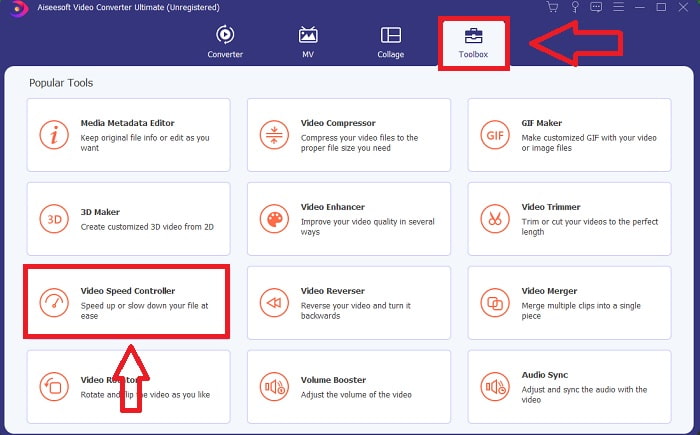
Trinn 2: Etter at programvaren er installert på datamaskinen, bør du kjøre den. Når du starter programvaren for første gang, vises programmets grensesnitt. Velg Toolbox-fanen, og velg deretter Video Speed Controller fra rullegardinmenyen.
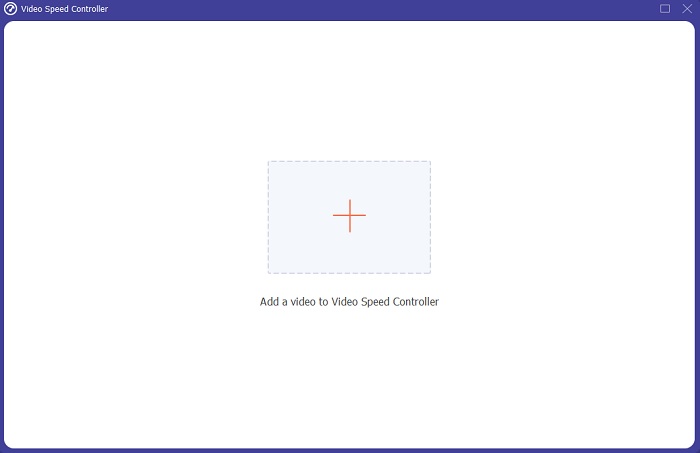
Trinn 3: Det er like enkelt å legge til filer fra datamaskinen som å klikke på +-knappen for å endre avspillingshastigheten på videoklippet ditt.
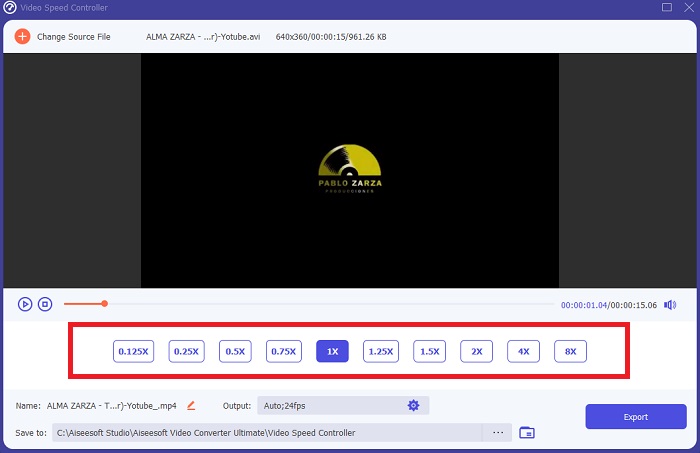
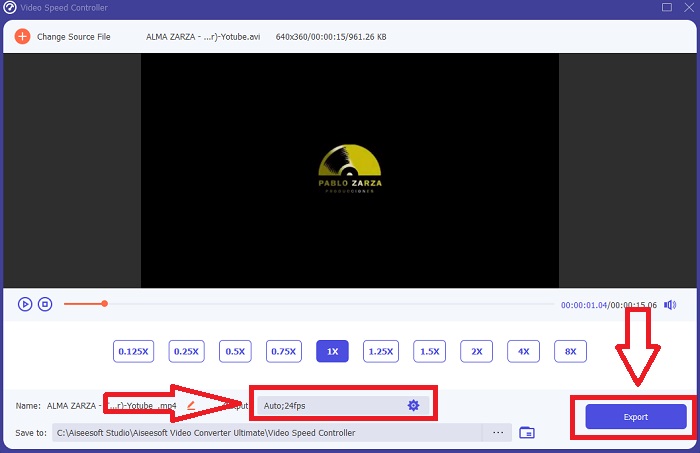
Trinn 4: Velg hvilke hastigheter du vil bruke for å redigere avspillingshastigheten på videoklippet ditt eller for å lage en saktefilmvideo fra en video med normal hastighet, for å begynne å redigere avspillingshastigheten på videoklippet.
Trinn 5: Deretter kan du finjustere kvaliteten på videoen du eksporterer ved å endre oppløsning, bildefrekvens, format og andre parametere. Når alt er i orden, klikker du på Export for å lagre den konverterte filen på datamaskinens harddisk.
Relatert:
Del 3. Vanlige spørsmål om å lage slow-motion-videoer i Sony Vegas
Hva er Velocity Envelope i Sony Vegas?
Sony Vegas' Velocity Envelopes lar deg øke hastigheten, senke hastigheten eller til og med fryse video. Høyreklikk en videohendelse og velg Insert/Remove Envelope og klikk deretter Velocity i hurtigmenyen. Øk klippets hastighet ved å dra envelope-linjen opp, eller senk den ved å dra envelope-linjen ned.
Vil lyden bli påvirket hvis du justerer avspillingshastigheten til en video?
Ja, videoens lyd blir dyp og treg hvis du bremser videoen, mens den blir høy og rask hvis du spoler fremover. Det vil ikke bli glitchy og hakking, men tonehøyden på lyden endres avhengig av hvor treg eller rask videoen blir.
Hvordan lage en sakte film på iPhone?
For å skape en illusjon av en langsommere bildefrekvens når du filmer sakte film med iPhone, må du spille den av med en lavere bildefrekvens. Slo-mo-funksjonen kan brukes til å fange vakre landskap, spennende sportsaktiviteter og spente øyeblikk i tid.
Konklusjon
For å avslutte saken, snakker denne artikkelen om sakte filmer på forskjellig programvare som er tilgjengelig. Sony VEGAS Pro hjelper til med å justere avspillingshastigheten på forskjellige måter, men de er alle kompliserte å følge for nybegynnere. Derimot er Video Converter Ultimate et av de anbefalte beste alternativene for å fikse det gitte problemet. Denne programvaren har Video Speed Controller-verktøyet som kan brukes til å løse problemer med å justere hastigheten til videoene dine. Annet enn de nevnte verktøyene, er det andre verktøy tilgjengelig som bidrar til å forbedre kvaliteten på videoen din.
-
 Hvordan komprimere en MP4-video til mindre størrelse
 MP4-video er for stor til å lastes opp? Vil du redusere videostørrelsen? Her er 3 effektive måter å komprimere en MP4-fil til mindre størrelse uten begrensning.
-
 Bli med MOV gratis - Slik fletter du to MOV-filer til en
 Det kan være vanskelig for nybegynnere å bli med i flere MOV-videoklipp. Så er det en enkel og rask måte å kombinere MOV-filer på? Hvis det er, hvordan bruker du det? Dette innlegget vil hjelpe deg med å få disse svarene.
-
 Hvordan komprimere videoer gratis / prøv disse 7 online videokompressorene
 Les og få 7 måter å komprimere videoer gratis på datamaskinen eller telefonen din. Du kan enkelt redusere store videoer til små filstørrelser for e-post, Twitter, Instagram, YouTube, WhatsApp og mer.
