


 Video Converter Ultimate
 Scherm opnemer
 Videoreparatie
 Beveiligde download
Hoe HEIC naar JPG op iPhone te veranderen, eenvoudig met apps
Unlike JPEG, the HEIC doesn't get a lot of support, and because of that, converting it became necessary before transferring the file. But selecting a converter on your device might be challenging because not all of them perform very well in converting the image file. So, if you want to know the techniques to change the format to a JPEG on your device, you must follow this article. There are three different methods to shift HEIC to JPG on iPhone and desktop easily without losing the quality of the raw HEIC file.

Deel 1. Hoe HEIC naar JPG op iPhone te converteren met behulp van de app Bestanden
With a file manager like the File App you can easily convert HEIC to JPG on iPhone without downloading additional files. Besides the storing features, the tool supports locally on your iPhone; it also supports other cloud storage apps, which became one reason why this feature became popular on every iPhone user. If you like to try using this file manager built-in app on iOS devices, then follow the steps below to do it effectively.
Stappen voor het converteren van HEIC naar JPG met behulp van de bestandsapp:
Step 1. Open the Library of the HEIC image you want to copy.
Step 2. Then open the File App and select On My iPhone. While using it, you can also access Google Drive or another iCloud drive to upload the HEIC file if the HEIC file isn't available on your local drive, but you will need to have an internet connection to do it.
Step 3. After you've opened the app, you must now create a folder, paste the file, and the format will automatically be saved in JPEG format.
Deel 2. Hoe HEIC naar JPG te converteren met een app van derden op iPhone
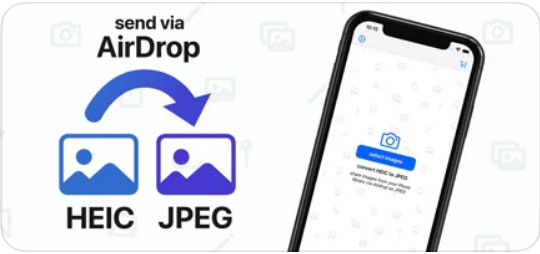
One of the best free apps you can use to change the format of your HEIC is the HEIC to JPEG. This app is open-source, which means you can download it for free on any iOS device. If you want to know how to convert HEIC to JPG on iPhone, you can follow the steps below.
Stappen voor het converteren van HEIC naar JPG met behulp van de HEIC naar JPEG:
Step 1. Search the HEIC to JPEG on the App Store, and click the download button to install the app on your iOS device.
Step 2. After the installation, tap the app to open it. By tapping the Select Image, you can directly access the Photos of your iOS and select the HEIC image you want to convert.
Step 3. If you have uploaded the HEIC file in the app, you must check them out by tapping them individually. After you tap the HEIC file you want to convert, tap the Share as JPEG located at the upper right corner of your screen.
Step 4. In this area, tap the Save Image, and the HEIC photo will convert into a JPEG.
Deel 3. Hoe HEIC naar JPEG te converteren en de foto's over te zetten naar Windows en Mac
Suppose the third-party iOS app and the built-in file manager didn't work based on your need, then what should you do? No need to worry because we got your back. FVC Free HEIC to JPG Converter is a web-based tool that allows its users to convert the HEIC file automatically into a JPEG. With it, you can use the tool and finish the task of converting in three easy steps. Here are the steps to convert HEIC to JPEG if you don't have an iPhone to use.
Stappen voor het converteren van HEIC naar JPG met FVC Gratis HEIC naar JPG Converter:
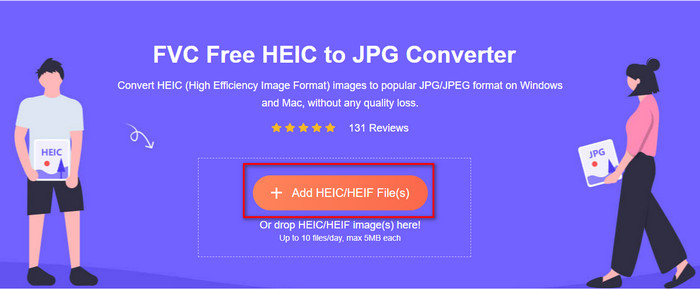
Step 1. Click this link to open the official website of the web tool on your favorite browser.
Step 2. Then click Add HEIC/HEIF File(s), locate the HEIC image you want to change the format, and click Open to upload the file successfully.
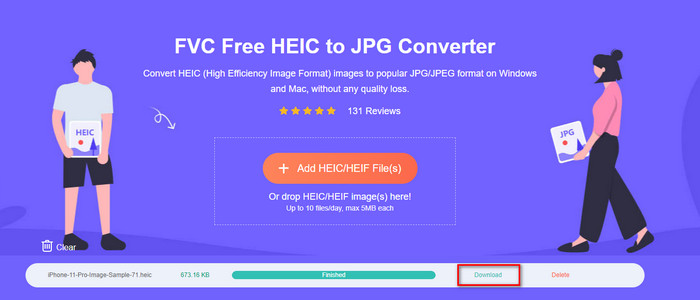
Step 3. Converting the format into JPEG will start soon, and after the procedure, click Download to save the image file on your drive with a JPEG format. As we promised, you will only go to read three easy steps to successfully change the format of the image you have into a JPEG. So if the app on iPhone didn't work well, then this is the tool you must use as a substitute for them.
Deel 4. Veelgestelde vragen over het converteren van HEIC naar JPEG op iPhone
Moet ik het HEIC-bestand naar JPEG converteren voordat ik het op de iPhone kan overbrengen?
It depends on the version of the iOS device of the receiver; if the receiver uses an iOS 11 or up, then converting the format to JPEG isn't necessary because you can open the file here as it is natively supported. But if the receiver's version is lower than the iOS 11, that is the time you will need to convert HEIC into a JPEG.
Kost het overzetten van HEIC naar een ander apparaat tijd?
Niet vanwege de compressie die dit formaat heeft, dus het overbrengen van de afbeelding in dit formaat is eenvoudig. Als u het echter in bulk naar het andere apparaat verzendt, moet u wachten tot het proces is voltooid. Als je het overzet via een internetverbinding, heb je een snelle nodig om het snel te verwerken.
Blijft de hoge kwaliteit van de afbeelding behouden na het converteren van HEIC naar JPEG?
HEIC en JPEG kunnen afbeeldingen van hoge kwaliteit opslaan, dus door de HEIC om te zetten in een JPEG, zult u tijdens de conversie geen kwaliteitsverlies ondervinden. Toch verminderen sommige converters de kwaliteit van de afbeelding om ze snel te verwerken. Om te voorkomen dat u een slechte kwaliteit van het onbewerkte HEIC-bestand ervaart, moet u de beste converter kiezen om het formaat gemakkelijk naar JPEG te wijzigen zonder de oorspronkelijke kwaliteit te verliezen.
Gevolgtrekking
We have now learned how to change the HEIC to JPG on iPhone without worrying about the quality lost. Despite having trouble handling the HEIC format with this article, you have lessened the burden you carry because you now have ways to convert it. So, if you want to try the two methods we mentioned above on your iPhone, go and follow them accordingly. But if you think that it will not suffice your needs, you must choose the online converter we mentioned. There are guidelines on how to use the converter on the web. Follow it to get the whole idea of how to use it. We hope that you like reading this article, visit our website as we gathered also other ways to solve your daily task on video and audio problems.
-
 Converteer HEIC naar PDF met de beste 4 verbeterde manieren in 2022
 Voor meer informatie over de beste HEIC naar PDF-converter kunt u deze 2022 downloaden. U kunt dit artikel lezen omdat we er een recensie over hebben gegeven.
-
 5 van de beste HEIC naar JPG-converters kiezen deze 2022
 Met de HEIC naar JPC-converter kun je het beeldformaat eenvoudig veranderen in een draagbare JPG. Wil je weten wat deze 5 tools zijn? Lees dit artikel.
-
 Beste gratis en betaalde HEIC-converter die u moet kennen [Bijgewerkt 2022]
 Wil je weten wat de HEIC-converter is? Als dat het geval is, nemen we de top 5 van gratis en betaalde HEIC-converters op die u kunt gebruiken om het HEIC-formaat te wijzigen.
