


 Video Converter Ultimate
 Scherm opnemer
 Videoreparatie
 Beveiligde download
Procedures voor het verwijderen van delen van een video op iPhone
Je hebt misschien in je vrije tijd een prachtige video met je iPhone of iPad opgenomen en wilt die met je vrienden delen of op sociale media plaatsen. Het is echter handig om eerst de delen van de video te bewerken die je niet wilt versturen. In deze situatie kun je video’s snel bewerken met je eigen hulpmiddelen door ze in te korten of aan te passen. Dus, hoe verkort je een video op een iPhone? In dit artikel zie je de beste methoden. Wil je alle stappen leren, lees dan alle informatie hieronder.

Deel 1. Effectieve procedures om video op iPhone te knippen
Foto's-app gebruiken
Als u een iPhone-gebruiker bent en de lengte van uw video wilt verkorten, kan de Foto's-app u misschien helpen. De app Foto's is niet alleen goed voor het weergeven van afbeeldingen en video's. Met behulp van deze vooraf gebouwde applicatie kunt u uw video ook knippen of bijsnijden. Omdat het een eenvoudige applicatie op de iPhone is, kun je de video inkorten tot slechts een paar aanrakingen. Op deze manier kunnen alle gebruikers, vooral beginners, de applicatie gebruiken. Aangezien het een kant-en-klare applicatie is, is installatie bovendien niet vereist. Hoewel het een praktische toepassing is voor het knippen van video's, heeft de Foto's-app enkele beperkingen. De toepassing is niet geschikt als u geavanceerde bewerkingstools wilt om een video te verbeteren naast het verkorten van de videolengte. De app Foto's biedt alleen basisbewerkingsfuncties zoals knippen, filters toevoegen en meer. Als u wilt weten hoe u een video op een iPhone kunt inkorten, volgt u de onderstaande stappen.
Stap 1. Ontgrendel je iPhone en open de app Foto’s.
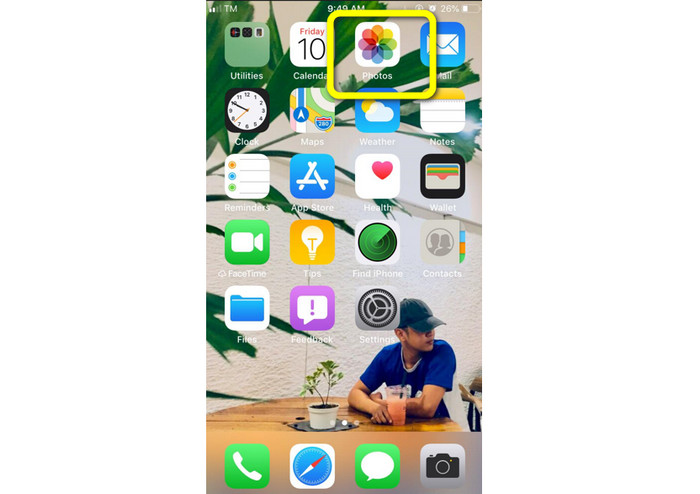
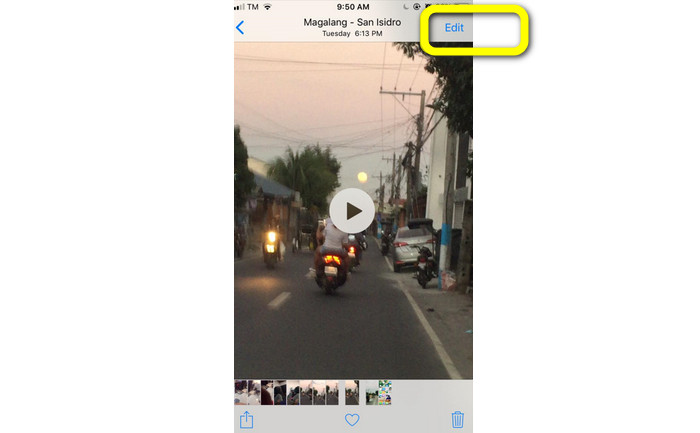
Stap 2. Tik vervolgens op de video die je wilt inkorten. Daarna druk je op de knop Bewerk in de rechterhoek van het scherm.
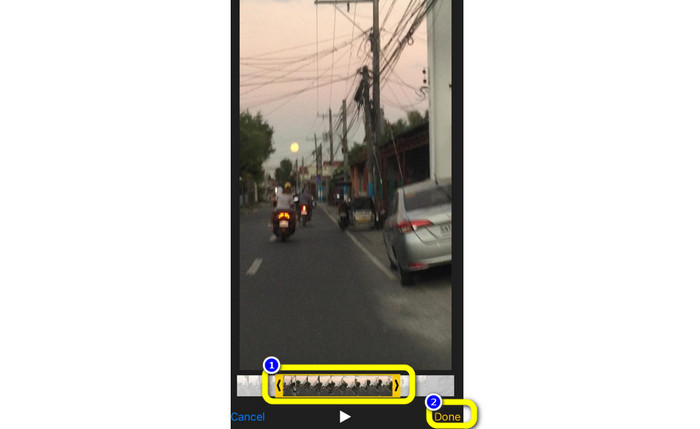
Stap 3. Vervolgens kun je de video al inkorten door de rand van de video te verslepen. Je kunt de linker- en rechterrand van de video verslepen. Klik na het inkorten van de video op de knop Gereed om deze op je telefoon op te slaan.
iMovie gebruiken
Wil je enkele van de video’s die je met je iPhone hebt opgenomen bewerken, bijvoorbeeld om onnodige delen weg te knippen, ze korter te maken of ze visueel aantrekkelijker te maken? Dit is een eenvoudig en rechtlijnig proces met het programma iMovie, dat beschikbaar is voor iOS‑apparaten. Voor de meeste gebruikers is de ingebouwde videobewerker in de standaardapp Foto’s voldoende. Maar je kunt deze niet gebruiken om toegang te krijgen tot meer geavanceerde functies, zoals het bekijken van je tijdlijn, het toepassen van overgangen, het samenvoegen van meerdere video’s, enzovoort. In deze situatie is een gespecialiseerde videobewerkingsapp zoals iMovie erg nuttig. Apple’s iMovie is beter dan de andere videobewerkingshulpmiddelen in de App Store. En je kunt er ook audio en video mee synchroniseren in iMovie. iMovie heeft echter ook enkele nadelen. iMovie is alleen beschikbaar op iPhone‑apparaten. Dat betekent dat je als Android‑gebruiker een andere toepassing moet gebruiken om een video te knippen.
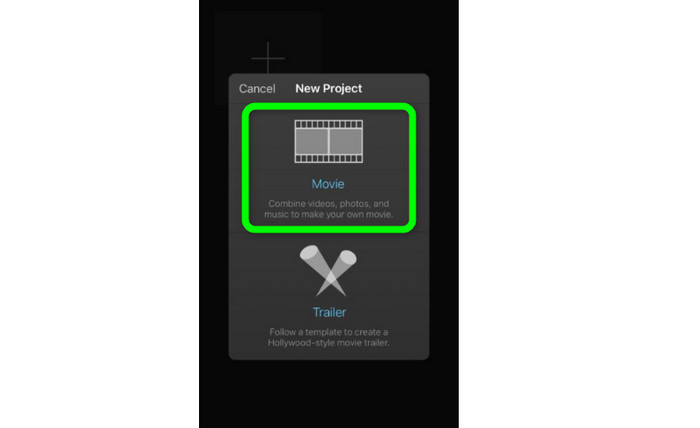
Stap 1. Download en installeer de toepassing iMovie op je iPhone. Start vervolgens de app. Wanneer de interface op het scherm verschijnt, klik je op de optie Create Project > Movie en voeg je de video toe.
Stap 2. De door jou gekozen video staat nu in de iMovie‑tijdlijn. Standaard staat de aanwijzer aan het einde van de clip, maar je kunt hem langzaam naar rechts slepen en daar stoppen als je de video wilt knippen.
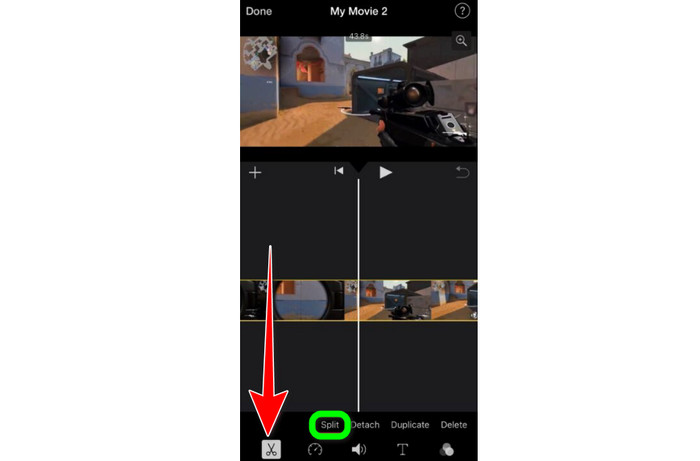
Stap 3. Je kunt nu verschillende functies gebruiken die iMovie biedt. Zoals hieronder getoond, geeft het pictogram Schaar aan dat je de kniptool hebt geselecteerd. Kies in het menu de tool Splits om de videoclip precies op de gemarkeerde plaats bij te snijden.
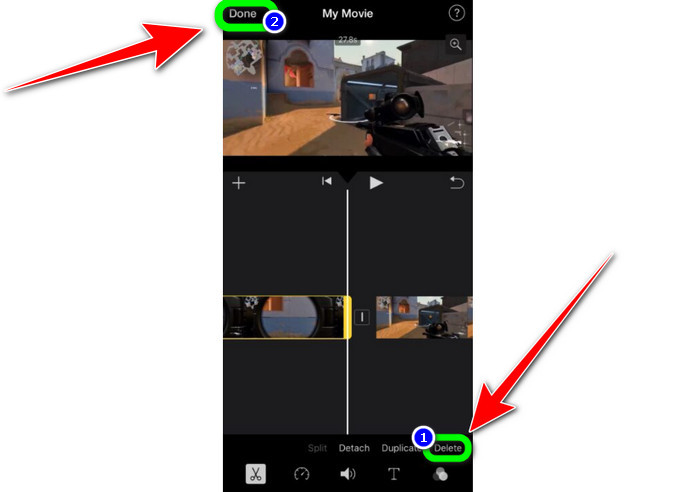
Stap 4. Klik vervolgens op de optie Verwijder om het onnodige deel van de video weg te halen. Wanneer je klaar bent met het trimmen van de video, klik je op de knop Gereed.
Deel 2. Video's inkorten op iPad
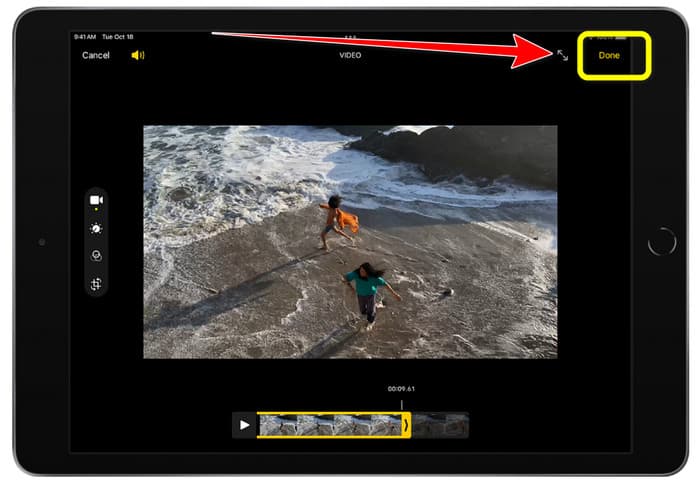
Wil je een video knippen of inkorten met een iPad, dan hoef je niet langer naar een downloadbare app te zoeken. Net als op de iPhone kun je je video met de app Foto’s knippen of inkorten. De Foto’s‑app heeft op een iPad nog steeds enkele beperkingen. Als je doel is om de video te knippen, is het prima. Maar je kunt de app niet gebruiken als je geavanceerde bewerkingstools nodig hebt. Volg de onderstaande stappen om de video op een iPad te knippen of in te korten.
Stap 1. Start de app Foto’s op je iPad, tik op de videoclip die je wilt bewerken en klik op de optie Bewerk.
Stap 2. Sleep de rand van de beeldweergave om de lengte van de video te verkorten en met het trimmen te beginnen.
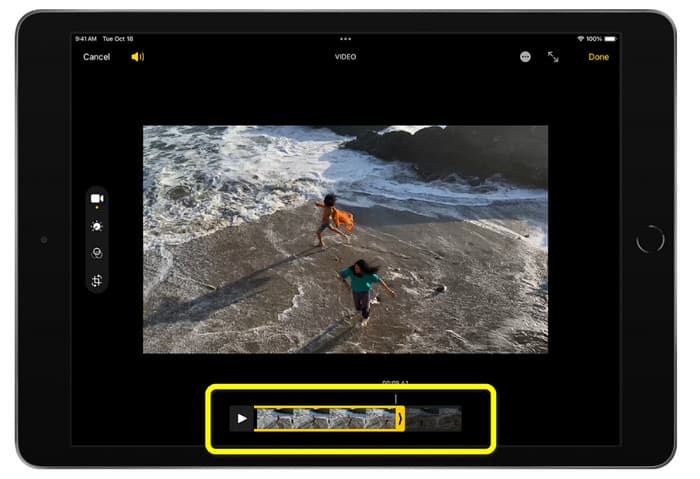
Stap 3. Wanneer je klaar bent met het trimmen van de video, klik je op de knop Gereed.
Deel 3. Hoe iPhone-video's op pc te knippen
Ben je op zoek naar de beste manier om iPhone‑video’s op een pc te knippen? Gebruik in dat geval Video Converter Ultimate. Met behulp van deze offline software kun je je iPhone‑video moeiteloos knippen. Het programma heeft bovendien een gebruiksvriendelijke interface met eenvoudige stappen. Het is dus ideaal voor alle gebruikers, vooral beginners. Je kunt ook diverse instellingen aanpassen via de uitvoerinstellingen. De resolutie, scherpte en beeldfrequentie van de video kunnen allemaal worden gewijzigd. Daarnaast kun je ook zaken als de bitsnelheid en de bemonsteringsfrequentie van het geluid aanpassen. Je kunt het eindresultaat ook in verschillende formaten opslaan, zoals MP4, MOV, AVI, MKV, enzovoort. Dit is een voordeel voor gebruikers, omdat Video Converter Ultimate beschikbaar is op zowel Windows‑ als Mac‑computers. Bovendien voegt het programma geen watermerken toe aan de bewerkte video. Je kunt de video dus bekijken zonder je daaraan te storen.
Gratis downloadVoor Windows 7 of nieuwerVeilige download
Gratis downloadVoor MacOS 10.7 of nieuwerVeilige download
Stap 1. Download Video Converter Ultimate op je pc. Klik op de knop Download hieronder om eenvoudig toegang te krijgen tot het programma.
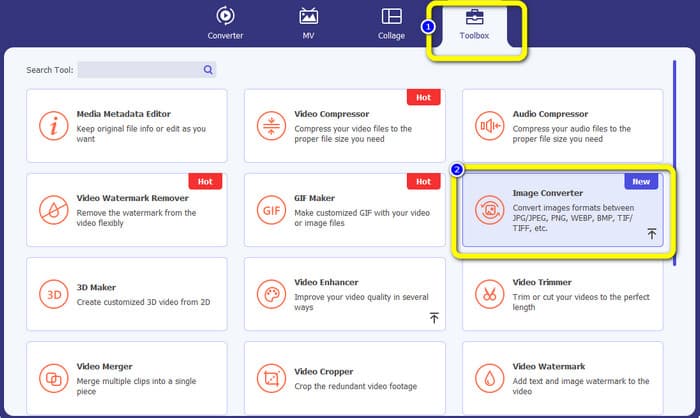
Stap 2. Start het programma na het downloaden om de hoofdinterface te zien. Zorg ervoor dat de iPhone‑video al naar de computer is overgezet. Klik daarna op Toolbox > Video Trimmer Tool zodra de interface verschijnt.
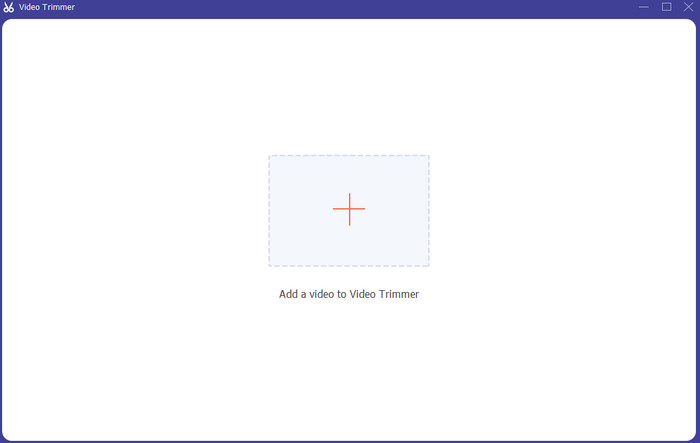
Stap 3. Wanneer de nieuwe interface op het scherm wordt weergegeven, klik je op het +-teken om de iPhone‑video toe te voegen.
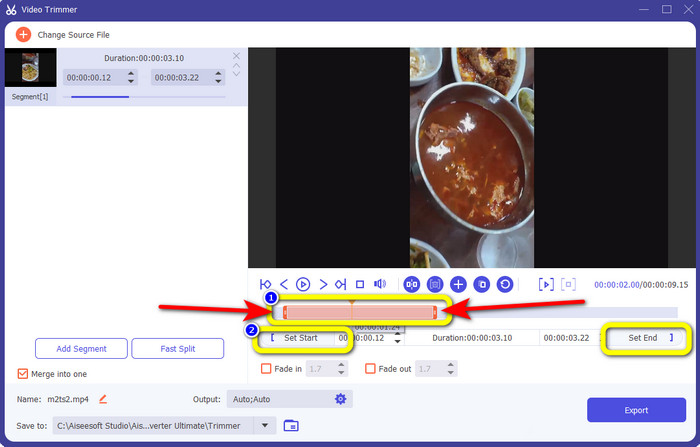
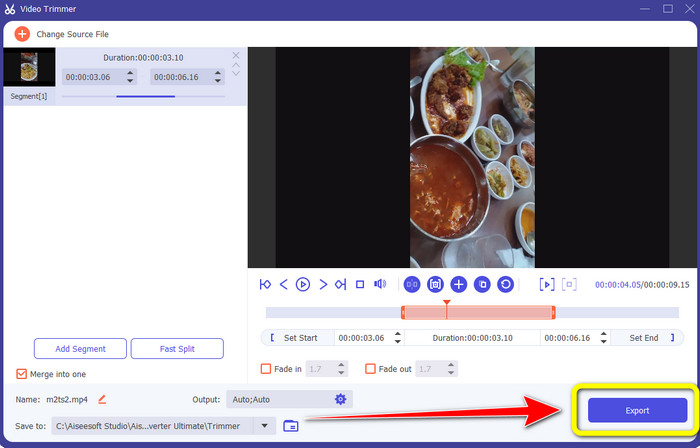
Stap 4. Vervolgens kun je de rand van de video al aanpassen om deze te trimmen. Je kunt ook de opties Set Start en Set End gebruiken om de video handmatig te trimmen.
Stap 5. Klik ten slotte op de knop Export om de video na het trimmen op te slaan.
Deel 4. Veelgestelde vragen over het inkorten van een video op iPhone
Hoe het midden van de video op een iPhone inkorten?
Als je het middelste deel van je video wilt bijsnijden met de iPhone, kun je nog steeds de bovengenoemde methoden gebruiken. De app Foto's en iMovie kunnen ook het middelste deel van een video bijsnijden.
Hoe video op Android-telefoon inkorten?
U kunt naar uw Galerij-applicatie gaan. Open vervolgens de video en klik op de optie Bewerken. Daarna kun je de video alvast inkorten door de randen van de video te verslepen.
Hoe video overzetten naar iPhone vanaf de computer?
U kunt veel tools gebruiken om een video over te zetten van een computer naar een iPhone. U kunt iPhone Transfer Pro, Dropbox, AirDrop en meer gebruiken.
Gevolgtrekking
Een video trimmen is nuttig wanneer je een videoclip wilt delen of uploaden. In dat geval gaat dit informatieve artikel over hoe je een video op een iPhone kunt verkorten. Bovendien kun je, als je de lengte van een iPhone‑video op een computer wilt verkorten, gebruikmaken van Video Converter Ultimate. Met behulp van dit offline programma kun je iPhone‑video’s eenvoudig en direct op een pc knippen.
-
 [4 oplossingen] Een video op iPhone vertragen als een professional
 Heeft u problemen met het vertragen van een video op de iPhone? Als u dit probleem tegenkomt, hoeft u zich geen zorgen meer te maken, want we zullen u helpen het probleem op te lossen door dit artikel te lezen.
-
 Een video snel vooruitspoelen op de iPhone - Videosnelheid aanpassen
 Hoe kan ik een video vooruitspoelen op mijn iPhone? Hoe een video op de iPhone snel vooruit te spoelen met iMovie? Leer 3 manieren om een video sneller te maken op iPhone- en iPad-apparaten.
-
 Tutorial - 4 gratis manieren om video's op de iPhone samen te voegen tot een nieuwe
 Lees en ontvang 4 eenvoudige manieren om video's op de iPhone samen te voegen. Alle iPhone-modellen en iOS-versies worden ondersteund. U kunt 2 en meer video's op de iPhone snel combineren tot een nieuwe video.
