


 Video Converter Ultimate
 Nagrywarka ekranu
 Naprawa wideo
Najprostsze sposoby naprawiania zdjęć HEIC przy użyciu najlepszych narzędzi
Zdjęcia HEIC to formaty obrazu, których system Windows nie potrafi otworzyć. Mimo że są one powszechnie używane ze względu na wysoką jakość przy niewielkim rozmiarze pliku, można je natywnie otwierać tylko na urządzeniach Apple. Co więcej, jeśli Twój obraz utracił dane lub jest uszkodzony, potrzebujesz narzędzia, które pomoże naprawić zdjęcie i odzyskać utracone dane. W tym artykule poznasz najlepsze narzędzie do otwierania obrazów HEIC na komputerze z systemem Windows oraz dowiesz się, jak naprawić zdjęcia HEIC bez wysiłku.

Część 1. Jak naprawić i wyświetlić obraz HEIC na komputerze z systemem Windows?
Nie możesz wyświetlić obrazu HEIC na komputerze z systemem Windows, nawet jeśli obraz nie jest uszkodzony. Najlepszą opcją jest więc użycie narzędzi, które mogą wyświetlić obraz HEIC lub przekonwertować go na inne formaty obrazu obsługiwane przez system Windows, takie jak JPG i PNG. Dlatego przedstawimy Ci najlepsze narzędzia do przeglądania obrazu HEIC na komputerze z systemem Windows i jak przekonwertować obraz HEIC do formatu obrazu JPG.
Użyj konwertera
Aiseesoft HEIC Converter to internetowy konwerter HEIC, który umożliwia konwersję obrazu HEIC do formatu obrazu JPG lub PNG. To narzędzie ma prosty interfejs użytkownika, dzięki czemu jest narzędziem przyjaznym dla użytkownika. Oprócz tego możesz zmienić jakość obrazu podczas konwersji obrazu HEIC. Może również zachować dane EXIF obrazu podczas konwertowania go na inne formaty obrazu. Co więcej, możesz użyć tego narzędzia do konwersji obrazów HEIC na JGP bez płacenia czegokolwiek.
Krok 1. Pobierz program Aiseesoft HEIC Converter na swój komputer. Przejdź przez proces instalacji i uruchom aplikację.
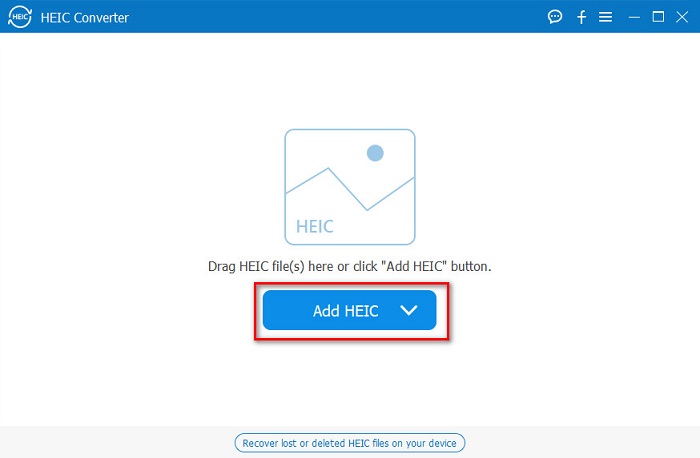
Krok 2. Kliknij przycisk Add HEIC, aby wczytać obraz HEIC w głównym oknie programu.
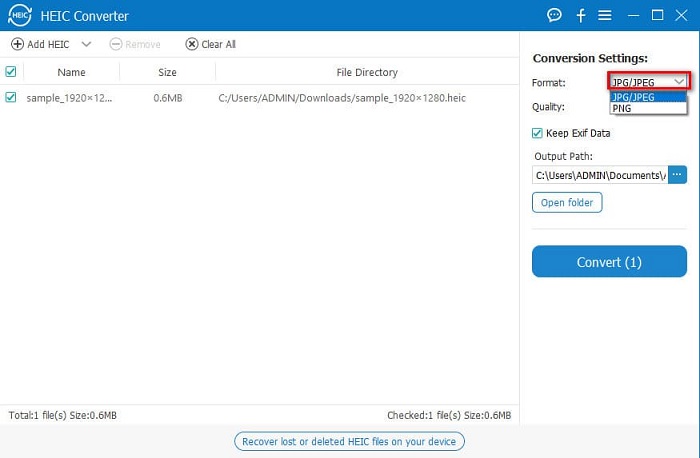
Krok 3. Następnie wybierz format wyjściowy, klikając rozwijane menu obok Format. Potem wybierz format obrazu JPG/JPEG.
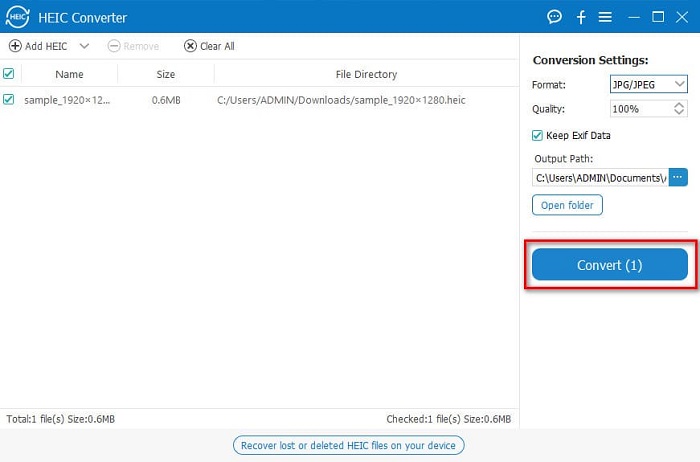
Krok 4. Na koniec kliknij przycisk Convert, aby przekonwertować obraz HEIC do formatu JPG.
Wykonując te proste kroki, możesz przekonwertować obraz HEIC na format obrazu JPG, aby wyświetlić go na urządzeniu z systemem Windows.
Możesz również wypróbować konwerter FVC HEIC, który ma równie zaawansowane funkcje jak konwerter Aiseesoft:
Bezpłatne pobieranieDla Windows 7 lub nowszegoBezpieczne pobieranie
Bezpłatne pobieranieDla MacOS 10.7 lub nowszegoBezpieczne pobieranie
Powiązane:
Jak przekonwertować HEIC na PNG
Jak przekonwertować JPG na HEIC
Użyj przeglądarki
1. HEIC Image Viewer Decoder
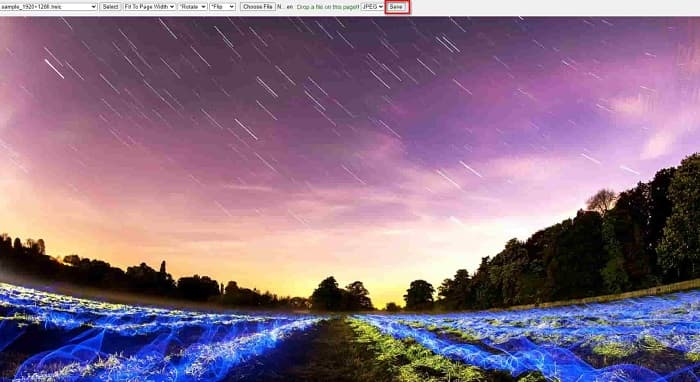
HEIC Image Viewer Decoder to przeglądarka HEIC, która umożliwia wyświetlanie obrazów HEIC online. Po obejrzeniu lub zdekodowaniu obrazu HEIC możesz zapisać go w formacie PNG lub JPG. Dodatkowo, narzędzie ma prosty interfejs, który ułatwia przeglądanie zdjęć HEIC.
Krok 1. W używanej przeglądarce wyszukaj HEIC Image Viewer Decoder. W głównym oknie narzędzia upuść swój obraz HEIC w prostokątnym polu lub kliknij przycisk Choose Files.

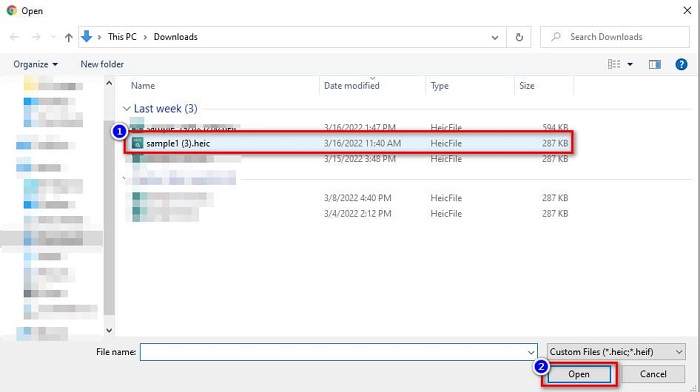
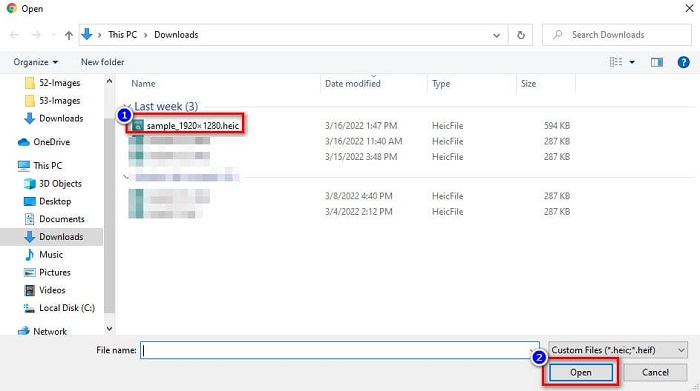
Krok 2. Następnie pojawią się foldery komputera, w których zlokalizujesz plik HEIC, a potem go zaznaczysz i klikniesz Open.
Krok 3. Po zakończeniu wczytywania obrazu HEIC możesz go już oglądać. Następnie kliknij przycisk Save, aby zapisać obraz HEIC w formacie JPG.
2. CompressJPG.net
CompressJPG.net to internetowa przeglądarka HEIC z intuicyjnym interfejsem. Jest dostępna na urządzeniach mobilnych, komputerach z systemem Windows oraz tabletach. Co więcej, nie ma limitu rozmiaru pliku podczas wyświetlania obrazów HEIC. Jednak jako aplikacja webowa może działać wolniej, jeśli Twoje połączenie z internetem jest słabe. Mimo to wiele osób korzysta z tego narzędzia online do przeglądania swoich zdjęć HEIC.
Krok 1. Wpisz w przeglądarce CompressJPG.net, a następnie kliknij stronę narzędzia, która pojawi się na stronie wyników wyszukiwania. W głównym oknie programu kliknij przycisk Choose Files.

Krok 2. Następnie pojawią się pliki na komputerze; zlokalizuj obraz HEIC i wybierz go. Po wybraniu pliku HEIC kliknij przycisk Open, aby wczytać obraz.
Krok 3. Na koniec możesz już wyświetlić obraz HEIC na komputerze z systemem Windows.

Proste, prawda? Postępując zgodnie z wyżej wymienionymi narzędziami online i korzystając z nich, możesz łatwo wyświetlić obraz HEIC na komputerze z systemem Windows.
Część 2. Napraw uszkodzony obraz HEIC
Jeśli obraz HEIC nie może otworzyć się na urządzeniu Apple, coś jest nie tak. Najczęstszym problemem, z którym spotyka się wiele osób, jest utrata danych. Kiedy tak się dzieje, oznacza to, że plik obrazu jest uszkodzony. Musisz więc użyć narzędzia, które może odzyskać utracone dane. W tej części dowiesz się, jak przywrócić dane obrazu HEIC.
Użyj Kreatora odzyskiwania danych EaseUS
Program EaseUS Data Recovery Wizard to narzędzie, które umożliwia odzyskanie do 2 GB utraconych danych. Jest przyjazny dla użytkownika, ponieważ ma prosty interfejs. Ponadto może skanować pamięć urządzenia i wyszukiwać listę utraconych plików. Choć można z niego korzystać za darmo, wersja próbna jedynie lokalizuje uszkodzone pliki, ale ich nie odzyskuje. Dlatego nadal musisz kupić wersję Pro aplikacji. Niemniej jednak jest to jedno z najczęściej używanych narzędzi do odzyskiwania danych dostępnych w internecie.
Plusy
- Może odzyskać do 2 GB utraconych danych.
- Posiada intuicyjny interfejs użytkownika.
- Dostępne na prawie wszystkich platformach multimedialnych, w tym Windows i Mac.
Cons
- Musisz kupić wersję pro, aby odzyskać utracone dane.
Użyj Recuva
Kolejnym narzędziem do odzyskiwania danych, z którego warto skorzystać, jest Recuva. Aplikacja ta ma prosty w obsłudze interfejs, dzięki czemu jest przyjazna dla początkujących. Imponujące jest to, że potrafi odzyskać trwale usunięte pliki, które system operacyjny oznaczył jako wolne miejsce. Co więcej, może przywracać dane z pamięci USB, dysków twardych, kart pamięci i innych nośników. Dostępne są także wersje 32-bitowe i 64-bitowe.
Plusy
- Posiada prosty graficzny interfejs użytkownika.
- Umożliwia odzyskanie danych na dyskach flash USB, dyskach twardych, kartach pamięci i innych urządzeniach pamięci masowej.
- Może głęboko skanować pliki, które są trudne do znalezienia.
Cons
- Kup aplikację premium, zanim uzyskasz dostęp do jej unikalnych funkcji.
Część 3. Często zadawane pytania dotyczące sposobu naprawiania zdjęć HEIC
Co może otworzyć obraz HEIC bez użycia narzędzia innej firmy?
Ponieważ Apple opracowuje obrazy HEIC, możesz natywnie wyświetlać obrazy HEIC na dowolnym urządzeniu Apple.
Czy mogę odzyskać dane mojego obrazu HEIC na komputerze Mac?
Tak, możesz. Możesz również użyć narzędzi wymienionych powyżej, aby odzyskać utracone dane obrazu lub jeśli obraz HEIC jest uszkodzony.
Czy mogę przekonwertować inne formaty obrazu na obraz HEIC?
TAk. Niektóre narzędzia umożliwiają konwersję innych formatów graficznych, takich jak JGP i PNG, na HEIC. Dzięki temu można konwertować obrazy JPG i PNG na obrazy HEIC.
Wniosek
Podsumowując, naprawa zdjęć HEIC nie jest skomplikowana, jeśli korzystasz z narzędzi opisanych powyżej. Dzięki nim możesz odzyskać utracone dane obrazu i naprawić uszkodzenia. Jeśli jednak Twój plik HEIC jest w pełni sprawny i chcesz tylko obejrzeć go na urządzeniu z systemem Windows, najlepszym rozwiązaniem jest przekonwertowanie obrazu HEIC do formatu JPG za pomocą programu Aiseesoft HEIC Converter.
-
 Łatwo przekonwertuj HEIC na RAW przy użyciu najlepszych konwerterów
 Jak przekonwertować HEIC na RAW? W tym artykule znajdziesz najlepsze sposoby konwersji HEIC na RAW przy użyciu najlepszych konwerterów online i offline.
-
 CopyTrans HEIC Recenzja, funkcje i alternatywy
 Jeśli chcesz wiedzieć, co może zrobić CopyTrans HEIC, zapewniamy funkcje, zalety i alternatywy narzędzia #039.
-
 Najlepsza przeglądarka HEIC online i offline [bezpłatnie]
 Jeśli szukasz najlepszej przeglądarki HEIC, mamy to, czego szukasz. Zobacz swój obraz HEIC za darmo, korzystając z tych narzędzi.
