


 Video Converter Ultimate
 Nagrywarka ekranu
 Naprawa wideo
5 resizerów GIF, których możesz użyć do zmiany rozmiaru animowanego GIF-a online i offline
Zmienianie rozmiaru pliku GIF to łatwe zadanie w każdym edytorze, ale nie wszystkie programy obsługują ten format. Zamiast testować różne narzędzia i tracić mnóstwo czasu, dlaczego nie poświęcisz chwili na przeczytanie tego artykułu? Dlaczego? Ponieważ przedstawiamy tutaj programy do zmiany rozmiaru, z których możesz skorzystać, i podajemy wyłącznie konkretne fakty o tych pięciu narzędziach. Gotów, aby poznać resizery animowanych GIF‑ów dostępne na Twoich platformach? Jeśli tak, przejdźmy teraz do szczegółowego przeglądu tych pięciu narzędzi do zmiany rozmiaru GIF poniżej i poznajmy różnice między każdym z nich.

Część 1. 5 najlepszych resizerów GIF online i offline
1. FVC Video Converter Ultimate [zalecane]
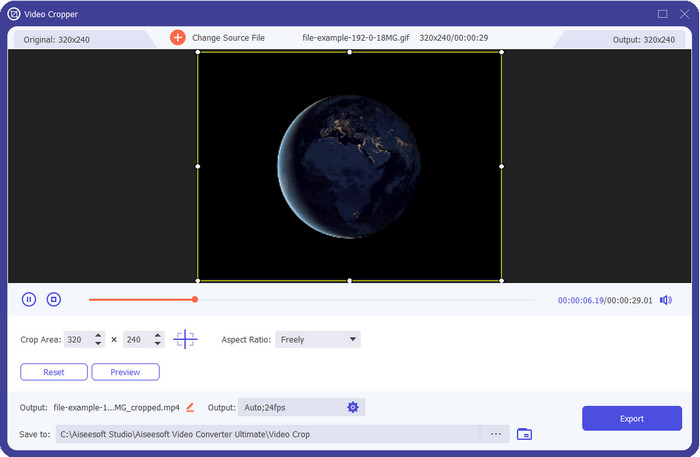
Żadne z narzędzi opisanych tutaj nie oferuje tego, co FVC Video Converter Ultimate może zrobić z Twoimi GIF‑ami. Być może zastanawiasz się, co sprawia, że to narzędzie jest tak wyjątkowe? Ten 'ultimate' program zapewnia wszechstronną i niedrogą zmianę rozmiaru GIF‑ów, z której z przyjemnością skorzystasz. Świetnie nadaje się do uzyskiwania profesjonalnych efektów, porównywalnych z tym, co oferuje Photoshop, ale działa znacznie szybciej – zarówno dla początkujących, jak i zaawansowanych użytkowników. Co więcej, ten program nie tylko zmienia rozmiar GIF‑ów, ale pozwala też konwertować je do MP4, MOV, AVI, MKV i ponad 200 innych formatów, aby były zgodne z różnymi urządzeniami. Jeśli chcesz stworzyć GIF i ustawić go jako tapetę, masz szczęście, bo to narzędzie ma wbudowany kreator GIF‑ów, który Ci w tym pomoże. Jeśli chcesz się dowiedzieć, jak tworzyć i ustawiać GIF‑y jako tapetę, kliknij ten link. W każdym razie to narzędzie jest polecane wszystkim użytkownikom, którzy chcą nauczyć się swobodnie zmieniać rozmiar GIF‑ów bez konieczności czytania instrukcji obsługi.
Bezpłatne pobieranieDla Windows 7 lub nowszegoBezpieczne pobieranie
Bezpłatne pobieranieDla MacOS 10.7 lub nowszegoBezpieczne pobieranie
Plusy
- Zmień rozmiar swojego GIF-a zgodnie z żądanym rozmiarem, swobodnie przeciągając kropki.
- Ma podgląd, który możesz sprawdzić, aby upewnić się, że jest to dokładnie taki rozmiar, jakiego potrzebujesz w swoich plikach GIF.
- Ma wbudowane ultraszybkie renderowanie dla błyskawicznego procesu eksportowania.
- Dostępne w każdym stacjonarnym systemie operacyjnym, takim jak Windows i Mac.
Cons
- Trzeba kupić.
2. Adobe Photoshop
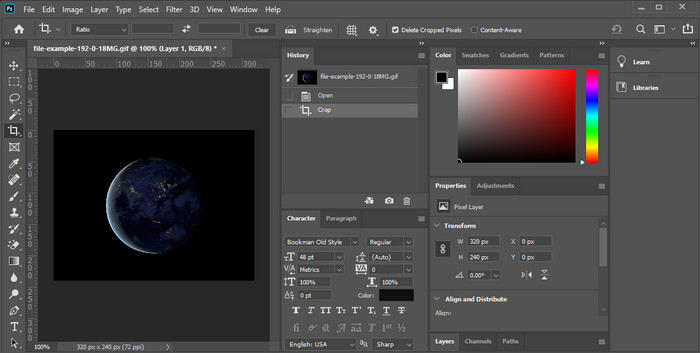
A co, jeśli potrzebujesz profesjonalnego narzędzia do zmiany rozmiaru? Wtedy wyborem jest Adobe Photoshop. Ten program do pobrania pozwala w kilka minut łatwo zmienić rozmiar dowolnego GIF‑a. Mówiąc dokładniej, jest to narzędzie wybierane przez większość profesjonalistów, którzy chcą edytować swoje obrazy, w tym GIF‑y, aby wyglądały lepiej i bardziej atrakcyjnie. Chociaż jest to program profesjonalny, dla osób niezbyt zaznajomionych z technologią może być trudny w obsłudze. Dodatkowo, jeśli chcesz tylko zmienić rozmiar GIF‑a, jest to dość drogie narzędzie jak na takie zadanie. Jednak jeśli chcesz używać Photoshopa do zmiany rozmiaru GIF‑ów i dodać do nich różne drobne szczegóły, to program ten Ci w tym pomoże; musisz jednak liczyć się z tym, że nauka jego obsługi zajmie więcej czasu niż w przypadku pozostałych narzędzi.
Plusy
- To najlepszy wybór do profesjonalnej edycji obrazu.
- Profesjonalne narzędzie do użytku profesjonalnego.
- Zaawansowane funkcje edycji plików GIF.
Cons
- Kosztowny.
- Trudne w użyciu, jeśli jesteś nowy w dziedzinie edycji.
3. GIFGIFy
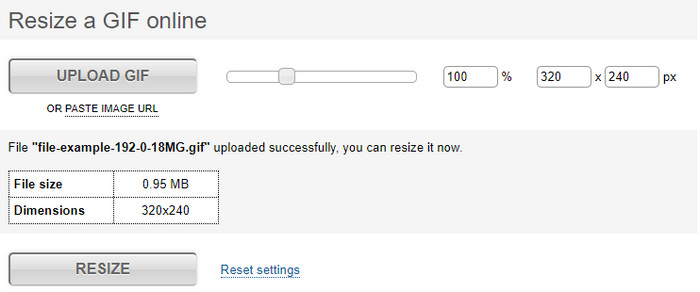
GIFGIFs dysponuje jedną z największych bibliotek GIF‑ów, z których możesz pobierać gotowe animacje na swój dysk, a także prostym edytorem do zmiany rozmiaru dużych GIF‑ów. To narzędzie od dawna pomaga użytkownikom dostosowywać GIF‑y w razie potrzeby za pośrednictwem usług online. Chociaż ten internetowy resizer jest darmowy i działa w przeglądarce, na jego interfejsie nie ma reklam, które mogłyby Cię rozpraszać, co jest dużą zaletą. Głównym problemem jest jednak to, że musisz ręcznie podać dokładny rozmiar lub proporcje obrazu, jaki chcesz uzyskać. Jest to bardziej uciążliwe niż reklamy, bo trzeba metodą prób i błędów dopasowywać wymiary, aby osiągnąć dokładnie taki efekt, jakiego potrzebujesz. Jeśli jednak wiesz, jakich proporcji potrzebujesz, to będzie to dobre narzędzie do zmiany rozmiaru Twoich GIF‑ów.
Plusy
- Wbudowana biblioteka dla GIF-ów.
- Nie ma reklam w sieci, które mogą cię denerwować lub przeszkadzać podczas zmiany rozmiaru GIF-a.
- Łatwy i darmowy w użyciu.
Cons
- Do zakończenia zadania zmiany rozmiaru GIF-ów potrzebny jest Internet.
- Trudno stwierdzić, czy jest to dokładnie taki rozmiar, jakiego potrzebujesz.
4.CzerwonyKetchup.io
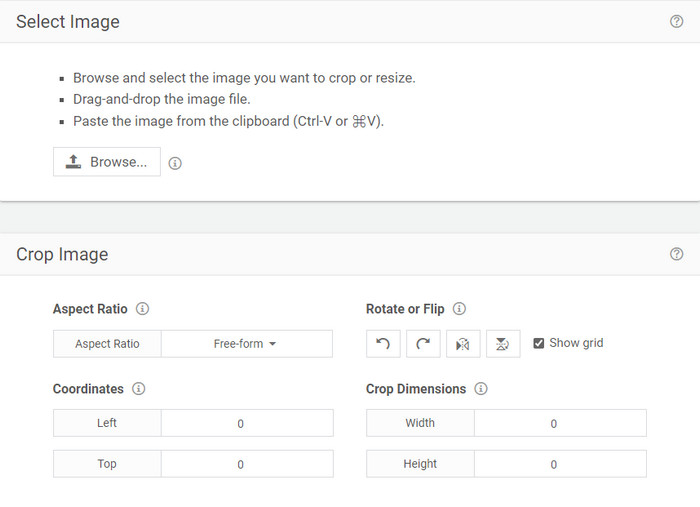
RedKetchup.io zapewnia prosty i interaktywny sposób zmiany rozmiaru animowanych GIF‑ów w konkretnym zakresie, jaki chcesz ustawić. To narzędzie online pozwala użytkownikom sprawić, by ich GIF‑y wyglądały lepiej dzięki funkcjom edycyjnym, które oferuje. Ponadto umożliwia ono znacznie bardziej szczegółowe skalowanie niż to, które zapewnia Ezgif. Mimo że jest prostsze w obsłudze niż pierwsze narzędzie, jego interfejsowi brakuje kolorów, aby wyglądał bardziej profesjonalnie. Jedynym kolorem, jaki zobaczysz po wejściu na stronę, jest czerwień w nazwie serwisu. Co więcej, narzędzie jest darmowe, ale na interfejsie znajdują się reklamy, które mogą być nieco męczące dla oczu.
Plusy
- Dostępne dla każdego, kto ma połączenie z Internetem.
- Bardzo szczegółowy resizer GIF.
- Jest jeszcze darmowy, ale prosty w użyciu.
Cons
- Ma brzydkie reklamy na interfejsie.
- Zależne od Internetu.
5. Ezgif
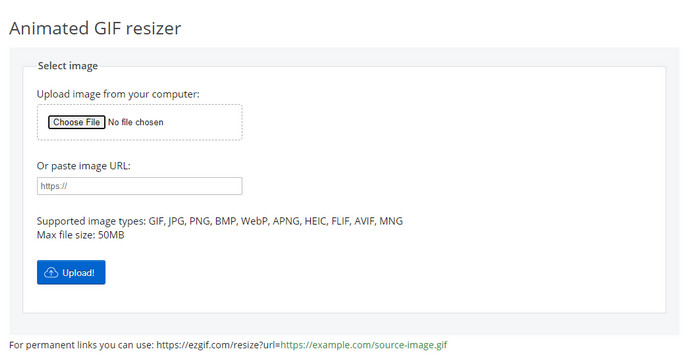
To narzędzie jest znane jako jeden z najlepszych kreatorów GIF‑ów, a w razie potrzeby potrafi także zmieniać rozmiar GIF‑ów online. Ezgif oferuje intuicyjny interfejs, który pozwala ulepszyć GIF bez większego wysiłku. Co więcej, jeśli nie jesteś biegły w technologiach, to narzędzie będzie dla Ciebie bardzo dobrym wyborem. Jednak przy braku połączenia z internetem nie możesz z niego korzystać, bo – podobnie jak inne narzędzia online – całkowicie zależy od dostępu do sieci. Dodatkowo reklamy na stronie mogą rozpraszać podczas zmiany rozmiaru GIF‑ów. Jeśli korzystasz z tego edytora, upewnij się, że znasz dokładną szerokość i wysokość, które chcesz ustawić, ponieważ nie ma tu podglądu, aby sprawdzić, czy zmiana rozmiaru spełnia Twoje oczekiwania, i nie możesz przeciąganiem myszą dostosować proporcji do własnych potrzeb.
Plusy
- Najlepszy twórca GIF online.
- Ma proste funkcje edycji GIF, których będziesz potrzebować.
- Uzyskaj do niego bezpłatny dostęp.
Cons
- Nie ma podglądu, aby sprawdzić, czy rozmiar pliku GIF jest odpowiedni.
- Reklamy są w interfejsie, które mogą Cię irytować.
Część 2. Tabela porównawcza na temat 5 resizerów GIF
| funkcje | Konwerter wideo Ultimate [zalecane] | Photoshop | GIF-y | RedKetchup.io | Ezgif |
| Funkcje edycji |  | | | | |
| Bez reklam | | |  | | |
| Przyjazny użytkownikowi | | | | | |
| Zależne od Internetu | | | | | |
| Niedrogie lub bezpłatne | | | | | |
| Okienko podglądu | | | | | |
Część 3. Często zadawane pytania dotyczące GIF Resizer
Czy po zmianie rozmiaru zmienia się jakość GIF-a?
Pod względem jakości GIF nie powinien być drastycznie zmieniany na rozmyty, ale jakość zmieni się po zmianie rozmiaru GIF-a, ale nie powinien być daleko od oryginalnego GIF-a. Jeśli więc napotkasz ten problem, oznacza to, że jakość zmieniła się podczas eksportowania, a nie podczas zmiany rozmiaru GIF.
Czy rozmiar pliku GIF staje się mały?
Po porównaniu dwóch GIF-ów, oryginalnego i o zmienionym rozmiarze, zauważyliśmy znaczną zmianę rozmiaru pliku. Mimo, że jest to niewielka zmiana, możemy powiedzieć, że jego rozmiar stał się mniejszy od oryginalnego.
Czy mogę przywrócić oryginalny GIF po zmianie rozmiaru?
Po zmianie rozmiaru pliku GIF możesz przywrócić go do stanu pierwotnego, jeśli jeszcze go nie wyeksportowałeś. Jeśli jednak wyeksportujesz GIF i nie będziesz zadowolony z wyniku, nie możesz przywrócić oryginalnego rozmiaru GIF. Aby uniknąć tego problemu, musisz użyć resizera GIF, który ma podgląd, aby sprawdzić dane wyjściowe przed ich wyeksportowaniem.
Czy po przekonwertowaniu JPG na GIF będzie się poruszał?
Nie, nie będzie, ponieważ pliki JPEG nie są ruchome, w przeciwieństwie do animowanych GIF‑ów. Możesz jednak zamienić wiele plików JPEG w GIF, jeśli zrobisz z nich tak zwany 'photo GIF'. Chcesz się dowiedzieć, jak to zrobić? W takim razie ten artykuł bardzo Ci pomoże, aby zamienić Twoją kompilację JPEG‑ów w GIF.
Wniosek
Skoro wiemy już, z jakich narzędzi do zmiany rozmiaru GIF‑ów możesz korzystać, nadszedł czas na wybór. Wszystkie programy online i offline zostały indywidualnie przetestowane, aby dostarczyć rzetelnych informacji o ich możliwościach. Doszliśmy jednak do wniosku, że to właśnie Video Converter Ultimate zapewnia najlepsze efekty, jeśli chodzi o zmianę rozmiaru GIF‑ów. Choć program jest płatny, z pełnym przekonaniem możemy stwierdzić, że pieniądze wydane na ten „ultimate” zestaw narzędzi nie pójdą na marne. Jeśli więc nadal masz wątpliwości co do tego, o czym piszemy, po prostu wypróbuj i pobierz ten program, klikając przycisk pobierania.
Bezpłatne pobieranieDla Windows 7 lub nowszegoBezpieczne pobieranie
Bezpłatne pobieranieDla MacOS 10.7 lub nowszegoBezpieczne pobieranie
-
 Jak zrobić GIF na iPhonie z wielu zdjęć, które zrobiłeś i zapisałeś?
 Czy chcesz wiedzieć, jak tworzyć GIF-y na iPhonie ze swoich zdjęć? Ten post udostępnia 3 programy, których możesz użyć do tworzenia GIF-ów na swoim iPhonie.
-
 3 najlepsze konwertery, których nie możesz przegapić, aby przekonwertować PNG na animowany GIF
 Czy chcesz ożywić swoje PNG? Następnie spróbuj przekonwertować animowany format PNG na GIF za pomocą dostępnych pomocnych narzędzi i instrukcji, jak to zrobić.
-
 Najlepsze 4 sposoby na zamianę animowanego GIF-a na FLV na PC/Mac/Online/Android/iOS
 Chcesz przekonwertować GIF na FLV i udostępnić je online? Jeśli tak, spójrzmy na najlepsze konwertery GIF na FLV, których możesz używać na PC, Mac, Online, Android i iOS.
