


 Video Converter Ultimate
 Nagrywarka ekranu
 Naprawa wideo
Jak dodać filtr do GIF-a w systemie Windows/Mac/iPhone/Android za pomocą kroków
Chcesz wiedzieć, jak uatrakcyjnić swój GIF, dodając do niego filtr? Nie ma się czym martwić, ponieważ w tym artykule przedstawimy najczęściej wybierane edytory GIF, z których możesz korzystać na komputerze i w telefonie, aby nakładać filtry. Informacje, które tu zawarliśmy, stanowią wiarygodne źródło na temat dodawania filtrów do GIF‑ów. Przyjrzyjmy się więc bliżej, z jakiego oprogramowania do filtrów GIF możesz korzystać w swoim systemie operacyjnym, bez dalszej zwłoki.

Część 1. Dlaczego muszę dodać filtr do GIF?
Jeśli udostępniasz GIF w Internecie, musisz najpierw dodać filtr do GIF-a, aby uwydatnić kolory, w zależności od dostosowania. Według badań, przefiltrowane GIF-y przyciągają publiczność bardziej niż GIF-y, których nie ma. Jeśli więc chcesz przyciągnąć dużą publiczność, musisz zacząć dodawać filtr do każdego GIF-a utworzonego za pomocą posiadanego edytora GIF. Teraz, jeśli nie masz pojęcia, jak dodać filtr do swojego GIF-a, zdecydowanie zalecamy przeczytanie całego artykułu.
Część 2. Dodaj filtry do GIF za pomocą fenomenalnego edytora GIF na Windows i Mac [Najłatwiejszy sposób]
Video Converter Ultimate to najlepszy edytor GIF, jaki według nas jest obecnie dostępny na rynku. Znany jest jako kompleksowy edytor GIF, ponieważ oferuje wiele funkcji edycyjnych, takich jak dodawanie filtrów do wideo lub GIF‑a. Z tym narzędziem nie musisz być profesjonalistą, żeby z niego korzystać, ale wiesz, co jest wspaniałe? W zaledwie kilku krokach uzyskasz rezultat na poziomie profesjonalnym. Jeśli więc chcesz dodać filtr do GIF‑a, możesz bez trudu postępować zgodnie z poniższym samouczkiem.
Krok 1. Aby skorzystać z edytora GIF, kliknij przycisk pobierania poniżej i wybierz system operacyjny, którego używasz. Po pobraniu zainstaluj program, postępując zgodnie z instrukcją instalacji, a następnie otwórz go, aby rozpocząć dodawanie filtra do GIF‑a.
Bezpłatne pobieranieDla Windows 7 lub nowszegoBezpieczne pobieranie
Bezpłatne pobieranieDla MacOS 10.7 lub nowszegoBezpieczne pobieranie
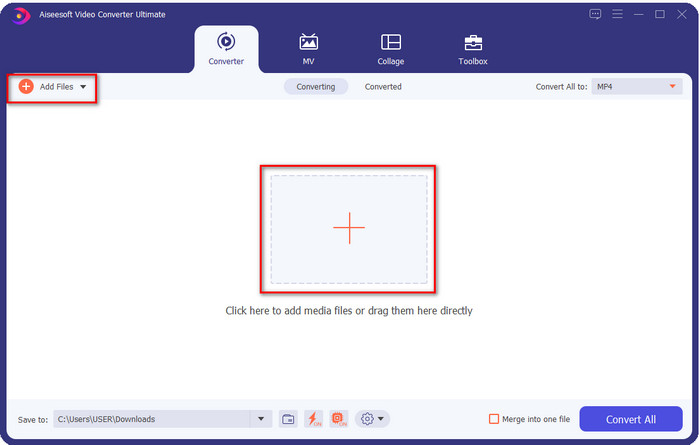
Krok 2. Prześlij GIF, który chcesz edytować, klikając ikonę + na środku głównego okna, ale możesz też kliknąć Add Files, jeśli wolisz – obie opcje działają tak samo. Wyszukaj plik .gif w folderze na pulpicie, który pojawi się na ekranie, a następnie kliknij Open, aby go załadować.
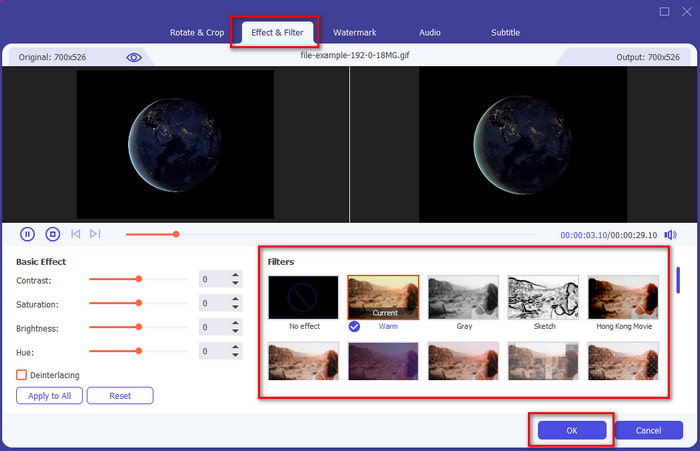
Krok 3. Kliknij przycisk z różdżką, aby otworzyć nowe okno do dodawania filtra do GIF‑a. Przejdź do zakładki Effect & Filters, a zobaczysz różne zestawy filtrów, których możesz użyć, aby Twój GIF wyglądał lepiej niż inne GIF‑y w sieci. Możesz wypróbować wszystkie filtry, klikając je pojedynczo; jeśli jesteś zadowolony z wybranego filtra, kliknij OK, aby pomyślnie zastosować filtr do GIF‑a.
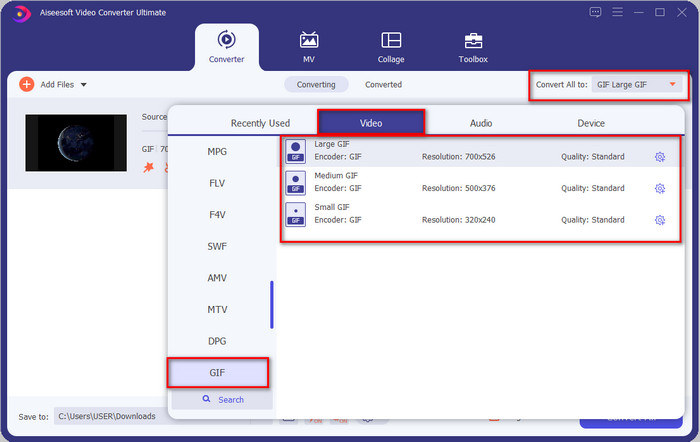
Jeśli chcesz zachować format swojego GIF‑a, kliknij Convert All to i znajdź format GIF. Wybierz taki format GIF, jaki chcesz mieć, i kliknij go.
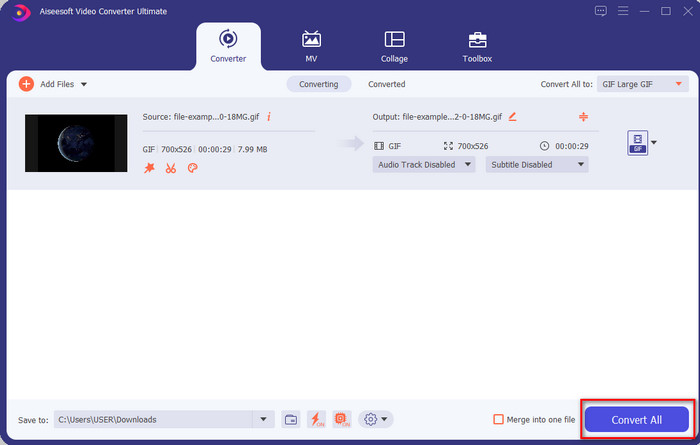
Krok 4. Aby pobrać GIF z nałożonym filtrem, kliknij przycisk Convert All. Proste, prawda? Dzięki Video Converter Ultimate możesz zrobić praktycznie wszystko, co dotyczy GIF‑ów, bez najmniejszego wysiłku.
Część 3. Jak dodać filtr do GIF za pomocą edytora GIF Maker dostępnego na urządzeniach z Androidem
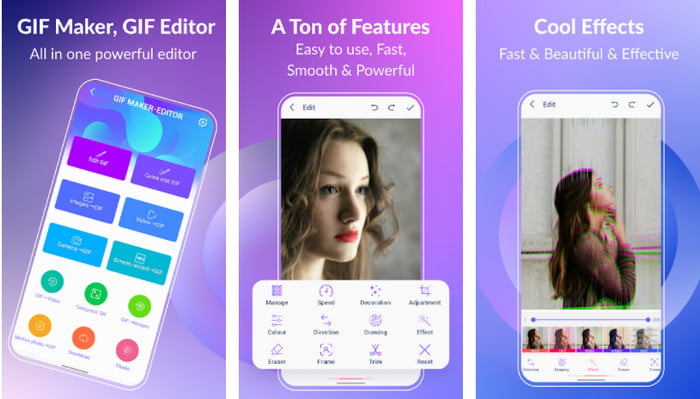
GIF Maker-Editor to wielofunkcyjne narzędzie, które możesz pobrać na swój telefon z Androidem. Obsługuje różne filtry, które pomogą Ci stworzyć piękny GIF. Chociaż samo narzędzie jest świetne, reklamy w tej aplikacji wyskakują niespodziewanie, więc musisz uważać, by ich przypadkowo nie klikać. Oto więc kroki, jak dodać do swoich GIF‑ów kolorowy filtr GIF.
Krok 1. Pobierz narzędzie ze Sklepu Play i otwórz je.
Krok 2. Kliknij Edit GIF i wybierz GIF ze swojej galerii zdjęć.
Krok 3. Poszukaj efektów, przesuwając opcje, a następnie kliknij wybrany efekt. Wybierz filtr, który chcesz, kliknij ikonę zaznaczenia i OK, aby zapisać GIF.
Część 4. Jak zastosować filtr do GIF za pomocą programu GIF Maker dostępnego na urządzeniach iPhone
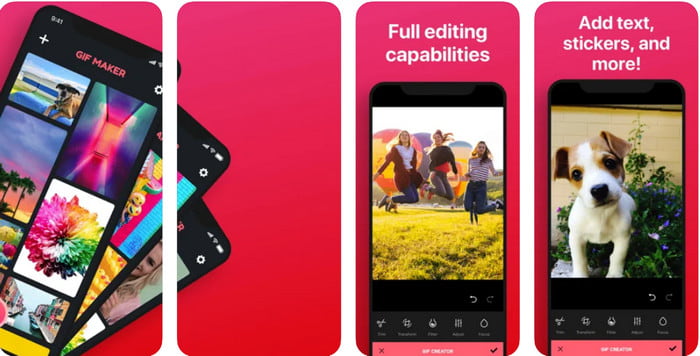
GIF Maker to kompleksowy edytor GIF, który możesz pobrać na iPhone’a. Za pomocą tego narzędzia stworzysz własne GIF‑y za pomocą kilku kliknięć. Nie możesz jednak bezpośrednio użyć pliku GIF, ponieważ ten format nie jest obsługiwany, ale możesz kliknąć ten link i dowiedzieć się, jak przekonwertować GIF‑y na żywą tapetę. Po przekształceniu GIF‑a w żywą tapetę możesz skorzystać z kolejnych kroków, aby dodać filtr do GIF‑ów.
darmowa wersja tego narzędzia pozostawi znak wodny w eksportowanym pliku GIF.
Krok 1. Możesz bezpłatnie pobrać aplikację z App Store.
Krok 2. Otwórz narzędzie, kliknij ikonę +, wybierz Choose Live Photo From Library i wybierz żywe zdjęcie, aby je wczytać.
Krok 3. Po wczytaniu żywego zdjęcia kliknij Filter i wybierz filtr, który chcesz dodać do GIF‑a. Kliknij znacznik wyboru, aby zastosować efekt do wideo, a następnie kliknij znacznik ponownie, aby wyeksportować plik.
Część 5. Często zadawane pytania dotyczące dodawania filtrów do GIF
Czy filtry wpływają na kolor GIF?
Kombinacja kolorów wpłynie na GIF lub dowolny nośnik, jeśli dodasz filtr. Filtry te służą do korygowania kombinacji kolorów, którą chcesz mieć, więc nie zdziw się, jeśli kolor będzie znacznie głębszy lub jaśniejszy niż surowy obraz GIF.
Jakie efekty są dostępne na Instagramie?
Na Instagramie dostępnych jest wiele filtrów wideo, a jeśli zastanawiasz się, jakie to filtry, możesz kliknąć ten link i poznać 10 najlepszych filtrów na Instagramie.
Czy mogę zrobić wysokiej jakości film przez filtry?
Możesz podbić kolory wideo, aby wyglądało na wyższej jakości. Pamiętaj jednak, że filtry mogą jedynie poprawić kolory wideo, a nie jego ogólną jakość. Jeśli natomiast chcesz realnie poprawić jakość swojego nagrania, przeczytaj ten artykuł i dowiedz się, jak poprawić jakość wideo.
Wniosek
A teraz, gdy mamy pomysł, jak dodać filtr do GIF-a, musisz wypróbować narzędzia, które udostępniamy powyżej. Chociaż narzędzia prezentują różne mocne strony w filtrowaniu GIF-a, nadal wierzymy, że Video Converter Ultimate zaoferuje najlepsze filtry, których możesz użyć do stworzenia świetnego przefiltrowanego GIF-a. Co więcej, dzięki temu narzędziu możesz wycinać, scalać, przycinać, tworzyć osobiste pliki GIF i robić więcej. Nie przekonują Cię informacje, które przekazujemy? Uważamy, że jest jeden sposób, aby udowodnić, że to narzędzie jest najlepszym wyborem do edycji GIF-a, a jest to kliknięcie przycisku pobierania powyżej i postępowanie zgodnie z samouczkiem, który prezentujemy i cieszymy się!
-
 Jak bezpłatnie dodać dźwięk i muzykę do wideo na komputerze / telefonie
 W tym artykule przedstawiono 4 proste sposoby bezpłatnego dodawania dźwięku do wideo. Bez względu na to, którą ścieżkę dźwiękową chcesz dodać do swojego filmu, tutaj możesz uzyskać satysfakcjonujące wyniki.
-
 Zmień format GIF na wideo: Konwertuj memy GIF na wideo [2021]
 Określ, jak przekształcić GIF w format wideo za pomocą narzędzi wymienionych poniżej. Wybierz, który z nich i dowiedz się, jak to zrobić, ponieważ zbierzemy na ich temat wystarczającą ilość dowodów.
-
 Wspaniały GIF do aplikacji wideo na urządzenia z systemem Android i iOS
 Czy wiesz, że możesz przekonwertować GIF-y na dowolny format wideo, który lubisz za pomocą telefonu? Wybierz najlepsze aplikacje na Androida lub iOS.
