


 Video Converter Ultimate
 Gravador de ecrã
 Reparo de vídeo
Maneiras simples de adicionar imagem ao vídeo no iMovie rapidamente
Adding images to a video became one of the best ways to convey the message to the audience even better. Most video editors can help you quickly overlay the image to a video, and if you are an Apple user, maybe you have already encountered the iMovie. It's known as one of the best editors you can use on your Apple device. Furthermore, the average Apple users find it challenging to use the iMovie because they haven't experience using it. So now, if you are the same Apple user who's having trouble using it and want to add an image to a video, you can read this article—learning how to add images on video in iMovie is simple if you read the details below.

Parte 1. Como sobrepor uma imagem em um vídeo no iMovie [Mac]
Se você tiver um iMovie no Mac, poderá usá-lo e adicionar a imagem ao vídeo. Então agora, se você quiser aprender a colocar uma foto no vídeo do iMovie, as etapas abaixo irão ajudá-lo.
Step 1. Search the iMovie on the Finder, then click it to open it.
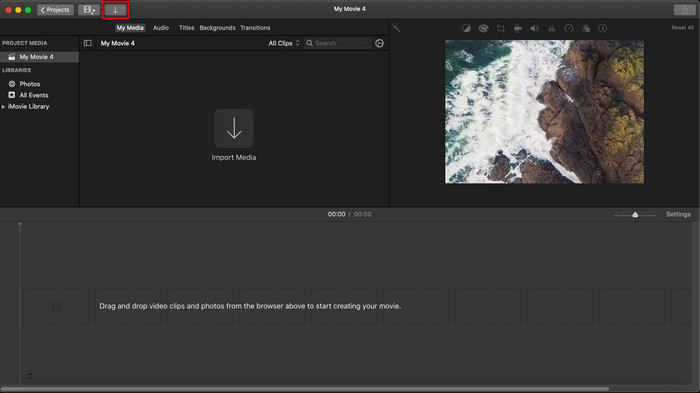
Step 2. On the top-left of the iMovie, click the Import button to import the video and image easily. Drag and place the media file you've inserted on the Timeline.
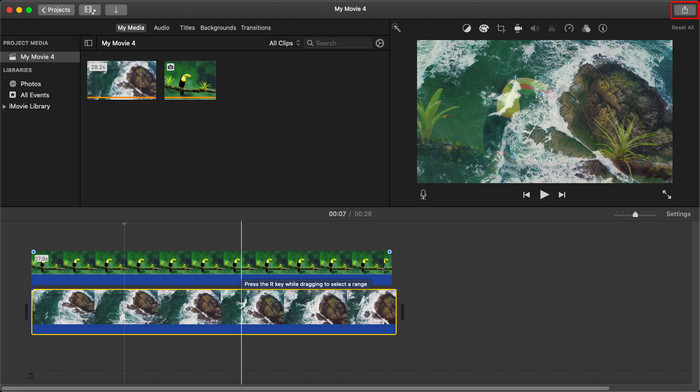
Step 3. Adjust the image you've imported and the duration of it. After that, click Export to download the file to your computer.
As etapas que apresentamos aqui são da experiência prática de usar o iMovie. As etapas podem variar se houver uma atualização na ferramenta ou algumas alterações ocorrerem em breve.
Parte 2. Como inserir fotos em vídeo com o iMovie [iOS]
E se você usar um dispositivo iOS e quiser usar o iMovie como editor para adicionar uma imagem a um vídeo? É possível? Bem, sim, é. Podemos ensiná-lo a colocar uma imagem em um vídeo do iMovie no iPhone lendo os detalhes abaixo com as etapas que fornecemos.
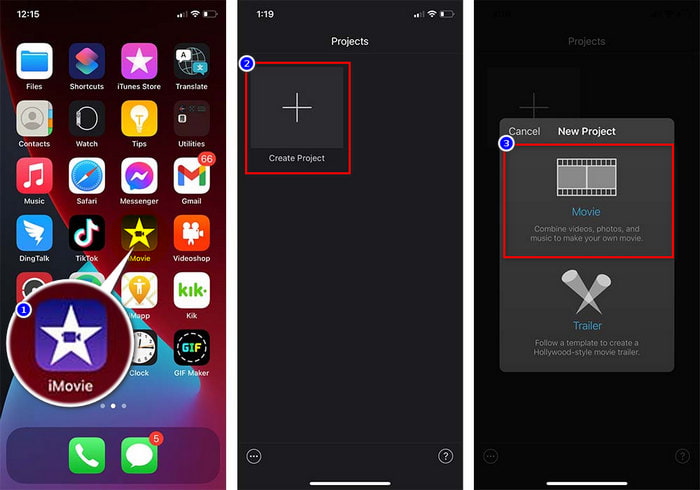
Step 1. Run the iMovie app on your iOS device, click Create Project, then Movie. Add the video that is inside your library.
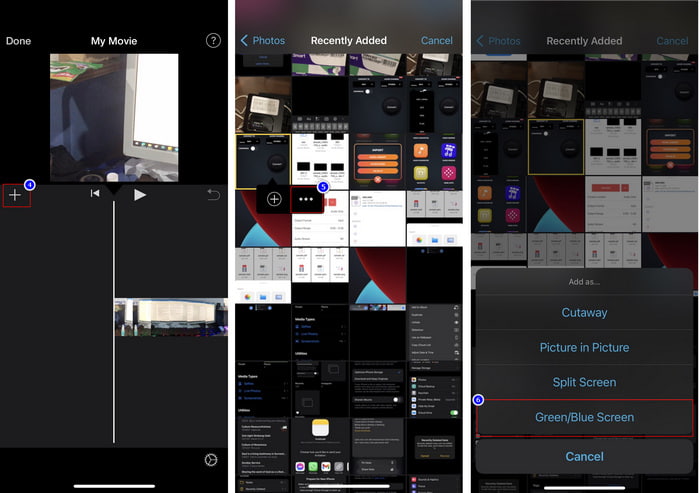
Step 2. Click the + button to add the image watermark to the video. Search it over the library, click it, press the three-dotted line, and press Green/Blue Screen. Tap the image to remove the background automatically.
Step 3. Press Done, click Export, then Save Videos.
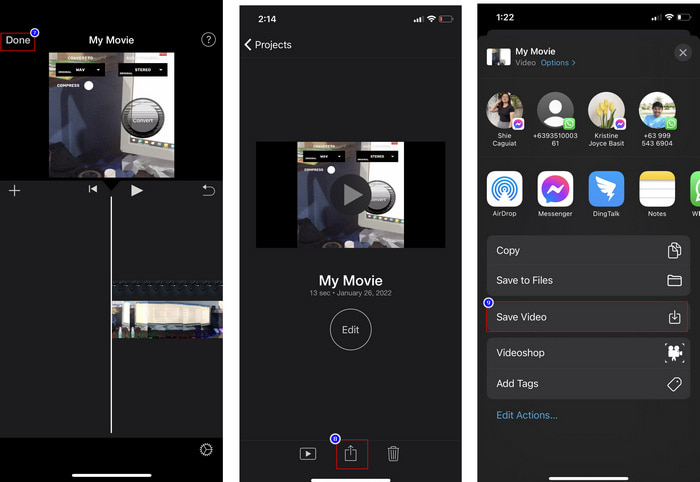
Todas as etapas que apresentamos aqui são da experiência prática de usar o iMovie no iOS. Mas algumas das etapas podem mudar se ocorrer uma atualização no aplicativo do editor em breve.
Parte 3. Solução mais fácil para inserir foto em vídeo com o melhor software de marca d'água de vídeo no Mac
Do you have the same difficulties in adding photos over vireo in iMovie? Try to use the Video Converter Ultimate because this tool is the best alternative for iMovie. The overall performance of the already praised by millions of users who have already tried using it. Even though they have different problems in their video, they still choose the ultimate tool to solve them. Moreover, with this tool, you can almost do everything related to video, such as cutting, adding images, merging, cropping, etc. Whatever the problem is, this is the one-stop solution from it. Want to solve the problem? Well, follow the steps we write below for you to follow easily.
Features:
◆ A ferramenta definitiva suporta vários formatos, portanto, não será difícil carregar seu formato.
◆ Ele suporta uma interface fácil de entender para adicionar imagens rapidamente a qualquer vídeo em poucos segundos.
◆ Suporta diferentes plataformas como Mac e Windows para permitir que os usuários aproveitem em todas as plataformas.
Step 1. You can download the tool by clicking the download button below, installing it promptly next, and open it after the installation.
Free DownloadFor Windows 7 or laterSecure Download
Free DownloadFor MacOS 10.7 or laterSecure Download
Step 2. After opening it, hit the + button presented to import the video file. After that, a folder will locate the video file and click Open.
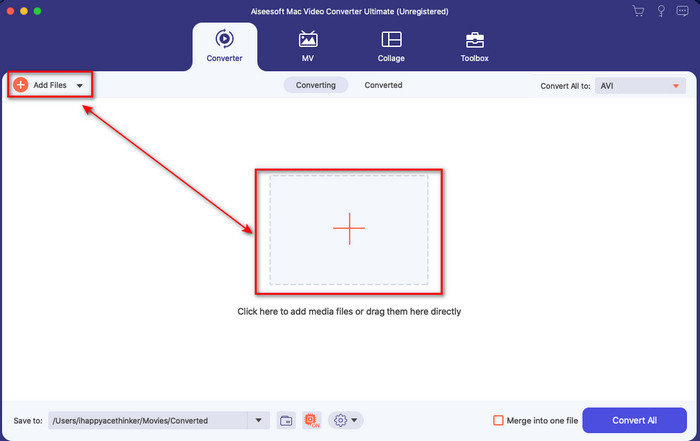
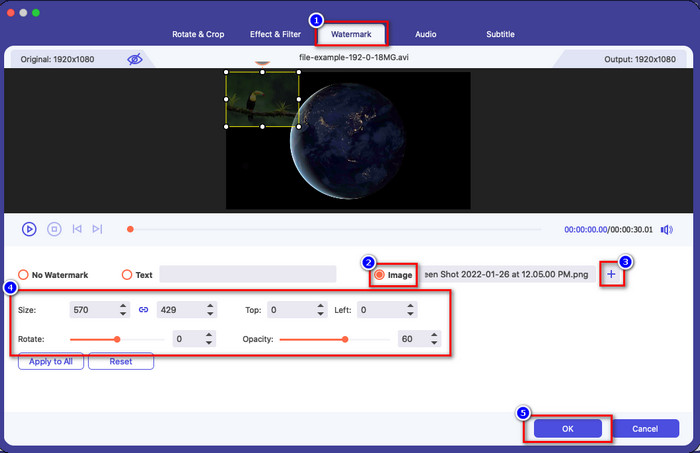
Step 3. Press the wand button to open the editing windows of the converter. Go to Watermark, click the image, then press add to upload the image. Also, you can edit the image opacity or rotate it according to your needs, and to apply the changes, click OK.
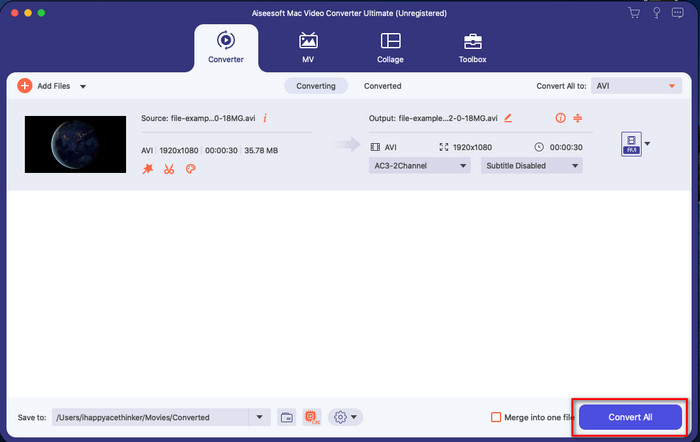
Step 4. Click the Convert All button to export the video file. It will be saved on your computer folder after the exporting process, as easy as you already have a watermark image on your video. So now, do you believe in the ability of the Video Converter Ultimate? You have already added the image watermark on the video as quickly as that.
Related:
Parte 4. Perguntas frequentes sobre como adicionar fotos ao vídeo no iMovie
Existem limitações no número de imagens adicionadas nos vídeos do iMovie?
Até agora, não tivemos nenhum inconveniente ao adicionar várias imagens ao vídeo ao usar o iMovie. No entanto, o processo de exportação leva tempo se você adicionar muitas fotos ao vídeo, mas não travará, conforme a experiência.
Quais são os formatos de imagem que posso usar no iMovie?
Existem vários formatos de imagem estática que o iMovie suporta, como BMP, PNG, JPG ou JPEG, HEIF, PSD, RAW TIFF e TGA, mas se você deseja uma imagem animada, pode usar GIF. Embora esses formatos sejam muitos, ele ainda não suporta todos os formatos de imagem como EXIF, WebP e similares.
Por que devo usar o iMovie?
Para usuários da Apple, o iMovie é uma das melhores opções para criar um curta-metragem, propaganda, vlogs e muito mais; tudo isso é de graça. O editor fornece uma interface semi-avançada para ajudar os usuários a ter uma experiência prática de como uma interface ou ferramenta avançada se parece. Além disso, o software é menos técnico, mas é especializado. Não é comum ver um editor que fornece uma forma menos técnica de usar, mas pode ajudá-lo a ser um profissional e adicionar algumas técnicas especializadas que as ferramentas avançadas possuem.
Conclusão
Finally, we can say that we already have enough knowledge to easily add photos over video in iMovie. With the best tool on Apple, you can almost do the complicated editing here. However, not all of the functions you need are in the iMovie, but you can use the Video Converter Ultimate to have an easy-go editor on all platforms. Maybe you were thinking, why should you use the ultimate tool? An explanation is not much needed if we discuss the ultimate tool as we present the evidence above. Then what should you do? You can click the download button to have a hands-on experience with the ultimate tool and solve this problem.
-
 5 aplicativos de gravador de áudio mais escolhidos no Android e iOS [2022 atualizado]
 Não sabe qual aplicativo de gravador de áudio você deve usar? Nesse caso, este artigo o ajudará a escolher qual aplicativo o ajudará com sua tarefa de gravação de áudio.
-
 Memo de voz no iOS – Prós, Contras, Recursos e 4 Melhores Substituições
 O que é o Memorando de Voz? É o melhor gravador de áudio no iOS? Você busca uma resposta para essa pergunta? Assim, leia o escopo completo deste artigo para saber mais.
-
 7 Conversores MOD gratuitos mais recentes para alterar o arquivo MOD para um novo formato
 Qual é o MOD Converters que você pode usar? Pensando na mesma pergunta? Então aqui estamos, fornecendo as sete ferramentas que você pode usar para converter seus arquivos MOD.
