


 Video Converter Ultimate
 Gravador de ecrã
 Reparo de vídeo
 Secure Download
Como importar o arquivo HEIC no Lightroom no Windows e Mac de forma eficaz
Suppose you are interested in improving the HEIC image or organizing it. In that case, you can import HEIC to Lightroom and do all of the arranging and editing at ease. You can easily upload it here without downloading an additional codec for HEIC to view or edit with this software. So if you need a guide that will teach you how to import the HEIC file in this software, you can read and follow the Windows and Mac ways we include in this write-up.
Sem mais delongas, vamos ler os detalhes a seguir para saber como fazer isso e, se o Lightroom não importar o HEIC, há uma maneira de adicioná-lo aqui. Mas antes de mais nada, você deve baixar o software no seu Windows ou Mac antes de ler os detalhes a seguir.

Parte 1. Como importar HEIC para o Lightroom em seu Windows 10/11 ou atualizado
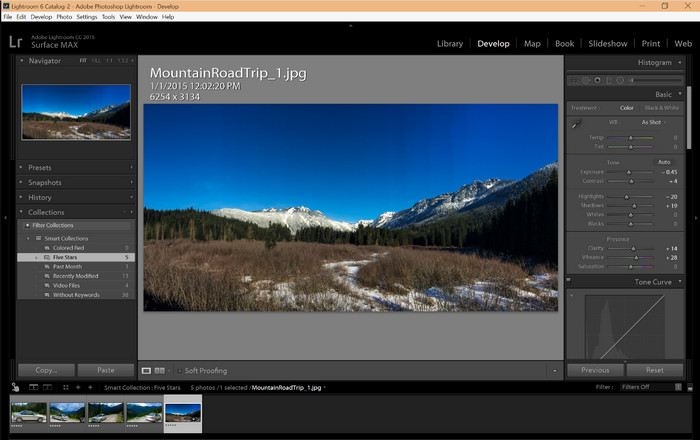
O Lightroom oferece suporte a uma versão atualizada do Windows; esta parte é para você se você baixar o software em seu sistema operacional Windows. Você não precisa se preocupar porque o Lightroom pode abrir arquivos HEIC sem esforço seguindo o tutorial abaixo.
Step 1. Download the software on your Windows 10/11, then install it and open it to proceed.
Step 2. When the software is already running on your system, click the + button, press the Browse, and select the HEIC file you want to import here.
Step 3. After selecting them, you can now view the HEIC files using Lightroom on your Windows 10/11.
Parte 2. Como abrir o HEIC Photo no Lightroom no seu Mac 10.13 ou superior
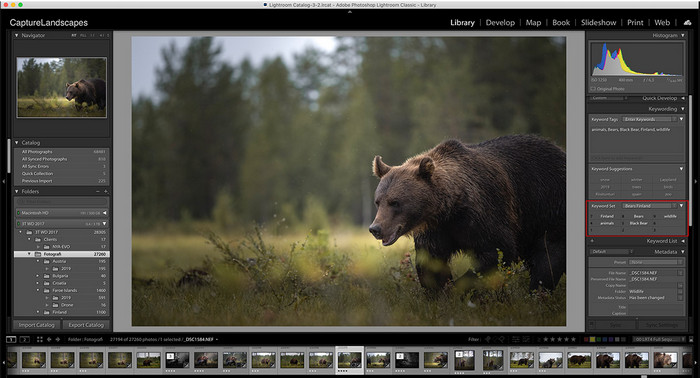
Mesmo sem o Lightroom, você pode visualizar o arquivo HEIC sem esforço, especialmente se sua versão do Mac for High Sierra 10.13 ou mais recente no Preview. Embora o Preview suporte recursos de edição, não é suficiente usá-lo para edições complicadas, como o que o Lightroom pode fornecer a você. Além disso, você não precisará se preocupar com isso porque o Lightroom suporta arquivos HEIC para editá-los ou organizá-los no seu Mac.
Step 1. Install the software on your macOS 10.13 or higher; if the version of your operating is lower, then expect that the software won't open. After you download Lightroom on your desktop, you must now open it.
Step 2. In the upper part section, you will find different menus and the name of Lightroom on the upper-left side, which means the software is already open. Press the File menu and proceed to the Add Photos, or you can use a hotkey on your keyboard instead by pressing Command + Shift + I.
Step 3. A folder will show on your screen; select the image you want to import and click Review for Import.
Parte 3. Falha do Lightroom ao importar arquivo HEIC | Melhor solução para resolver o problema HEIC não suportado
Muitos usuários tiveram problemas para carregar o arquivo HEIC devido à compatibilidade com softwares como o Lightroom no Windows e Mac; mesmo com a ajuda dos métodos acima, ainda é impossível. Mas não precisa ficar triste porque existe uma maneira de importar seu arquivo HEIC no Lightroom convertendo HEIC para JPG com a ajuda da melhor ferramenta da web.
FVC Free HEIC to JPG Converter is the solution you must use to convert the HEIC file on your Windows and Mac without the software downloaded. A web tool like this can turn your un-supported format into a standard one like the JPEG. You can upload the image efficiently on Lightroom without experiencing an unsupported format. In addition to converting HEIC to JPG, you can also upload multiple HEIC images here and convert them all simultaneously to support batch conversion. Amazing right? Do you want to know what amazes us more? Well, you can do a speed-up conversion for free. If you want to fix the unsupported problem you encounter on HEIC, follow the indicated steps below to know how to convert the format.
Etapas fáceis sobre como alterar o formato HEIC para JPG usando uma ferramenta da Web:
Step 1. FVC Free HEIC to JPG Converter by clicking this link, you can open the main website of the converter on your favorite search engine. No need to worry because it is safe to use, and there aren't any ads that could be pesky on the web interface.
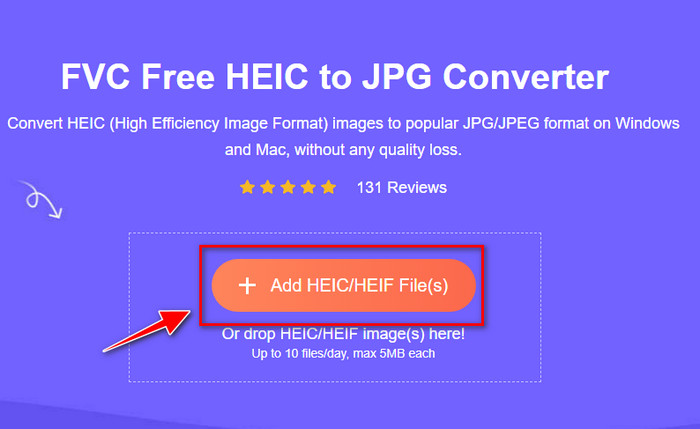
Step 2. Click the Add HEIC/HEIF Files to upload the HEIC image that Lightroom can't open here. Alternatively, you can drag and drop the file here instead of selecting them in the file folder.
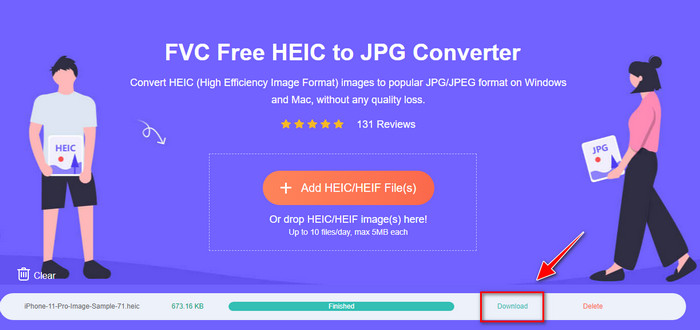
Step 3. A Download button will show up if the progress bar is complete; click it to save the newly converted HEIC file on your desktop. After that, you can now import the file on Lightroom without accepting a dialogue box that says unsupported or corrupted.
Parte 4. Perguntas frequentes sobre a importação de HEIC no Lightroom
Há alguma limitação na importação de arquivos HEIC no Lightroom?
Até este ponto, você pode importar arquivos HEIC no Lightroom quantos desejar. Ele não possui limitações para carregar esse tipo de formato no Lightroom.
O Lightroom é gratuito no Windows e no Mac?
Infelizmente, o Lightroom no Windows e no Mac não é gratuito, mas você pode baixá-lo gratuitamente no Windows e no Mac. Embora o software não seja gratuito, você pode aproveitar a avaliação gratuita que ele suporta por 7 dias. Se você achar que precisará do software por um longo tempo, poderá se inscrever após o período de avaliação.
A exportação de um arquivo HEIC no Lightroom deixará uma marca d'água?
Luckily, Lightroom doesn't add a watermark to the image you've uploaded here. But you can add a watermark if you want to add one. So, if you are going to post the picture on the internet, then we suggest that you add a watermark on it so that it has protection from the people who will try to steal it.
Qual é melhor para edição de imagem? Photoshop ou Lightroom?
Depende de suas demandas; com a ajuda do editor Adobe Photoshop e Lightroom, você pode facilmente melhorar a aparência da sua imagem. Suponha que você queira um editor de imagens fácil de manusear. Nesse caso, o Lightroom é uma opção que você deve escolher, pois é o melhor editor de imagens para aprimorar a imagem que você possui. Mas se você quiser fazer uma edição de imagem mais detalhada, o Photoshop é o seu editor que atende às necessidades de todos os editores profissionais.
Conclusão
Com a ajuda do Lightroom, você pode editar facilmente a imagem que possui ou organizá-la de acordo para torná-la mais elegante. Portanto, se você deseja importar o arquivo HEIC no Lightroom, pode seguir as etapas que adicionamos, seja você um usuário do Windows ou do Mac. Mas se você encontrar problemas para importar o arquivo HEIC, leia a parte três enquanto o resolvemos para torná-lo compatível com o Lightroom. Agora você pode prosseguir com a edição. Esperamos que este artigo lhe dê uma idéia de como importar o arquivo; se você tiver outras sugestões ou recomendações, pode nos deixar uma mensagem.
-
 Conversor iMazing HEIC | Funções, prós e contras e como usá-lo
 Este artigo revisará a capacidade do iMazing HEIC Converter e suas alternativas, portanto, se você quiser saber mais sobre isso, leia com cautela
-
 3 maneiras mais fáceis de converter HEIC para JPG no iPhone como um especialista
 Não tem ideia de como alterar o HEIC para JPG no iPhone? Se você é um dos usuários que está tendo problemas com o HEIC, leia isto.
-
 Por que minhas fotos do iPhone estão no formato HEIC [Razões e como resolver]
 Você quer saber por que minhas fotos do iPhone estão no formato HEIC? Este artigo fornece evidências confiáveis sobre o que torna o HEIC o melhor.
