


 Video Converter Ultimate
 Gravador de ecrã
 Reparo de vídeo
 Secure Download
Como converter facilmente F4V para MP4 usando ferramentas offline e online
FLV file format is one of the standard formats used by Adobe Flash, but if you want to play a video with higher quality, you must convert your F4V file to other formats like MP4. You can play the MP4 format on almost all devices, such as iPhones, iPad, Androids, and computers. So, if you prefer a high-quality video, we will provide you with the most effective methods to convert F4V to MP4 with the help of offline and online tools.

Parte 1: Método básico para converter F4V para MP4 no Mac e Windows
If you are a Mac user and like to convert video files, then you can use the Video Converter Ultimate. This offline converter is excellent at converting F4V to MP4 on Mac and Windows, which makes it convenient for all users. Also, it can convert almost all video files because it supports AVI, MP4, MOV, FLV, VOB, MTS, SWF, MKV, WMV, and more. In addition, converting F4V files in this application is easy because it has an easy-to-follow interface with basic conversion methods. This way, you can ensure that it is fit to use, especially for beginners. Moreover, in terms of conversion speed, you will always be satisfied. Video Converter Ultimate offers an ultra-speed conversion process, which is 30x faster than other converters. You can also convert multiple video files simultaneously because it enables batch conversion. Furthermore, you can do more in this application aside from converting videos. You can also create a music video from this tool if you desire. This application offers a Music Video creator and provides various themes, like simple, happy, snowy night, neat, and more. In addition, this video converter has a Collage maker feature, wherein you can make a collage with different templates and filters. You can experience more great features when using the FVC Video Converter Ultimate.
Features
◆ Converta mais de 100 formatos de arquivo de vídeo, como MP4, F4V, MOV, AVI, MKV, WMV, VOB, etc.
◆ Crie uma colagem com modelos e filtros gratuitos.
◆ Faça um fantástico videoclipe com vários temas.
◆ Comprima um vídeo no tamanho de arquivo desejado.
◆ Ajuste a velocidade do vídeo de 0,125x a 8x mais rápido que a velocidade média do vídeo.
◆ Adicionar e remover a marca d'água de um vídeo.
◆ Converta formatos de arquivo de imagem, como BMP, PNG, JPG, TIF, etc.
Siga os métodos simples abaixo para converter rapidamente F4V para MP4 usando o FVC Video Converter Ultimate.
Step 1: Download the Video Converter Ultimate on your desktop by clicking the Download button below. Then, proceed to the installation process and launch the application.
Free DownloadFor Windows 7 or laterSecure Download
Free DownloadFor MacOS 10.7 or laterSecure Download
Step 2: To convert your F4V video, go to the Converter option and select the Plus icon or Add File button to insert your video with the F4V file format.
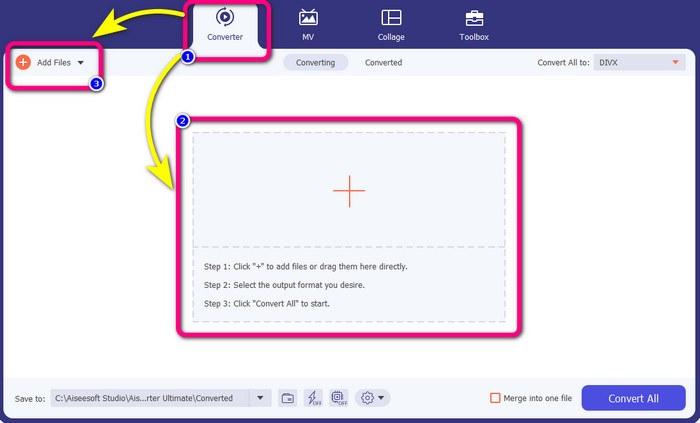
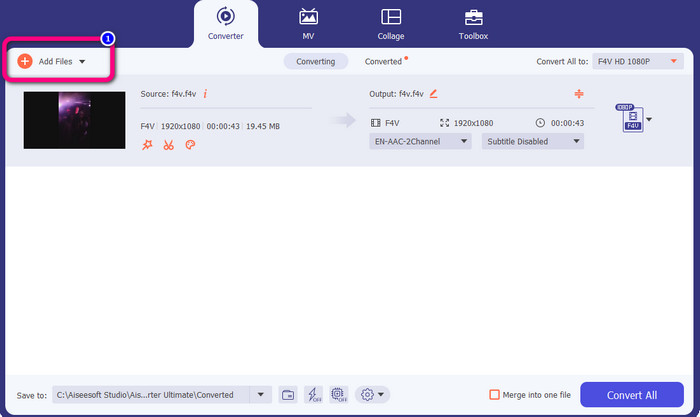
Step 3: If you desire to convert more F4V files simultaneously, press the Add Files button and insert another F4V file.
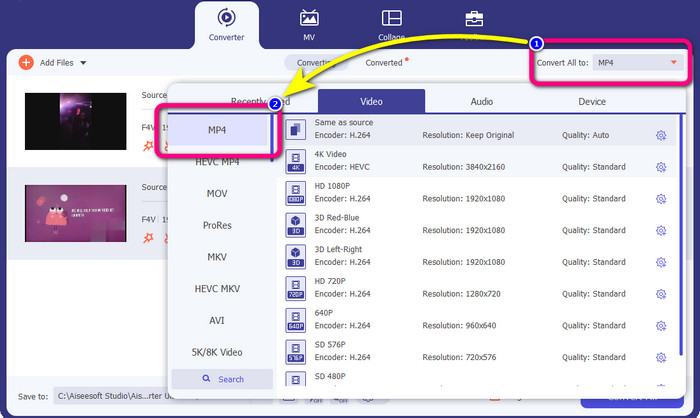
Step 4: Go to the Convert All to button to change the output format. You will see the format options and choose the MP4 format. You can also choose your preferred video quality.
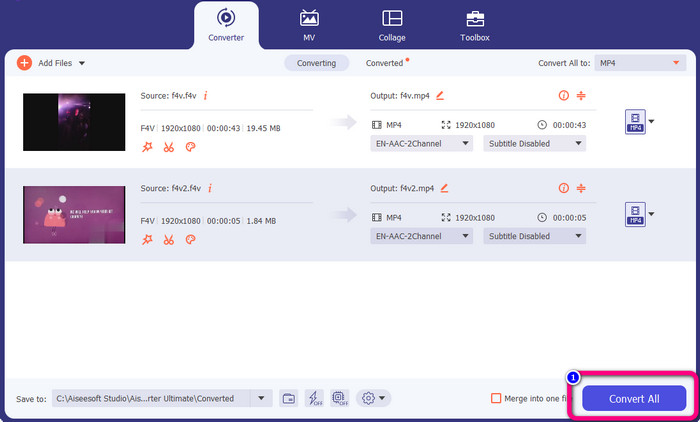
Step 5: If you are done changing their output format, you can convert the files by clicking the Convert All button. The conversion process will start, and your F4V video will turn into an MP4 file in just a few seconds.
Parte 2: Etapas simples para converter F4V para MP4 usando o VLC
Nesta parte, você aprenderá como converter F4V para MP4 usando o VLC Media Player. Sim! Você leu certo! Além de reproduzir vídeos, o VLC é outra ferramenta que você pode usar para converter arquivos. Além disso, suporta vários formatos de arquivo, como MP4, WEBM, OGG, TS, ASF e muito mais. No entanto, você precisa saber o suficiente sobre essa ferramenta porque ela possui uma interface confusa. Assista a tutoriais ou pergunte a alguns usuários avançados para ter uma ideia sobre a conversão de arquivos usando o VLC. Além disso, é demorado baixar este conversor. Siga os procedimentos abaixo para converter F4V para MP4 usando o VLC Media Player.
Step 1: Download the VLC Media Player on your computer. Launch the application after the installation process.
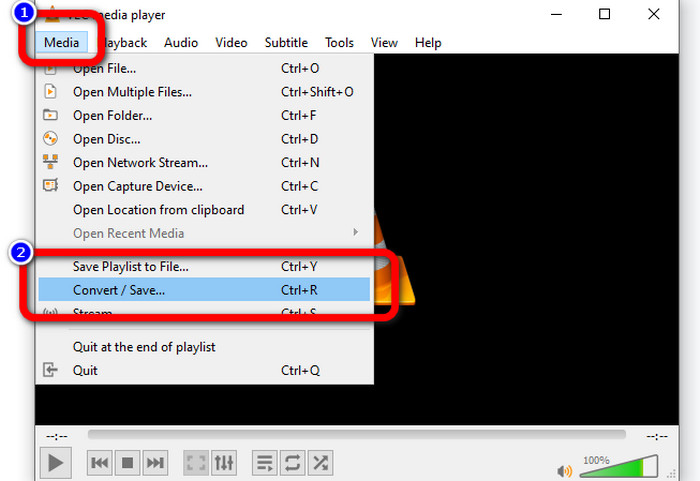
Step 2: Go to Media > Convert/Save button. Then, click the Add button to attach your F4V video.
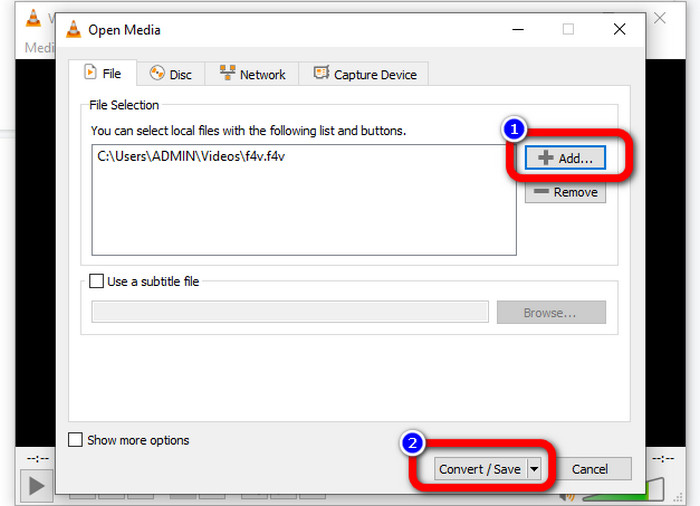
Step 3: After adding the F4V video, click the Convert/Save button on the lower part of the interface again.
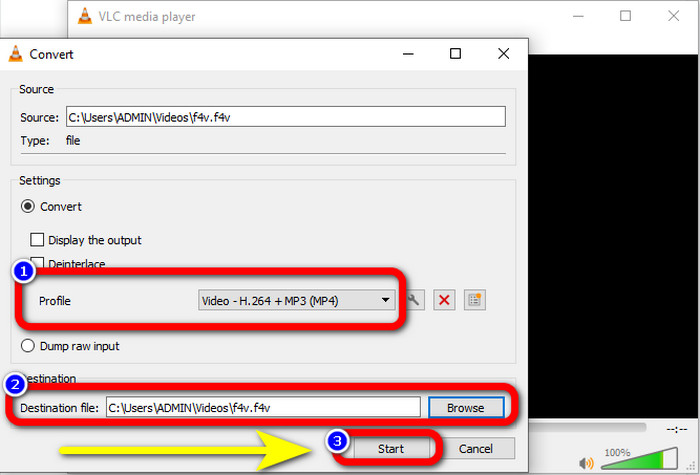
Step 4: Go to profile and choose the MP4 file format. Then, go to Browse to set a file location where you like to save your video. Hit the Start button to proceed with the conversion process.
Parte 3: Maneira fácil de converter F4V para MP4 usando o Handbrake
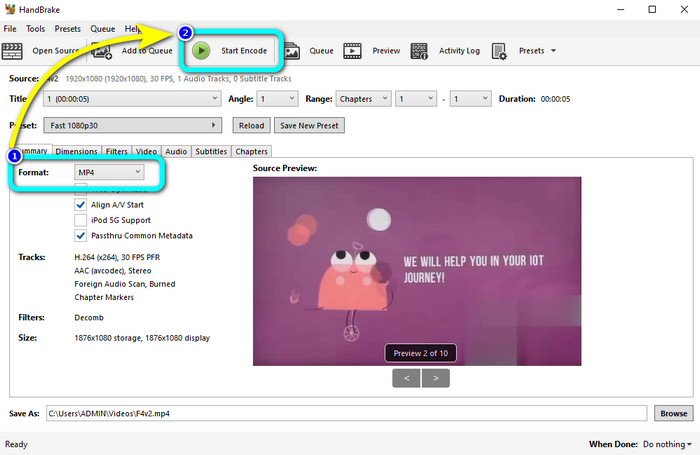
If you are still looking for another F4V to MP4 converter on Windows, you can use the Handbrake. It is an offline tool that supports several video formats, such as MP4, MKV, WEBM, etc. However, this tool is complicated because it has many options that must be clarified. Use the steps below to convert your F4V file to MP4 format.
Step 1: Download the Handbrake on your Windows computer. Then, launch the application when you are done installing it.
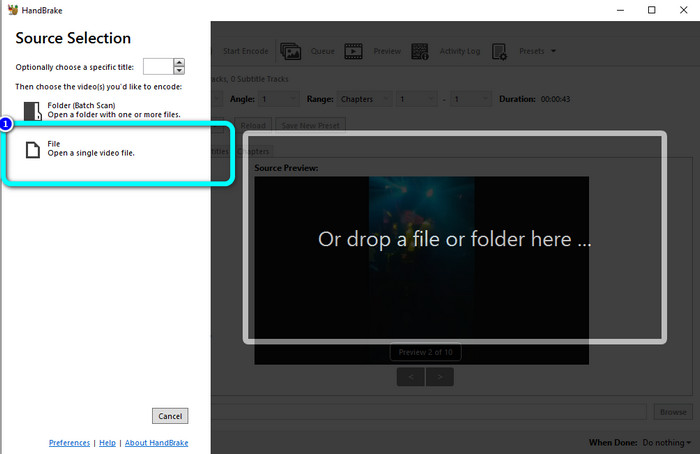
Step 2: Click the File button to add your F4V file.
Step 3: Go to format options and select the MP4 file format. Then, press the Start Encode button. Wait for the conversion process and save your formal video.
Parte 4: Etapas Detalhadas para Converter F4V para MP4 Online Gratuitamente
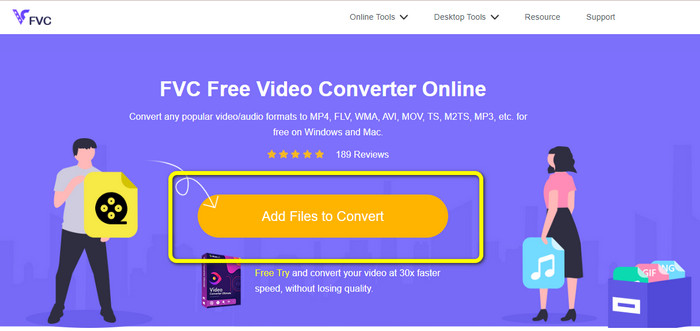
Do you want to use an online application to convert F4V to MP4 for free? Use the FVC Free Video Converter Online. You can convert your F4V file without spending a single penny. Also, this converter has a straightforward interface, which is suitable for non-professional users. It supports various video formats, such as FLV, WMA, MOV, AVI, WMV, and more. The best part is that you can convert video files without losing quality. Follow the detailed steps below to convert F4V to MP4 easily.
Step 1: Visit the website of FVC Free Video Converter Online. Press the Add Files to Convert button to upload your F4V video file.
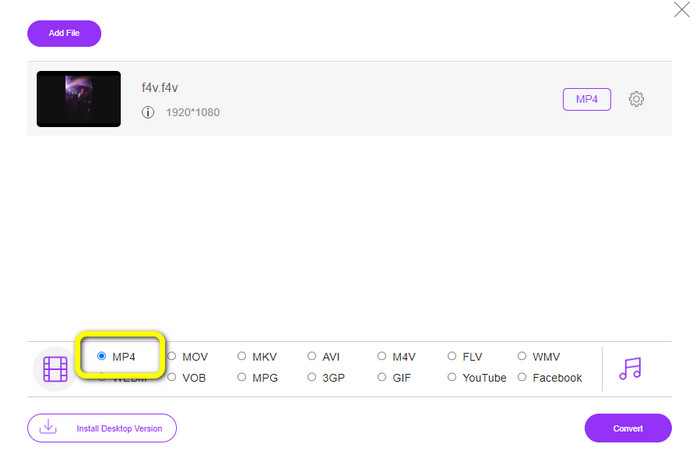
Step 2: After uploading the video, go to the lower part of the interface and click the MP4 file format
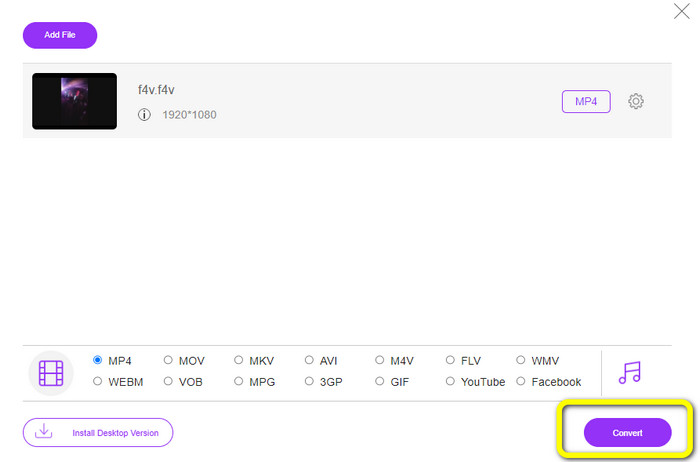
Step 3: Lastly, press the Convert button. Wait for the conversion process and save your file in your desired location
Parte 5: F4V vs. MP4
Veja as informações adicionais abaixo sobre esses dois formatos de arquivo.
| F4V | MP4 | |
| Extensão de arquivo | .f4v | .mp4 |
| Desenvolvido por | maçã | Grupo de Especialistas em Imagens em Movimento |
| Descrição | Este é o formato de arquivo flash original. Também é baseado no formato de arquivo de mídia de base ISO que suporta o flash player 9. Além disso, os arquivos F4V não podem ser reproduzidos em dispositivos iOS, mas em navegadores que suportam flash, você pode reproduzi-los. | Este é um arquivo multimídia. O contêiner pode armazenar dados de legenda, áudio e vídeo. Além disso, como outros formatos de contêiner, o MP4 permite streaming na Internet. |
| Programas Associados | Reprodutor de Mídia XVLC LAN de vídeo Windows Media Player FFDShow Microsoft Windows Visualizador da Galeria de Fotos | Apple QuickTime Player LAN de vídeo VLC Media Player iTunes da Apple Reprodutor de mídia do Microsoft Windows |
Leitura adicional:
2 of the Favorite Converter Choices to Convert F4V to WMV [2023]
2 of the Fastest Ways to Convert F4V to FLV [Online & Offline]
Parte 6: Perguntas frequentes sobre a conversão de F4V para MP4
1. Posso converter MP4 para F4V?
Sim você pode! Você pode usar o Video Converter Ultimate. Este aplicativo pode converter instantaneamente seu arquivo MP4 para o formato F4V.
2. Qual é a diferença entre F4V e FLV?
A principal diferença entre esses dois formatos é que o F4V suporta vídeos de alta qualidade codificados por H.264, mas o formato FLV geralmente usa H.263.
3. Como usar o FFmpeg para converter F4V para MP4?
Baixe o FFmpeg no seu computador. Abra o prompt de comando. Digite Desktop para alternar a linha de comando. O comando de conversão começa com FFmpeg-i, depois digite o nome do vídeo e seu formato de arquivo. Além disso, o tipo do arquivo de saída. Pressione Enter e aguarde o processo de conversão. Depois disso, você pode ver seu arquivo em sua área de trabalho
Conclusão
This guidepost shows you detailed instructions to convert F4V to MP4 online and offline. Users prefer a more simple and faster way of converting videos. Then, you can use Video Converter Ultimate to convert your video files instantly because it has a 30x faster conversion speed than other converters. You can also use FVC Free Video Converter Online to convert video in a simple way, which only takes you a few clicks.
-
 4 novos conversores online e offline para converter F4V para o formato AVI
 Você não tem idéia de qual conversor você deve usar para converter F4V para AVI ou qualquer outro formato de vídeo? Então leia este artigo enquanto aprendemos como converter com a ferramenta disponível.
-
 Como converter F4V para MOV sem perder qualidade [Resolvido]
 Se você está lutando para reconhecer alguns formatos de vídeo como F4V. Leia este artigo para saber mais sobre o formato de vídeo F4V e MOV e saiba como converter F4V para MOV usando métodos diferentes.
-
 Métodos bem-sucedidos para converter DIVX para MP4 imediatamente
 Como faço para converter DIVX para MP4? Se procura a melhor solução, está no artigo certo. Mostraremos como converter DIVX para MP4 facilmente
