


 Video Converter Ultimate
 Gravador de ecrã
 Reparo de vídeo
 Secure Download
Principais soluções para usar para aumentar a saturação em vídeo
A saturação do vídeo refere-se à intensidade das cores em um vídeo. Mede o grau em que as cores são vivas e pronunciadas. O nível de saturação de um vídeo pode ser ajustado para criar uma aparência ou tom específico. Por exemplo, aumentar a saturação pode fazer com que as cores pareçam mais vibrantes e vivas, o que é frequentemente usado em vídeos musicais ou comerciais para criar um efeito visualmente excitante e que chama a atenção.
On the other hand, lower saturation levels can create a more subdued or nostalgic atmosphere, which is often used in movies or TV shows to convey a specific mood or emotion. Overall, video saturation is an essential tool for filmmakers and videographers to create a desired visual style and enhance the storytelling aspect of their work. So, if you are a video enthusiast, you must learn different ways on how to increase saturation in video.

Parte 1. Editar a saturação do vídeo no computador
1. Video Converter Ultimate
When adjusting the saturation of your project video, Video Converter Ultimate is your helping hand. Most video enthusiasts favor this application due to its advanced editing functions, like enhancing video appearance and editing saturation parameters. The software has combined accelerated features that can provide better video output. It uses color correction technology to adjust brightness, contrast, hue, and saturation. What makes this tool unique is its variety of video editing options. You can also enhance the video, create 3D animation, input logos, and different aspects to enhance your video file. Check the guidelines below to learn the proper way to edit the saturation of a video with this app.
Step 1. Get Video Converter Ultimate
You can get the app's firmware on your computer by clicking the Free Download option below this step. Go to your PC's download folder and run the file to install it on your device. Then, finish the installation wizards and launch the app to master its essential functions.
Free DownloadFor Windows 7 or laterSecure Download
Free DownloadFor MacOS 10.7 or laterSecure Download
Step 2. Import the Video File
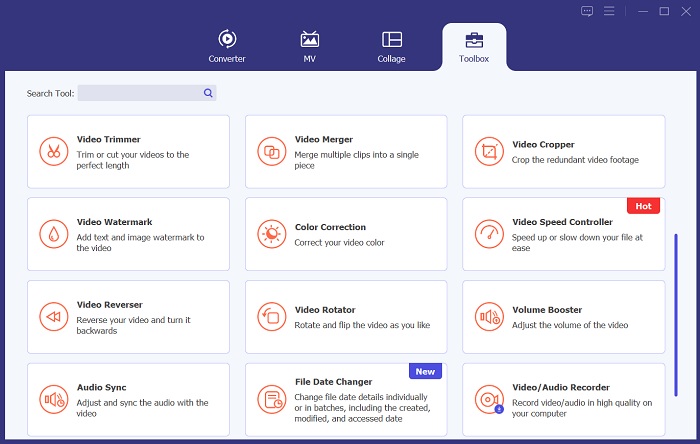
The following procedure is to import the video file on the tool. Go to the Toolbox option and scroll below for the Color Correction option. Tap the editing feature to launch a new dialogue box. Hit the + icon to access and import your project video.
Step 3. Edit the Saturation
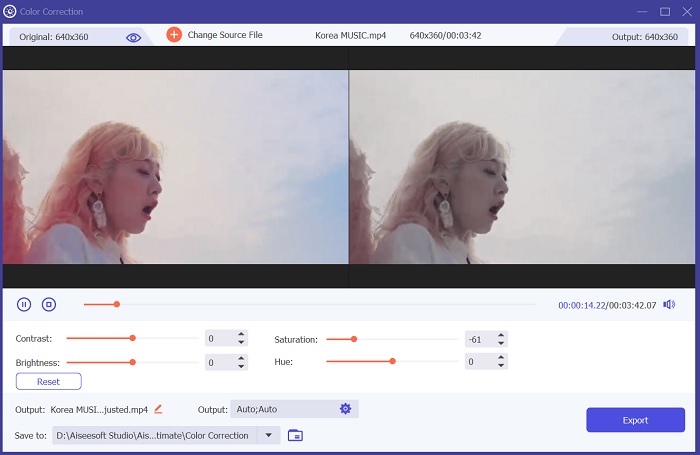
Lastly, use the slider to edit the saturation of your project video. Adjust the slider according to your preferred output. Then, hit the Export icon to save the changes. Go to the output folder and preview the edited video.
2. Clídeo
Quando se trata de edição de vídeos, Clideo oferece uma variedade de componentes que podem ajudá-lo a alcançar os resultados desejados. Um desses recursos é a capacidade de ajustar a saturação do seu vídeo. A saturação é uma medida de quão intensas ou vibrantes as cores do seu vídeo aparecem, e alterá-la pode alterar drasticamente a aparência geral da sua filmagem. Com o Clideo, você pode ajustar facilmente a saturação do seu vídeo usando uma ferramenta simples de controle deslizante. Este controle deslizante permite aumentar ou diminuir os níveis de saturação do seu vídeo, tornando-o mais vibrante ou sem som, dependendo de suas preferências. Você também pode usar esta ferramenta para ajustar o matiz e o brilho do seu vídeo, personalizando ainda mais a aparência da sua filmagem. Verifique o guia abaixo para saber como usar este aplicativo.
Step 1. The initial guide on editing saturation on Clideo is to access the online tool on your web browser. You can search for the app and access its interface. Then, study its essential editing functions to have a better editing experience.
Step 2. Next, hit the Choose File option to import your video. Search for the project video stored on your computer. Hit the Open option or icon to add the video to the online tool.
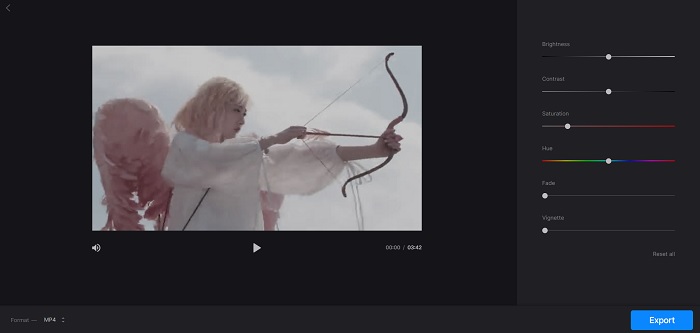
Step 3. Lastly, a video editing function and your project video will appear. Use the Saturation Slider to glide and adjust the saturation of your video. Click the Export option to save the changes created within the online app. Go to the output folder and preview the video.
Parte 2. Editar a saturação do vídeo no telefone
PowerDirector é um aplicativo móvel adequado para editar a saturação do seu vídeo. Existem vários recursos disponíveis para aprimorar suas filmagens neste aplicativo. Em primeiro lugar, o software permite ajustar os níveis de saturação de cores individuais, proporcionando maior controle sobre a aparência geral do seu vídeo. Você também pode utilizar o recurso de correspondência de cores para combinar as cores de diferentes clipes, garantindo consistência em todo o seu projeto. Outro recurso valioso do PowerDirector é a capacidade de aplicar predefinições de cores, que são filtros pré-fabricados projetados para melhorar a aparência da sua filmagem. Essas predefinições podem ser personalizadas para atender às suas necessidades, proporcionando ainda maior controle sobre o produto final.
Step 1. To adjust saturation in PowerDirector, get the app first. You can get or download the mobile app on Google Play Store and App Store. Launch the app and master its basic navigations and features.
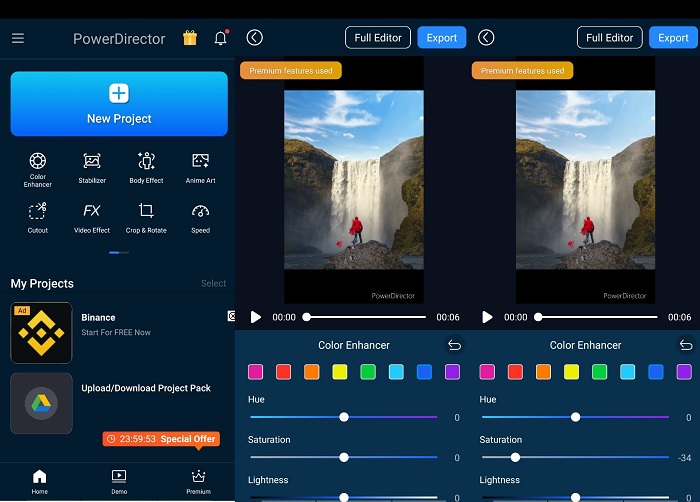
Step 2. Next, import the video by selecting the video clip you want to work with on your video gallery. Then, go to the editing options and find the Color Enhancer menu. From there, you can adjust the saturation of the clip by moving the slider left or right.
Step 3. Once satisfied with the saturation level, you can save your changes and hit Export to save the video. With these straightforward steps, you can adjust the saturation of your video clips in PowerDirector easily. Be mindful not to over-saturate the clip, as it can make the colors appear unnatural.
Further Reading:
How to Fix a Video That Is Too Bright? Top 5 Ways Here
How to Change the Hue of Video? Exploring the Creative Possibilities
Parte 3. Perguntas frequentes sobre edição de saturação de vídeo
Como você corrige a saturação no iMovie?
Para corrigir a saturação no iMovie, vá para a guia Correção de cores e ajuste o controle deslizante de saturação até atingir o nível de saturação desejado. Você também pode alterar os canais de cores individuais para ajustar os níveis de saturação de cores específicas. Outra opção é adicionar um filtro de correção de cores e ajustar as configurações de saturação dentro do filtro. Lembre-se de visualizar suas alterações antes de exportar seu vídeo final.
Como você aumenta a saturação?
Para aumentar a saturação, você pode ajustar as configurações de cores no seu dispositivo ou software de edição. Tente usar uma ferramenta ou filtro de saturação para aprimorar as cores da sua imagem ou vídeo. Lembre-se de usar moderação ao aumentar a saturação, pois cores excessivamente saturadas podem parecer irrealistas e pouco atraentes. Experimente diferentes níveis de saturação até encontrar o equilíbrio perfeito para o seu projeto.
Qual é o editor de vídeo gratuito para o efeito de fumaça?
Diferentes ferramentas de edição de vídeo podem melhorar o efeito de fumaça do vídeo do seu projeto. Neste caso, você pode usar o Video Converter Ultimate, pois contém um recurso de correção de cores que pode aprimorar, editar e modificar a aparência do vídeo do seu projeto de acordo com sua preferência.
Conclusão
Overall, editing video to get the desired saturation level is satisfying and easy. You can create different effects and emotions on your project video with the proper skills in editing the saturation of your project video. Video Converter Ultimate, Clideo, and PowerDirector are some of the tools that are a great help for you to achieve those cinematic filters and edits. If you are pleased with the solutions to add saturation to video in this article, then join our discussion by commenting on the thread below. Please give us your suggestions and ideas.
-
 Como adicionar e fazer um filtro do Instagram antes de postar imagem e vídeo
 Quais são os filtros no Instagram? Como aplicá-lo? Como fazer um? Essas perguntas terão respostas diretas neste post, então leia-as.
-
 Melhor técnica sobre como editar metadados WebM rapidamente
 Leia todos os detalhes que fornecemos abaixo enquanto inserimos um tutorial sobre como editar metadados WebM. Clique neste link para saber mais sobre ele.
-
 Como Cortar Vídeos Online Facilmente Com Programas Incríveis
 Redimensione facilmente vídeos online com várias ferramentas de edição de vídeo disponíveis na internet. Experimente plataformas populares de edição de vídeo online.
