


 Video Converter Ultimate
 Gravador de ecrã
 Reparo de vídeo
 Secure Download
Como fazer fade de áudio no Premiere Pro profissionalmente [2024]
Perfect audio timing is essential for a video. It’s thrilling whenever the audio rightfully fades in and fades out in the video. That's why many users, from professional editors to enthusiasts, meticulously work to ensure that their audio fits perfectly with the timing of each scene. In this guide, we'll show you how to fade audio in Premiere Pro, helping you create professional-quality videos with flawless sound. Let’s get started.

Parte 1: O que são os efeitos Fade Out e Fade In no Premiere Pro
Há vários efeitos de fade-in e fade-out no Premiere Pro, e entender cada um é essencial para distinguir cada propósito único. Aqui, exploramos três efeitos de fade primários: Ganho constante, Potência constante e Fade exponencial.
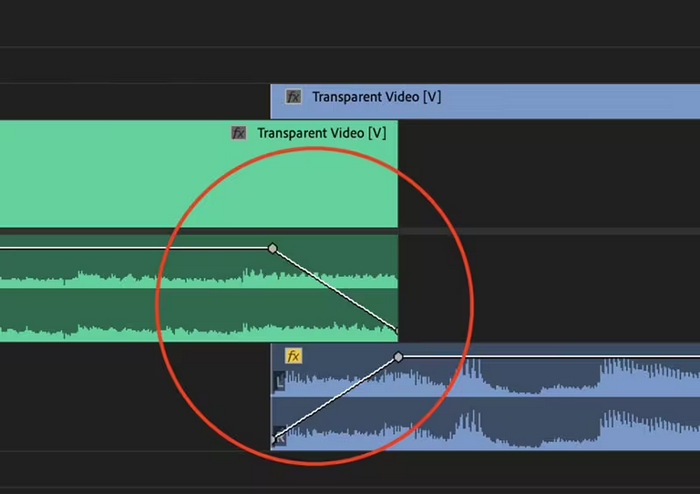
Ganho constante
O Ganho Constante altera o áudio a uma taxa constante conforme ele aparece e desaparece durante a transição entre clipes. Às vezes, esse método pode resultar em uma mudança abrupta, pois não cria uma transição suave. Normalmente, essas transições são ajustadas manualmente usando quadros-chave para controlar melhor o processo de aparecimento e desaparecimento gradual.
Potência constante
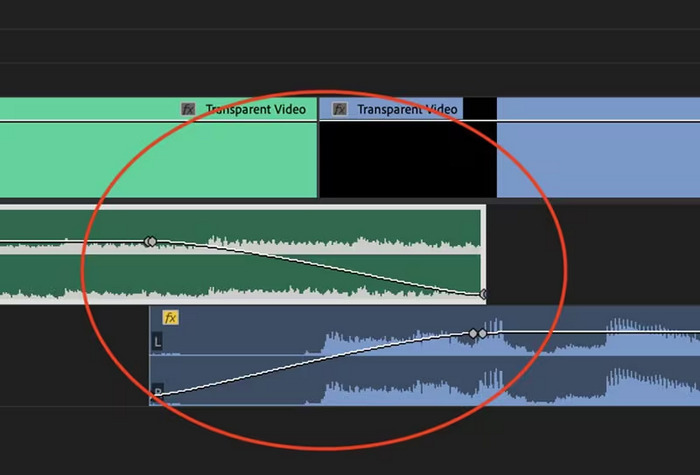
O crossfade Constant Power cria um efeito de transição suave e gradual, semelhante a uma dissolução visual entre clipes. Este método inicialmente desbota o áudio e depois o desbota no final do clipe. Conforme ilustrado, os quadros-chave diminuem gradualmente no primeiro clipe e aumentam constantemente no segundo clipe. Comparado a outros crossfades, o Constant Power é frequentemente considerado o melhor para transições de áudio devido à sua capacidade de fornecer um efeito mais suave e uma mudança mais gradual no ganho entre os clipes, sem alterações perceptíveis durante a transição.
Desvanecimento Exponencial
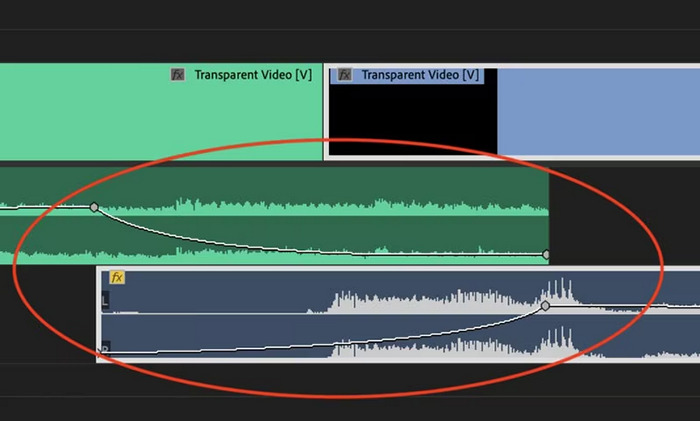
O crossfade Exponential Fade é o oposto do Constant Power. Ele desaparece no primeiro clipe e desaparece no segundo clipe, criando uma curva suave e logarítmica. Esse tipo de fade oferece uma experiência auditiva diferente, o que o torna útil para várias transições de áudio. Ele fornece um fade contínuo e com som natural, o que é particularmente eficaz para faixas de áudio mais complexas.
Parte 2: Como fazer fade in ou fade out de áudio no Premiere Pro
Agora que já entendemos os diferentes efeitos de fade-in e fade-out no Premiere Pro, vamos prosseguir para saber como utilizá-los.
Veja como diminuir o volume do áudio no Premiere Pro:
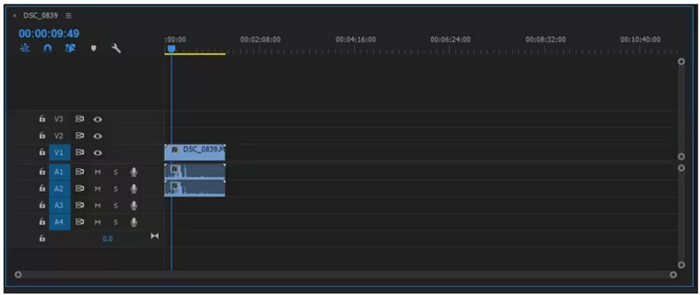
Step 1. To import the audio clip you want to fade out in the timeline, go to the Import tab in the File Tab or simply drag the file to the tool's main interface.
Step 2. Move to the Effect panel and expand the audio transition folder to choose one crossfade effect. You can choose Constant Gain, Constant Power, or Exponential Fade.
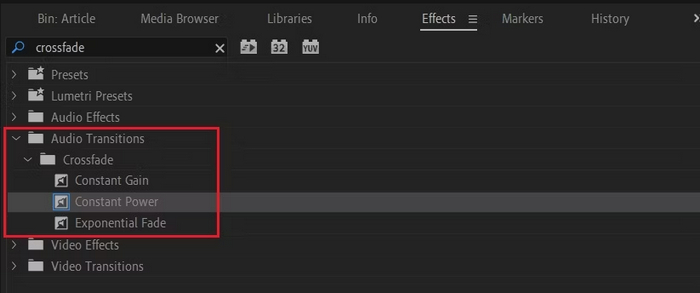
Step 3. To apply your desired fade type, click or drag the type you chose into the timeline.
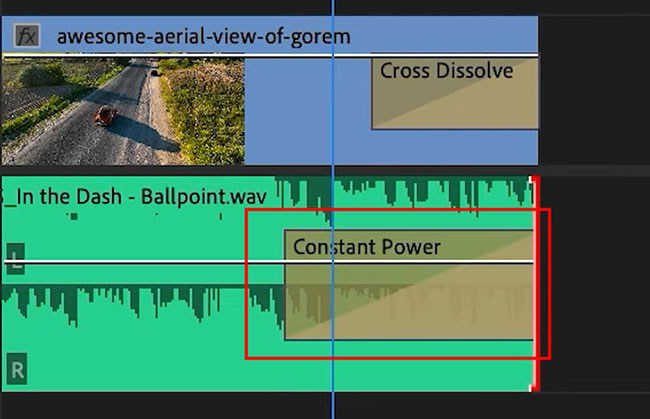
Step 4. Type a duration for the fade into the pop-up window that appears and click OK.
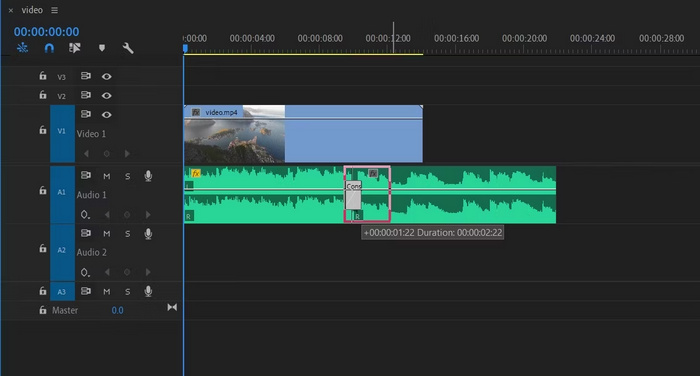
As várias opções do Premiere Pro para fade out e fade in de áudio o tornam uma ferramenta essencial para aqueles que buscam uma maneira profissional de evitar inícios e paradas repentinas em seu áudio. Esses recursos permitem transições suaves, aprimorando a experiência auditiva geral de qualquer projeto. Além disso, esta ferramenta oferece flexibilidade e precisão, tornando-a adequada para usuários novos e avançados. No entanto, usar esta ferramenta em particular pode exigir ajustes manuais demorados, nos quais os iniciantes podem achar certos efeitos complexos de usar. No entanto, esta ainda é uma das melhores ferramentas para adicionar fade out e fade in profissionalmente.
Parte 3: Alternativa mais fácil do Premiere Pro para fade out ou fade in de áudio
If you’re looking for an alternative tool because of Premiere Pro’s complex interface, the FVC-picked Video Converter Ultimate is the best choice. This all-in video and audio converter has a very user-friendly and intuitive interface, making it easy and efficient for users to fade in or fade out audio. Also, this tool supports a wide range of audio formats, making it less stressful in terms of compatibility issues.
Veja como diminuir o volume do áudio usando o Video Converter Ultimate:
Step 1. On your computer device, install the Video Converter Ultimate.
Free DownloadFor Windows 7 or laterSecure Download
Free DownloadFor MacOS 10.7 or laterSecure Download
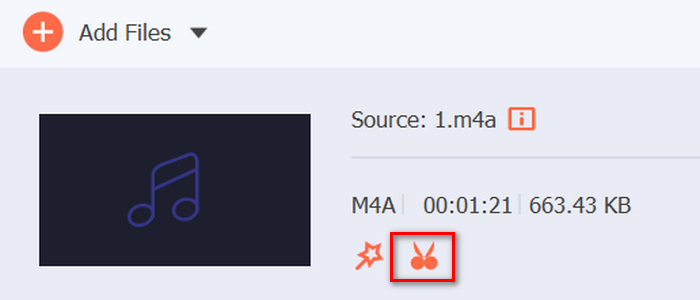
Step 2. Next, to import the audio file that you want to modify, click on the Add Files button.
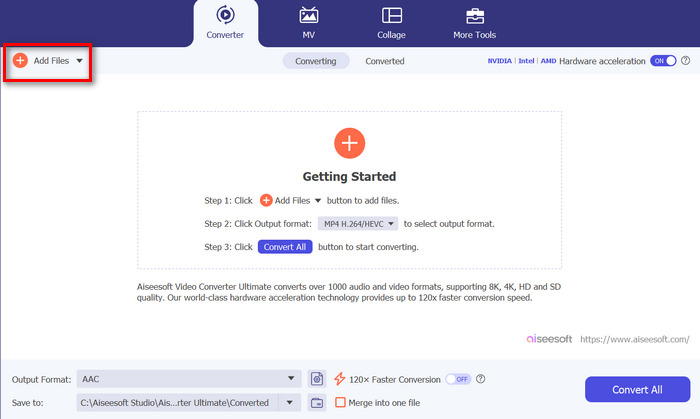
Step 3. Now click on the Cut button and this will head you to another window where you can set the fade in and fade out of your audio file.
Step 4. Click the boxes for Fade In and Fade Out options and set the duration for each effect according to your preference.
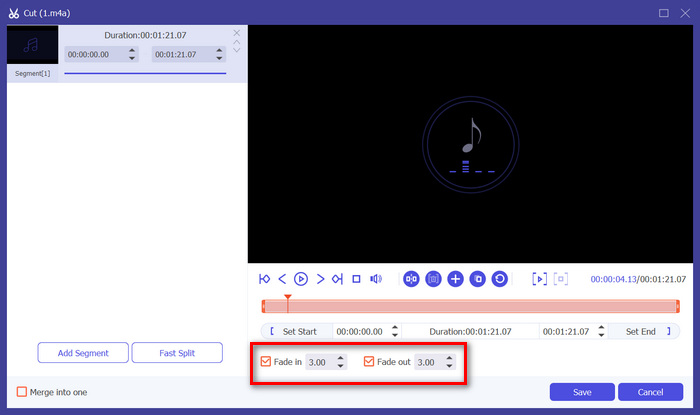
Step 5. Once done, you can preview your audio by playing it to check if the changes you’ve made are accurate and precise.
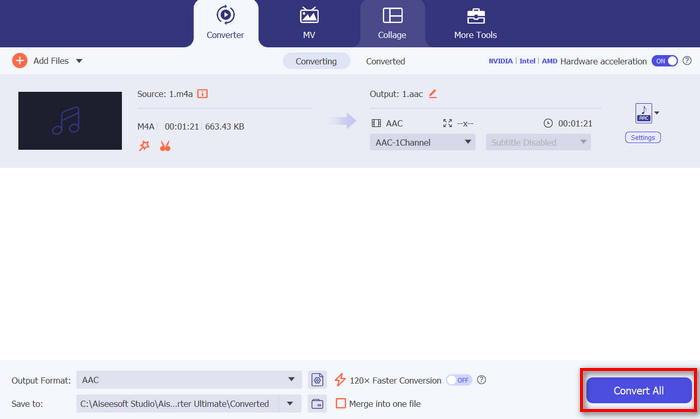
Step 6. Lastly, click the Save button. This will lead you back to the main interface, where you will click the Convert All button to export the audio file.
What makes Video Converter Ultimate the best alternative tool to fade out or fade in audio is its ease of use and efficiency. It allows users to achieve smooth, professional audio transitions quickly, without the complexity of more advanced software. This makes it a reliable and user-friendly choice for anyone looking to enhance their audio editing process. Besides, it also offers other audio editing features like compress audio, cut audio, speed up/down audio, and more before you export an audio file you want.
Parte 4: Perguntas frequentes sobre o Fading Audio no Premiere Pro
O que é fade in e fade out em áudio?
Fade in e out são técnicas de edição de áudio usadas para aumentar ou diminuir o volume de uma trilha de áudio para ter uma transição suave. Um efeito fade-in começa com silêncio e aumenta gradualmente até o volume máximo, enquanto um efeito fade-out começa no volume máximo e diminui gradualmente até o silêncio.
Qual é o atalho para fade out no Premiere Pro?
No Mac, o atalho para saída no Premiere Pro é Shift+Command+D, enquanto no Windows, Shift+Ctrl+D.
Como diminuir o volume do áudio no iPhone?
To fade out audio on an iPhone, you can use the iMovie app.
Here’s how to do it:
Step 1. Open iMovie and load your project.
Step 2. Right-click the audio in the timeline.
Step 3. Tap the Audio button.
Step 4. Tap Fade to reveal the fade handles at the beginning and end of your clip.
Step 5. Drag the fade handle at the end of the clip to set the duration of the fade-out.
Conclusão
Premiere Pro is indeed a versatile tool, making it easy for users to modify their audio files. Now that you know how to fade audio in Premiere, there’s no reason for you to stop creating seamless and professional transitions for your projects. Also, you can try the Video Converter Ultimate as an alternative if you find this tool challenging to use for a more user-friendly experience. Here’s to smooth audio transitions!
-
 Os 10 melhores compressores GIF para usuários de desktop e online
 Nesta postagem, você aprenderá sobre os melhores compressores GIF para ajudá-lo a resolver seu problema com arquivos GIF grandes. Confira e obtenha os melhores insights.
-
 5 aplicativos de gravador de áudio mais escolhidos no Android e iOS [atualizado em 2023]
 Não sabe qual aplicativo de gravador de áudio você deve usar? Nesse caso, este artigo o ajudará a escolher qual aplicativo o ajudará com sua tarefa de gravação de áudio.
-
 Ótimas ferramentas de conversão de MP4 para MP3 que você deve considerar usar
 Desbloqueie o poder da versatilidade de áudio com nossos conversores de MP4 para MP3 de alta qualidade. Experimente conversão perfeita, qualidade de som excepcional e processamento ultrarrápido.
