


 Video Converter Ultimate
 Gravador de ecrã
 Reparo de vídeo
 Secure Download
Como cortar áudio no iMovie: tutorial para iPhone e Mac
iMovie is a free video/audio editing software for iPhone and Mac developed by Apple, allowing users to edit and produce media projects seamlessly. When Apple users are looking for ways to edit, trim, and cut out parts of specific audio they have, it is just right for them to use software for it. Little did they know iMovie can also be used for audio cutting and trimming tasks; thus, following through this guide can help users like you effectively navigate your way to a seamless cutting of audio in the iMovie process.

Parte 1. Como cortar áudio no iMovie
Iphone
Cortar música no iMovie usando um iPhone é mais fácil do que usar um Mac. A versão móvel do iMovie é leve e direta, permitindo um processo perfeito que permite aos usuários cortar seus arquivos de áudio com alguns toques no aplicativo móvel. Por mais simples que seja em comparação com sua versão para Mac, ele tem recursos limitados em edição de vídeo e áudio.
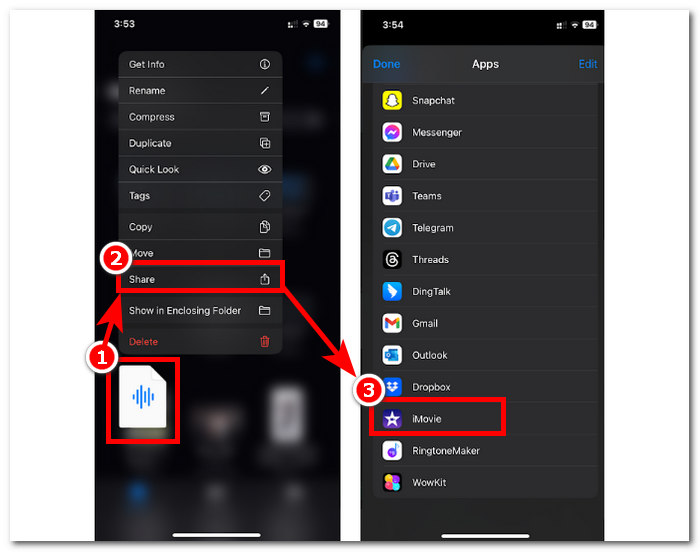
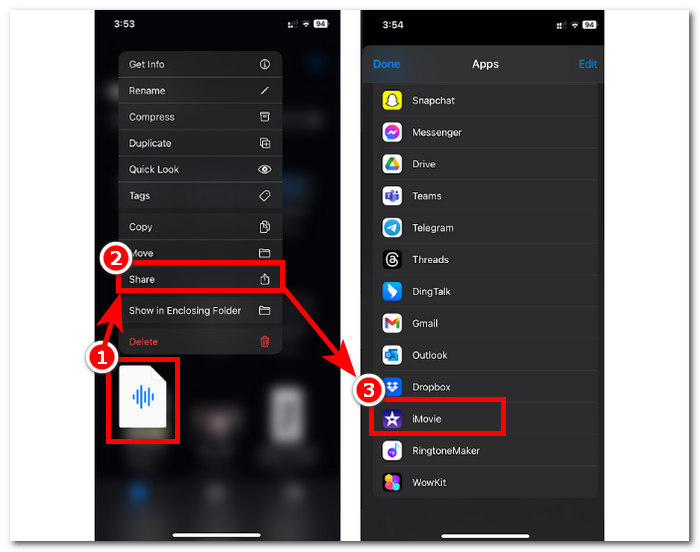
Step 1. Go to your Files app, long-press on the audio file you want to trim, tap Share, and open it on the iMovie app. If you want to cut a recording, record the audio file on iMovie first.
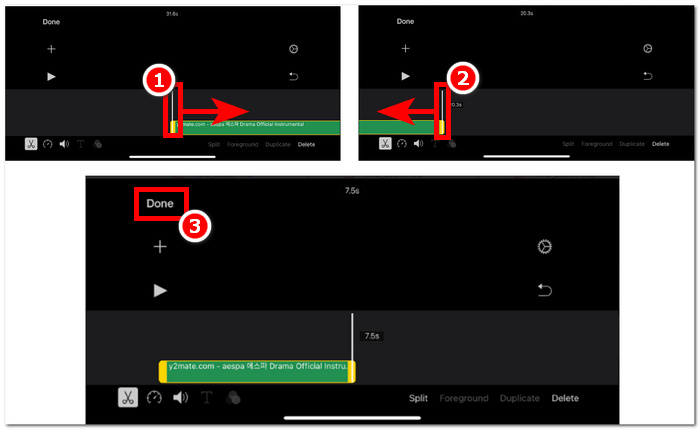
Step 2. To trim your audio file, go to the start and end parts of your audio file in the timeline, and you will see tha trimming bars on both sides. Just simply drag the trimming bars from left and right until you are satisfied with the trim your audio has. Once done, click the Done button above to proceed.
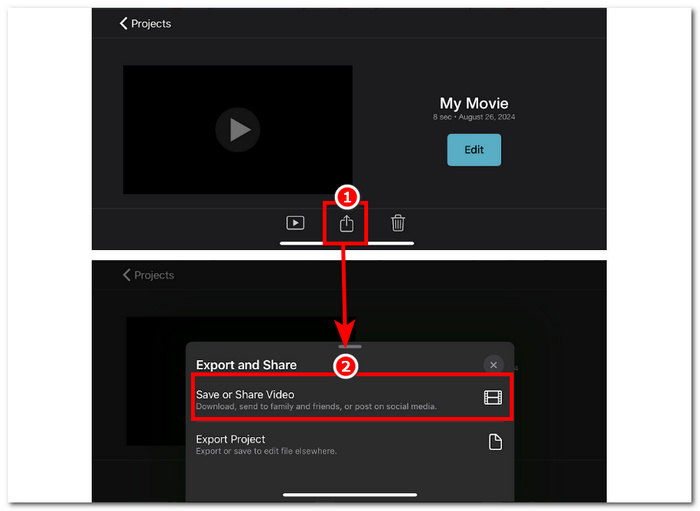
Step 3. Finally, click the Share icon in the lower-center part of the app and proceed to save it.
Mac
Como cortar música no iMovie? Os usuários têm a opção de cortar clipes de áudio usando o iMovie em seus dispositivos Mac. Usar a versão Mac do iMovie para cortar um arquivo de áudio permite que os usuários tenham acesso a uma variedade de recursos de edição de áudio, para este caso, o uso de um aparador de clipes, que não está disponível em sua versão móvel. Este aparador de clipes permite arrastar perfeitamente as barras do aparador da esquerda para a direita para criar um corte instantâneo. Para fazer isso de forma eficaz, você deve seguir as etapas abaixo.
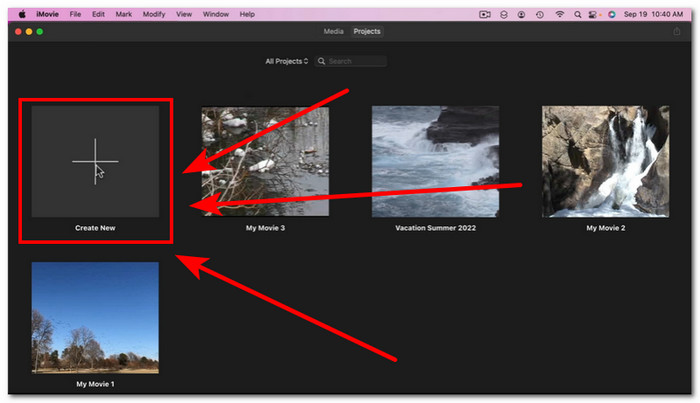
Step 1. Open iMovie software on your Mac and add your audio file or drag it onto the software timeline.
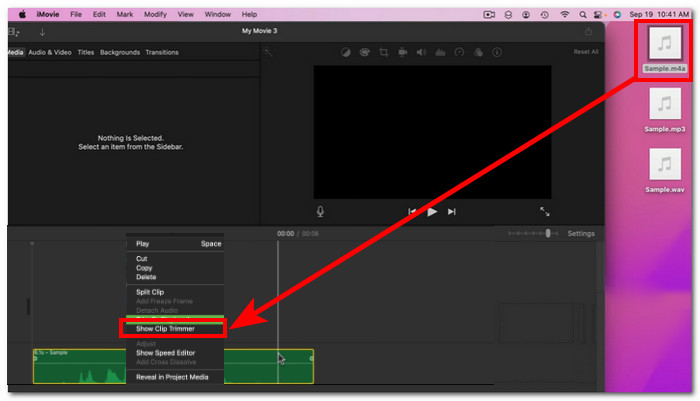
Step 2. Once the file is loaded in the software, right click on your audio file and proceed to click the Show Clip Trimmer menu.
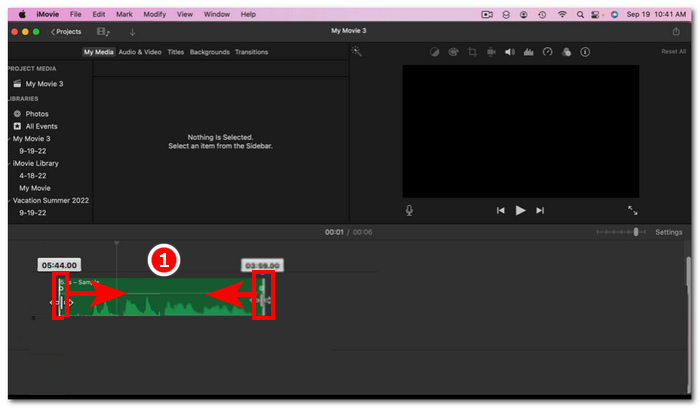
Step 3. Once you have clicked it, proceed to drag the trimming bars located from both ends of your audio file to trim your audio.
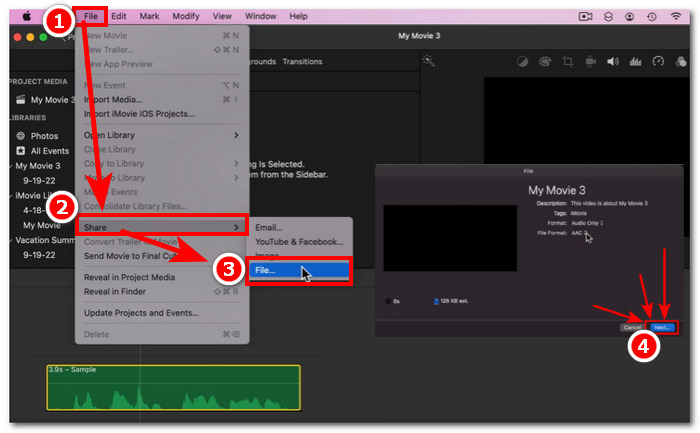
Step 4. Once you've finished trimming, you can save the file by clicking on the File menu section at the top left of the software and following this navigation: File > Share > File > Next to save it to your Mac. iMovie is only available for Mac computers.
If you need to use iMovie for Windows with such a trimming feature, check it out here.
Parte 2. Como cortar partes de áudio no iMovie
Iphone
Como você corta música em um iMovie? Para cortar certas partes de música ou áudio usando o iMovie no iPhone, vá para partes específicas na sua linha do tempo que você deseja remover ou cortar. Em seguida, exclua-as usando o botão de exclusão dedicado para fácil remoção de partes na linha do tempo.
Step 1. To trim an audio file, long-press on it in the Files app. Then, tap the Share button and select the iMovie app to open the file in it.
Step 2. Go to the part you want to cut your audio file, then tap on the scissor icon in the lower-left part of your screen to split it into to parts. You will now have two parts in your timeline. Select the part you don’t need and click the Delete button to cut it out.
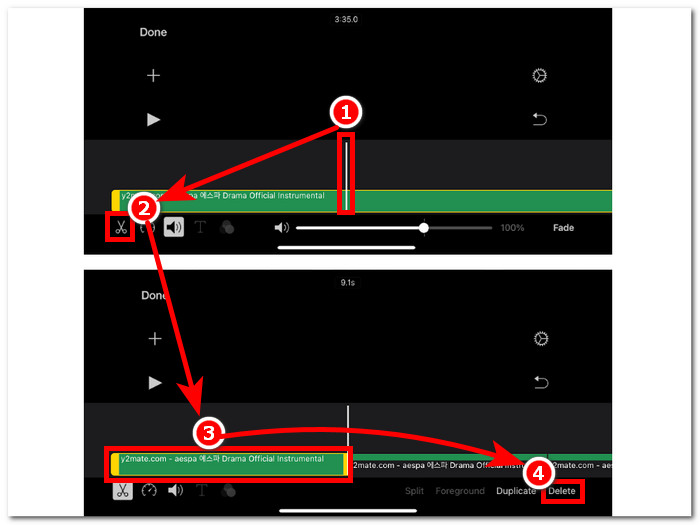
Step 3. Once you have removed all the unnecessary parts from your audio file, click the Done button in the upper-left corner of your screen.
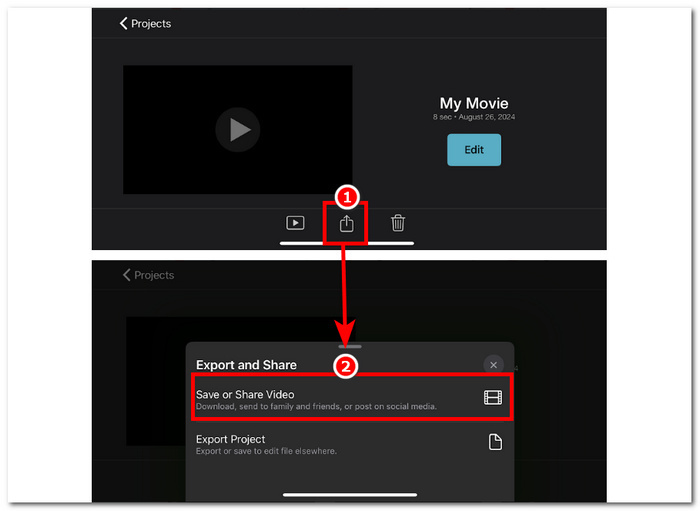
Step 4. Save your file by clicking on the Share icon, then tap Save or Share Video.
Mac
Cortar certas partes do seu arquivo de áudio usando o iMovie é fácil, pois ele depende das funções básicas da ferramenta: combinar o recurso Split Clip e excluir. Abaixo estão as maneiras mais fáceis de fazer isso.
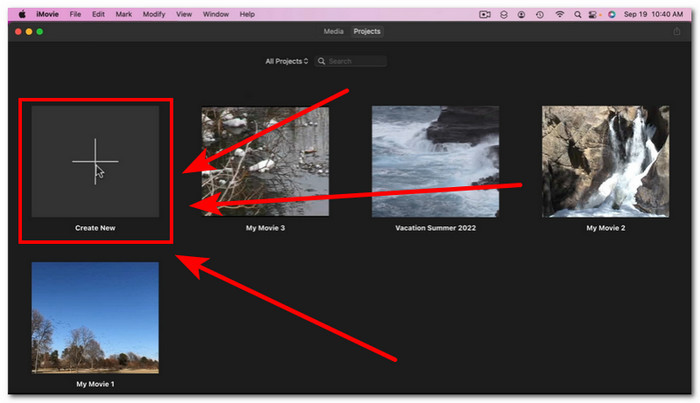
Step 1. Open iMovie on your Mac and click on the + button to open the audio file from which you want to cut parts.
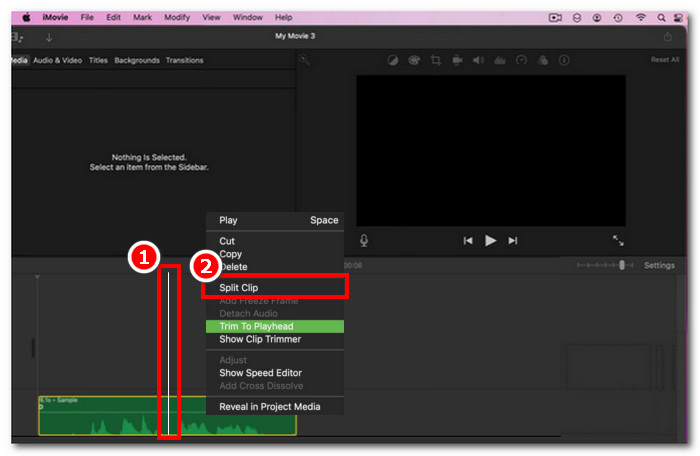
Step 2. Once your audio file is in the software, go to the part of your audio you want to cut, right-click, and choose Split Clip.
Step 3. Once the audio file is separated, delete or cut the parts where you don’t need anymore by right-clicking on it and then Delete.
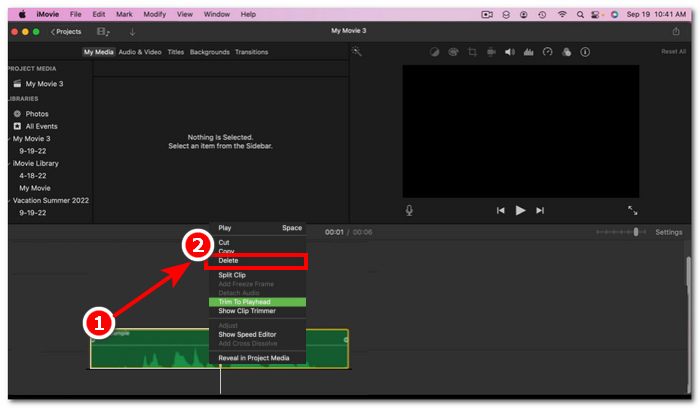
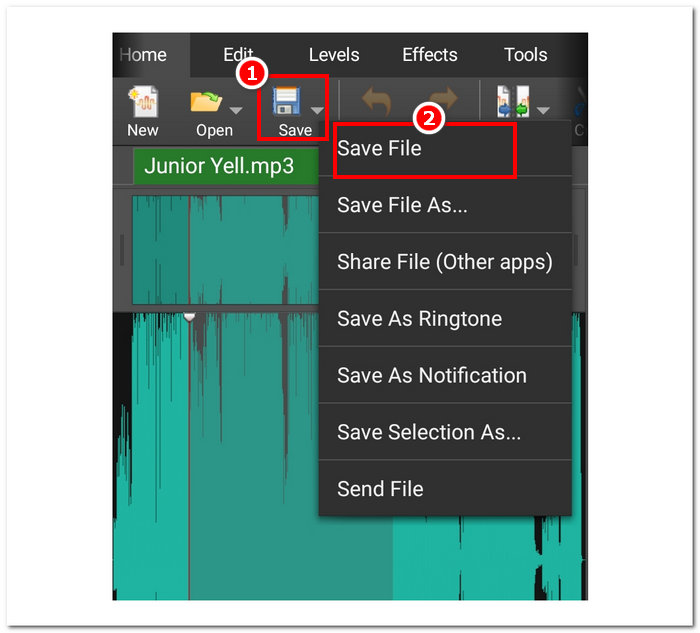
Step 4. Then, you cut the part you don’t want in your audio. Save your file by clicking on File > Share > File, then click Next to save it on your Mac.
Parte 3. Melhor alternativa do iMovie para cortar áudio
While iMovie works just fine for cutting or trimming audio files, we have found the best alternative software tool in case you experience bugs or iMovie stops working for some reason. FVC-picked Video Converter Ultimate is the perfect tool that can be used not just as an audio cutter or trimmer but also video, similar to iMovie. In addition, it features an editing tool, cuts audio, and allows manipulation of output format. Thus, it goes beyond the basic trimming or cutting of audio like any other software tool out there, as it has unbeatable processing speed while also ensuring a lossless audio quality.
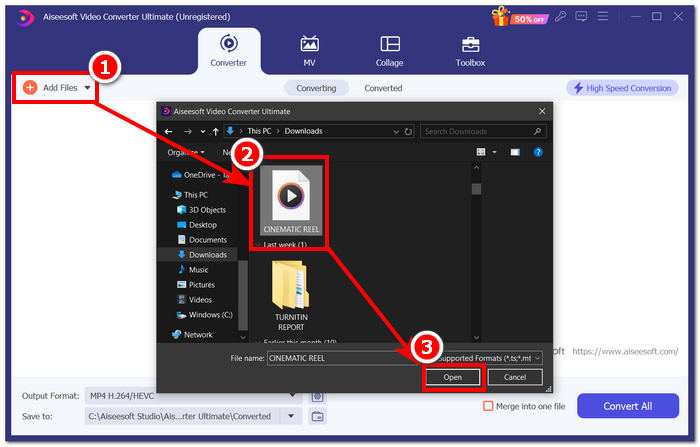
Step 1. On your computer, download and open the FVC-picked Video Converter Ultimate software. On the software interface, click on the Add Files to load the audio file you want to trim or cut certain parts in it.
Free DownloadFor Windows 7 or laterSecure Download
Free DownloadFor MacOS 10.7 or laterSecure Download
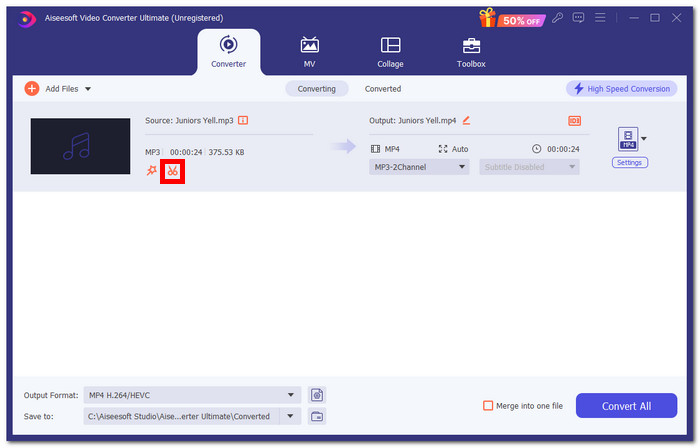
Step 2. Click on the scissor icon to access the software's cut and trimming features.
Step 3. To cut or trim the audio file using the software features, just simply move the trimming bars to the parts you want to retain.
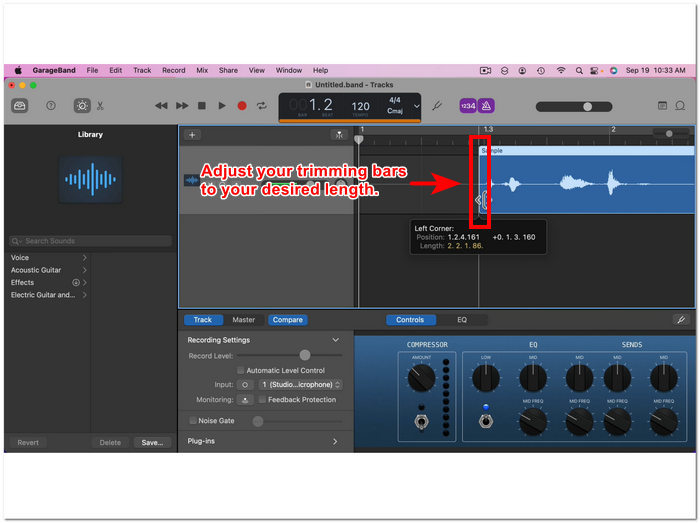
As partes fora das barras de corte são as partes que você terá que remover para encurtar seu arquivo de áudio.
Step 4. Finally, to save your new and shorter audio file, click on the Convert All button to save the changes and have it saved in the dedicated folder on your computer.

Parte 4. Perguntas frequentes sobre como cortar áudio no iMovie
Como você seleciona parte do áudio no iMovie?
Depois de dividir seu arquivo de áudio em muitas partes, você pode selecionar uma parte simplesmente tocando ou clicando nas partes específicas do áudio localizadas na sua linha do tempo. Quando a parte selecionada tiver uma borda amarela ao redor, isso significa que você selecionou essa parte.
Por que o iMovie está cortando meu áudio?
Se o iMovie cortar abruptamente uma parte do seu vídeo, isso pode indicar que a duração do seu áudio excede a duração máxima de áudio do iMovie. No momento em que este guia foi escrito, a duração máxima de áudio que um usuário pode importar no software iMovie é de uma hora e dez minutos.
É possível cortar o áudio no Quicktime?
Sim, os usuários podem cortar arquivos de áudio usando o QuickTime carregando o arquivo de áudio no player, clicando no menu Editar na parte superior da interface do player e prosseguindo com a seção Cortar.
Conclusão
Criar aparas e cortar certas partes em um arquivo de áudio é simples e fácil, graças ao software iMovie da Apple. Embora seja conhecido por software de edição de vídeo, ele consegue, de alguma forma, fazer tarefas de edição de áudio, como aparar e cortar, sem problemas. Certamente, usuários de iOS e macOS podem saber maximizar os recursos oferecidos pelo iMovie em tarefas de edição de áudio; no entanto, vale a pena notar que quando o software parece ter um problema no futuro, certifique-se de usar o Video Converter Ultimate, escolhido pela FVC, tudo em um.
-
 Como compactar arquivos MPEG-4 online - sem download, sem marca d'água
 Não tem armazenamento de arquivo suficiente para manter todos os seus arquivos MPEG-4? Aqui estão algumas soluções que podem ajudá-lo a diminuir o tamanho dos seus arquivos de vídeo.
-
 Como compactar arquivos VOB online e grátis [sem download]
 Você está procurando métodos para compactar arquivos VOB? Aprenda a melhor maneira de diminuir o tamanho dos arquivos VOB neste artigo.
-
 Como compactar um arquivo OGV sem perder qualidade
 Não consegue enviar arquivos OGV grandes para outras pessoas? Bem, este artigo apresentará 2 maneiras fáceis de ajudá-lo a compactar arquivos OGV facilmente.
