


 Video Converter Ultimate
 Gravador de ecrã
 Reparo de vídeo
 Secure Download
Como fazer fade de áudio no iMovie: Tutorial para Mac e iPhone
Fade is an effect used to create a gradually increasing or decreasing effect in a certain media. In audio editing, learning how to add fade effects is crucial; it is used for transition or simply to let the listeners know that the audio will fade or decrease, contributing to the overall outcome of the audio. Users can easily add fade effects using the iMovie software, an Apple-designed software for media editing. Continue reading further to find ways to use your Mac and iPhone to put fade effects and discover an all-in-one alternative tool to put fade in your audio.

Parte 1. Desvanecer música no iMovie no Mac
Alças de desbotamento
O primeiro método para adicionar efeitos de fade em áudio usando uma versão para Mac do iMovie é usar o fade handle. Essa é a maneira mais fácil de fazer, pois requer apenas que os usuários carreguem seus arquivos de áudio e então arrastem cada um dos fade handlebars que aparecem no início e no fim do clipe.
Step 1. Launch the iMovie application on your Mac and import your desired audio file by dragging and dropping it onto the software's timeline interface.
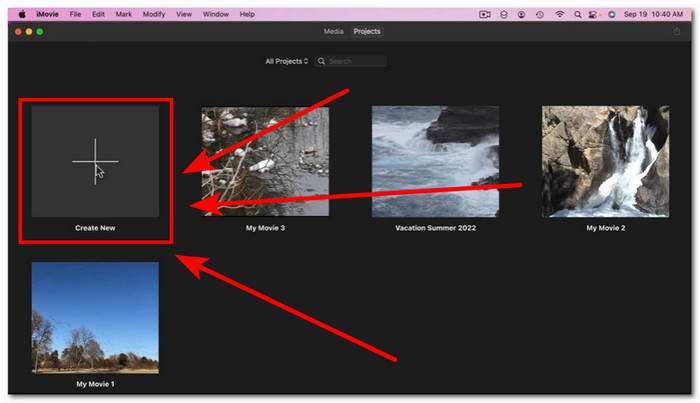
Step 2. Once the audio file is in the iMovie timeline, a small circle appears at the beginning and end of each track, indicating that it is eligible to use the fade handles to create fade effects.
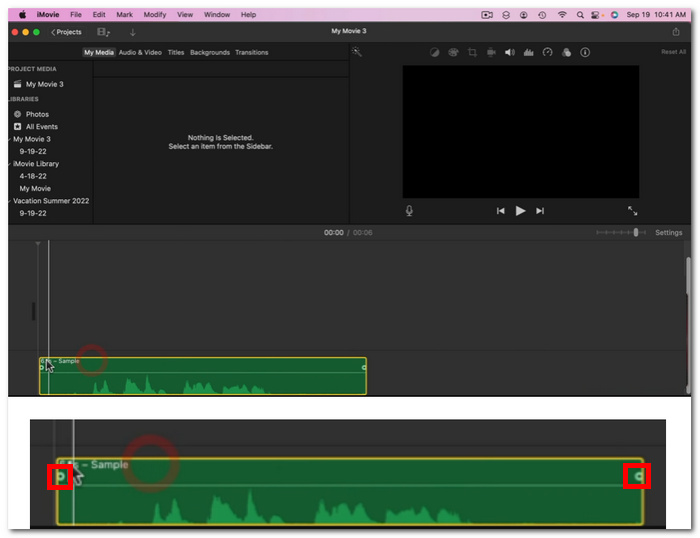
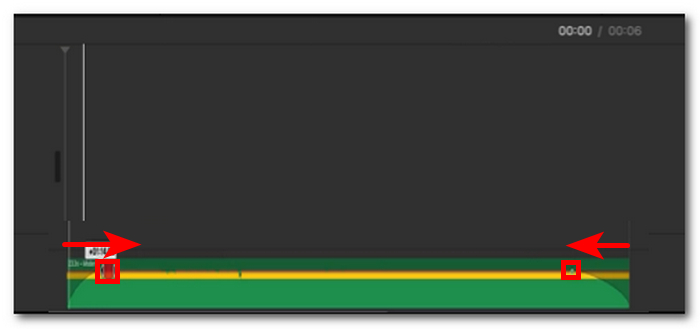
Step 3. Simply drag the fade handlebars to the inward of the audio track to create a fade effect.
Observação: como você pode ver, isso cria uma inclinação visual na trilha, o que indica que seu áudio agora tem um efeito de fade.
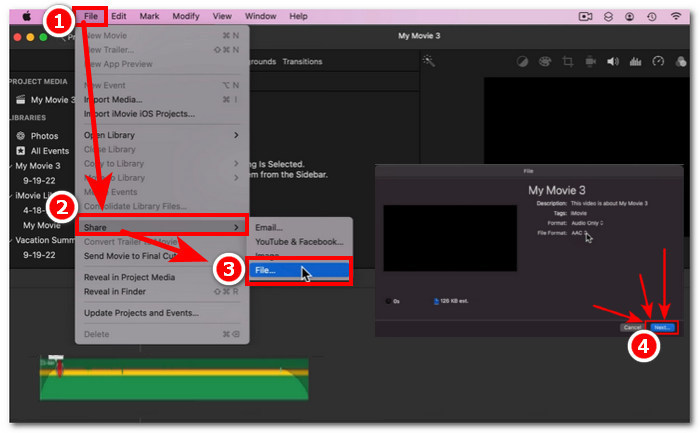
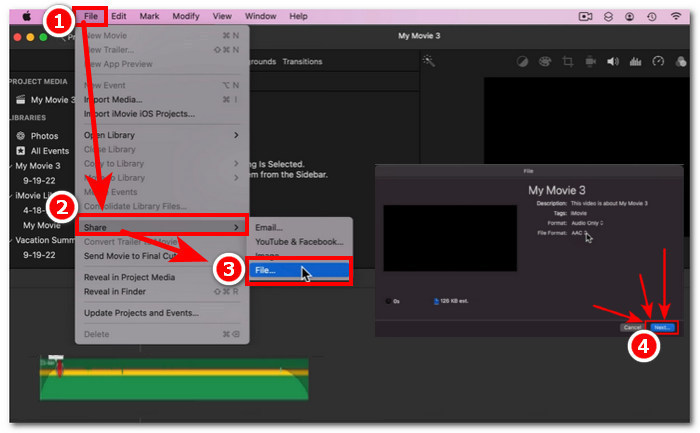
Step 4. Finally, save your file by clicking on File > Share > File… and Next to download it to your Mac download folder.
After you download the video with the faded audio file, if you find the audio is not synced with video in iMovie, you can follow this post to fix that.
Inspetor de Áudio
Outra maneira de fazer fade out no iMovie usando um Mac é por meio do Audio Inspector. Isso é muito mais complexo em comparação com Fade Handles. Ele permite que os usuários sejam precisos ao colocar efeitos de fade, pois fornece uma exibição de duração de tempo mais calculada e específica no segundo em que você deseja que seu fade-in e fade-out tenham em seu áudio.
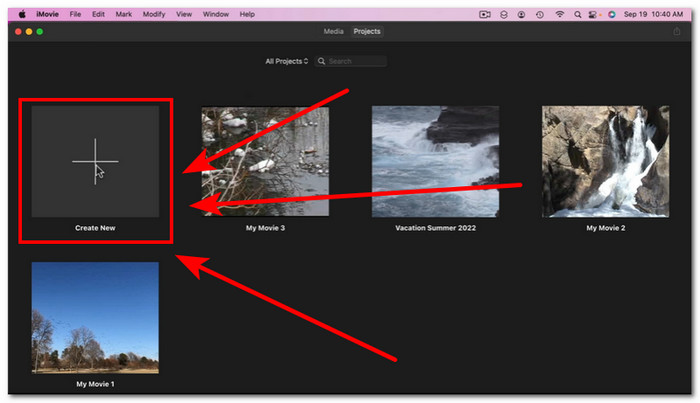
Step 1. Using your Mac, open or load the audio file you want to put fade effects in them using the iMovie software.
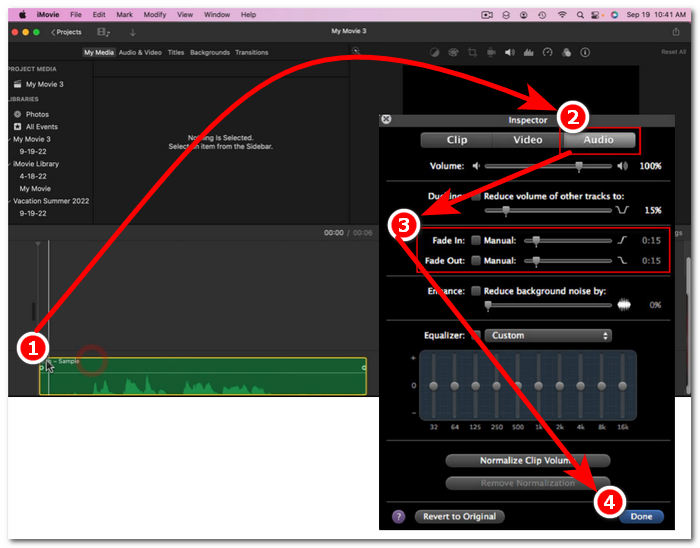
Step 2. Once the audio file is in the software interface, double-click on your audio file in the timeline and choose Clip Adjustments to open the Inspector panel.
Step 3. Once the Inspector panel is open, go to the Audio section. There, you can proceed to adjust the Fade-in and Fade-out of your track. Simply manually drag the fade effect lengths to your liking, and once you are done, click on the Done button to save the changes in your audio file.
Step 4. Once everything is set, you may download your audio file by clicking on the File button located in the upper part of your screen then proceed to click Share > File > Next.
Parte 2. Desvanecer música no iMovie no iPhone
Desvanecer o áudio no iMovie usando um iPhone é relativamente fácil, já que a versão móvel do iMovie para usuários de iPhone é bem simples. Usuários, mesmo os não familiarizados com tecnologia, podem fazer isso sem esforço.
Step 1. In order for you to put fade effects in an audio file, you must load your audio file onto the iMovie app on your iPhone,
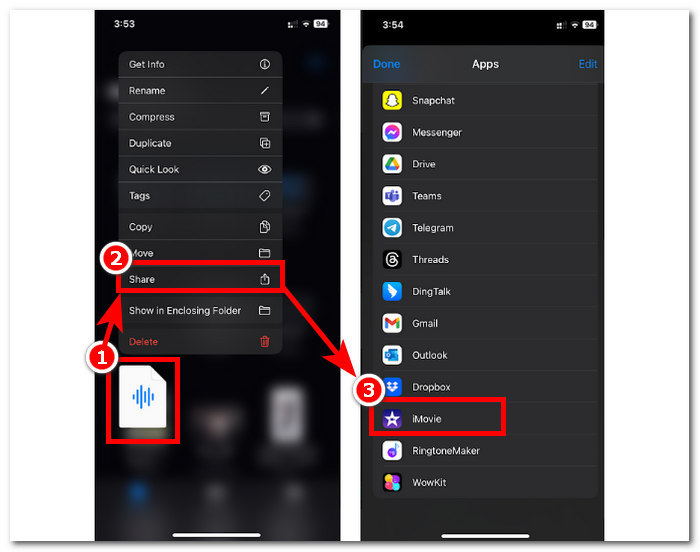
Step 2. Once in the app’s interface, tap on the Sound > Fade button to bring up the fade bars. Once the fade bars appear, drag them inward of the audio file and adjust accordingly; once you are satisfied, click on the Done button to save tha changes.
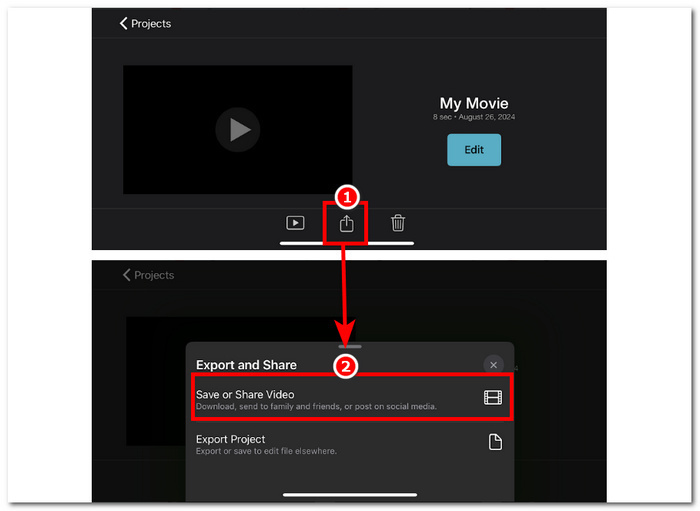
Step 3. To save your file, tap the Share icon, then select the option to Save or Share Video.
Parte 3. Melhor alternativa do iMovie para Fade Music
When iMovie, a widely used video editing tool on Mac and iPhone, encounters technical difficulties, FVC-picked Video Converter Ultimate emerges as the ideal alternative. This software is specially designed for adding fade effects to videos seamlessly, thanks to its dedicated Fade In and Out functionality. With precise time duration input, users can achieve their desired fading effects with accuracy. FVC-picked Video Converter Ultimate goes beyond basic audio trimming or cutting, offering a versatile editing toolkit. Additionally, its exceptional processing speed ensures efficient editing while maintaining lossless audio quality, setting it apart from other software tools.
Step 1. On your computer, download and launch the FVC-picked Video Converter Ultimate software. Locate the Add Files button on the software's interface and click on it to load the audio file. This step is crucial if you want to trim or cut specific parts of the audio file.
Free DownloadFor Windows 7 or laterSecure Download
Free DownloadFor MacOS 10.7 or laterSecure Download
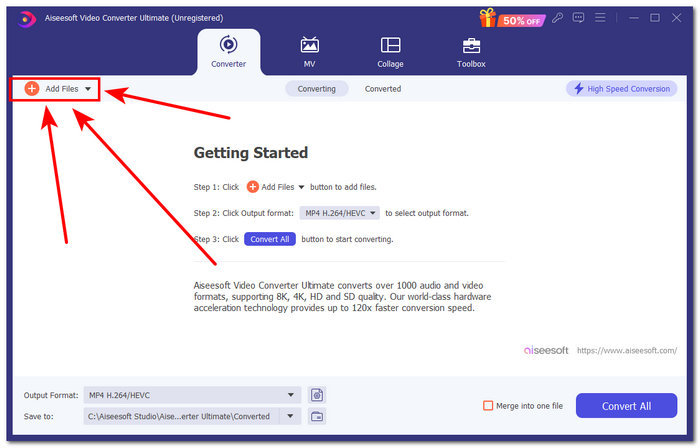
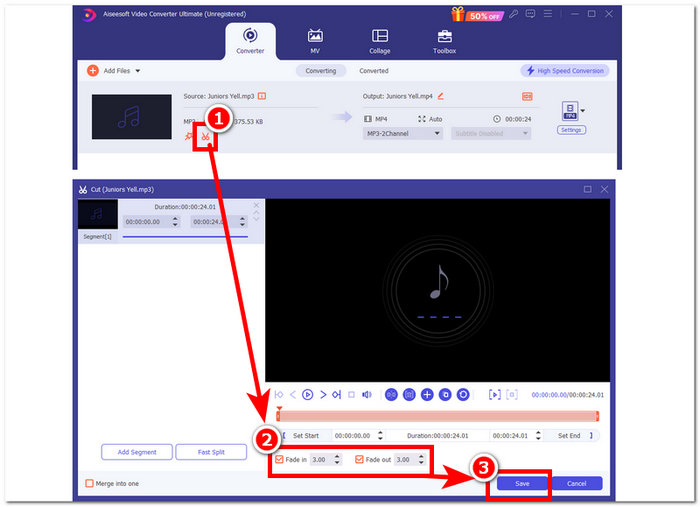
Step 2. Click on the scissor button to access the software's cut and trimming features. In the cut panel, you will see the Fade In & Out box. To add fade effects to your audio file, simply put a checkmark on it.
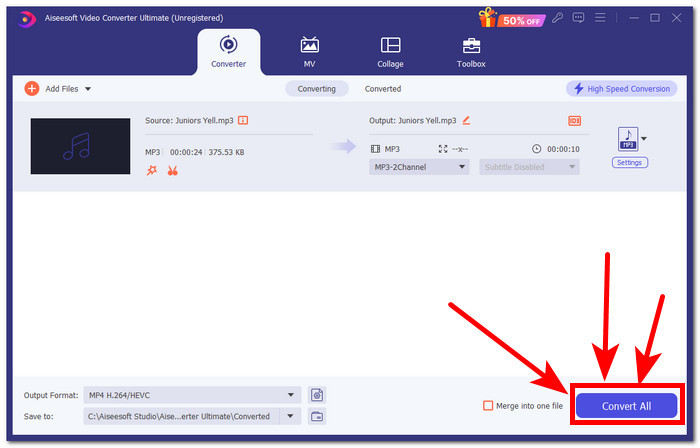
Step 3. Click the Convert All button. This action will save the modifications and store the file in a designated folder on your computer, ensuring that your changes are securely saved.
Parte 4. Perguntas frequentes sobre como fazer fade de música no iMovie
Qual é a diferença entre fade-out e fade-in?
Fade refere-se ao aumento gradual do áudio a partir do silêncio total, enquanto fade out refere-se à diminuição gradual do volume de um áudio até o silêncio total.
O iMovie tem fade-in?
Sim, o iMovie tem efeitos de fade-in e fade-out, que permitem que os usuários da Apple apliquem suavemente um aumento e diminuição gradual de volume em seu projeto. Portanto, ele não pode ser usado apenas em áudio, mas também o iMovie oferece efeitos de fade para seu editor de vídeo.
Por que você usa fade-out?
Um efeito fade-out pode ajudar a adicionar uma camada extra de sabor a um projeto. Ele cria uma transição ou final suave, evitando uma parada repentina, que é mais desagradável de ouvir, especialmente em música.
Conclusão
Apple users should no longer know how to make music fade out in iMovie anymore as iMovie for Mac and iPhone can easily perform such tasks. In addition to the seamless process of putting a fade effect to an audio file, an alternative software was mentioned that serves as a backup software just in case iMovie malfunctions. The FVC-picked Video Converter Ultimate helps a lot in giving a fast speed process, lightweight king of software, easy to use, and easy fade-in and out functionality.
-
 Maneiras simples de adicionar texto a um vídeo usando o iMovie no Mac e iPhone
 Precisa adicionar texto a um vídeo usando o iMovie? Leia toda a postagem do blog para saber como adicionar títulos de texto no iMovie com etapas detalhadas.
-
 Tutorial do iMovie - Como gravar vídeo e áudio da tela com o iMovie
 Leia e obtenha as etapas detalhadas para gravar um vídeo com o iMovie. Se tiver problemas com a gravação do iMovie, você pode obter uma alternativa gratuita do iMovie para gravar a tela no Windows e Mac sem marca d'água também.
-
 Como adicionar marca d'água a um vídeo no iMovie no Mac [All Embracing]
 Você quer saber os segredos de adicionar uma marca d'água a um vídeo no iMovie? Não derrame o chá em ninguém e aprenda lendo este artigo.
