


 Video Converter Ultimate
 Gravador de ecrã
 Reparo de vídeo
 Secure Download
Como reproduzir MP4 no Windows Media Player em um computador com Windows 10
Às vezes, um arquivo MP4 não é reproduzido no Windows Media Player, mas pode ser reproduzido em outros reprodutores, como o VLC Media Player ou o KM Player. Uma vez que MP4 é o formato de vídeo mais popular, é compatível com todos os reprodutores de mídia e dispositivos multimídia. Você pode ter muitos arquivos de vídeo salvos no formato MP4. É muito chato se o arquivo MP4 não consegue ser reproduzido no Windows Media Player. Então, como reproduzir arquivos MP4 no Windows 10? Bem, não há necessidade de se preocupar. Aqui estão todas as soluções para corrigir o Windows Media Player não reproduzindo arquivos MP4.

Parte 1. Por que o Windows Media Player não reproduz MP4
According to Microsoft, not all versions of Windows Media Player support MP4 file format. Windows Media Player 7, Windows Media Player for Windows XP, Windows Media Player 9 Series, Windows Media Player 10/11 don't support MP4 file format.
Se o Windows Media Player não puder reproduzir o videoclipe MP4, talvez o vídeo MP4 esteja danificado ou corrompido. Nesse caso, você pode tentar reproduzir o arquivo MP4 não reproduzível em outro reprodutor de mídia.
Outro motivo pelo qual o Windows Media Player não reproduz MP4 é que o arquivo MP4 não tem o pacote de codecs adequado para ele.
Parte 2. Jogue MP4 com a melhor alternativa para o Windows Media Player
If MP4 videos still not playing, you can switch to a media player like FVC Free Video Player. It is a free online video player that plays all popular multimedia files like MP4, MKV, FLV, MOV, AVI, 3GP, MP3, FLAC, AAC, etc. on Windows and Mac. Based on HTML 5 technology, you can play any video files, whether it is from local computer or downloaded.
Step 1. Visit the official website of FVC Free Video Player (https://www.free-videoconverter.net/free-video-player/). Click Play Now button to download and install launcher.

Step 2. Click Open File button to load the MP4 file you want to play. You can also click File menu and select Open File to add the MP4 file.

Once the MP4 video is uploaded, it will be playing on your Windows computer automatically.If you want to edit video effects, you can click Tools and select Effects option and you can adjust hue, brightness, contrast, saturation and gamma to enhance your video.

Parte 3. Converter MP4 para reprodução no Windows Media Player
If Windows Media Player cannot play the MP4 file, one simple way is to convert the MP4 file to other format supported by Windows Media Player. You can use a video converter tool like FVC Video Converter Ultimate to convert the MP4 to the default file format for Windows Media Player like WMV, ASF or WMA.
Free DownloadFor Windows 7 or laterSecure Download
Free DownloadFor MacOS 10.7 or laterSecure Download
Step 1. Free download, install and launch Video Converter Ultimate on your Windows computer. Click Add Files button to add the MP4 file you want to play.

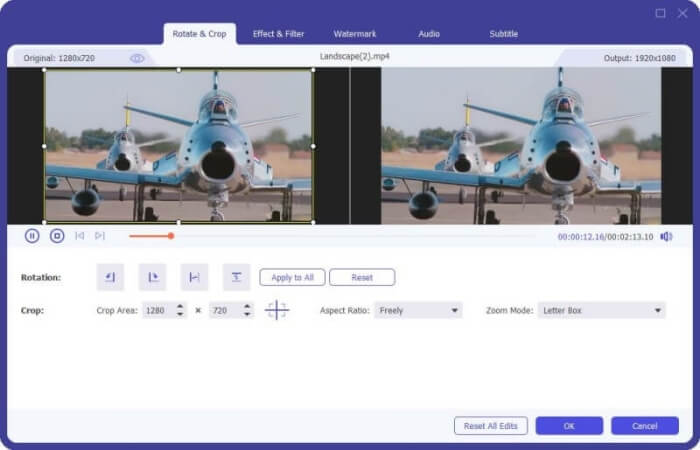
Step 2. If you want to add some effects to your MP4 file, you can click the Edit icon to enter the editing interface. Here you can add effects, apply a filter, rotate or crop the MP4 file, add watermark, adjust audio track and subtitles.
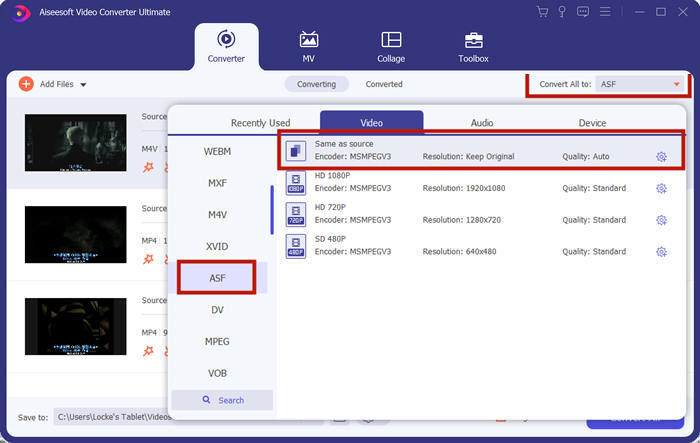
Step 3. Then click the drop-down arrow next to Convert All to, locate in Video tab and select ASF or WMV as the output format.
Step 4. Finally, set the output folder where the converted MP4 file will be saved. Click the Convert All button to convert the MP4 file. After conversion, you can play the converted MP4 file in Windows Media Player.

Parte 4. Dicas comuns para reproduzir MP4 no Windows Media Player
To play MP4 on Windows 10, you can locate in the folder where MP4 files are stored. Right-click on the MP4 file you want to play, select Open with and choose Windows Media Player. As simple as it is, sometimes you may get failed to open MP4 file in Windows Media Player. To fix the issue, you can try the following tips.
1. Jogue MP4 com outros reprodutores de mídia
If your MP4 file doesn't play in Windows Media Player, you can try other media players to open the MP4 file. There are so many media players like FVC Free Video Player, VLC Media Player, KM Player, Real Player, GOM Player, BS Player, DivX Player and more.
2. Instale o codec certo para o Windows Media Player
Existem codecs faltando se o Windows Media Player não estiver reproduzindo o arquivo MP4. Para resolver o problema, você precisa instalar o codec correto para o Windows Media Player.
Step 1. Open Windows Media Player. Click Organize menu and select Options.
Step 2. Move to the Privacy tab and check Download usage rights automatically when I play or sync a file option.
Step 3. To play the MP4 file, you can click the OK button to save the changes.
3. Execute o solucionador de problemas no Windows
Se MP4 não for reproduzido no Windows Media Player, você pode usar a ferramenta Solucionador de problemas para resolver o problema no Windows 10. Siga as etapas para solucionar o problema.
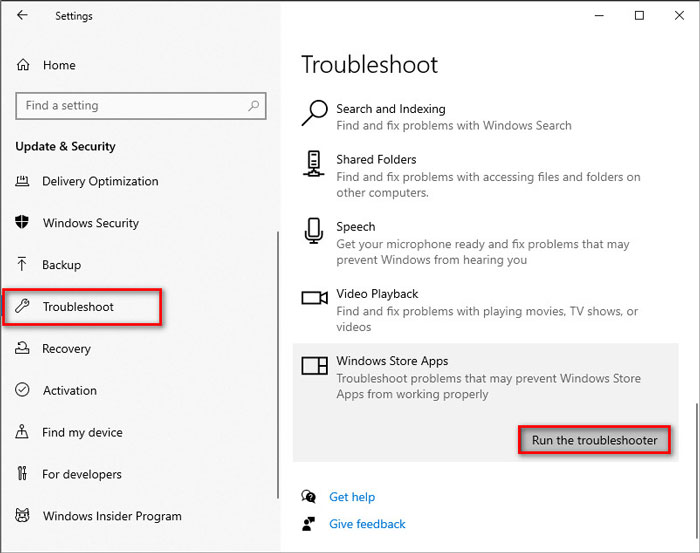
Step 1. On your Windows 10 computer, open Settings and select Update & Security.
Step 2. Go to Troubleshoot area, and click Windows Store Apps.
Step 3. Click Run the troubleshooter button to troubleshoot the Windows Media Player playback issue.
Parte 5. Perguntas frequentes sobre como reproduzir MP4 no Windows Media Player
Qual é o formato de vídeo padrão do Windows Media Player?
O formato de arquivo padrão do Windows Media Player é WMV (Windows Media Video) e WMA (Windows Media Audio). Ele também suporta ASF (Advanced Systems Format) e seu próprio formato de lista de reprodução baseado em XML, Windows Playlist.
Qual é o melhor MP4 Player?
There are many popular MP4 players on the market, including FVC Free Video Player, VLC Media Player, KM Player, QuickTime Player, RealPlayer, Media Player Classic, GOM Player, PotPlayer and more.
Posso jogar MKV no Windows Media Player?
O Windows Media Player 12 integrado no Windows 10 não oferece suporte à reprodução de MKV. Você precisa instalar o codec adequado para reprodução.
Conclusão
MP4 é o formato de multimídia digital mais popular, comumente usado para armazenar vídeo e áudio. É frustrante se o arquivo MP4 não consegue ser reproduzido no Windows Media Player. Espero que você possa reproduzir seus arquivos MP4 fluentemente no Windows 10 com todas as nossas dicas e soluções. Você pode tentar outro reprodutor de vídeo como o FVC Free Video Player para reproduzir seus arquivos MP4.
-
 Como reproduzir arquivos MP4 no Google Drive
 MP4 não está reproduzindo no meu Google Drive? Como reproduzir arquivos MP4 no Google Drive? Este post mostra 3 maneiras de reproduzir vídeos MP4 no Google Drive.
-
 Tocar arquivos MP4 no Chromebook 2021
 Você pode reproduzir vídeos no Chromebook? Como reproduzir arquivos MP4 de USB no Chromebook? Esta postagem compartilha três maneiras de jogar MP4 no Chromebook.
-
 Como reproduzir DVD no Windows Media Player em 2021
 Por que meu DVD não reproduz no Windows Media Player? Como reproduzir um DVD no reprodutor de mídia do Windows 7? Esta postagem compartilha 3 maneiras de reproduzir DVDs com ou sem WMP.
