


 Video Converter Ultimate
 Gravador de ecrã
 Reparo de vídeo
 Secure Download
5 soluções para corrigir vídeos que não reproduzem no iPhone
Have you ever encountered videos not playing on iPhone? When you have prepared your content and are about to experience it on your phone's high-resolution screen, you encounter this error window. This problem is so irritating. Is the problem with the video or the device? What can be done to fix it?
Estamos comprometidos em ajudar você a resolver este problema. Há cinco soluções possíveis no total, e duas das melhores ferramentas de terceiros serão recomendadas aqui. Temos certeza de que este guia ajudará você a recuperar seus vídeos rapidamente.

Parte 1. Converter formatos de vídeo não suportados
O motivo mais provável para o vídeo não ser lido, nem reproduzido, é que o formato do arquivo não é compatível com o iPhone. Observe que o iPhone atualmente suporta formatos de vídeo, incluindo MP4, MP3, MPEG-4, MOV, AAC, M4A e assim por diante. O codec usado para o seu vídeo pode ser H.264 ou H.265.
Se o vídeo que você deseja abrir não estiver em nenhum dos formatos acima, você poderá enfrentar problemas de reprodução de vídeos em fotos no iPhone.
Please convert the file to a compatible format first. To complete this step, you may need a professional format converter. We recommend FVC Video Converter Ultimate. It supports up to a thousand multimedia formats. With the support of the hardware acceleration feature, you can convert any files that are not compatible with the iPhone at 30X faster speed. Preview and editing features are also loaded on the platform. You can crop, merge, rotate the video as you like, or add text, watermarks, filters, etc. after the conversion is done.
Free DownloadFor Windows 7 or laterSecure Download
Free DownloadFor MacOS 10.7 or laterSecure Download
Veja como converter vídeos com o FVC Video Converter Ultimate.
Step 1. Download and install FVC Video Converter Ultimate on your computer. Click Add Files to upload your target video.

Step 2. Click Convert All to and expand the drop-down list. Choose a format compatible with the iPhone, such as MP4.
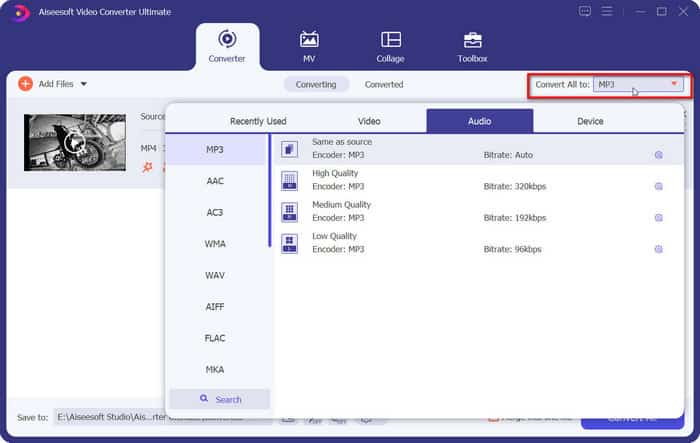
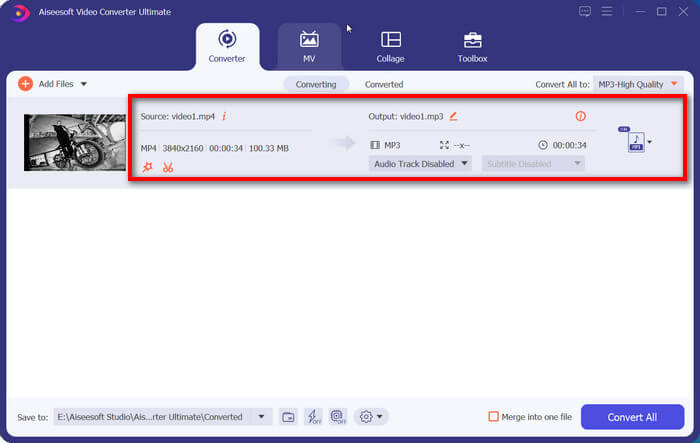
Step 3. Go back to the main interface. Select the uploaded video. Finally, click Convert All.
Parte 2. Reparar vídeos corrompidos
A incompatibilidade de formato pode impedir que o iPhone reproduza o vídeo. Mas se você perceber que os vídeos do iPhone não estão sendo reproduzidos no PC e trocar de player não resolver o problema, significa que há algo errado com o vídeo. É provável que seus arquivos sejam corrompidos durante a gravação, armazenamento ou transmissão.
We have prepared a solution for this situation as well. FVC Video Repair will fix your corrupted videos in any scenario. All you need to do is upload a sample video that meets the requirements. The platform will use the latest AI algorithms to restore the normal picture. The super easy-to-use steps and extremely high success rate make it a trusted product for many users.
Free DownloadFor Windows 7 or laterSecure Download
Free DownloadFor MacOS 10.7 or laterSecure Download
Veja como consertar vídeos quebrados do iPhone com o FVC Video Repair.
Step 1. Transfer your broken video to the computer. Download and install FVC Video Repair on your device.
Step 2. Click the red plus button to add the broken video. Click the purple plus button to add the sample video.
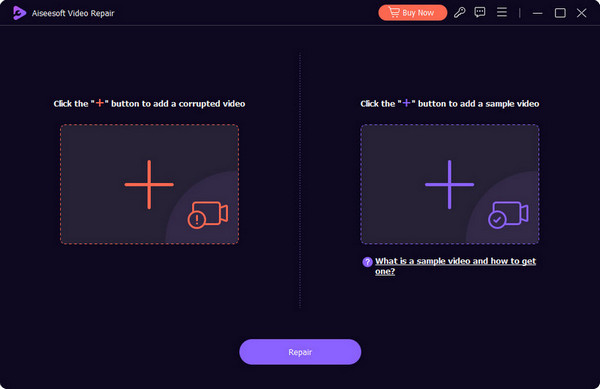
O vídeo de amostra precisa estar no mesmo formato do vídeo danificado, e quanto mais próximos os parâmetros, melhor. De preferência, ambos devem ser do mesmo dispositivo ou plataforma.
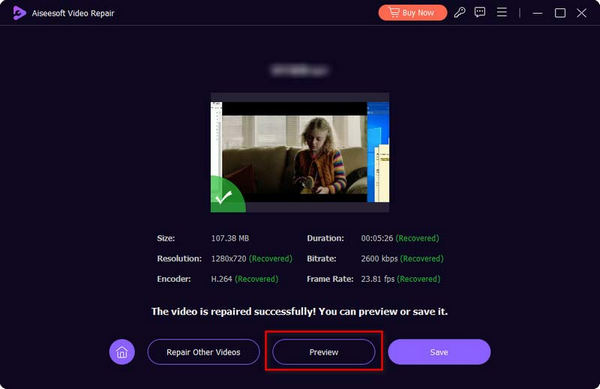
Step 3. Click Repair to start fixing.
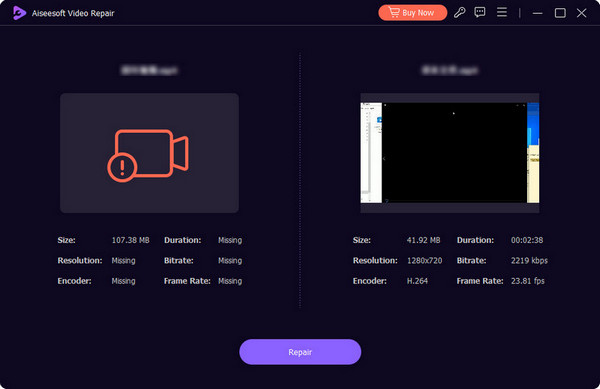
After repairing, you can click Preview to check the fixed video. Finally, click Save.
Parte 3. Verifique a conexão com a Internet
O problema de reprodução de vídeos HDR no iPhone não é exclusivo da reprodução de vídeos locais. Usuários relataram que, ao assistir a vídeos de plataformas online como YouTube, TikTok, Instagram, etc., via iPhone, também frequentemente encontram falhas na reprodução.
Isso pode ocorrer porque a rede à qual você está conectado não é estável o suficiente para que o vídeo online seja totalmente carregado. Você pode verificar se o seu celular está conectado a uma rede Wi-Fi ou de dados estável. Em seguida, tente desconectar-se da rede e reconectar-se. Depois disso, tente reproduzir o vídeo novamente.
Se os vídeos do YouTube não estiverem sendo reproduzidos no iPhone, o problema ainda não foi resolvido; tente uma conexão de rede diferente.
Parte 4. Forçar o encerramento do aplicativo de vídeo
If you find that the iPhone is not playing sound on videos, or the videos are intermittent, consider that there is an error in the iPhone video player or app for an unknown reason. At this point, restarting it is the fastest option.
You can start by pressing the option to go back to the Home page twice until multiple windows appear showing the application you are running. Find the video app and swipe it to turn off the app. Then, reopen it and try playing the video again.
Parte 5. Atualizar versão desatualizada do iOS
Solucionando problemas de rede, vídeo e aplicativos, há outro problema que faz com que os vídeos do rolo da câmera não sejam reproduzidos no iPhone, algo que devemos estar cientes. Se o seu dispositivo não foi atualizado para a versão mais recente do sistema, ele pode apresentar bugs ocasionais que podem afetar seu uso normal.
You can head over to the Settings app on your iPhone and check if there is a new system version available. If there is, follow the instructions to complete the download and update.
Parte 6. Perguntas frequentes sobre vídeos que não reproduzem no iPhone
Por que meu iPhone não reproduz som em vídeos?
It may be because the audio in the video file contains codecs that the iPhone does not support. You can convert the file audio codec or format, for example, from WMA to MP3 , AAC, or other popular formats.
Por que meu iPhone não está reproduzindo vídeos em segundo plano?
Esse problema pode ocorrer quando o iPhone está com pouca bateria ou quando muitos programas estão sendo executados em segundo plano. Você pode carregar totalmente o dispositivo e, em seguida, desativar os aplicativos em execução. Não se esqueça de verificar se o seu telefone possui um fone de ouvido Bluetooth conectado.
Por que meu iPhone não consegue carregar vídeos?
Tente reiniciar o dispositivo e, em seguida, substituí-lo por uma conexão de rede diferente. Isso pode ajudar a resolver alguns erros do sistema e outros problemas.
Conclusão
There are many solutions to the problem of videos not playing on iPhones . Starting from the video, you can try to convert the format and repair the corrupted video; starting from the device, you can force restart the iPhone and then change the internet connection. If you are using a video app, restart it to see if the problem is solved.
-
 Android DVD Player - Como reproduzir vídeos em DVD em celulares Android
 Como reproduzir arquivos de DVD em celulares Android? Existe algum reprodutor de DVD Android? Neste artigo, você aprenderá três maneiras de reproduzir vídeos em DVD em celulares Android com ou sem o driver externo.
-
 [Resolvido] Reproduzir arquivos MP4 no Chromebook 2025
 Você pode reproduzir vídeos no Chromebook? Como reproduzir arquivos MP4 de USB no Chromebook? Esta postagem compartilha três maneiras de jogar MP4 no Chromebook.
-
 Soluções rápidas para corrigir o erro 150 de impossibilidade de reprodução de vídeo
 Você já encontrou a frustrante incapacidade de reproduzir o erro de vídeo 150 durante sua experiência de exibição de vídeo? Não se preocupe porque nós explicamos como consertar isso.
