


 Video Converter Ultimate
 Gravador de ecrã
 Reparo de vídeo
 Secure Download
Bulk HEIC to JPG Converter: 6 Ways to Convert Multiple Images
If you have a folder of HEIC photos and need to convert each one individually, it could be more time-consuming than you might have imagined. That's why you'll want to use a bulk HEIC to JPG converter. With one, you can deal with the files more quickly and efficiently, converting them so you can share, edit, or upload them without struggling or waiting around. But there are other factors to consider, like how many files are supported and how the end images look, the file size limits, and how straightforward the whole process is. Here, we'll review several tools and compare their methods of bulk HEIC conversion.

How We Test and Review
- We reviewed each tool by converting the same batches of HEICs to JPG and examined how the tools performed when converting multiple files at once. We evaluated the number of files converted, conversion time, quality of resulting images, file size restrictions, and the overall ease of the experience. This allowed us to gain a side-by-side comparison of the tools on a common basis and determine which solutions are more efficient for batch converting HEICs.
Best Bulk HEIC to JPG Converters Compared
| Conversor | Plataforma | Batch Conversion Limit | Qualidade da imagem | Velocidade de Conversão | Max File Size |
| FVC Free HEIC to JPG Converter | Rede | Up to 10 files | Alto | Rápido | Not specified |
| Mac Preview | Mac OS | Multiple files | Alto | Rápido | Not specified |
| Windows Photos App | janelas | Multiple files | Boa | Moderado | Not specified |
| Conversor Aiseesoft HEIC | Windows, Mac | Conversão em lote | Alto | Muito rápido | Not specified |
| Conversor iMazing HEIC | Windows, Mac | Large batches | Alto | Rápido | Not specified |
| CopyTrans HEIC | janelas | Up to 100 images | Alto | Rápido | Not specified |
Part 1. 6 Top Tools for Bulk HEIC Conversion
1. FVC Free HEIC to JPG Converter – Online Batch Conversion
Best For: Those seeking a fast, straightforward online tool for batch conversions.
Score: 5/5
FVC Free HEIC to JPG Converter is an online HEIC to JPG converter. You can convert HEIC to JPG without any installation. This tool has a batch mode that can convert numerous HEIC images at one time.
Search for this if you're after a bulk HEIC to JPG converter online before proceeding.
Prós
- Allows batch conversion to be performed.
- No installation needed.
- It is possible to record a good-quality image and illuminate the objects in the scene.
Contras
- Requer uma conexão com a internet.
How to Convert HEIC to JPG with FVC Free HEIC to JPG Converter
Step 1. Follow the link to open the homepage of the FVC Free HEIC to JPG Converter. Click Add HEIC/HEIF File(s).
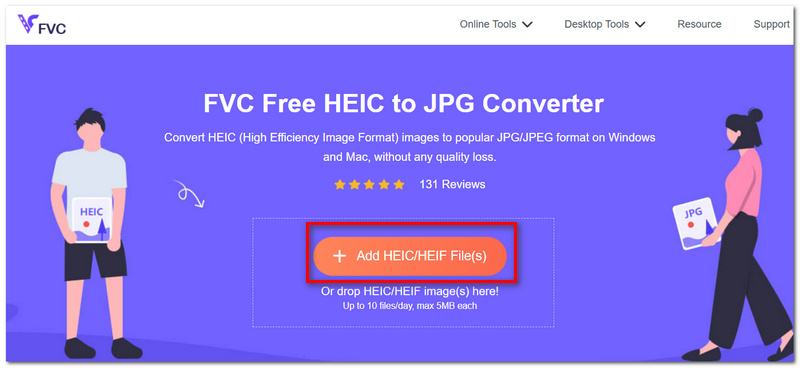
Step 2. Pick the HEIC images you wish to convert. Just sit back. Then wait for the files to be processed.
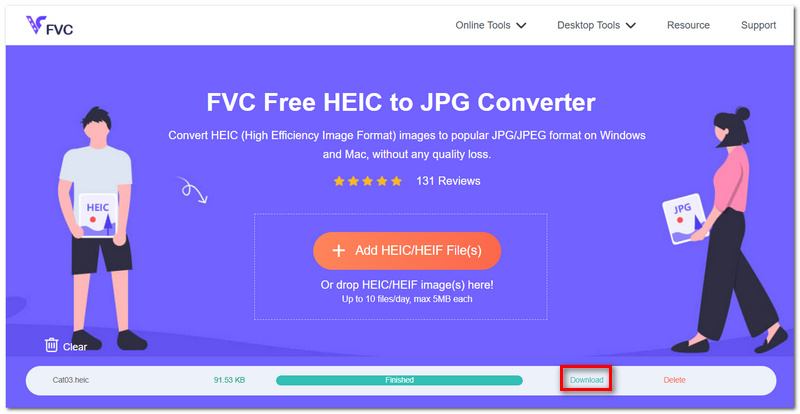
Step 3. Click Download to proceed to save the JPGs. After that, you can download a single file or all files at once.
2. Mac Preview – Built-In Batch Export
Best For: Users of Mac who wish to convert HEIC to JPEG without installing an additional application.
Score: 4/5
Mac Preview is a native macOS application capable of opening HEIC images and exporting to JPEG. Another capability is to handle multiple selected images through Export Selected Images. This would make it useful for small to medium batches.
For a HEIC to JPG bulk converter, Preview is a handy option if your files are stored on a Mac and you'd rather work with native software.
Prós
- Reportedly provided with macOS.
- Can export selected images in bulk.
- Allows you to select the quality of the JPEG you export.
Contras
- Unable to process very large batches.
- Limited when compared to dedicated HEIC conversion applications.
How to Convert HEIC to JPG in Mac Preview
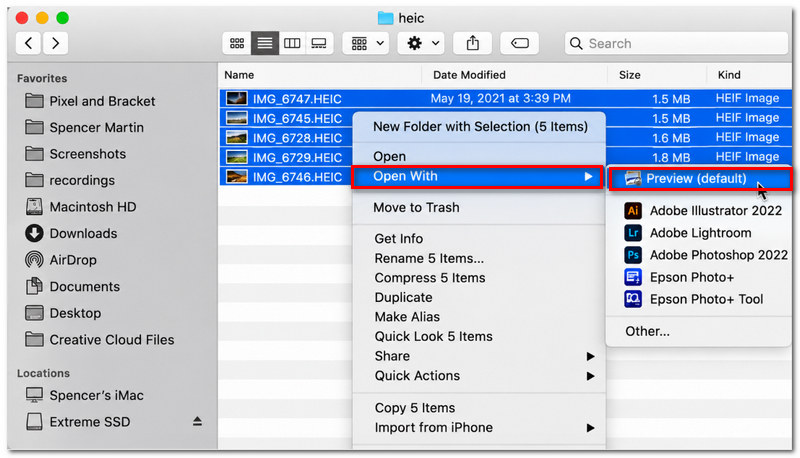
Step 1. Select the HEIC image you want to convert in Finder. Right-click and select Open With Preview.
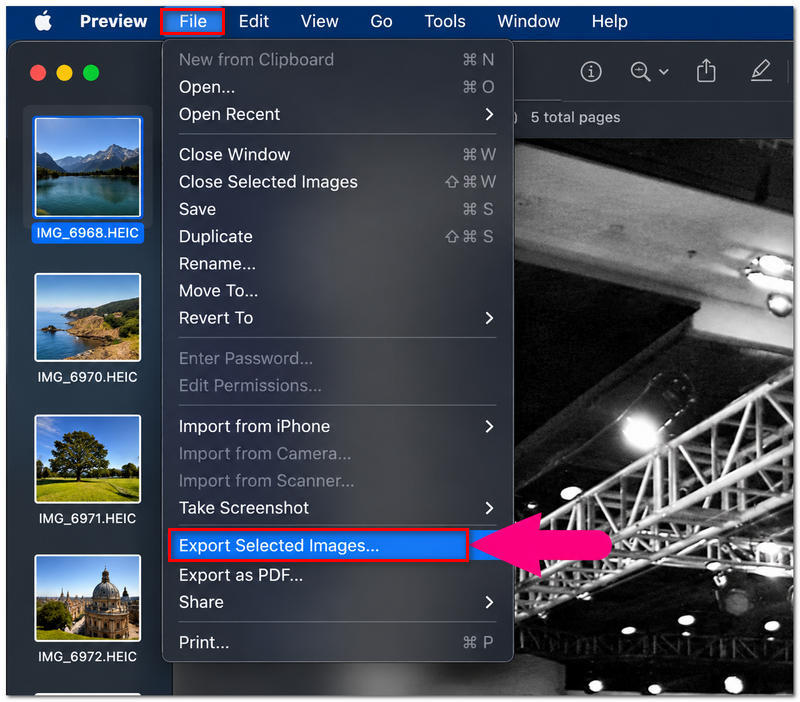
Step 2. Choose the images you want to convert in the Finder sidebar. Select File, then choose Export Selected Images.
Step 3. Pick JPG as your format and choose the image quality to be saved at, as well as the destination folder.
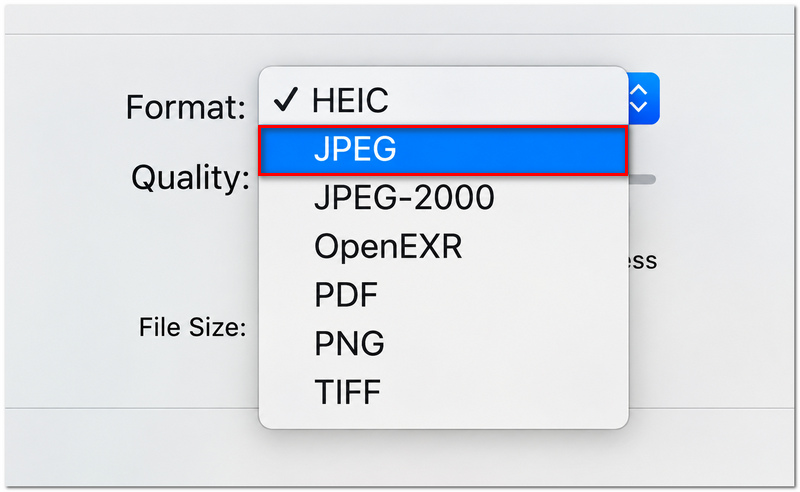
Step 4. Click Choose or Save to export the JPG copies.
The actual menu wording may be just slightly different between different versions of macOS, but the batch workflow should be effectively identical.
3. Windows Photos App – Built-In HEIC Support
Best For: Users of Windows who just want to convert a small handful of HEIC images without the hassle of having to install a separate converter.
Score: 3.5/5
Microsoft Photos is a Windows native app that can view, edit, and file images. Provided it has the necessary HEIF support installed, it can save an HEIC image as a JPG. Still, it is more of a single conversion tool than a real bulk image editor, so this isn't a good choice for a large batch.
Looking for a free bulk HEIC to JPG converter? It will do for a couple of files, but if you're after a bulk converter, there are several more handy.
Prós
- It is already available on Windows.
- After the support for HEIC has been fixed, it plays offline.
- Allows you to convert an opened HEIC image into JPG.
Contras
- No separate batch-export flow.
- Needs HEIF support to start some HEIC files.
How to Convert HEIC to JPG with Windows Photos
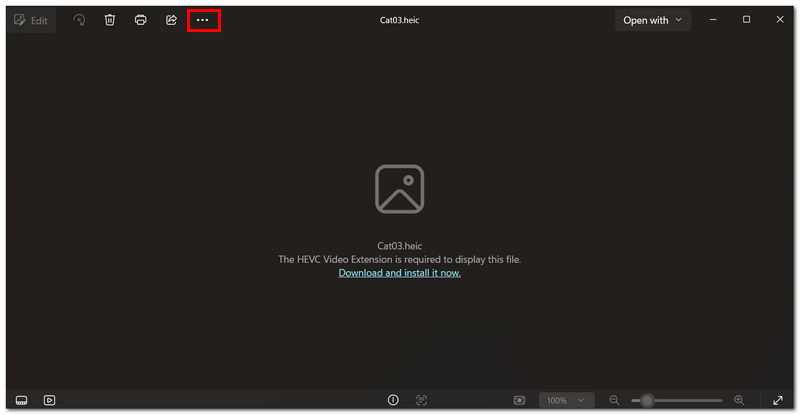
Step 1. Open the HEIC file in Microsoft Photos. Select the options menu (...) in the upper-left corner.
Step 2. Choose Save as. In the Save as type, select JPEG (*.jpg).
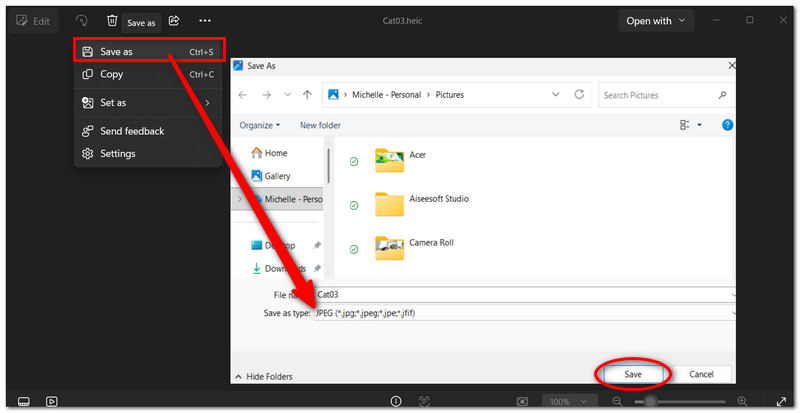
Step 3. Select the destination directory for the converted image and click Save.
Exact menu options may differ based on your version of Windows and the Photos app.
4. Aiseesoft HEIC Converter – High-Quality Batch Conversion
Best For: Those wanting greater conversion flexibility, as there is more control over multiple image conversions.
Score: 4.5/5
Aiseesoft HEIC Converter lets you easily convert several HEIC images at a time and enables you to determine exactly how high the quality should be, what output format you wish to use, and so forth. Available for Windows and Mac.
For a free bulk HEIC to JPG converter, Aiseesoft is available if you require output from a larger number of images with the ability to vary the output options.
Prós
- Converts several HEIC files simultaneously.
- Adaptable picture quality.
- Compatible with Mac and Windows.
Contras
- Installation is necessary.
- The free version has some restricted features.
How to Convert HEIC to JPG with Aiseesoft HEIC Converter
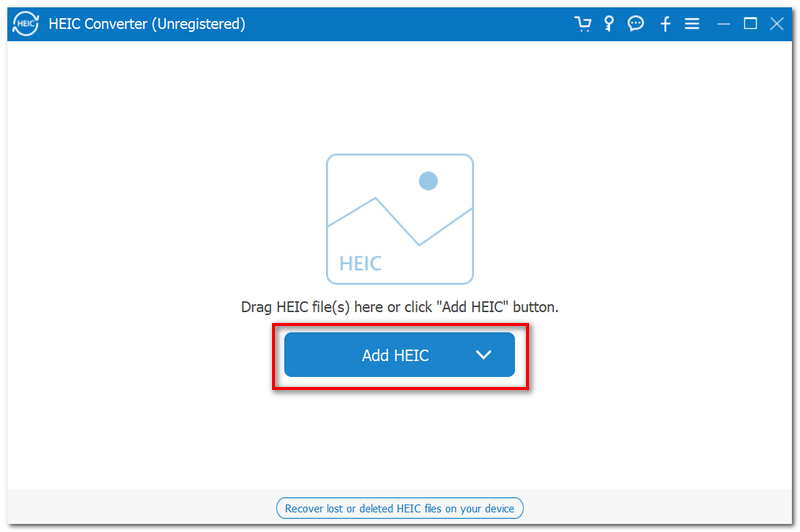
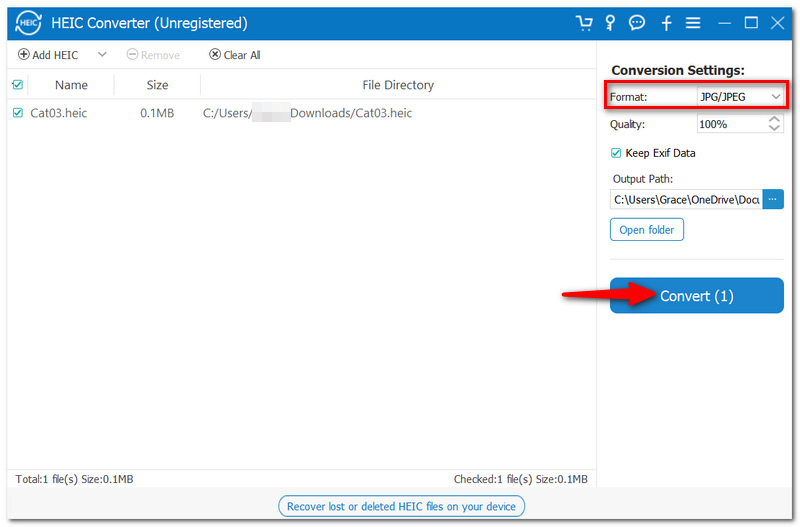
Step 1. Proceed to open Aiseesoft HEIC Converter. Click Add HEIC and browse to your images.
Step 2. Select JPG/JPEG as the output format. Optionally, enhance the image quality as required.
Step 3. Choose the output folder and click Convert. Check the converted JPG files in the chosen directory.
5. iMazing HEIC Converter – Simple Batch Conversion
Best For: Those seeking a light desktop converter to convert several HEIC images.
Score: 4.5/5
iMazing HEIC Converter does what it states on the tin: converts HEICs into more compatible formats, with a simple-to-use interface. Allows batch processing and output options of JPG or PNG.
If you need a simple bulk HEIC to JPG converter, iMazing is a decent choice if you prefer to have software solely for converting without the clutter of editing features.
Prós
- Batch conversion is supported.
- Accessible for Mac and Windows.
- Keeps EXIF metadata intact.
Contras
- Fewer output controls compared to more sophisticated converters.
- Needs to be installed on a desktop.
How to Convert HEIC to JPG with iMazing
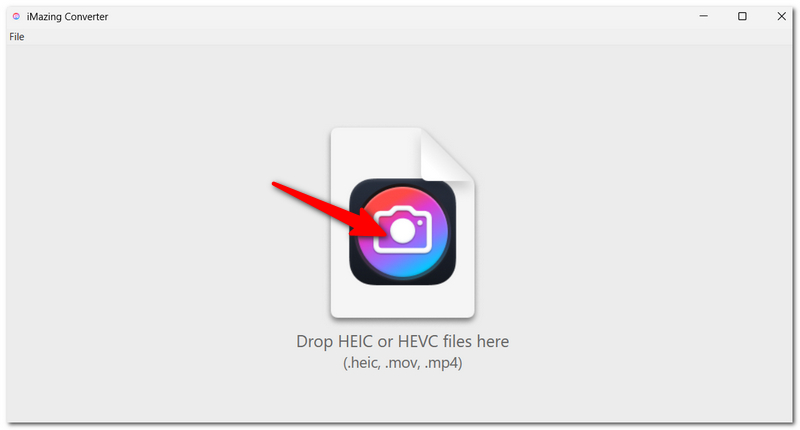
Step 1. Open iMazing HEIC Converter. Drag your HEIC images into the converter window.
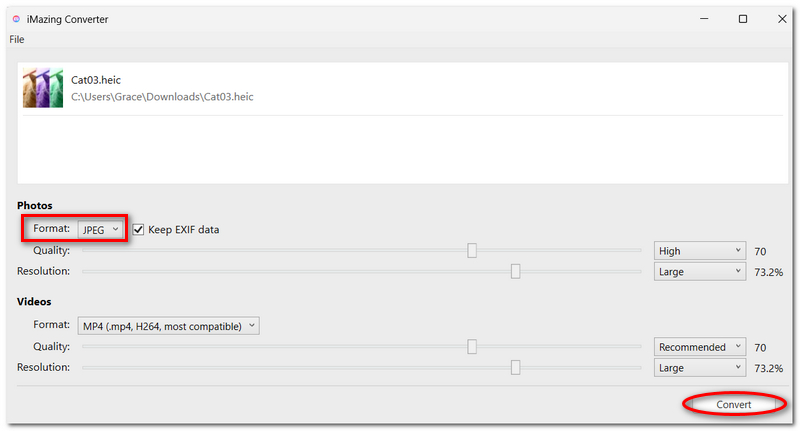
Step 2. Choose JPEG as the output format and select the image quality you want.
Step 3. Choose where to output the result and click Convert.
Step 4. Open your destination folder, and you will see all your JPGs.
6. CopyTrans HEIC – Large Batch Conversion
Best For: People on Windows who have lots of HEIC images to turn into JPEGs.
Score: 4/5
CopyTrans HEIC is a very Windows-centric utility that will allow you to convert HEIC files to JPGs without leaving the File Explorer interface. Batch conversion is also supported, saving you a lot of time if you're dealing with a sizable photo collection.
Prós
- Allows for batches of up to 100 pictures.
- Utilizes Windows File Explorer directly.
- Maintains the quality of the original image.
Contras
- Only Windows.
- Installation is necessary before use.
How to Convert HEIC to JPG with CopyTrans HEIC
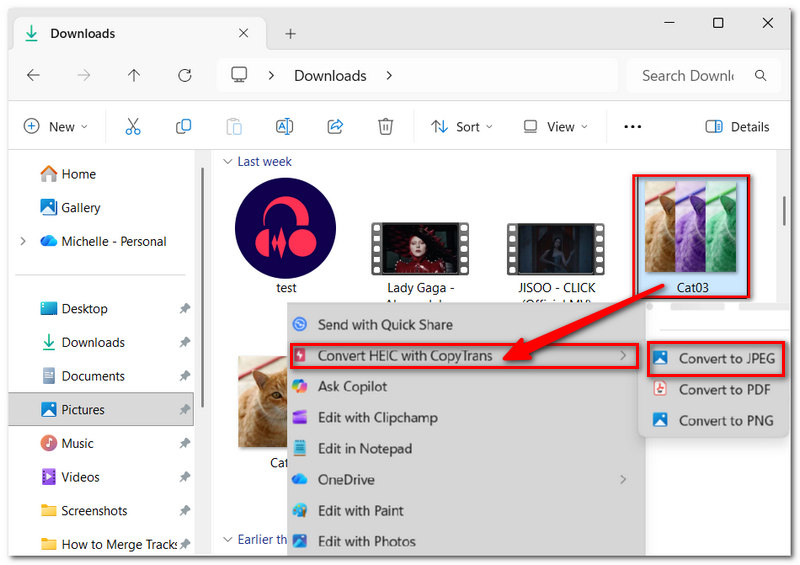
Step 1. Download CopyTrans HEIC onto your Windows PC. Open File Explorer and search for your HEIC images.
Step 2. Choose the images to be transformed. Right-click the selected files.
Step 3. Select Convert HEIC with Copy Trans. Please wait until the conversion is completed. Look in the folder for the generated JPGs.
Part 2. FAQs about Bulk HEIC to JPG Converter
What happens to Live Photos when I convert them to JPG?
The JPG format can only contain a still image, so converting a Live Photo to JPG generally gives you the still photo rather than the motion portion. If you need the motion, keep the original Live Photo or export its video separately.
Is it better to process 100 pictures in one shot, or should we break them into smaller groups?
A smaller batch may be more dependable for a large collection, particularly on a less powerful computer with limited available memory. The batch size that works best will depend on your converter and your computer as much as it does on the number of photos you have.
Is there any benefit in converting the HEIC files to JPG to also remove transparency?
Yes. JPEG does not support transparency. If you save a transparent image as a JPG, portions of the image that are transparent may be filled with a background.
Conclusão
-
 Converta facilmente HEIC para RAW usando os melhores conversores
 Como converter HEIC para RAW? Este artigo fornece as melhores maneiras de converter HEIC em RAW usando os melhores conversores online e offline.
-
 Melhores 9 Conversores HEIC para PNG para PC e Mac [Online e Offline]
 Descubra os melhores conversores online e offline aqui. Apresentamos os melhores e gratuitos conversores HEIC para PNG para Windows e Mac.
-
 Como corrigir fotos HEIC? Melhores e fáceis maneiras de abrir
 Não consegue abrir o HEIC Photos no seu PC com Windows? Este artigo ensinará as melhores e mais fáceis maneiras de corrigir fotos HEIC e abri-las no seu PC com Windows.
