


 Video Converter Ultimate
 Gravador de ecrã
 Reparo de vídeo
 Secure Download
Melhore a resolução da foto do iPhone usando as melhores maneiras que você deve conhecer [mais recente]
If you need a mobile device that can capture high-definition images, it is a smart move to pick an iPhone because of its innovative high-end front and back camera. Sorry Android users, we need to face the truth that the camera of the latest iPhone is way better. Most people usually take a snap using iPhone devices, but not all of the images they capture are perfect; some needs adjustment, editing, improvement, or upscaling. If you want to improve your iPhone photo resolution, follow this article as we indicate the information you need to know!

Parte 1. Maneira recomendada: como aumentar a resolução de fotos online com o melhor upscaler de imagem
How to change photo resolution on iPhone 13? If this is your problem, you must use the FVC Free Image Upscaler. Everything you upload here, this tool will upscale it immediately with its proudly AI technology. You can sit and relax after you upload the image here because the tool will increase the resolution of the image you upload here. Unlike other software you can use, you wouldn’t need to download an installer here to use it. Also, FVC doesn’t require you to log in to your account here, so you are safe from leaking information, and it doesn’t give you cookies. So, if this tool caught your attention, you can immediately follow the steps we added below to fix the problem.
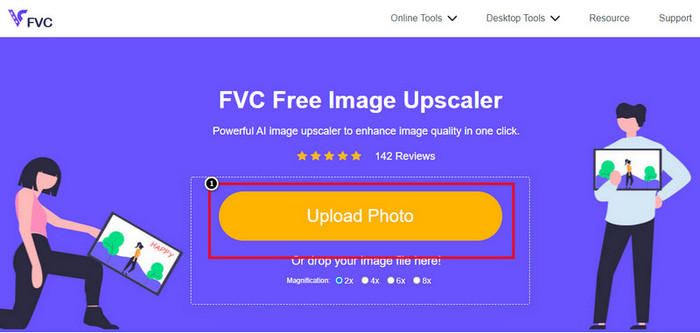
Step 1. Open the online tool by clicking the name of it above, and a new tab will automatically be opened; this will lead you to the official website.
Step 2. Tick the Upload Photo to insert the image you want to upscale in this tool. After you’ve clicked it, a folder will show on your screen, select the image, and press Open.
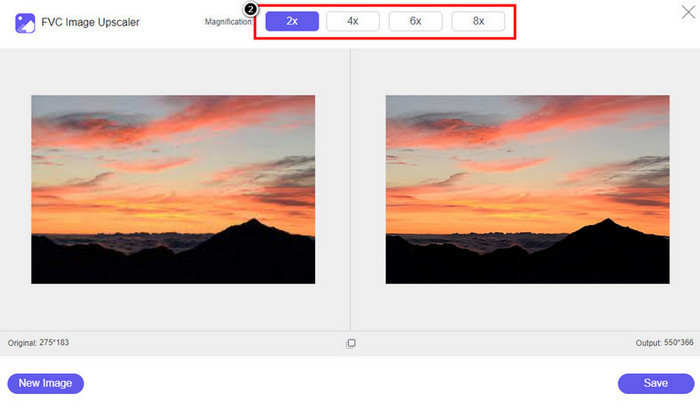
Step 3. Choose what type of Magnification you want to be applied to the enhanced version of the image; you can try them all to see which options make your image better in looks.
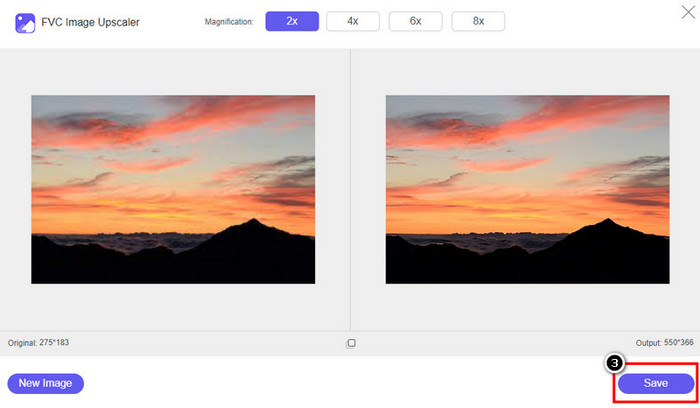
Step 4. Click the Save button to download the software you improve here; This tool will directly save it to your local folder. Check out the upscaled version of the image you edited here.
Parte 2. Como alterar a resolução da foto no iPhone [Melhore sua imagem salva facilmente]
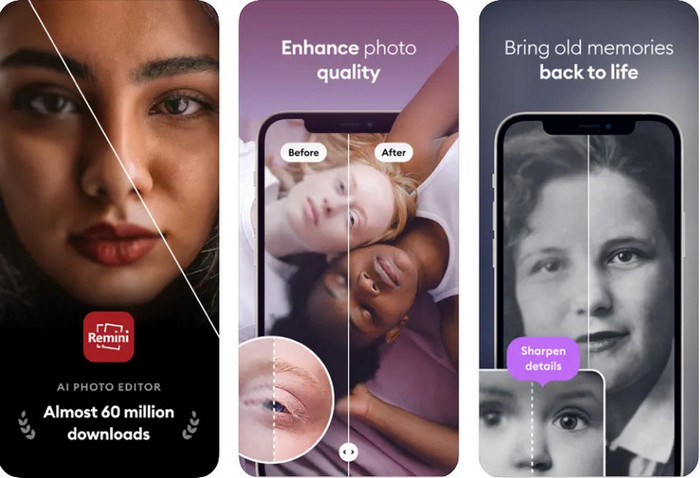
Remini App allows you to change the resolution of pictures iPhone to make them look even better. You can download this app on AppStore once you visit. This app is an all-in-one image editor that can help you enhance and turn black and white images into colorized ones with a single swipe. With this app, you can upscale any images up to 4x with the help of its AI technology. If you want to use this app, then you can copy the step-by-step we add next.
Step 1. Download the app on your iPhone so that you can start using it.
Step 2. Open the app and press Enhance. Select the image you want to improve that is in your Photos.
Step 3. Wait for the processing to enhance the image you upload; you can drag the slider to see the before and after of the image.
Step 4. Now that the processed image is done click the Save button to download the image you enhance.
Parte 3. Como alterar a resolução da foto no Android [Melhorar efetivamente as imagens]
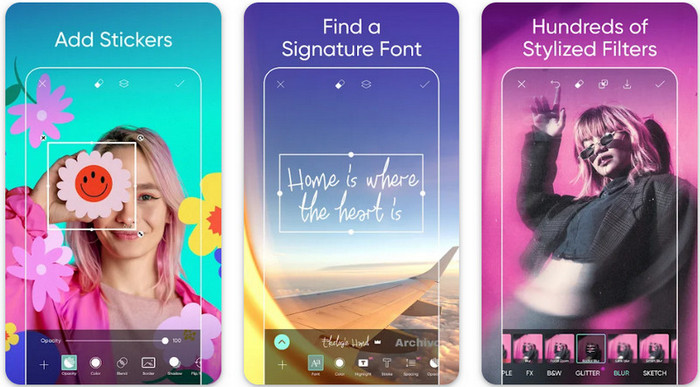
How to change picture resolution on Android? If you want to upgrade the image resolution you capture on your Android; you can try using Picsart. It is a well-known application you can download on your Android to edit images that you have to make them look better. This app is rich in features that you can take advantage of. The enhancement we will teach you isn’t the typical way you think, but it can improve image quality. Follow the detailed information below to know more!
Step 1. Download the app via the Play Store, then launch it. Choose the image you want to improve, then upload it.
Step 2. Go to Effects, click Blur, drag the slider for blur to set it to 5 to 10, and press the check icon to save it.
Step 3. Open the Tools and go to Curve.
Step 4. Adjust the curve by dragging it up and down to make your image resolution look better.
Step 5. Hit the check icon to save the changes you applied to the image by bending the curve, then Export it.
Parte 4. Como ajustar a configuração da câmera para capturar imagens melhores! [Dicas e truques]
Como aumentar a resolução de uma foto em um iPhone para capturar um retrato de imagem melhor? Nem todos os recursos são apresentados no aplicativo Câmera do seu iPhone. Algumas das configurações para melhorar a qualidade da imagem são as configurações. Você está interessado em como lidar com esse problema? Em seguida, prossiga para ler as informações que adicionamos abaixo.
Step 1. Go to your Setting and open the Camera App.
Step 2. Click the Formats.
Step 3. Set the final output to Most Compatible, and that is the JPEG. Every time you capture images are in the JPEG extension, which we all know uses lossy image compression with a high-quality image output.
Related:
How to Fix HEIC Photos Using the Best Tools
Photo Blemish Removers You Must Use to Have Smooth Silky Skin on Images
Parte 5. Perguntas frequentes sobre como alterar a resolução da foto no iPhone
O que torna a qualidade da imagem no iPhone ruim?
Há muitos fatores que você precisa considerar o que pode ser o problema. Antes de capturar uma imagem, certifique-se de limpar a lente do seu iPhone e ter uma mão estável, ou você pode usar um suporte de câmera e usar o alto ISO para objetos em movimento. Se você fez isso e ainda tem qualidade ruim, pode usar as ferramentas que listamos neste artigo.
A alteração da qualidade da imagem aumenta o tamanho do arquivo?
De fato, a qualidade da imagem ficará maior depois de aprimorá-la. Ao adicionar pixels à imagem, após aprimorá-la, o tamanho do arquivo da versão aprimorada também ficará maior.
Alterar a resolução da foto no iPhone é fácil?
Sim, você não precisaria ter anos de experiência para melhorar a resolução da foto do seu iPhone, então se você quiser saber como fazer isso, você pode copiar as etapas que adicionamos acima e as ferramentas que apresentamos que você pode usar.
Conclusão
After all, we now have a clear idea of how to make iPhone photo resolution even better than before with the help of these dedicated apps! We hope that this article help you deal with the problem with different solution on iPhone and Android. Everyone hates bad image quality so we are here to fix it. Follow the steps we add above to finish it in no time successfully!
-
 Como converter imagem de baixa resolução em alta resolução online
 Se você deseja aprender a converter imagens de baixa resolução em imagens de alta resolução online, este artigo é para você. Leia completamente para saber como.
-
 Os 6 principais removedores de fotos de manchas que você deve ter agora [2022]
 Precisa de um removedor de manchas de fotos para ter uma pele lisa? Não se preocupe mais! Aqui, apresentaremos diferentes ferramentas que podem ajudar seu dispositivo.
-
 Remova a marca d'água StarUML usando a versão gratuita e paga que você pode usar
 Deseja remover a marca d'água StarUML na saída final? Bem, existem duas maneiras de fazer isso, e vamos discuti-las aqui.
