


 Video Converter Ultimate
 Gravador de ecrã
 Reparo de vídeo
Como remover o fundo no Photoshop [Guia 2025]
Removing a background is now becoming a necessity, especially with students and professionals. Mostly in school, students need to create a project where they need only the main subject or object in the photo, while professionals like graphic designers use background removal to create clean, polished visuals for presentations, marketing materials, and social media content. Now, in this guide, you will learn four effective ways to remove the background in Photoshop. Moreover, don’t miss the chance to discover one of its best alternatives for removing backgrounds. Scroll for more!

Parte 1. Como remover o fundo no Photoshop com a Ferramenta de Seleção Rápida
A Ferramenta de Seleção Rápida é uma das opções mais fáceis para iniciantes que desejam aprender a remover o fundo no Photoshop. Esse método detecta e seleciona automaticamente as bordas do objeto com base na cor e na textura. Basta pintar sobre a área que deseja manter e o Photoshop expande a seleção de forma inteligente. Esse método é ideal para imagens com alto contraste entre o objeto e o fundo.
Here’s how to remove the background in Photoshop with the Quick Selection Tool:
Step 1. First, open your photo in Photoshop by going to the File tab and clicking Open. After that, select the Object Selection tool in the toolbar on the left panel.
Step 2. Next, move your cursor to the subject of your photo and wait for it to turn blue. Meanwhile, it doesn’t automatically turn blue; move your cursor in tiny circles.
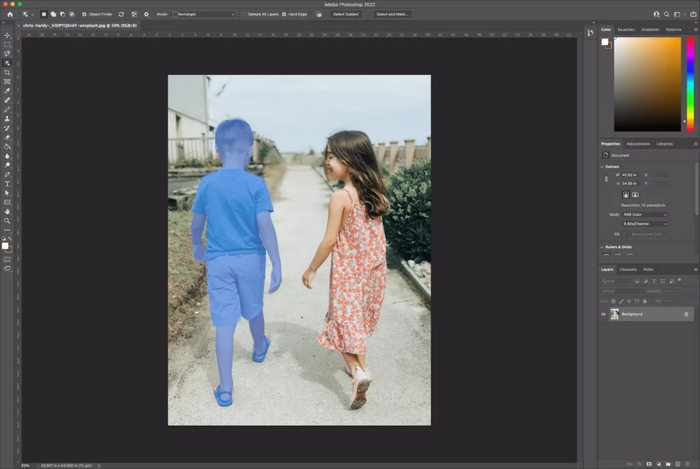
Step 3. Now, to erase the background from your photo, press the Shift key while selecting all objects you want to keep in the photo.
Step 4. After that, go to Select and choose Inverse to invert the selection. This means that your background is now selected instead of your objects.
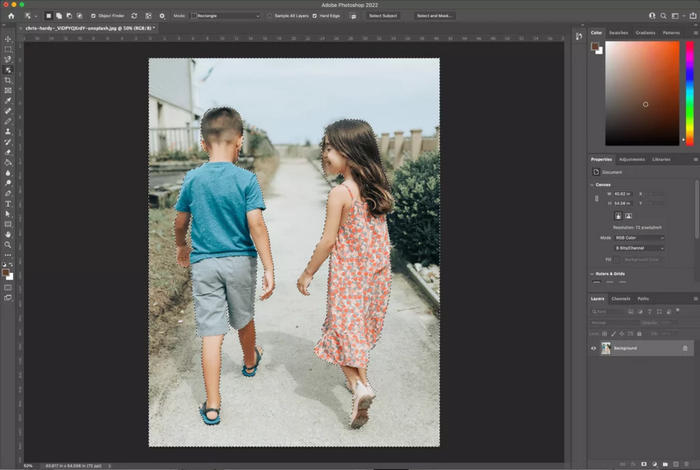
Step 5. Click the lock on the right side of your image’s layer to unlock it. After that, the layer name will change to Layer 0 if you have no other layers.
Step 6. Lastly, to remove the background, click the Eraser Tool and start erasing the background.
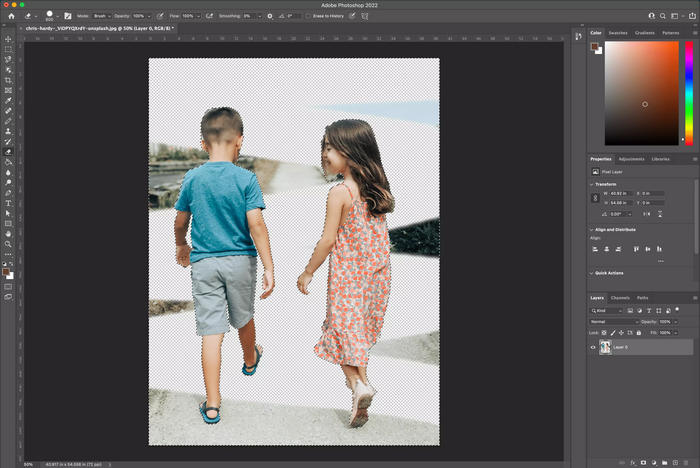
Antes de começar a apagar o fundo, é melhor que você faça traços grandes com o pincel para que ele possa apagar o fundo com facilidade.
Parte 2. Remover o fundo no Photoshop usando a ferramenta Borracha de Fundo
A ferramenta Borracha de Fundo é um método útil para quem quer aprender a remover o fundo no Photoshop, especialmente ao trabalhar com imagens de alto contraste. Esse método funciona pincelando sobre o fundo e apagando automaticamente os pixels que correspondem à cor selecionada sob o cursor. Além disso, essa ferramenta é ótima para limpar as bordas ao redor de cabelos, pelos ou outros detalhes finos. Embora possa exigir mais tempo e esforço do que outros métodos, ela oferece mais controle e ajuda a obter um resultado mais limpo e preciso.
Here’s how to delete a background in Photoshop using the Background Eraser Tool:
Step 1. First, open your image in Photoshop. After that, right-click your background layer and click Duplicate Layer.
Step 2. Next, select the Background Eraser tool from the toolbox on the left panel. Take note that this tool may be hidden below the Eraser tool. To access it, click and hold the Eraser tool to reveal the Background Eraser tool.
Step 3. After that, in the tool options bar, click the brush icon to reveal the brush panel. From there, you can change the hardness of your brush.
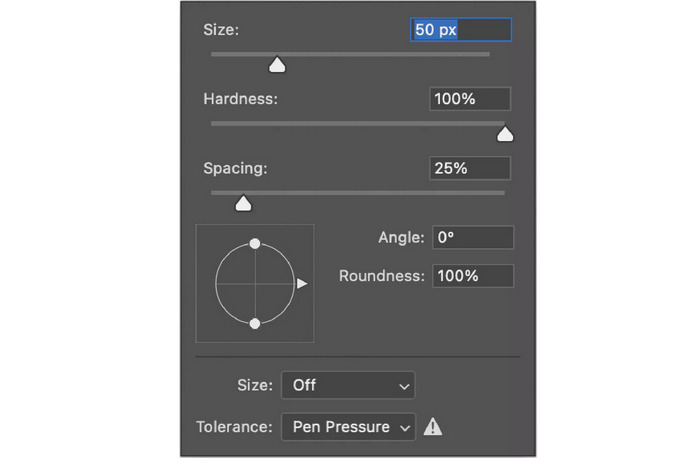
Note: It is important to take note that the size of can be whatever you deem appropriate for the image that you’re working with.
Step 4. Now, in to tool options bar, set the Sampling to Continuous, it is the first of the three icons located right after the brush size setting. Then, change the Limits setting to Find Edges, and adjust the Tolerance to around 20 to 25% for more accurate background removal.
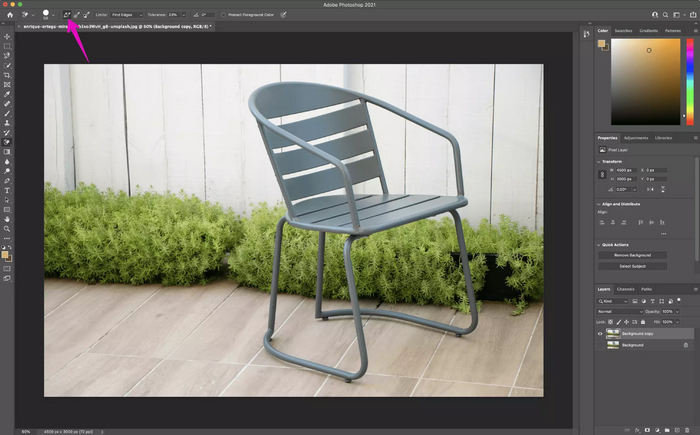
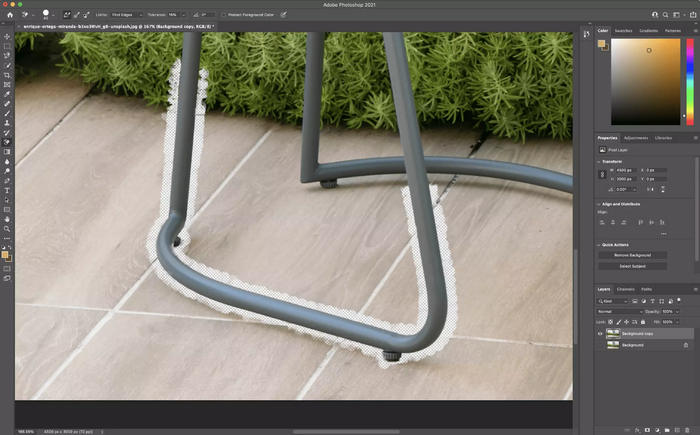
Step 5. Begin removing the background around your subject by clicking and dragging the Background Eraser tool across the unwanted areas. Be careful to keep the crosshairs inside the brush from overlapping with your subject to avoid accidentally erasing it. If needed, zoom in for a closer view to help you work more precisely around detailed edges.
Step 6. If changing the brush size doesn’t help and it starts erasing your subject, undo the last action. Then, go to the tool options bar at the top and set Sampling to Once, Limits to Discontiguous, and Tolerance to about 10%.
Ao usar a ferramenta Borracha de Fundo, tente ativar a opção Proteger Cor de Primeiro Plano na barra de opções e selecionar uma cor do seu objeto primeiro. Isso ajuda a evitar que a ferramenta remova acidentalmente partes importantes do objeto, principalmente ao redor do cabelo ou em bordas suaves.
Parte 3. Como remover o fundo no Photoshop usando a Ferramenta Caneta
Outro método que você pode usar para remover o fundo no Photoshop é através da Ferramenta Caneta. Essa ferramenta oferece a maior precisão na remoção de fundos, o que é ideal para imagens com bordas limpas e definidas. Ao traçar manualmente pontos de ancoragem ao redor do objeto, você cria um caminho que o contorna. Uma vez que o caminho esteja completo, você pode convertê-lo em uma seleção e remover o fundo com controle preciso. É um método essencial para recortes de nível profissional.
Here’s how to edit out a background in Photoshop:
Step 1. Open your image in Photoshop, duplicate the Background layer by clicking the Duplicate Layer, and hide the original by clicking the eye icon. Then select the Pen Tool from the toolbar.
Step 2. After that, zoom in and start clicking around your subject to outline it with anchor points. Click and drag to create curves if needed. Use the Direct Selection Tool to adjust any anchor points or curves as you go.
Step 3. Once you complete the path around your subject, go to Window and choose Paths to open the Paths panel. Click the menu icon, select New Path, and name it to save.
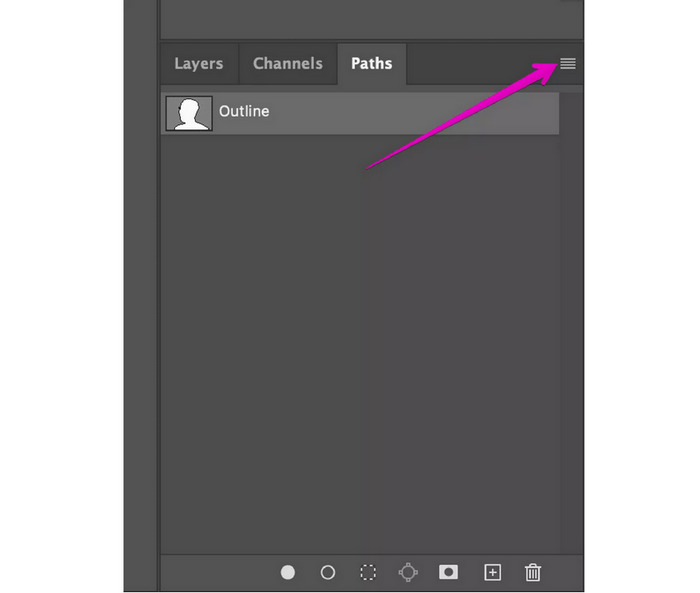
Step 4. Next, right-click your saved path in the Paths panel and choose Make Selection, then click OK.
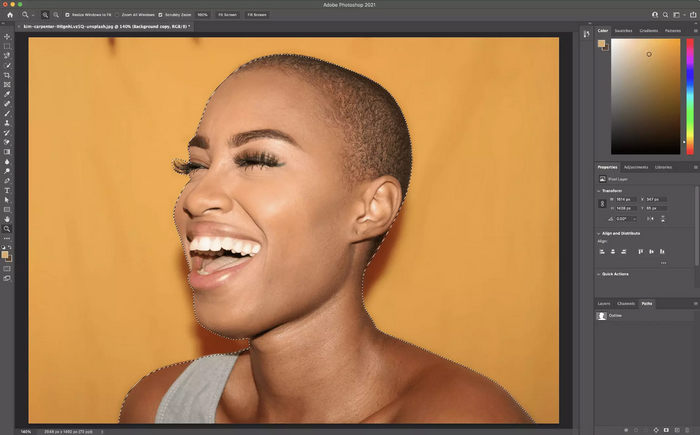
Step 5. After that, go to Select and choose Inverse to change the selection from your subject to the background. This will highlight the background so you can delete it.
Step 6. Lastly, press Delete to remove the background. You’ll see a transparent checkered background in its place.
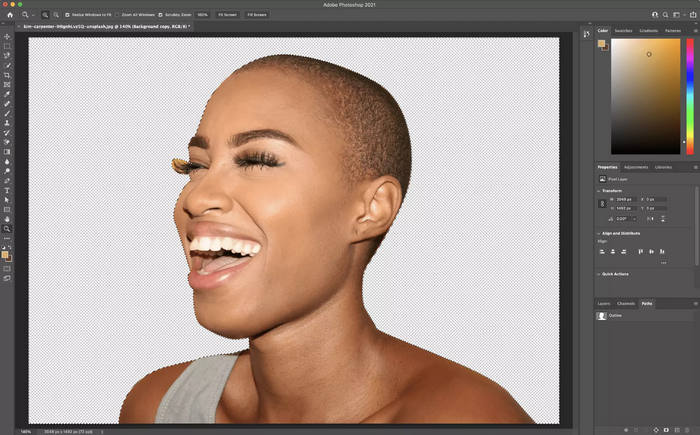
Para maior precisão, reduza os pontos de ancoragem e crie curvas mais longas ao traçar com a Ferramenta Caneta. Menos pontos, porém mais suaves, facilitam a edição e resultam em uma seleção mais limpa e natural.
Parte 4. Remova o fundo de uma foto no Photoshop usando a Ferramenta Laço Magnético.
The last method that you can use to delete a background in Photoshop is through the Magnetic Lasso Tool. This tool helps you trace around your subject by automatically sticking to its edges as you move your cursor. It works by detecting the contrast between the subject and the background and adds anchor points along the way. This method is a quick and easy way to select objects with clear edges, making background removal faster and more accurate.
Here’s how you can use the Magnetic Lasso Tool to remove a background in Photoshop:
Step 1. Open your image in Photoshop. Right-click the Background layer, choose Duplicate Layer, and click OK. Then, turn off the original layer by clicking the eye icon.
Step 2. After that, select the Magnetic Lasso Tool from the toolbar. Carefully trace around your subject, and the tool will automatically stick to the edges as you move your cursor.
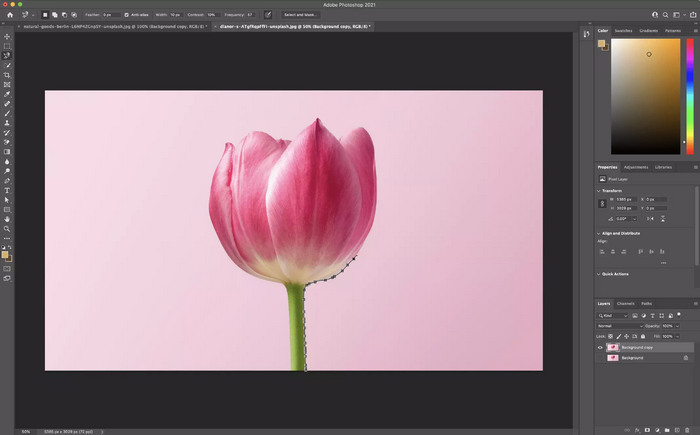
Step 3. Now, you’ll need to go around your subject completely and connect to your starting point. Once done, click your starting point to complete the selection. You’ll see a moving dotted line marching ants around your subject.
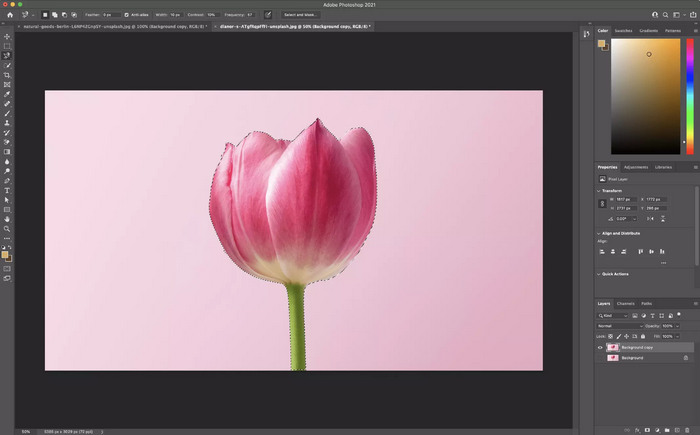
Step 4. Next, to save your selection, go to the Selection and choose Save Selection.
Step 5. Lastly, to delete the background, go to Select and choose Inverse to invert the marching ants. After that, click Delete.
Se a Ferramenta Laço Magnético não estiver se ajustando corretamente às bordas, pressione a tecla Caps Lock para exibir o cursor preciso e ajuste a configuração de Largura na barra de opções para controlar a distância que o Photoshop percorre para detectar o contraste das bordas. Uma largura menor funciona melhor em detalhes finos.
Parte 5. Alternativa simples e gratuita ao Photoshop
If you’re looking for a simple and free alternative tool to remove background in Photoshop, the best tool that you can use is the FVC Free Background Remover. With this tool, you can automatically or manually remove the background of your photo. You just need to import the photo that you want to edit. Moreover, you can see the preview of your photo while manually removing its background for you to visualize what it looks like before saving it. To use this tool, follow the steps below:
Step 1. First, you need to access the tool on their official website. To do that, on your search engine, search for FVC Free Background Remover.
Step 2. Once you’ve accessed the tool, click on the Upload Image and import the photo that you want to remove its background.
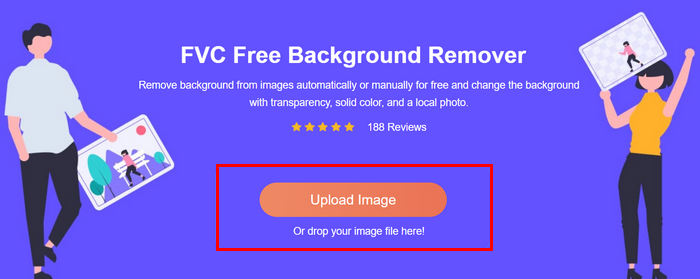
Step 3. After uploading, choose the Keep option above, adjust your brush, and start brushing the part that you want to keep. Alternatively, with the Erase option above, you can use that to directly remove the background of the photo. Both work in removing the background of the photo. Once done, just click the Download button below.
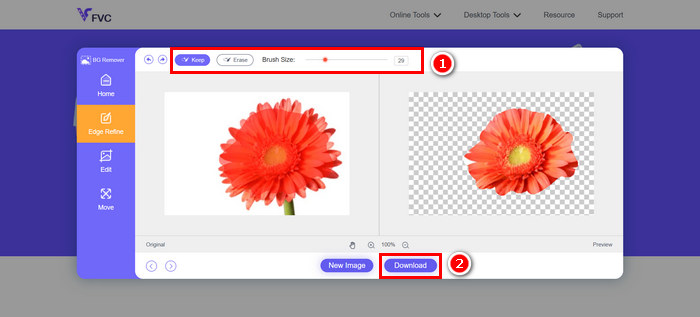
O FVC Free Background Remover é realmente uma das melhores alternativas para remover o fundo de uma imagem no Photoshop. É simples, fácil de usar e gratuito. Além disso, pode ser acessado facilmente online.
If you want to know how to add backgrounds to photo, read here.
Parte 6. Perguntas frequentes sobre como remover um fundo no Photoshop
Qual é a ferramenta mais fácil do Photoshop para remover um fundo?
A Ferramenta de Seleção Rápida é considerada a mais fácil para iniciantes removerem o fundo no Photoshop. Ela permite que você pinte sobre o objeto e o programa o detectará e selecionará automaticamente.
Como posso remover o fundo de imagens detalhadas, como cabelo ou pelos?
Para remover o fundo no Photoshop, especialmente de imagens detalhadas como cabelos ou pelos, você pode usar a Ferramenta Borracha de Fundo. Ela é ideal para imagens com detalhes finos, pois apaga pixels com base na amostragem de cores, preservando bordas complexas como as de cabelos ou pelos.
Como posso remover o fundo de um objeto no Photoshop gratuitamente?
O Photoshop não é gratuito. No entanto, você pode usar uma ferramenta como o FVC Free Background Remover para remover fundos online gratuitamente. Basta fazer o upload da sua imagem, apagar o fundo e baixá-la.
Conclusão
Now that you know exactly how to remove a background in Photoshop, it’s time for you to explore which method and tool works for your needs. You just need to take time practicing if you’re new to Photoshop. Meanwhile, if you want a free and easy method, you can use the FVC Free Background Remover tool to remove the background of your photos. So, what are you waiting for? Start now!
-
 Como cortar no Photoshop: Guia do iniciante [2025]
 Descubra como cortar imagens no Photoshop com este guia fácil de seguir. Além disso, aprenda como selecionar áreas, ajustar proporções e muito mais para cortar fotos.
-
 Como aguçar a imagem na foto usando 3 maneiras [Tutorial rápido]
 Problema com a imagem sem nitidez? Aqui, apresentaremos como aprimorar imagens no Photoshop usando as três maneiras que adicionamos.
-
 Como adicionar uma marca d'água no Photoshop [Guia para iniciantes]
 Quer saber como adicionar uma marca d'água a um vídeo no Photoshop? Nesse caso, este artigo fornecerá uma ou duas coisas que você precisa saber.
