


 Video Converter Ultimate
 Gravador de ecrã
 Reparo de vídeo
 Secure Download
6 maneiras mais eficazes de redimensionar uma imagem na Web e na área de trabalho
Com bilhões de fotografias de prestígio que podemos baixar, a maioria de nós tira belas imagens, mas há casos em que seu tamanho não é o que mais preferimos. Os usuários tentaram redimensionar a imagem que tinham ajustando a altura, largura e proporção da imagem usando o editor, o que alterou o PPI da imagem. O resultado não é o que todos esperavam; imagens de alta definição ficam pixeladas.
Why? Because the editor they used to resize can’t create or fill in the gap of pixels on the resized version. Thus, the queries about this topic became popular, and we are here to help you solve the problem. In this blog post, we will let you have hands-on experience on how to resize an image without any distortion left on the final output.

Parte 1. Melhores redimensionadores de fotos que você pode acessar na Web para redimensionar imagens on-line [3 ferramentas gratuitas]
Essas ferramentas online que adicionamos aqui estão disponíveis em diferentes navegadores da Web que você possui em seu dispositivo. Além disso, eles são gratuitos, mas há uma ferramenta que você precisará comprar para usar sem limitações. No entanto, essas são ferramentas on-line capazes que você pode acessar para começar a redimensionar a imagem que possui. Leia os passos para saber como usá-los.
1. FVC Free Image Upscaler - Melhor redimensionador de imagem na Web [Opção favorável]
With FVC Free Image Upscaler Online is an artificial intelligence web tool that can quickly resize images without losing quality. Indeed, the web tool will automatically resize every image file you upload here. Despite being an online tool, its performance in resizing is fast and effective. Every image you upload here is automatically deleted on the server once you resize it. Also, it has the cleanest and most versatile resizer you will ever need; even though you are using different devices, you can access this web tool as long as you have internet connectivity. Want to see how this software performs in this task? If so, read the steps below and copy them to change the image size quickly and effectively.
How to Resize Image Using FVC Free Image Upscaler:
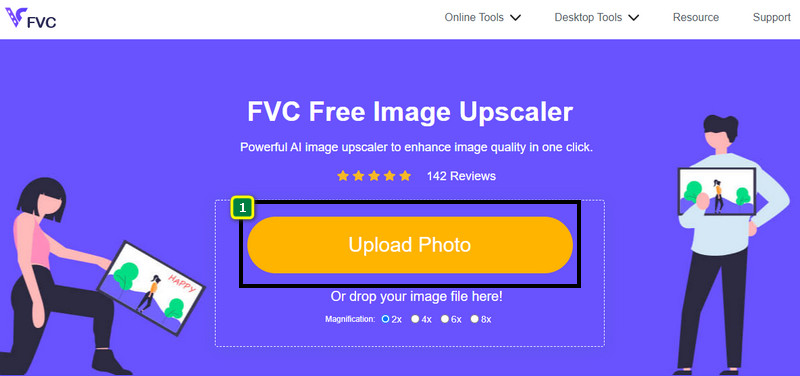
Step 1. To access the web tool, you can click this link, which will automatically lead you to the official website of the resizer.
Step 2. Click the Add Image so that a folder will show on your screen, select the image file you want to upload, and press Open.
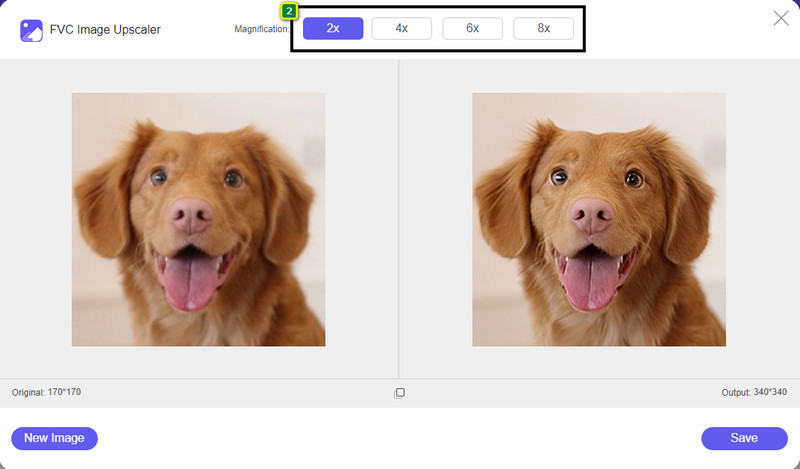
Step 3. To change the picture size, you must select what type of magnification to apply to your image. You can see that the overall dimension of the image is changed once you try and click the 2x, 4x, 6x, and 8x
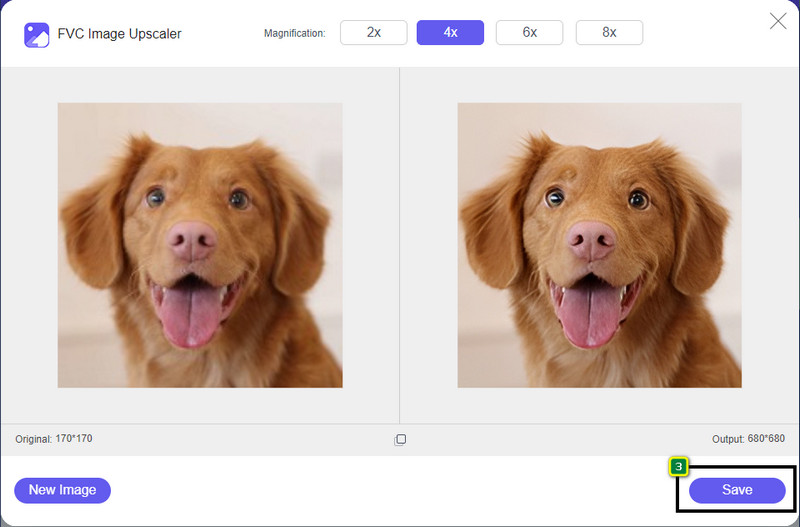
Step 4. After you have selected the magnification you want to apply, voila, you can now press Save to download the resized version of it on your desktop drive.
2. Seja divertido - Editor de fotos [gratuito e pago]
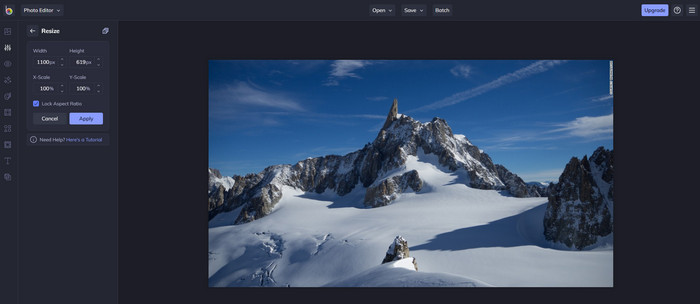
Be Funky - Photo Editor is a creative platform you can use to make extraordinary things on your images. It can resize BMP without losing quality. This tool is considered one of the finest image editors you can access online. Though it has a similar GUI to Photoshop, the features it brings are simplistic and easy to understand, so we can say that it is also user-friendly. So, if you want to try using this online tool to resize your image easily, follow the steps we include here.
How to Resize Image Using Be Funky:
Step 1. Search the name of it on your web browser, then click Get Started and Edit Photo.
Step 2. Press Open to upload the BMP or any images you have that you want to resize here.
Step 3. Go to Edit and press the Resize option.
Step 4. Here, you can freely change the width and height or the x and y scale of the image. Then press Apply to see what the resized version looks like.
3. Redimensionador de Imagem Simples [Grátis]
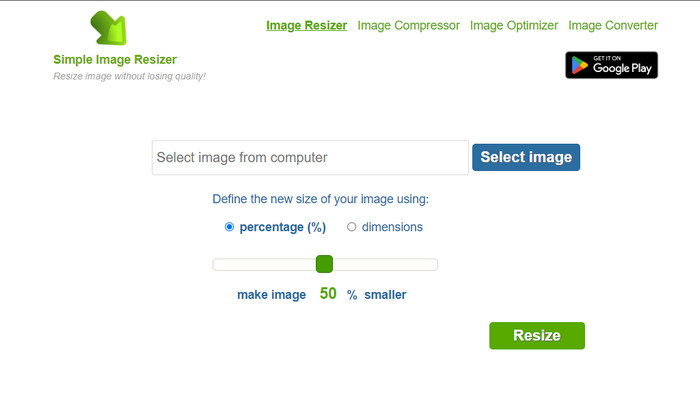
Simple Image Resizer allows you to resize an image by defining the new size of the image by changing the percentage or measurement. It is the last image resizer we added to this article. Its simple GUI and ease of use became the major factor in why we added this. In addition to its resizing feature, you can optimize, compress, and convert your image here for free but with annoying ads on the web. So, if you want to try using this resizer online, follow the steps below.
How to Resize Image Using Simple Image Resizer:
Step 1. Using your web browser, search the name of it to start using this web resizer.
Step 2. Press Select Image to add the photo you want to resize here.
Step 3. Choose which you prefer to use on resizing, and change the percentage or measurement. Either way, they do the same.
Step 4. Click Resize to save the final output on your desktop.
Parte 2. Como redimensionar uma imagem no Windows e Mac [Pago e Gratuito Offline]
Ao contrário da primeira ferramenta online 3 mencionada, as próximas ferramentas que introduzimos não dependem da internet, o que significa que mesmo que você não tenha internet, você pode usá-las sem problemas. Pois eles podem ser baixados ou já pré-instalados em sua área de trabalho. Aprenda a usá-los hoje lendo as informações que adicionamos a cada um deles.
1. Adobe Photoshop [Windows e Mac]
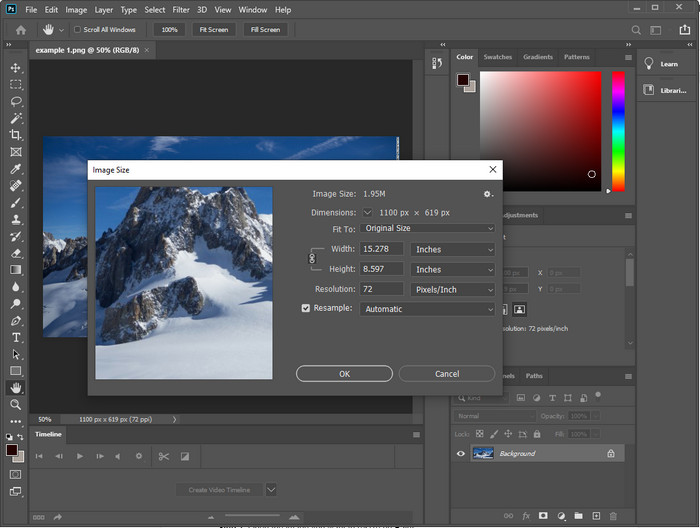
Our first choice offline image resizer you can download on your device is Adobe Photoshop. Why? Because it creates another pixel data once you resize it and avoid having a low-quality output at the end of the process. Plus, this software is known for being a professional image editor that could easily process any raster and vector images. Though the software is a professional tool, it is still a bit too much to purchase if you are about to use it only on resizing. But if you are interested in how to resize an image in Photoshop.
How to Resize Image Using Adobe Photoshop:
Step 1. Download and install the software on your desktop by visiting its official website.
Step 2. Hit the File, and locate the image on the folder after you click Open.
Step 3. Press the Image menu at the top, then select the Image Size.
Step 4. Change the measurement of Width and Height according to your preferences, then click OK to apply the changes.
Step 5. Go back to File and save the image on your desktop.
2. Pinte [Aplicativo padrão no Windows]
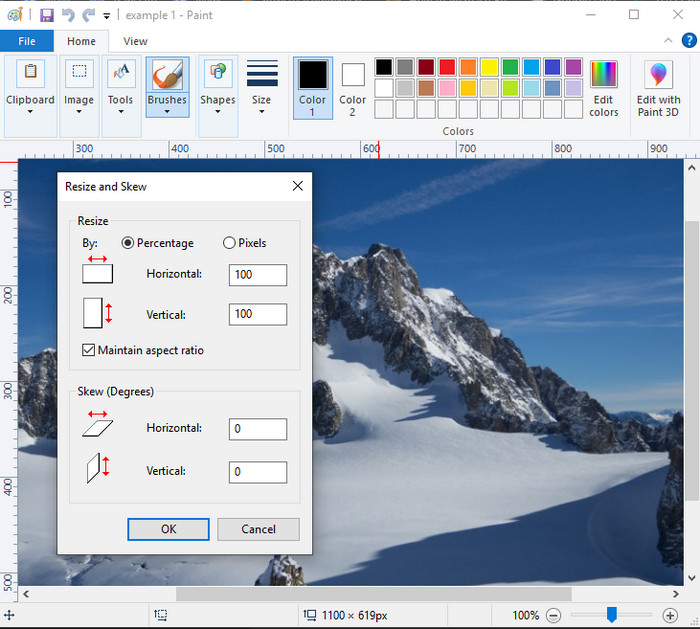
Paint is known for being an application that you can draw on a blank canvas. Different users of Windows normally use it to create something into a blank page, add details on images, and resize them accordingly. Though it isn’t a dedicated editor, it can still resize any raster image you have on your local drive. The advantage of using this is that you wouldn’t need to download the software on your Windows because it is pre-installed. So, if you want to know how to resize low-resolution pictures with this app, read the tutorial, we add below.
How to Resize Image Using Paint:
Step 1. Open the image you want to resize on Paint.
Step 2. After opening the image, click the two-squares icon to start resizing the image you open here.
Step 3. To resize the image, you can change it by percentage or pixel. After you’ve changed the number, press OK to apply the changes.
Step 4. Hit the save icon to export the image you resized here.
3. Visualize [Aplicativo padrão no Mac]
Preview is a dedicated app you can depend on and lead you to how to resize an image on a Mac. If you don’t like downloading an application on your macOS, then you better use this app. It is an underrated solution, but it can resize your photo on your desktop. Learning how to use it can be a huge advantage to you to maximize the full potential of this software. If you are interested in how this tool works, proceed to the info we add next.
How to Resize Image Using Preview:
Step 1. Right-click the image on your Mac, click Open with, and press Preview.
Step 2. On the upper part, click Tools, then select Adjust Size.
Step 3. Change the image measurements based on your needs, then press OK to save the changes you made.
Parte 3. Adicional: Top Image Resizer que você pode baixar no Android e iPhone
1. Redimensionador de fotos e imagens [Android]
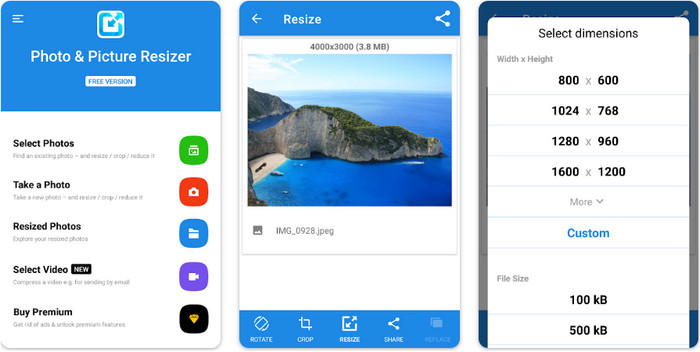
Photo & Picture Resizer is one of the fastest and easiest ways to resize the image you have on your Android device. Even inexperienced users who want to resize can download and use this as their image resizer. This app is free, so if you want to use its additional features, you will need to purchase it. Overall, its resizing features are great, and you can master it on the first try.
2. Redimensionador de imagem gratuito [iPhone]
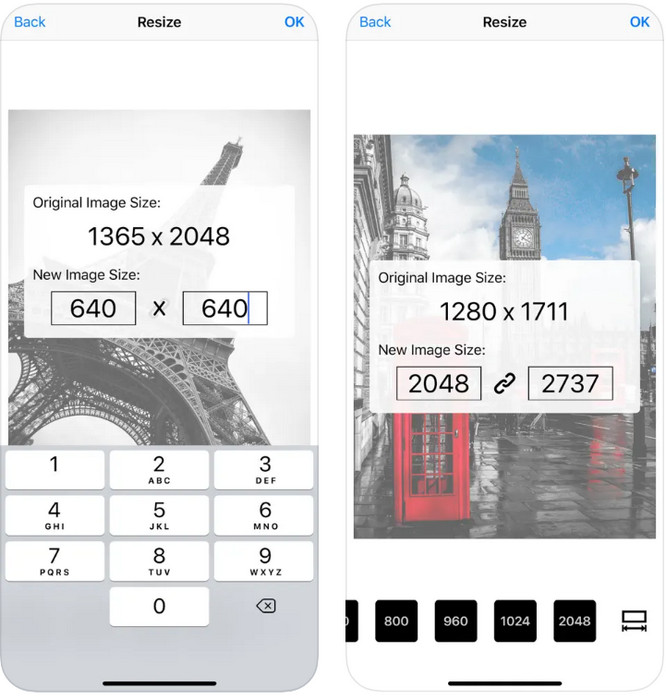
Image Resizer Free is an iOS-based application you can download on iOS 7.0 or higher. This application is an on-point image resizer that many iOS users use. It doesn’t have additional features other than its main function, resizing. Though the tool is user-friendly, many users complain that it can’t overwrite the original image into the resized version.
Parte 4. Perguntas frequentes sobre como redimensionar a imagem
Qual formato é melhor para redimensionar, raster ou vetorial?
Os formatos raster são compostos de minúsculos pixels para criar a aparência da imagem e, quando você altera seu tamanho ou dimensão, esses pixels ficam esticados, tornando-se visíveis. Ao contrário de se você redimensionar a imagem vetorial, ela é feita especificamente para redimensionar e aumentar a escala da imagem sem criar uma bagunça nela.
Posso redimensionar o BMP online?
Sim, você pode redimensionar o BMP usando a solução online que adicionamos aqui. No entanto, quando você amplia a imagem, o BMP tende a ficar pixelado porque são imagens rasterizadas. Portanto, se você quiser evitar o problema de redimensionar o arquivo BMP, é melhor escolher o FVC Free Image Upscaler Online, pois ele não deixa pixelização na saída final do BMP redimensionado.
O tamanho do arquivo aumenta após redimensionar a imagem?
Sim. Principalmente porque a imagem que você redimensionou adiciona dados de pixel adicionais na saída real. No entanto, o tamanho do arquivo não difere muito do tamanho do arquivo original.
Conclusão
Which resizing image technique do you think fits you well? Choose amongst the resizer we add here. If you are having trouble choosing an internet connection, we highly recommend using the FVC Free Image Upscaler Online because of its performance on resizing. There is no difficulty resizing if you use this resizer on the web.
-
 Imagem 1440p - Todas as informações que você precisará [Atualizado em 2022]
 Você quer saber sobre imagens 1440p? Ou onde você pode conseguir? Transforme sua imagem em 1440p? Leia isso para conhecer todos eles.
-
 Tutorial para despixelar uma imagem usando o 3 Best Photo Unpixelator
 Você está tendo problemas para lidar com imagens pixeladas? Hoje, resolvemos o problema e você pode usar as ferramentas que adicionamos aqui.
-
 Como aguçar a imagem na foto usando 3 maneiras [Tutorial rápido]
 Problema com a imagem sem nitidez? Aqui, apresentaremos como aprimorar imagens no Photoshop usando as três maneiras que adicionamos.
