


 Video Converter Ultimate
 Gravador de ecrã
 Reparo de vídeo
 Secure Download
Como converter gravação de zoom para MP4 em computadores Windows e Mac
Zoom is a platform that allows video calls, such as meetings and online classes. Normally, it saves recordings in a format that can be played on most devices, such as MP4. However, if you accidentally stop the recording early, the file might be stuck in a format the platform’s original format, which is .zoom, which you can not open right away. This happened because Zoom wasn’t able to have a chance to change the file to MP4 automatically. If this happens to you, then you will need to convert the Zoom to MP4 on or off the platform. Luckily, there are a few ways to get Zoom to finish this conversion process. We'll walk you through how to do it using the Zoom program itself and a special tool that comes with Zoom. If that won’t work for you, we have listed the other tool that you can use instead. Thus, let’s jump into the content right away!

Parte 1. São gravações com zoom em MP4
Em primeiro lugar, o Zoom produz gravações MP4, que é a configuração padrão. No entanto, isso não acontecerá num instante. O que queremos dizer é que, durante a gravação, sua filmagem bruta ainda não está no formato MP4 que você pensa que está. Aliás, conforme mencionado acima, as filmagens do processo ainda estão no formato .zoom, que é o formato proprietário da plataforma, e só serão transformadas em MP4 quando a gravação for concluída e a conversão concluída. Isto é especialmente verdadeiro quando você interrompe acidentalmente as gravações.
Parte 2. 3 maneiras de converter gravação com zoom para MP4 com zoom
Vamos agora prosseguir para as ferramentas eficazes que o ajudarão a converter gravações Zoom para MP4 caso você não tenha uma na plataforma.
1. Cliente Zoom (Desktop)
Você sabia que o Zoom monitora todas as suas gravações no aplicativo cliente de desktop? Você não só pode acessar suas gravações facilmente, mas o Zoom também oferece um conversor integrado. Isso garantirá a compatibilidade de reprodução na maioria dos dispositivos. Portanto, se você não tiver certeza de como usá-lo, aqui está uma análise detalhada de como encontrar e converter suas gravações do Zoom para o formato MP4.
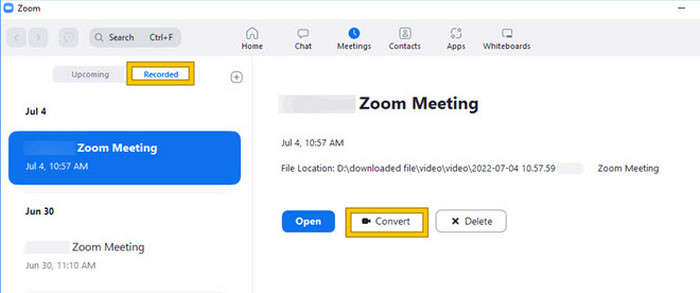
Step 1. Launch Zoom on your desktop and immediately locate the Meetings section to open your meeting history.
Step 2. Once opened, you will see the list of your recorded meetings. Locate the recording that you want to convert and click to select it.
Step 3. Once selected, a selection will appear on the right side of the screen. Click the Convert button and wait for the final MP4 converted outcome.
2. Transcodificação (macOS)
Se você é um usuário de Mac e a conversão automática da gravação do Zoom para MP4 falha, aqui está uma ferramenta útil chamada Transcode para ajudá-lo. Esta ferramenta permite converter manualmente esses arquivos .zoom em MP4, que podem não ser reproduzidos corretamente devido à falha na conversão automática. Em essência, o Transcode fornece uma solução manual para usuários de Mac para garantir que suas gravações Zoom estejam acessíveis e utilizáveis quando o processo automático não funcionar conforme o esperado.
Step 1. Locate your .zoom file, double-click it, and select Choose Application from the prompt. Then, open the file with the Transcode app, which you can also set to always use for your files.
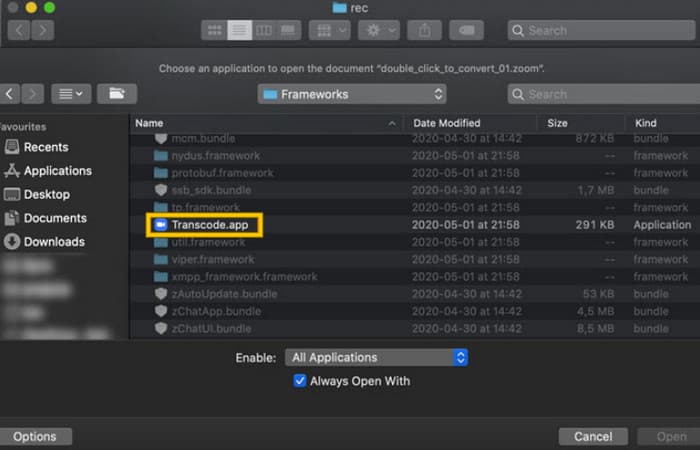
Step 2. Right after choosing the app, the conversion process will automatically start.
Step 3. When the conversion process is done, choose your preferred folder where you want to save the output.
3.zTscoder (desktop)
Se você deseja uma ferramenta semelhante à anterior para seu desktop, recomendamos zTscoder. zTscoder é a versão para Windows do Transcode, o programa em que os usuários de Mac confiam para situações semelhantes. Ambas as ferramentas permitem converter manualmente seus arquivos Zoom para o formato MP4 padrão, que pode não ser reproduzido corretamente. Portanto, se você estiver de frente para sua área de trabalho, siga as etapas abaixo.
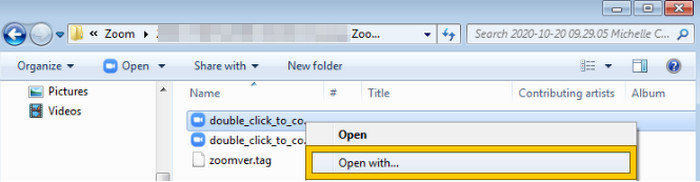
Step 1. Locate the folder where your Zoom recordings are saved and choose one that you need to convert. Right-click the file and open it with the zTscoder.
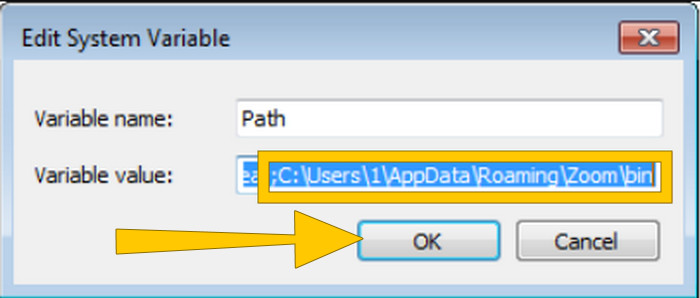
Step 2. If the tool is not responding, you can go to your Control Panel, navigate to the System and Security > System, and then Open Advanced System settings. From there, add the C:\Users\*your username*\AppData\Roaming\Zoom\bin in the variable value, then click OK.
Step 3. Once the file is set to be opened with the tool, the conversion process will automatically start.
Parte 3. Grave reuniões com zoom em MP4 com qualidade de até 4K
Want a good solution to make your Zoom meetings in MP4? Record them with FVC Screen Recorder! This recorder offers a versatile solution that goes beyond Zoom meetings. This tool lets you record your online classes, conferences, tutorials, or anything on your Zoom screen. Furthermore, you have the flexibility to record your entire screen or just a specific window since it offers settings for those. It can also capture microphone sound, system audio, and even your webcam feed, as long as you will navigate the settings beforehand. This software is compatible with both Mac and Windows computers and lets you save your recordings in high-quality formats, including up to 4K resolution. Another remarkable reason to love FVC is that it goes a step further by offering annotation tools that let you highlight key points during your recording. Meanwhile, here’s how to convert Zoom recordings to MP4.
Step 1. Install the recorder on your desktop. You can use the Download button given below. While you are in the installation process, open the Zoom meeting that you want to record into MP4.
Free DownloadFor Windows 7 or laterSecure Download
Free DownloadFor MacOS 10.7 or laterSecure Download
Step 2. Launch the converter and click the Video Recorder tool. Then, you need to set the screen display to consume the full Zoom meeting interface. You can also set the sound System and Microphone if you want.
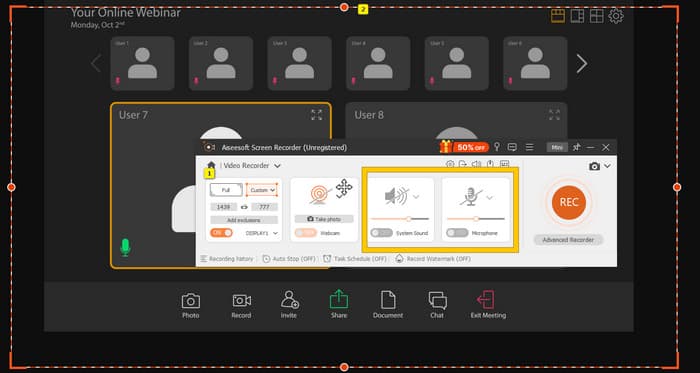
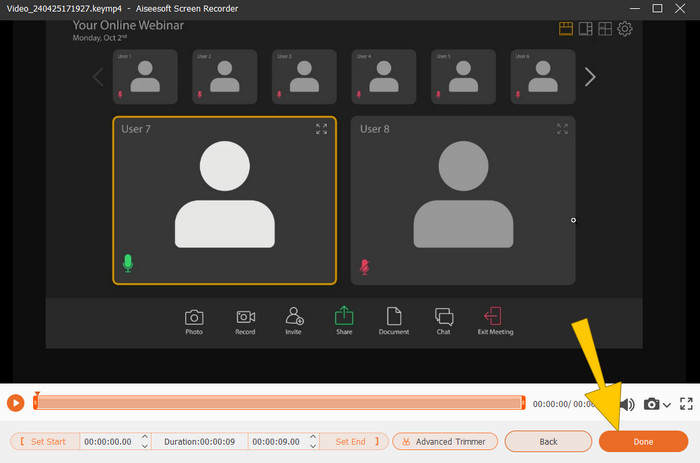
Step 3. Afterward, click the REC button to start the recording. When the meeting is over, click the Stop button from the floating bar. Then, make a little tweak from the new window. Otherwise, click the DONE button to proceed with saving the recording.
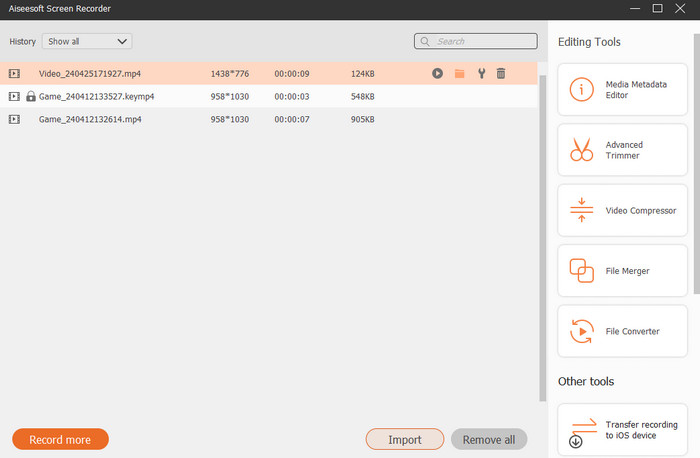
Step 4. For more editing options, the tool will bring you to its library, where you will see your recording list. The editing tools that you are free to use are also present.
Extended Reading:
6 Amazing MP4 Recorder tools of 2024 [Cost-Free & Premium]
Top 5 Zoom Meeting Recorders to Record Meetings on Zoom [2024]
Parte 4. Perguntas frequentes sobre conversão de gravação de zoom
As gravações do Zoom são MP4?
Sim. No entanto, as gravações podem não estar em MP4 caso tenham sido interrompidas acidentalmente.
Existe um limite para a duração das gravações que posso converter para MP4?
Depende. As contas gratuitas podem ter limitações de espaço de armazenamento e opções de conversão, enquanto os planos pagos geralmente oferecem mais flexibilidade e limites mais altos.
Como posso converter uma gravação Zoom em MP4?
Você pode converter uma gravação Zoom em MP4 com o cliente Zoom, pois ele possui um recurso de conversão integrado. Ao abrir a gravação, basta clicar no botão Converter.
Conclusão
By default, Zoom meetings are saved in MP4, but if the tapes are not saved properly, you will still need to convert Zoom recordings to MP4. Good thing that effective ways to do the conversion are presented in this post. Hope you find it helpful.
-
 7 do Magnífico Gravador de Voz Acessível em Todas as Plataformas
 Quer aprender a fazer gravação de áudio? Então vá para este artigo enquanto falamos sobre o melhor gravador de áudio que pode atender às suas necessidades.
-
 Análise do CamStudio 2025: prós e contras do uso do CamStudio
 CamStudio é um programa fantástico de captura de tela de código aberto para gravar sua exibição na tela. O gravador de tela CamStudio é seguro? Bem, esta análise irá ajudá-lo a descobrir todos os recursos do CamStudio.
-
 Maneiras viáveis de como você pode gravar áudio com o VLC Player
 Aprenda as melhores maneiras de gravar áudio com o VLC player e outras ferramentas práticas, lendo o artigo.
