


 Video Converter Ultimate
 Gravador de ecrã
 Reparo de vídeo
Make OBS Record in MP4: Change, Remux, and Convert OBS Recordings
Hello! If you happen to be recording with OBS and wondering how to make OBS record in MP4 format, then you might already have found out that it doesn't necessarily work that way by default. Learning how to make OBS record in MP4 isn't as complicated as you might think. In this article, we will explain the recording settings you need to change, what to do with OBS existing recordings in MKV format, and how to convert them when required. At the end of this article, you will be familiar with the best way that suits your recording workflow to make OBS record in MP4.

Part 1. Why Does OBS Record in MKV Instead of MP4
OGG has been chosen by OBS as the default recording format because it is more robust if crashes happen in the middle of a recording stream. If you crash during an MKV file, then it is less likely the file will become corrupt.
Why Does OBS Record in MKV Instead of MP4?
Typically, an MP4 needs proper finalization of the file to be able to play or edit it. If OBS terminates unexpectedly, that finalization might not be completed, and the file can be corrupted. MKV is safer for long recordings.
Can I Make OBS Record in MP4 by Default?
Absolutely. You can choose MP4 as your recording format from the Output tab of the settings in OBS. If you ask whether OBS records in MP4, the answer is definitely yes, but its default MKV format is for a reason: to minimize recording loss in case corruption occurs.
Part 2. How to Change OBS Recording Format to MP4
Method 1. Change OBS Output Recording Format
If you'd like all of your recordings in the future from OBS to be recorded in MP4, you can change the recording type right within the output settings of OBS. This is the easiest method if you want to avoid remuxing or converting your files:
For users learning how to get OBS to record in MP4, here are the steps:
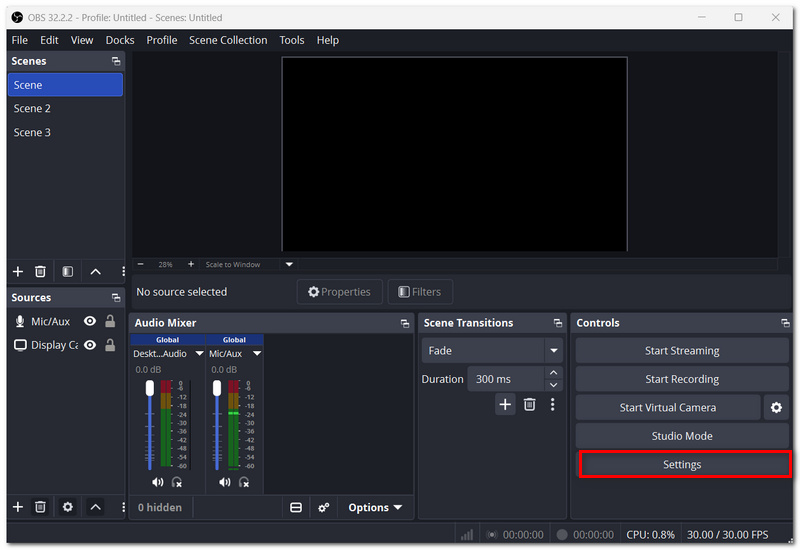
Step 1. Open OBS Studio and click Settings.
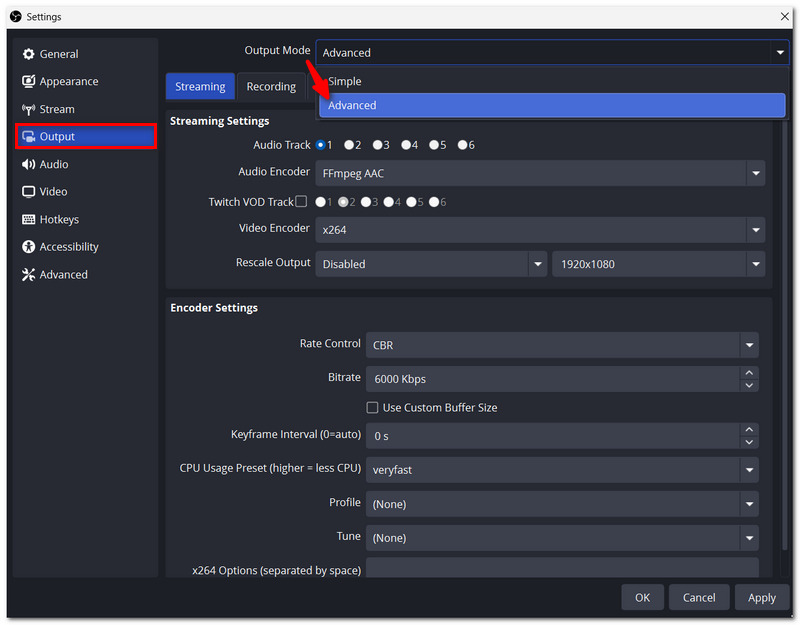
Step 2. Select Output from the left sidebar. Then set Output Mode to Advanced if it is not already set.
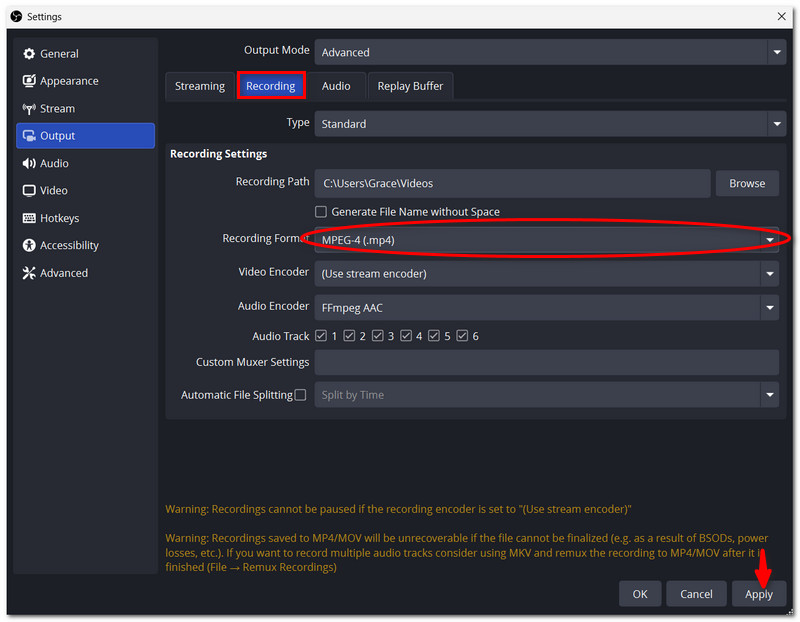
Step 3. Click the Recording tab. Then find the Recording Format.
Step 4. Choose MP4 as the format from the drop-down list. Click Apply and then OK.
Step 5. Perform a new recording to verify the setting. Stop the recording and look in your recorded folder for the MP4.
Tip: While MP4 is easy to use, OBS usually suggests MKV as a safer format for recording. When your computer system or OBS crashes during a direct recording in MP4, the file becomes more difficult to recover.
Method 2. Remux MKV Recordings to MP4 in OBS
Rather than changing your recording format, you can also leave OBS in the safer MKV format and convert your finished recording to MP4 afterwards. That way, you have the convenience of MP4 but still have the added recording safety of MKV. It is also a good way to learn how to make OBS Studio record in MP4 without actually recording in MP4.
Steps to Remux MKV to MP4 in OBS
Step 1. In OBS Studio, click on the File option in the upper menu and choose Remux Recordings.
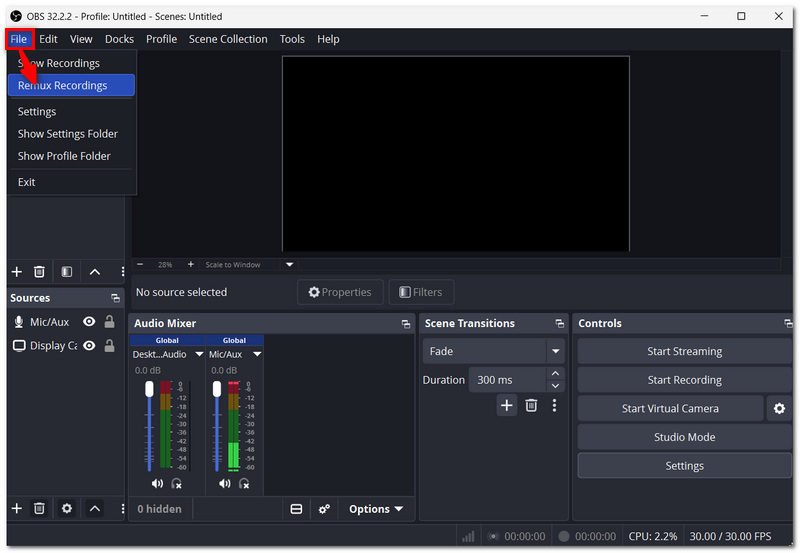
Step 2. Click Browse beside OBS Recording, choose the MKV file you intend to remux, and click Remux.
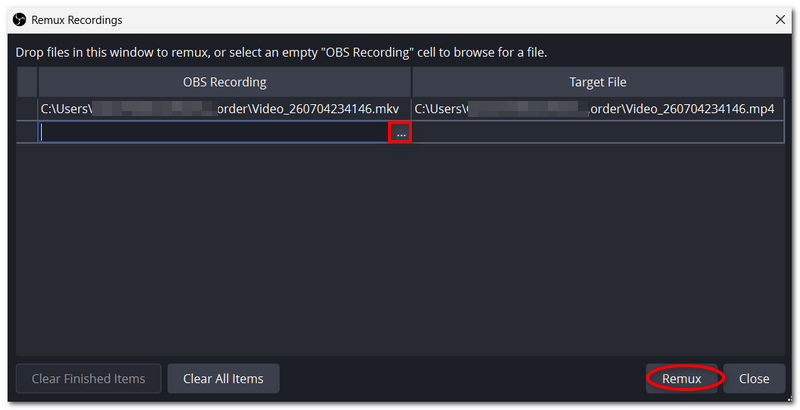
Step 3. Allow time for OBS to encode the file and check the output folder for the new MP4 version.
Tip: Remuxing only moves the video from Recordings to the file location without re-encoding. Doing so is much faster than re-encoding the entire recording and preserves the quality of the video.
Part 3. Best OBS Recording Settings for MP4 Videos
Selecting MP4 is just the beginning of a decent OBS recording. Your resolution, framerate, encoder, bitrate, and audio settings each have an impact on the quality and file size of the final video. Consider using this as a base for a nicely balanced configuration:
| Configuração | Recommended Option |
| Formato de Gravação | MP4 |
| Resolução | 1920 × 1080 |
| FPS | 30 FPS for general recording; 60 FPS for gameplay |
| Codificador | Hardware encoder, if available |
| Rate Control | CQP |
| CQ Level | Around 18–23 |
| Áudio | AAC, 160–192 kbps |
| Recording Path | A drive with enough free storage |
Quick Tips
- • Use 1080p if you want a good compromise between quality and size. Getting 4K quality on OBS needs more high-end computer configurations.
- • If you are recording fast-moving media, like games, go with 60 FPS.
- • A hardware encoder can ease CPU strain if your GPU is compatible with it, reducing the possibility of OBS irregular.
- • Lower CQ tends to mean higher quality and bigger files.
- • Check that your storage drive has enough free space for a long recording.
Part 4. How to Convert OBS Recordings to MP4 Free Online
If you just want to get an MP4 copy of the MKV recording you have from OBS and are not willing to install a new program just for that, then an online converter can do the trick. FVC Free Video Converter Online is how you can do it through your browser.
Main Features
- • Converts your recorded sessions into MP4 format, which plays more easily in other programs.
- • Works via a web browser, so there’s no full desktop converter to install.
- • The software will show you a default window and a customization window for video and audio output options before conversion.
- • Has lots of support for various video formats, handy for converting other recordings besides MKV.
- • Easy-to-use interface that is not meant for elaborate editing, built just for converting files.
How to Convert OBS Recordings to MP4 with FVC Free Video Converter Online
Step 1. Go to FVC Free Video Converter Online and Click Add a File. Pick your selected MKV OBS recording.
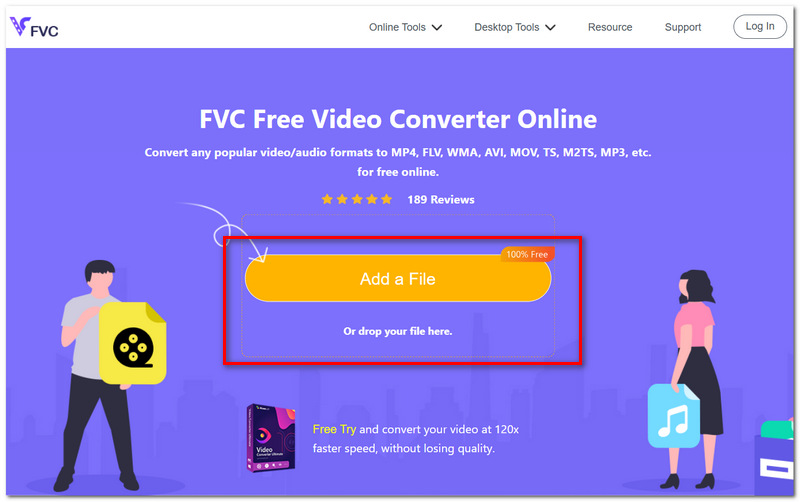
Step 2. Ensure you have selected MP4 as the output format. Choose the output folder of your choice.
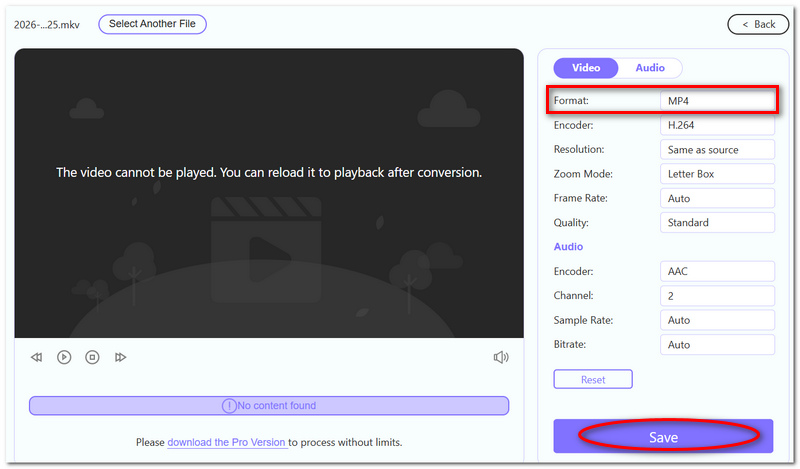
Step 3. Click Save. Wait for the conversion to complete. You can download the new finished MP4 file.
Step 4. Open the output folder. Make sure your newly created MP4 file is there.
Part 5. FAQs about Making OBS Record in MP4
Why does my MP4 have video but no audio?
Examine OBS's Audio Mixer and how recording audio tracks is configured. If you did not assign the right microphone or desktop audio source to the recording track, the resulting MP4 may not have the right audio.
Can I record gameplay in MP4 without OBS slowing down?
You can reduce the performance impact by choosing an appropriate hardware encoder when available and avoiding unnecessarily demanding recording settings. Your GPU, CPU, resolution, and game settings all affect recording performance.
Why can I not open my OBS MP4 with other programs?
The problem could be with the video or audio codec contained within the MP4, rather than the MP4 container itself. Different programs will support different codecs, so using the same .mp4 extension does not guarantee cross-program compatibility.
Conclusão
The key conclusion is that receiving OBS to MP4 files does not necessarily imply recording in MP4 by default. You can either change the recording format or leave MKV for safer recording and then remux it. With this understanding, getting OBS to record in MP4 will be an easier task for you to choose, depending on what is optimal for your recording intention.
-
 How to Record Audio Separately in OBS: Complete Setup Guide
 Learn how to record audio separately in OBS by splitting your mic, game, and voice chat into individual tracks for easier editing and mixing.
-
 [Go-To-Guide] Grave Blu-ray no OBS Studio e ferramentas alternativas
 Saiba como gravar Blu-ray no OBS Studio e outros substitutos com estas etapas e dicas úteis e simples. Continue lendo e vamos nos aprofundar nos detalhes.
-
 7 etapas fáceis sobre como corrigir problemas de atraso de áudio OBS [Resolvido]
 Está com dificuldade para assistir ao seu videoclipe por causa do atraso do áudio ao usar o OBS Studio? Leia o artigo abaixo para saber como corrigir áudio fora de sincronia de maneira eficaz.
