


 Video Converter Ultimate
 Gravador de ecrã
 Reparo de vídeo
Melhor maneira de gravar áudio no iPhone por meio de aplicativos e conversores disponíveis
With a smartphone in our pocket, we can do almost anything. This little gadget was built to be the new generation of computers that can be brought easily all around the world without setting it up. Because of it, we now have the power to do the audio recording on our phone without setting up a lot of equipment. For example, you can record your own podcast on your iPhone but our worst enemy is the bad quality of recording. So, in this list we present different ways to record audio on iPhones without setting up a lot of equipment and losing the audio quality of the recording.

Parte 1. Como gravar áudio externo no iPhone com os 2 melhores aplicativos
Saiba como usar esta ferramenta disponível em dispositivos Apple ou App Store. Esses aplicativos nesta lista são conhecidos por serem usados por muitos usuários em todo o mundo. Especialmente se eles quiserem gravar a si mesmos ou gravar algum áudio. Então, sem mais atrasos, vamos apresentar a você os 2 melhores gravadores de áudio que você pode usar.
1. Memorandos de voz
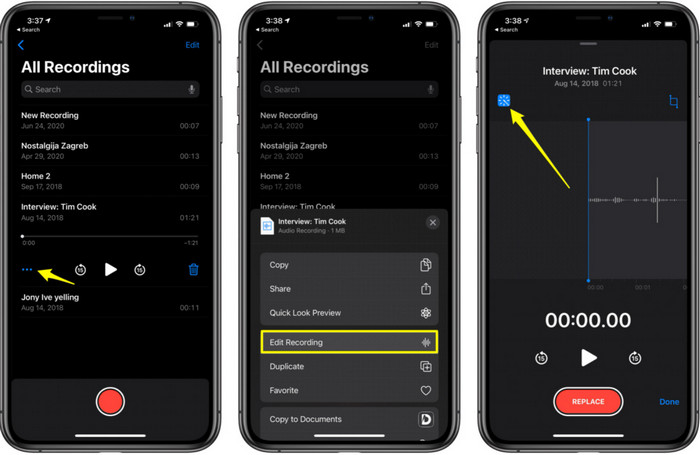
Voice Memos is the best way to record audio on an iPhone without downloading and free. Also, you can do the editing of your recording here. But the editing features available here are limited to trimming and adding other audio files. So, if you want to enhance your recording then you can't do it in here because it has no features like that in here. But basic recording like taking down notes, audio diary, lectures or more can be done with the help of Voice Memos.
Prós
- Ferramenta integrada no iPhone para fazer a gravação de áudio externamente.
- A edição básica está disponível como aparar e mesclar.
Contras
- Não possui reforço de áudio para melhorar sua gravação.
- Não é possível gravar internamente.
2. GarageBand
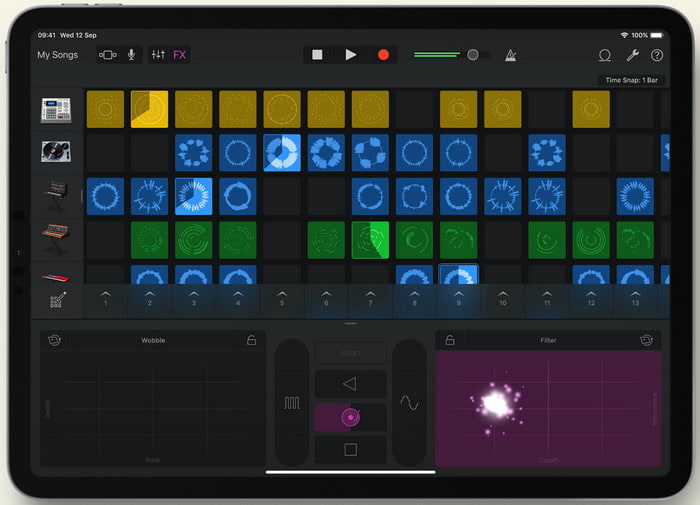
Do you want to produce musical recordings? Then try to use Garageband. As this tool presents a lot of features you can play on. But it is much more complicated than the Voice Memos because this app is intended to do music production. So, learning how to record voice on iPhone with Garageband will take most of your time. But if you are dedicated to learning you can download this tool for free and the file size of it is 1.7GB including the heavy features you will need to record music.
Prós
- É o melhor aplicativo para usar como produção musical portátil que pode gravar áudio internamente.
Contras
- Não é a melhor escolha para um iniciante por causa da interface complicada do aplicativo.
- O tamanho do arquivo pode ir até mais de 1,7 GB.
Parte 2. Como transformar a gravação de tela do iPhone em formato de áudio
Since the iPhone doesn't have internal audio recording only, you can do the screen recording first and convert it into audio later. With the help of the phenomenal Video Converter Ultimate, you can choose from 200+ formats available in the tool and do the cutting of unnecessary audio here as easy as ever. Not only that, you can boost your audio in here to make it sound clearer and better. Unlike using Voice Memo, if you use this tool and convert you can do a lot of magical stuff to make it the best. Without further ado, let's start the conversion of your screen recording into an audio format by following the steps below.
Steps on How to Convert Screen Recording to an Audio Format with Video Converter Ultimate
Step 1. Press the free download button to download the software onto your PC or Mac. After the downloading process, install and set it up then click finish to launch it.
Free DownloadFor Windows 7 or laterSecure Download
Free DownloadFor MacOS 10.7 or laterSecure Download
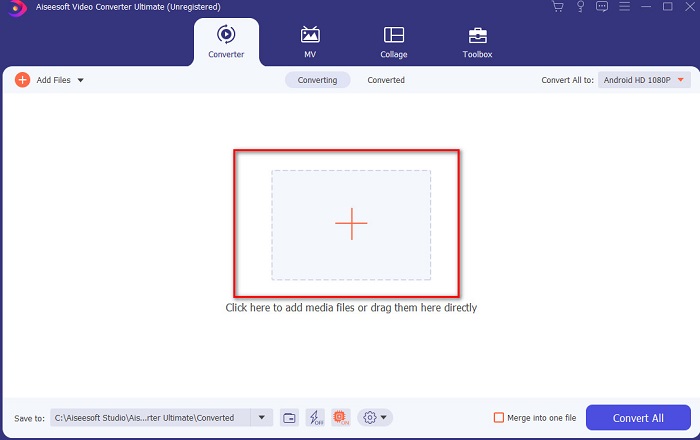
Step 2. Add the file you recorded on iPhone, and click the Add Files button on the upper left side of the tool interface. Then search for the file in the folder and it will pop-up and click open.
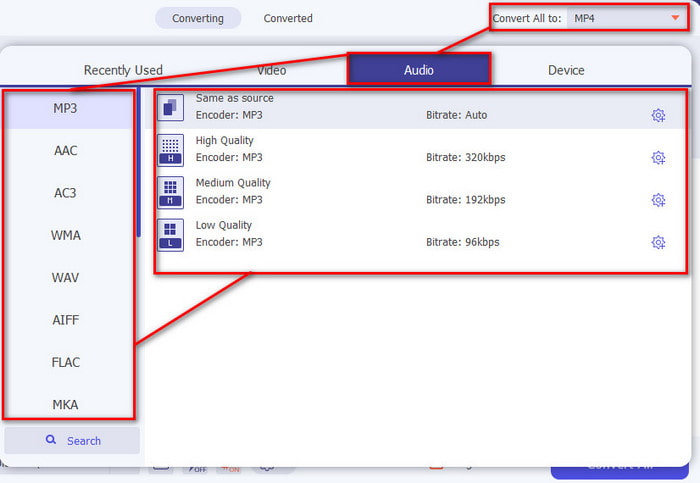
Step 3. Click the drop-down option next to Convert All to and choose the final format you want it to be from the Audio category list to proceed. In addition, you can also edit the recorded file if you click the wand button on the main interface. After editing it, click the OK to save the changes you made.
Step 4. If you are ready to start the conversion process, click the Convert All button and wait for less than a second.
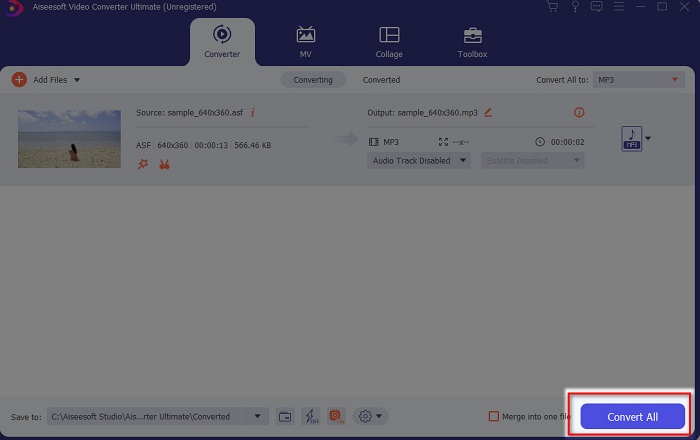
Step 5. A file folder will show after it is done converting, click the file and listen to it, then later you can transfer and save it on your iPhone.
Prós
- A melhor ferramenta fenomenal usada para converter sua gravação de tela em formato de áudio.
- Recursos avançados de edição estão disponíveis aqui para melhorar sua gravação.
- Vários lotes de conversão podem ser feitos aqui.
Contras
- Não é possível fazer a tela ou gravação de áudio aqui porque não é compatível.
- É pago, mas não é caro.
Parte 3. Perguntas frequentes sobre como gravar áudio no iPhone
Qual é o melhor formato de áudio para gravar áudio?
The ideal format you will want to use if you do want to record audio with the highest quality is in the format of FLAC. Although the tool above doesn't provide changing the format so you can't do FLAC recording. However, if you click this link, you will learn a lot about the best FLAC recorders to record the highest form of audio recording.
Por quanto tempo posso gravar no meu iPhone?
Bem, você pode gravar desde que tenha espaço suficiente. Basicamente, estima-se que a cada 1GB você pode armazenar pelo menos 100 minutos de gravação de áudio. Portanto, se você deseja gravar uma longa discussão ou palestra, é ideal liberar algum espaço antes de iniciar a gravação.
Posso fazer gravação de áudio através do VLC?
Certainly, yes! You can do audio recording if you use VLC whether it is on PC or Mac. So, to find-out how to do recording on VLC you must click this link.
Conclusão
To end, we already introduce a lot of ways you can choose to make your recording better and effective. These are the best in the line of recording as we test them out first before we write this article. But there is no better editor that is easy to use that provides an audio booster than the Video Converter Ultimate. So, if you want to make your recording more than good then try to edit and convert it with this tool.
Free DownloadFor Windows 7 or laterSecure Download
Free DownloadFor MacOS 10.7 or laterSecure Download
-
 7 dos melhores gravadores AAC para Windows e Mac [2021]
 Descubra o que é AAC e os gravadores AAC mais avaliados que você pode usar gratuitamente e baixar em computadores Mac e Windows.
-
 Guia Spot-On: Quais são os melhores gravadores M4A para Windows e Mac
 M4A são contêineres de arquivo ACA e ALAC codificados para compactação com perdas. A lista abaixo contém as ferramentas do gravador M4A que você pode usar. Leia o seguinte com atenção.
-
 Gravador OGG mais útil de 2021 [Grátis e online]
 Este artigo fala sobre as melhores ferramentas de gravação OGG que ajudam você a gravar áudio OGG. Para adicionar informações mais detalhadas para o usuário continue lendo
