


 Video Converter Ultimate
 Gravador de ecrã
 Reparo de vídeo
 Secure Download
VLC Record Not Working: 6 Ways to Easily Solve it
VLC has been here for almost 2 decades and has been a go-to tool not just as a media player but also for screen recording. However, there have been issues that VLC users experienced, and one of them is that the VLC record is not working.
But don’t fret, this article is going to help you with various solutions that can effectively fix the issue. So, if you’re currently experiencing this problem, get your computer now, and learn every method that could possibly help you fix this VLC issue.

Part 1. 6 Ways to Fix the VLC Record Not Working Problem
When using VLC Media Player for recording, issues can show up in different ways. Instead of guessing what went wrong, it’s easier to identify your exact situation and apply the right fix.
Below is a quick guide that matches common VLC recording problems with their corresponding solutions:
| Problem Scenario | What Happens | Recommended Fix |
| The record button does nothing | You click record, but nothing starts | Check if the record button is active and properly enabled. Make sure you actually started the recording. |
| The recording is not saved | You finish recording, but no file appears | Check if the default recording save path still exists. If the folder was deleted or moved, VLC won’t save the file. |
| Unable to save recording | Recording stops, but cannot be saved | Run VLC as administrator to ensure it has permission to write files to your system. |
| Recording has no video, audio only | The output file only contains sound | Go to profile settings and make sure the Video checkbox is ticked. |
| Corrupted or unplayable recording | The file won’t open or is broken | Switch output modules from Automatic to OpenGL or DirectX in VLC settings. |
| VLC recording keeps failing | Multiple issues or unstable recording | Consider using an alternative tool that specializes in screen recording for better reliability. |
Solution 1: Check if the Record Button Is Active
Before anything else, make sure the VLC recording has actually started. In VLC Media Player, the record function can be a bit subtle. When you click the record button, it doesn’t always give a strong visual indicator that recording is ongoing.
To confirm, try playing a video and then clicking the record button. After stopping, check if a new file appears in your default save folder. If no file is created, it may mean the recording never truly started. This simple step often resolves the confusion.
Check Your Default Save Path
VLC automatically saves recordings to a default location on your device. However, if that folder is deleted, renamed, or moved, VLC won’t be able to save your recording properly.
To fix this:
Go to VLC’s preferences and check the Record directory or save path setting. Make sure the folder exists and is accessible. If not, choose a new folder where VLC has full access, such as your Videos or Documents folder.
This ensures your recordings are stored correctly without errors.
Run VLC as Administrator
Sometimes, the issue isn’t VLC itself but the lack of permission to save files. If VLC doesn’t have administrative access, it may fail to write the recording to your system, resulting in no saved file or a failed recording.
To fix this:
Right-click the VLC application and choose Run as administrator.
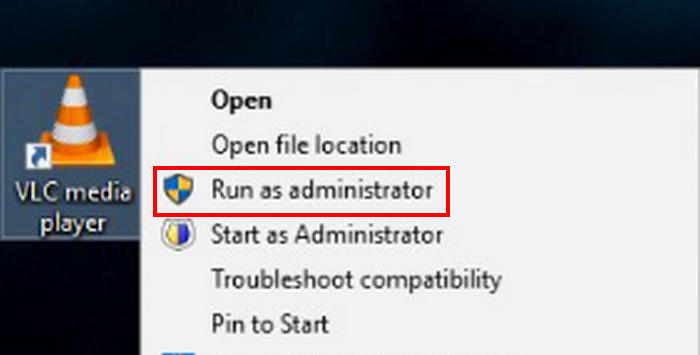
This gives VLC the necessary permissions to access and write to your storage folders. If this resolves the issue, you may consider always launching VLC with admin privileges when recording.
Enable the Video Option in Profile Settings
There are cases where VLC records only audio or no audio instead of both audio and video. This usually happens when the video option is not properly enabled in the profile settings.
To fix this:
Go to the recording or conversion settings in VLC and make sure the Video checkbox is ticked.
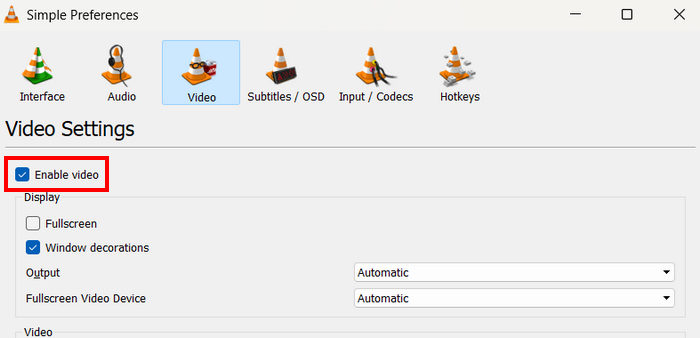
This ensures that VLC captures both audio and video streams instead of just one. If this setting is disabled, your output file may appear as audio-only even if you expected a full video recording.
Switch Output Modules
VLC uses different output modules to handle how video is processed and displayed. Sometimes, the default Automatic setting can cause issues like corrupted files, black screens, or failed recordings.
To fix this:
Manually change the output module. Go to VLC settings, find the video output option, and switch from Automatic to alternatives like OpenGL or DirectX.
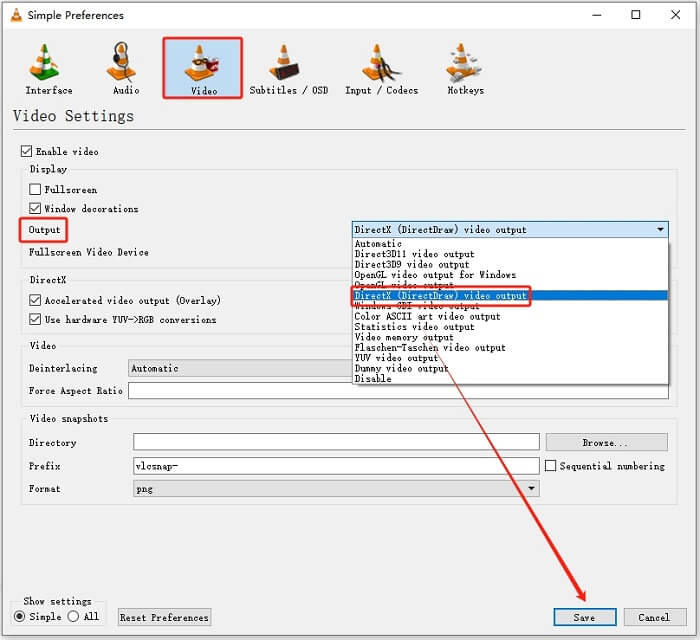
These modules handle rendering differently and may resolve compatibility issues depending on your system. Try testing which one works best for your setup.
Try a VLC Alternative
If you’ve tried all the fixes and the issue persists, the problem may be a limitation of VLC itself. While it is a powerful media player, its recording feature is not as advanced or stable as dedicated screen recording tools.
FVC Screen Recorder is a professional and dedicated screen recording tool. While this can’t directly solve why you can’t screen record, this tool is the perfect alternative to help you easily screen record on your computer. Now, what the users can enjoy with this screen recording tool is its ability to capture almost any activity on your screen.
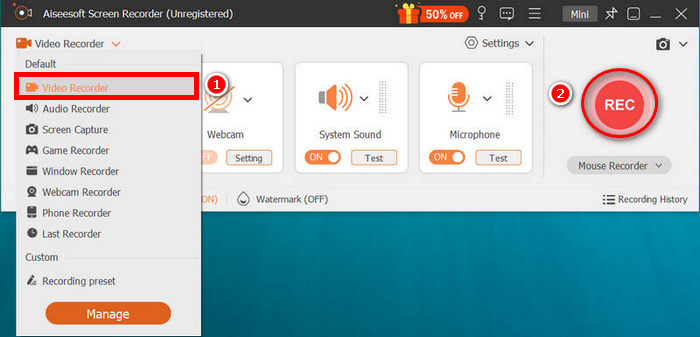
Main Features:
- • Grave a atividade da tela para tutoriais, jogos, videoconferências e aulas.
- • Grave vídeos com som do sistema, voz do microfone ou ambos.
- • Adicione uma sobreposição de webcam durante a gravação de jogos ou apresentações.
- • Espelhe e grave a tela do iPhone ou Android no computador.
- • Faça capturas de tela, incluindo capturas de janelas com rolagem.
- • Desenhe ou faça anotações na tela durante a gravação usando ferramentas como pincel e lápis.
- • Edite e corte as gravações antes de salvar.
- • Export videos in popular formats like MP4, MOV, MKV, and AVI.
- • Salve gravações de áudio em MP3, M4A, WMA, FLAC e outros formatos.
Steps on How to Record a Video with FVC Screen Recorder:
Step 1. Download and install the FVC Screen Recorder on your computer. It is available for Windows and macOS.
Free DownloadFor Windows 7 or laterSecure Download
Free DownloadFor MacOS 10.7 or laterSecure Download
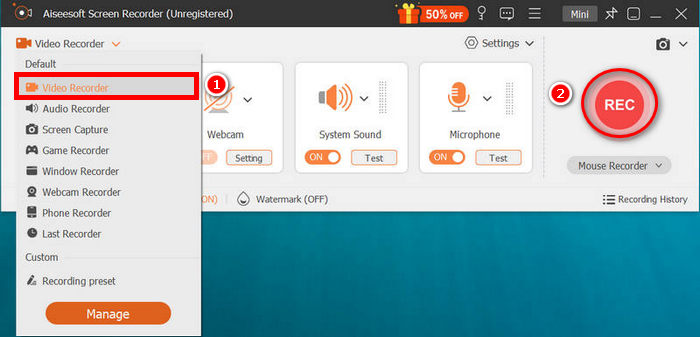
Step 2. After that, launch the tool and click the REC button to start recording your screen. You can choose the size or method of recording your screen. Once you’re done, just click the stop button.
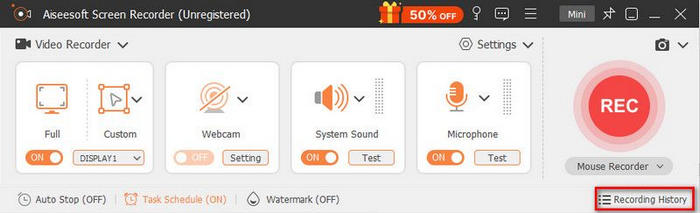
Step 3. Now, you have options to edit the video. Once you’re satisfied, click the Import button to save your recorded video.
With FVC Screen Recorder, you can easily record your screen without worrying about getting interrupted or even from the start that would hamper the recording. Moreover, this is the easiest alternative if none of the solutions work when the VLC record is not working.
Part 2. FAQs about VLC Record Not Working
Why is my VLC record button not working?
There are several possible reasons why the record button in VLC Media Player is not working. It may not have been properly activated, the save path could be missing, or VLC might not have the necessary permissions to write files. In some cases, incorrect settings or output modules can also prevent the recording from starting or saving properly.
What should I do if the VLC recording is still not working after trying all fixes?
If none of the troubleshooting steps work, the issue may be a limitation of VLC’s recording feature. In this case, it’s best to use a dedicated screen recording tool that offers more stable performance and advanced features. These tools are specifically designed for recording and can provide a smoother and more reliable experience.
Why does VLC stop recording unexpectedly?
Unexpected stopping can be caused by insufficient system resources, permission issues, or conflicts with your current settings. Running VLC as an administrator and closing unnecessary applications can help stabilize the recording process.
Conclusão
Sometimes, what seems like a simple click, like the record VLC record is not working, can turn into a frustrating experience. But as we’ve seen, these issues are often not as complicated as they appear. Moreover, there are alternative tools like the FVC Video Recorder if any of the methods do not work on your end. So, what are you waiting for? Let’s get started!
-
 Uma análise simples do VLC Media Player e das 5 melhores alternativas
 Por que o áudio não funciona no VLC Media Player? Para players de mídia populares, você pode ler a análise e as melhores alternativas no artigo.
-
 [Resolvido] VLC não reproduz DVD, como consertar
 O VLC pode reproduzir um DVD? Por que o VLC não reproduz meu DVD? Como faço para que o VLC reproduza um DVD no Windows 10? Esta postagem compartilha 3 dicas para corrigir o problema de VLC não reproduzindo DVD.
-
 Como gravar áudio com o VLC Media Player: um guia completo
 Neste post, você aprenderá como gravar áudio com o VLC Media Player. Este artigo apresenta etapas detalhadas e recomenda uma das melhores alternativas ao VLC.
