


 Video Converter Ultimate
 Gravador de ecrã
 Reparo de vídeo
 Secure Download
Maneiras mais simples de como corrigir fotos HEIC usando as melhores ferramentas
HEIC photos are image formats that Windows cannot open. Even though they are widely-used images because of their high-quality resolution, with small file sizes, you can only open them natively on Apple devices. Moreover, if your image has lost data or is damaged, you need a tool that will help you fix your image and recover the lost data. This article will help you know the best tool to open your HEIC image on your Windows PC and let you know how to fix HEIC photos effortlessly.

Parte 1. Como corrigir e visualizar sua imagem HEIC no seu PC com Windows
Você não pode visualizar sua imagem HEIC em seu PC com Windows, mesmo que sua imagem não esteja danificada. Portanto, a melhor opção para você é usar ferramentas que possam visualizar sua imagem HEIC ou convertê-la em outros formatos de imagem compatíveis com o Windows, como JPG e PNG. Portanto, apresentaremos a você as melhores ferramentas para visualizar uma imagem HEIC no seu PC com Windows e como converter sua imagem HEIC para o formato de imagem JPG.
Use um conversor
Aiseesoft HEIC Converter é um conversor HEIC online que permite converter sua imagem HEIC para o formato de imagem JPG ou PNG. Esta ferramenta possui uma interface de usuário simples, tornando-a uma ferramenta amigável. Além disso, você pode alterar a qualidade da sua imagem ao converter sua imagem HEIC. Ele também pode manter os dados EXIF da sua imagem em meio à conversão para outros formatos de imagem. Além disso, você pode usar esta ferramenta para converter imagens HEIC para JGP sem pagar nada.
Step 1. Download the Aiseesoft HEIC Converter on your PC. Follow the installation process and open the app.
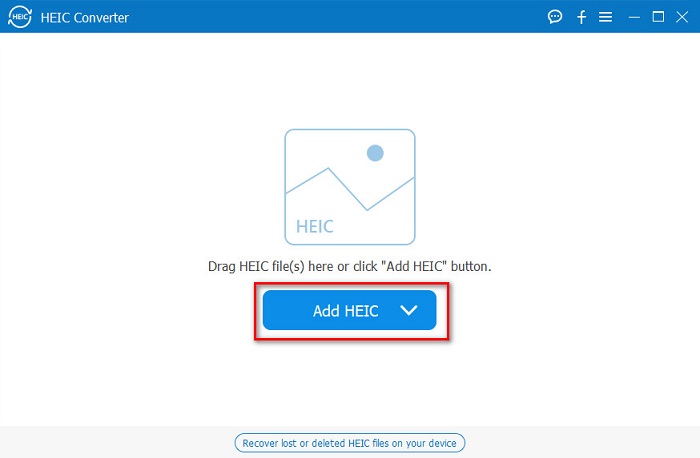
Step 2. Click the Add HEIC button to upload your HEIC image on the software's main interface.
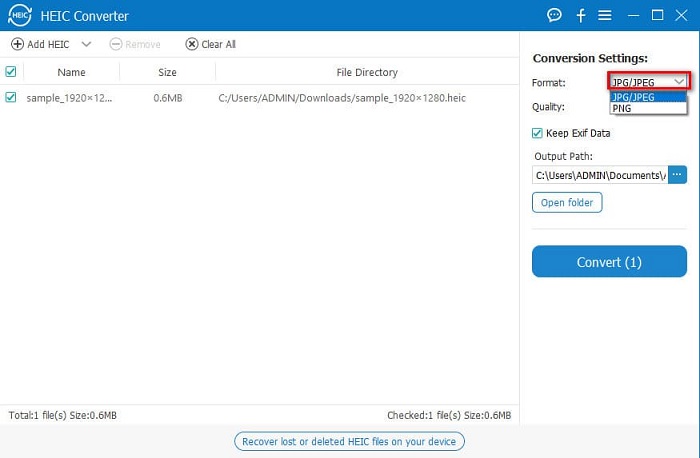
Step 3. Next, select the output format by ticking the drop-down button beside Format. And then select JPG/JPEG image format.
Step 4. Lastly, click the Convert button to convert your HEIC image to JPG image format.
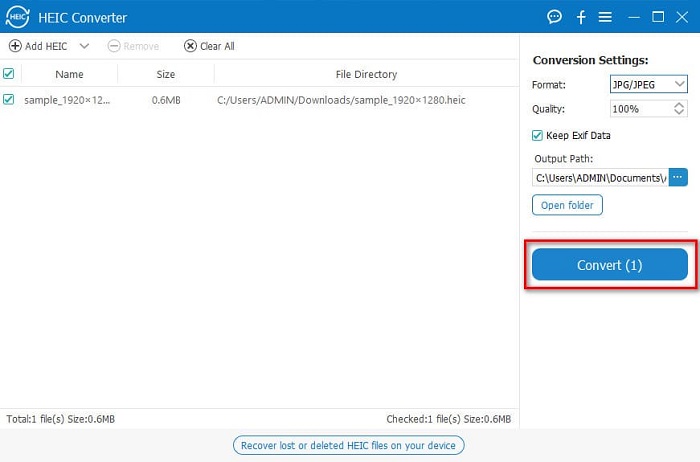
Seguindo estas etapas fáceis, você pode converter sua imagem HEIC para o formato de imagem JPG para visualizá-la em seu dispositivo Windows.
Você também pode experimentar o FVC HEIC Converter, que tem recursos tão poderosos quanto o Aiseesoft Converter:
Free DownloadFor Windows 7 or laterSecure Download
Free DownloadFor MacOS 10.7 or laterSecure Download
Related:
Usar um visualizador
1. HEIC Image Viewer Decoder
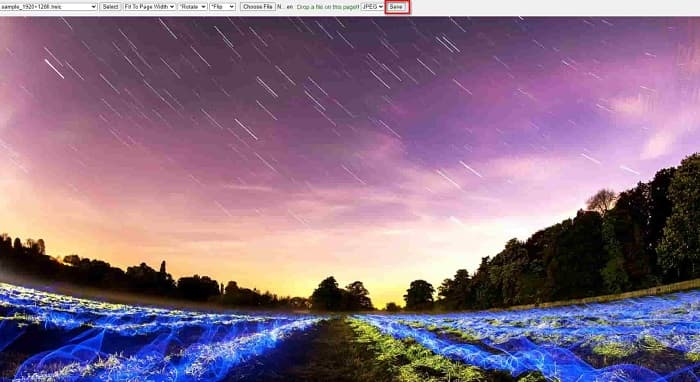
HEIC Image Viewer Decoder is a HEIC viewer app that allows you to view your HEIC image online. After viewing or decoding your HEIC image, you can save it as a PNG or JPG image format. In addition to that, it has a simple interface to view your HEIC image easily.
Step 1. On the browser that you use, search HEIC Image Viewer Decoder. And on the main software interface, drop your HEIC image on the rectangular box, or click the Choose Files button.

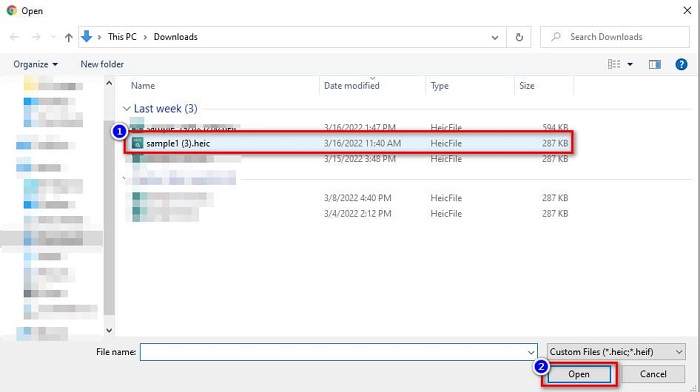
Step 2. Then, your computer folders will appear where you will locate your HEIC image, and then select it and click Open.
Step 3. When you are done uploading your HEIC image, you can now view your image. Then, click the Save button to save your HEIC image in a JPG image format.
2. CompressJPG.net
CompressJPG.net is an online HEIC viewer that has an intuitive software interface. It is available on mobile, Windows, or tablet devices. Furthermore, it does not have a file size limit when viewing your HEIC image. However, because it is a web-based application, you may experience having a slow loading process when your internet connection is slow. Nevertheless, many people use this online tool to view their HEIC images.
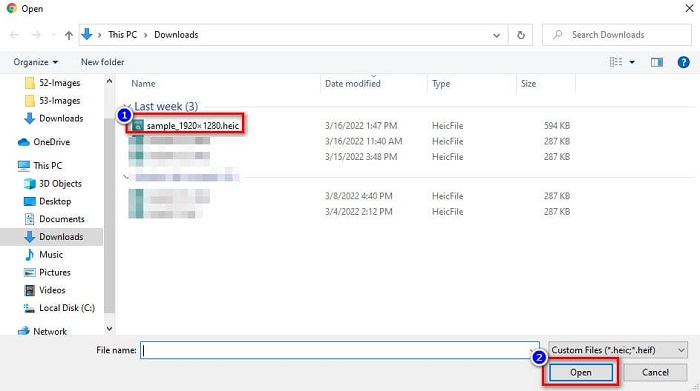
Step 1. Search CompressJPG.net on your browser, then click the site of the tool that will appear on the search result page. On the main software interface, click the Choose Files button.

Step 2. Next, your computer files will appear, then locate your HEIC image and select it. After selecting your HEIC image, click the Open button to upload your HEIC image.
Step 3. Finally, you can now view your HEIC image on your Windows PC.

Fácil não é? Ao seguir e usar as ferramentas online mencionadas acima, você pode visualizar facilmente sua imagem HEIC em seu PC com Windows.
Parte 2. Corrigir a imagem HEIC danificada
Se sua imagem HEIC não puder abrir no seu dispositivo Apple, algo está errado. O problema mais comum que muitas pessoas encontram é a perda de dados. Quando isso acontece, significa que seu arquivo de imagem está danificado. Então o que você deve fazer é usar uma ferramenta que possa recuperar seus dados perdidos. Nesta parte, você aprenderá como restaurar os dados da sua imagem HEIC.
Use o EaseUS Data Recovery Wizard
EaseUS Data Recovery Wizard is a software tool that allows you to recover up to 2GB of your lost data. This tool is user-friendly because it only has a simple user interface. Furthermore, this tool can scan your device's storage and look for a list of lost files. Although you can use it for free, the trial version can only locate the damaged files but cannot recover them. So, you still need to purchase the pro version of the application. Nonetheless, it is one of the most used data recovery tools you will find on the internet.
Prós
- Ele pode recuperar até 2 GB de seus dados perdidos.
- Possui uma interface de usuário intuitiva.
- Disponível em quase todas as plataformas de mídia, incluindo Windows e Mac.
Contras
- Você deve comprar a versão pro para recuperar os dados perdidos.
Usar Recuva
Another data recovery tool that you must use is Recuva. This application has an easy-to-use software interface, making it a beginner-friendly tool. What’s impressive in this tool is that it can recover permanently deleted files, which the operating system marked as free space. Moreover, it can recover data on your USB flash drives, hard drives, memory cards, and others. It also has 32-bit and 64-bit versions.
Prós
- Tem uma GUI simples.
- Ele permite que você recupere dados em unidades flash USB, discos rígidos, cartões de memória e outros dispositivos de armazenamento.
- Ele pode verificar profundamente seus arquivos que são difíceis de encontrar.
Contras
- Compre o aplicativo premium antes de acessar seus recursos exclusivos.
Parte 3. Perguntas frequentes sobre como corrigir fotos HEIC
O que pode abrir a imagem HEIC sem usar uma ferramenta de terceiros?
Como a Apple desenvolve imagens HEIC, você pode visualizar nativamente as imagens HEIC em qualquer dispositivo da Apple.
Posso recuperar os dados da minha imagem HEIC no Mac?
Sim você pode. Você também pode usar as ferramentas mencionadas acima para recuperar os dados perdidos de sua imagem ou se sua imagem HEIC estiver danificada.
Posso converter outros formatos de imagem em uma imagem HEIC?
Sim. Algumas ferramentas permitem converter outros formatos de imagem como JGP e PNG para HEIC. Assim, é possível converter imagens JPG e PNG em imagens HEIC.
Conclusão
All in all, it is not that complicated to fix HEIC photos when you use the tools that are shown above. By using those tools, you can recover the lost data of your image and fix the damage. But if your HEIC image is completely okay and you want to view it on your Windows device, then the best way for you is to convert your HEIC image to a JPG file format using Aiseesoft HEIC Converter.
-
 Converta facilmente HEIC para RAW usando os melhores conversores
 Como converter HEIC para RAW? Este artigo fornece as melhores maneiras de converter HEIC em RAW usando os melhores conversores online e offline.
-
 Revisão, recursos e alternativas do CopyTrans HEIC
 Se você quiser saber o que o CopyTrans HEIC pode fazer, fornecemos os recursos, vantagens e alternativas da ferramenta.
-
 O melhor visualizador HEIC online e offline [gratuito]
 Se você está procurando o melhor visualizador HEIC, temos o que você está procurando. Visualize sua imagem HEIC gratuitamente usando essas ferramentas.
