


 Video Converter Ultimate
 Gravador de ecrã
 Reparo de vídeo
Esquema útil que diz respeito ao dilema de atraso de áudio OBS
You want to record a video presentation so that you can demonstrate it tomorrow to your class or exhibit it in your business meetings. To do that, you use OBS Studio to make the recording happen and save it to your computer. But when you start to edit the video presentation to add some details about the presentation, you notice that the audio was delayed and out-of-sync. In this article, you will know why OBS audio is out of sync. And in case you don't know how to get rid of this situation, we also provide accessible approaches in fixing the audio delay.

Parte 1. Por que o áudio OBS está fora de sincronia?
The main problem of most streamers is when their audio is out-of-sync, it seems okay at the first couple of minutes but begins to have an audio delay that doesn't match the opening of your lips in the next hour. In desperation to fix the uncertainty of the stream, some will go to the advanced audio properties to adjust the sync offset that can only enter a delay for the audio source in a certain amount of time, which is not advisable. Instead, why OBS audio is out of sync is because of the sample rate mismatch.
Parte 2. 7 etapas fáceis para corrigir o atraso de áudio OBS
O atraso de áudio acontece em qualquer ocasião; pode ser em plataformas de streaming, apresentações gravadas e até transmissões ao vivo. A maior parte do motivo pelo qual isso acontece são os problemas de conectividade, dificuldades técnicas e aplicativos programados defeituosos. Por exemplo, você está usando o estúdio OBS como uma plataforma para sua atividade de streaming e acontece que cada saída de vídeo que você transmite tem algum atraso. Ainda bem que existem maneiras perfeitas de evitar essas situações usando a mesma plataforma. Aqui estão os passos fáceis de seguir:
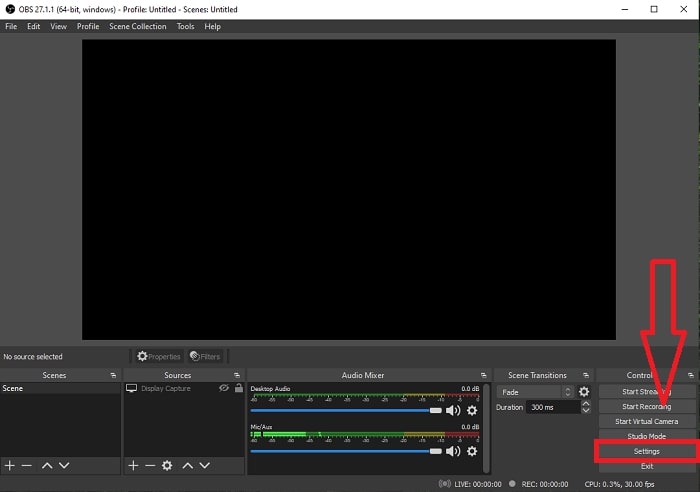
Step 1: Find the Settings
Abra o OBS Studio para prosseguir com a interface do aplicativo e clique em Configurações no canto inferior direito.
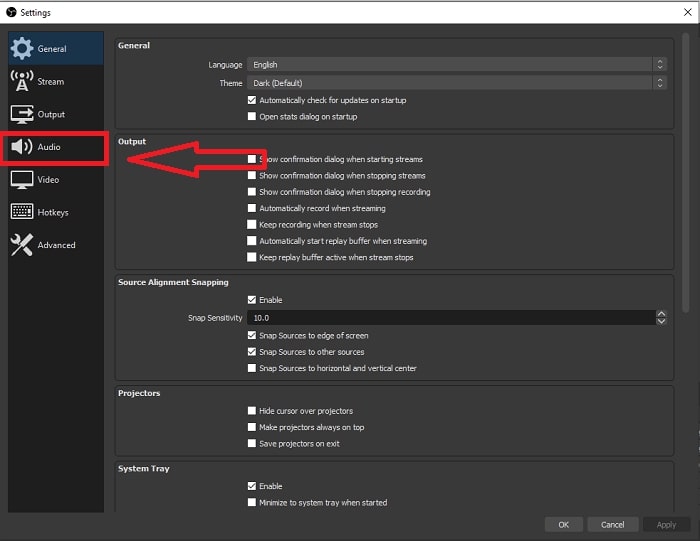
Step 2: Access Audio Settings
After you click the Settings, another interface will appear on your screen. This interface will give you an overview of the general settings of OBS Studio. But to proceed in fixing the audio delay of OBS Studio, click the Audio in the left corner of the interface.
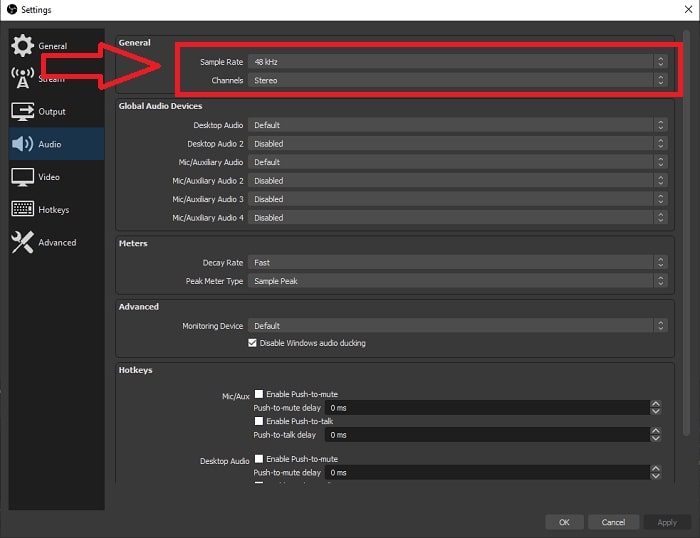
Step 3: Choose an Appropriate Sample Rate
Edite a taxa de amostragem com base na taxa de amostragem preferida de sua área de trabalho e dispositivos de gravação. Suponha que seu dispositivo de gravação seja um pouco antigo e você tenha uma configuração antiga. Nesse caso, será melhor diminuir a taxa de amostragem da taxa de amostragem padrão de 48 kHz e aumentar seu ajuste de 48 kHz se você quiser observar a taxa de amostragem preferida do seu dispositivo. Como quanto maior a taxa de amostragem do vídeo, mais próximo ele recriará o áudio original. Além disso, você só pode alterar a opção de canais dependendo de qual ferramenta você usa para reproduzir o vídeo.
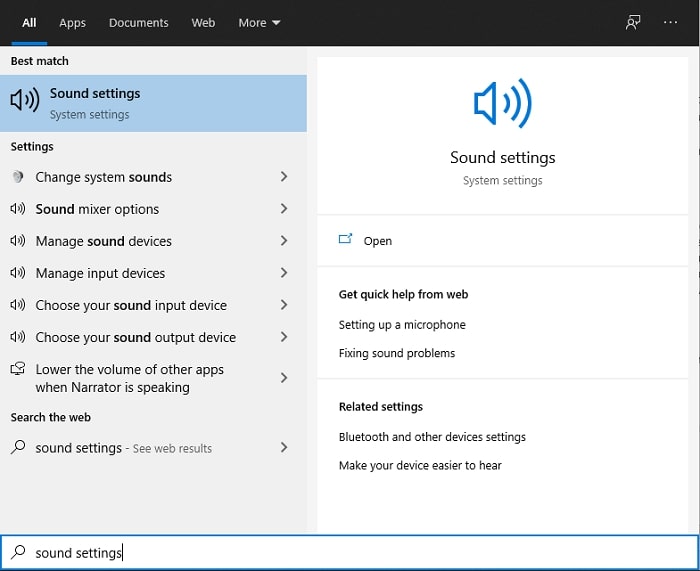
Step 4: Open the Sound Settings
After setting your desired sample rate in the OBS Studio, type Sound Settings in your search bar within the taskbar, locate the Sound Settings and click it to advance in your desktop settings.
Step 5: Locate the Sound Control Panel
Click the Sound Control Panel. After you open it, another sound interface will appear on your screen—an overview of all the available devices that has something to do with audio outputs.
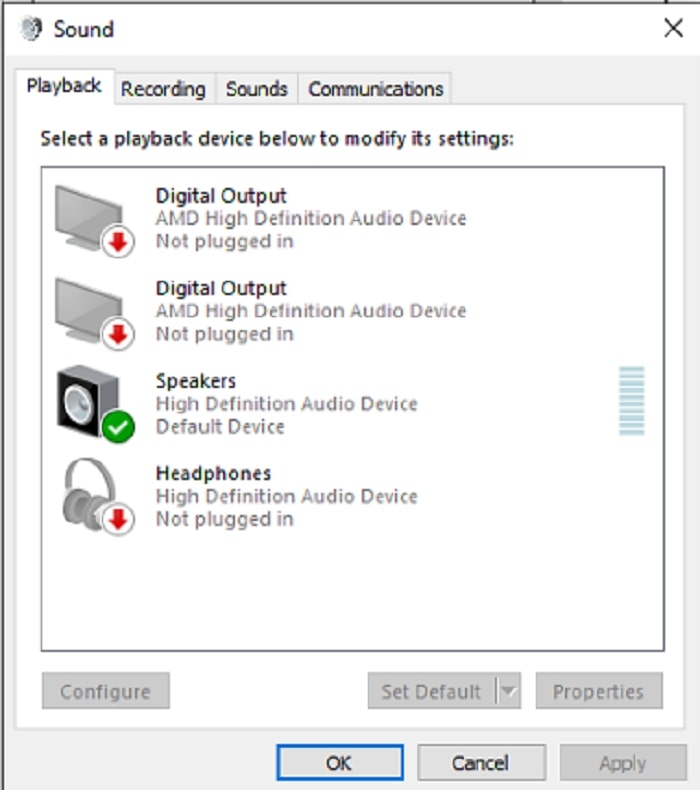
Step 6: Select Device for Audio Outputs
As opções presentes são os dispositivos disponíveis em sua configuração de gravação, seja um alto-falante ou fones de ouvido. Escolha qual dispositivo deixa o áudio fora de sincronia e clique nas propriedades depois.
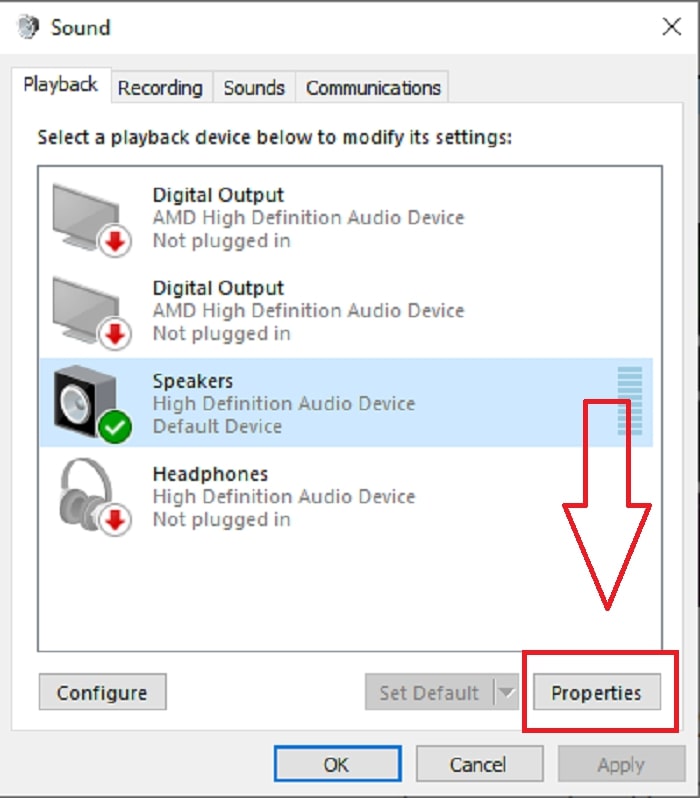
Step 7: Continue in Advanced Settings
Consequently, after you click the properties of the desired device for the audio output, click the Advance and you will see the default format; test every format in the options and choose the format that does not make the audio out-of-sync.
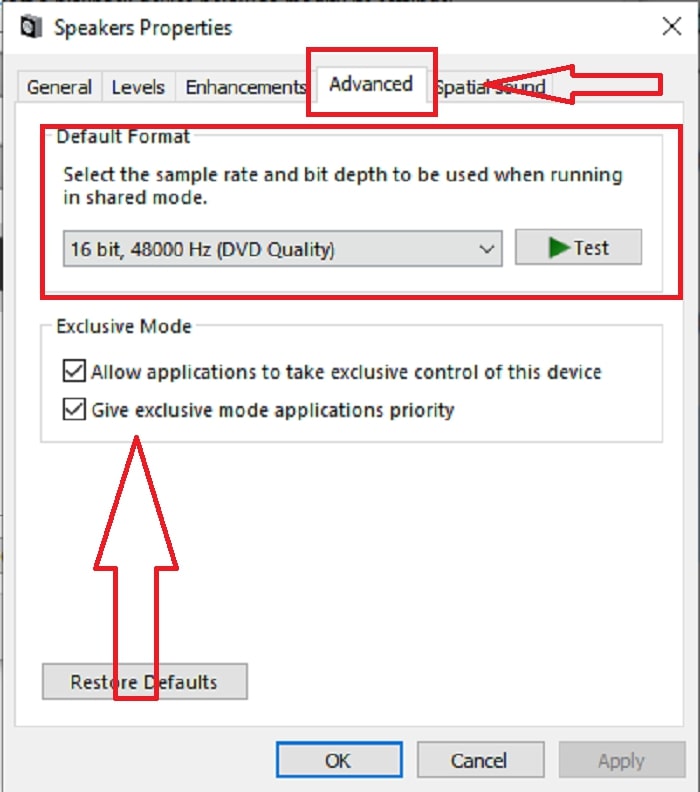
Parte 3. Melhor maneira de corrigir o atraso de áudio OBS
The solution above says how to avoid audio delay using the OBS Studio, but what if the problem is the recorded audio you want to present or upload is out-of-sync? Use the FVC Video Converter Ultimate, a software with various features in enhancing a video clip. One of the features offered can fix the audio sync of a video clip by adjusting its delay. Follow the steps below to know how to use the software:
Step 1: To save the software to your computer's hard drive, click on the Free Download button. Then you can install the software and customize the settings to your liking.
Free DownloadFor Windows 7 or laterSecure Download
Free DownloadFor MacOS 10.7 or laterSecure Download
Step 2: Click the Toolbox feature after you launch the software, and proceed with clicking the Audio Sync.
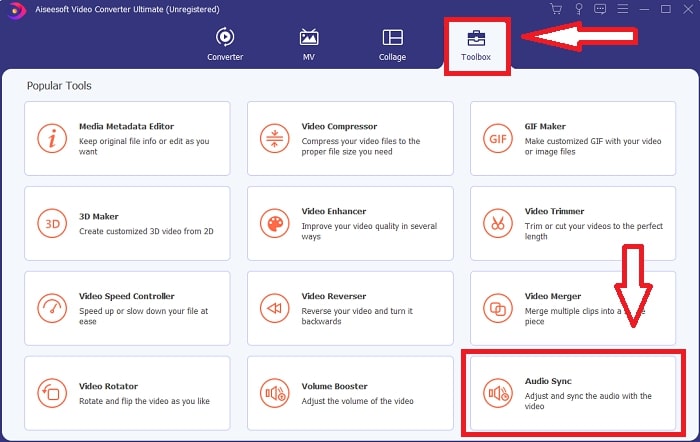
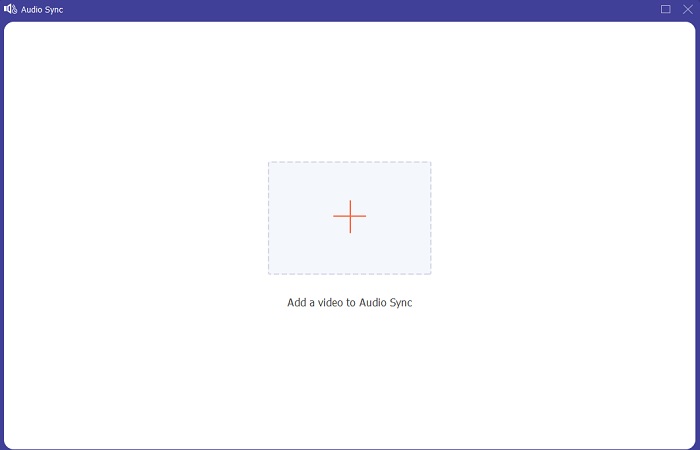
Step 3: Click the + button after clicking the audio sync and start editing the video clip.
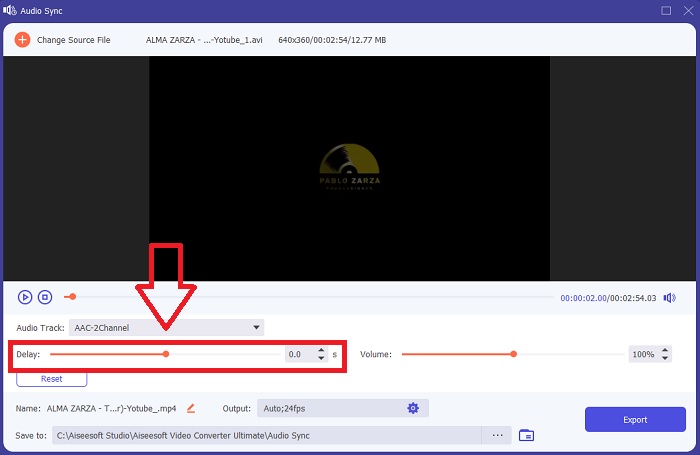
Step 4: Adjust the Slider of the audio to sync its video clip. With this, you can also change the output device and start customizing the volume of your video clip.
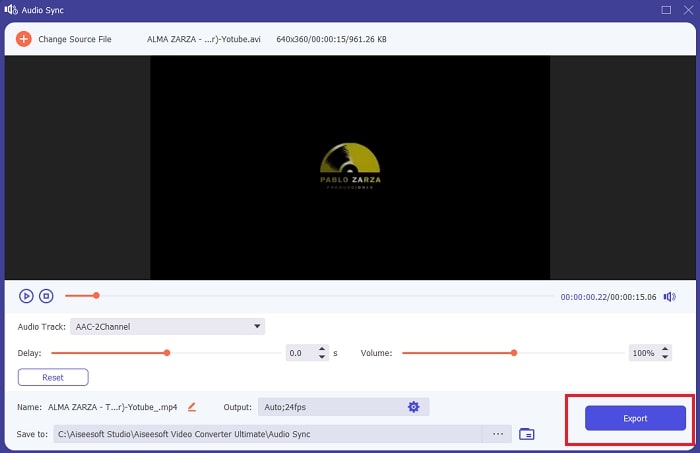
Step 5: Click Export and choose where you will save your file after you finish editing.
Related:
Parte 4. Perguntas frequentes sobre o atraso de áudio do OBS
O que é uma incompatibilidade de taxa de amostragem?
A taxa de amostragem de áudio, expressa em kilohertz, é a velocidade na qual o sistema faz essas medições. A taxa de amostragem de áudio determina a faixa de frequência que você pode capturar em áudio digital - a taxa de amostragem muda nas preferências de áudio na maioria das DAWs. Alterar a taxa de amostragem afeta a qualidade do seu áudio. No entanto, a incompatibilidade da taxa de amostragem é uma taxa de amostragem desigual de recebimento e envio de áudio para a fonte. Este incidente sempre acontece se a saída do alto-falante e a saída do fone de ouvido não tiverem a mesma taxa de amostragem, causando um atraso de áudio.
Perco a qualidade do áudio se ajustar a taxa de amostragem?
A taxa de amostragem está mudando se você quiser ouvir o áudio em seu videoclipe e não alterá-lo. Ao usar o FVC Video Converter Ultimate, você alterará apenas o atraso de áudio do videoclipe para sincronizar seu áudio. Você não ajustará mais a taxa de amostragem e terá medo de perder a qualidade do áudio.
Qual taxa de amostragem é preferida se eu usar saída de áudio de baixa qualidade?
A qualidade do áudio depende da saída de áudio. Se o seu microfone ou alto-falante suportar apenas uma taxa de áudio de baixa frequência, é melhor diminuir a taxa de amostragem padrão para 44,1 kHz do que configurá-la para 48 Hz. A taxa de amostragem pode afetar o atraso de sincronização de áudio se não houver fluxo de frequência igual para saída e entrada.
Conclusão
To summarize, the audio delay that always appears in OBS Studio is open in different ways to fix it. We discussed the sample rate mismatch and observed different audio outputs but the best way to show a solution to make the audio out of sync is to use the FVC Video Converter Ultimate. Aside from its feature that can fix audio sync, it has many more features that can help improve your video clip.
-
 2 melhores soluções para resolver o Windows Media Player que não reproduz DVDs
 Quando você deseja reproduzir vídeos em DVD através do Windows Media Player, mas recebe apenas o erro “O tipo de arquivo não é compatível”, você pode aprender 3 maneiras fáceis de consertar o Windows Media Player que não reproduz DVDs.
-
 [Resolvido] Como corrigir vídeos que não estão sendo reproduzidos no iPhone com etapas detalhadas
 Vídeos locais na galeria não podem ser reproduzidos em seu iPhone por meio do reprodutor de vídeo padrão? Vídeos online do YouTube que não rodam no iPhone sempre acontecem? Aqui estão 5 soluções para ajudá-lo neste artigo.
-
 Guia sobre como reparar vídeos que não estão sendo reproduzidos em telefones Android
 Quer saber quais são as razões pelas quais os vídeos no seu dispositivo Android não podem ser reproduzidos? E em caso afirmativo, existem maneiras de resolver o problema por conta própria? Continue lendo para saber mais.
