


 Video Converter Ultimate
 Gravador de ecrã
 Reparo de vídeo
3 Ways to View HEVC Files on Windows 11 Effectively
HEVC, or H.265, is a modern compression standard commonly used for 4K videos, videos from iPhone, GoPro, and other streaming services. Thus, your Windows 11 does not have HEVC codecs because of licensing costs. This is the main reason why some HEVC files cannot be viewed on your device. If you are among these users who experience the same hassle, then this article is for you. We have prepared the best tools for you on how to view HEVC files on Windows 11 with ease. You can read this post now as you discover the process you need.

Why Windows 11 Cannot Play HEVC Files Natively
Missing HEVC Codec
The common reason why you cannot view an HEVC file on Windows 11 is that the HEVC codec is missing on your device. It is a common problem with Windows 11 because they are not include an HEVC codec due to licensing costs. This leads you to struggle to view HEVC with built-in players.
Hardware Acceleration Limitations
Another reason behind the problem of not playing HEVC on Windows 11 is the limited hardware acceleration support on your device. Even though you manage to install the HEVC codec on your computer, there is still a chance that you cannot view an HEVC file, especially if the CPU or GPU of your computer is old and outdated. It is important to ensure that hardware acceleration on your computer is good for smooth playback.
How to View HEVC Files on Windows 11
Solution 1: Install official HEVC Video Extensions from the Microsoft Store
Best For: Adding native playback of HEVC files in their Windows apps.
Price: $1.00 (one-time purchase)
Overall Rating: 4/5
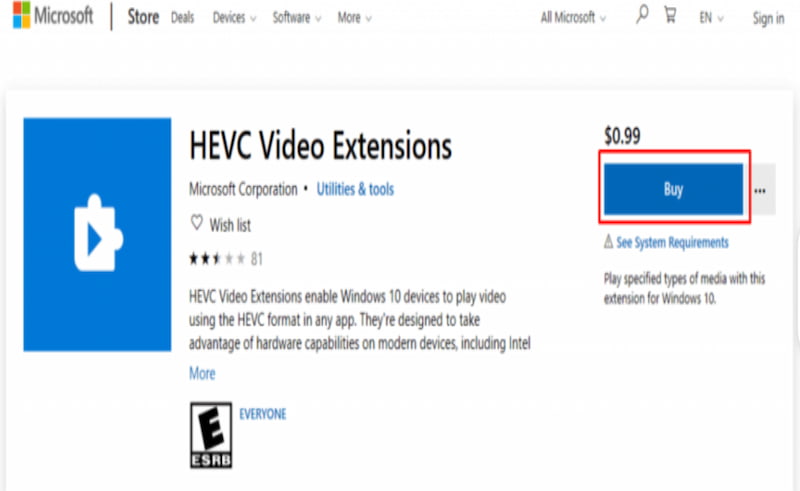
Integrating an HEVC codec with Windows 11 requires you to install the official HEVC from the Microsoft Store. It is not a free process because you will need to purchase the codecs. Yet, installing the codec does not automatically give you guaranteed smooth playback. Because having a codec of HEVC but has a slow hardware acceleration will also not allow you to view such a high-quality file format. HEVC requires an updated system, so it's better to ensure these things are updated to prevent any problems with HEVC even after installing the codec. With that, here are the steps to follow to install the HEVC codec on Windows.
Step 1. Access the Microsoft Store on your Windows 11. From there, search for the HEVC Video Extensions using the search bar.
Step 2. You can see the Buy button on the right side. This usually costs around $1.00 or $2.00. Please complete the purchase here.
Step 3. Install the extension, and you have to restart your PC after that.
Step 4. You can now try to open an HEC file on Windows 11 with a HEVC video extension installed on it.
Solution 2: Convert HEVC to H.264 Using FVC Free Online Video Converter: Fast and Free
Best For: Free and streamlined process of converting HEVC.
Price: Free
Overall Rating: 4.5/5
Installing an official HEVC codec or video extensions from the Microsoft Store will not always work, especially if your hardware acceleration and budget are limited. Thus, converting HEVC files into a universal file format helps open the file without limitations. In line with that, FVC Free Online Video Converter can do it for you. This is a free tool to open your HEVC file by converting it into a new and compatible format with your Windows 11. This tool does not require you to pay any amount, and even install a tool from the Microsoft Store. All you need to do here is access its official website using Chrome or any browser. You can also see below how easy it is to use. Check out the steps you need to take:
Step 1. On the official site of FVC Free Video Converter Online, click Add a File in the center of the tool.

Step 2. Select the HEVC file you want to convert from your cloud. You can now set it to MP4. Then click the Save button to continue.
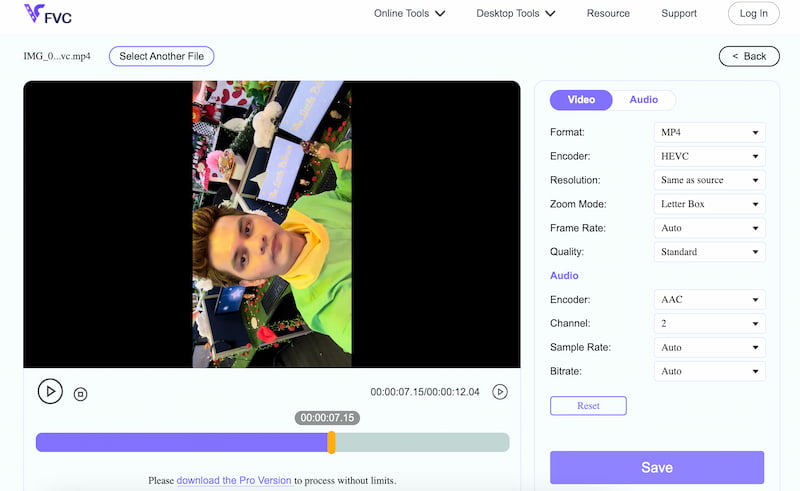
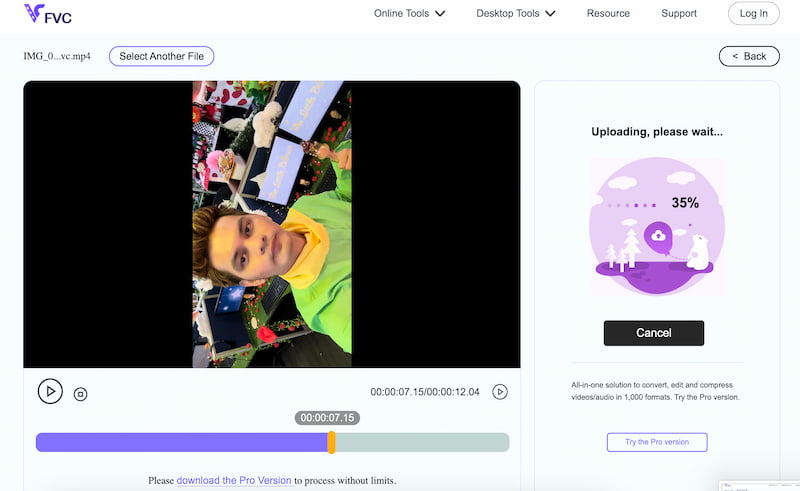
Step 3. After that, allow the tool to complete the process and open the converted file on your Windows 11 with ease.
Solution 3: Play with Aiseesoft Blu-ray Player
Best For: Direct playback for HEVC files.
Price: Free and $15.60 purchased
Overall Rating: 4/5
The third solution to your problem is installing a third-party player, which can allow you to view HEVC directly without converting or installing an extension. This process is possible using Aiseesoft Blu-ray Player. This tool exists to help many users in allowing them to play and view high-quality file formats. More than that, this tool offers advanced features compared with the two options above. This also allows you to customize the file with ease. Yet, all of these advanced features are available with their purchased plan for full features tool. Overall, it is a great solution to play HEVC on Windows 11 with ease.
Step 1. You can download and immediately install Aiseesoft Blu-ray Player from their official website.
Step 2. Open the tool on your computer. From the interface, click Open File. From there, you can now select the HEVC file you want to view.
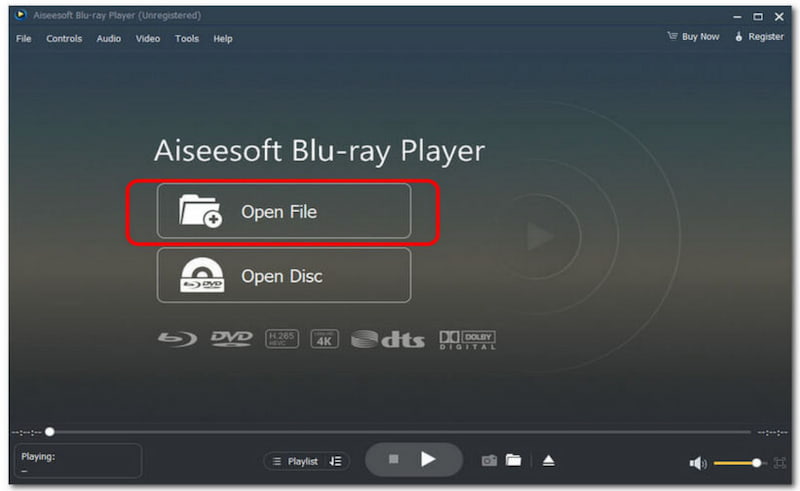
Step 3. You can now see that the software will play the file.
FAQs about How to View HEVC Files on Windows 11
Q: Can I have a free version of the HEVC codec for Windows 11?
A: Some OEMs can provide a free HEVC video extension. Yet, the availability of these extensions will depend on the PC model and region you are in.
Q: Why does my HEVC playback stutter despite having the codec installed?
A: The stuttering experience can happen even with an installed HEVC codec on your Windows 11 because of poor hardware acceleration. You might have older CPUs and GPUs that cause your computer to struggle with viewing HEVC.
Q: Is converting HEVC to H.264 a good idea?
A: Yes. Converting HEVC to H.264 is a good idea that ensures your universal compatibility. That means you can now view your HEVC file using another codec without worrying about the video extension and third-party players.
Conclusão
As we get to the conclusion, viewing HEVC on Windows 11 is not possible all the time. Because the manufacturer does not always include this codec due to cost. Yet, a video extension, a conversion tool, and a third-party player can let you view it. Online conversion tools such as FVC Online Converter are the best solution for it because they are free and easy to use. Use it now to make viewing of HEVC files possible.
-
 How to Fix MP4 Not Playing [3 Effective Solutions]
 Nothing’s more frustrating than an MP4 file not playing on your device. With that, read this article and discover the solution that can help you fix it.
-
 Windows Media Player Won’t Play MP4? 4 Easy Fixes for 2026
 Windows Media Player won't play MP4 files? Learn how to fix codec issues, playback errors, and unsupported formats with simple solutions.
-
 Como corrigir o problema de reprodução de vídeo no VLC Media Player: 5 métodos
 Não entre em pânico ao se deparar com um problema no VLC Media Player que não reproduz vídeo. Preparamos todas as 5 soluções que você pode usar neste artigo. Leia e explore.
