


 Video Converter Ultimate
 Gravador de ecrã
 Reparo de vídeo
 Secure Download
Easiest Way to Fix MP4 Not Playing on PC/Mobile/TV
MP4 is one of the most widely supported video formats, but that doesn't mean playback problems never happen. Sometimes an MP4 file won't open or play properly on your PC, phone, or TV, often for reasons that aren't immediately obvious. The good news is that most of these issues can be fixed with a few simple troubleshooting steps—no advanced technical knowledge required.
In this guide, you will learn the possible reasons why an MP4 file is not playing and explore practical solutions to fix it. From simple troubleshooting methods to using dedicated repair tools, this article will help you restore smooth video playback across different devices.

Part 1. Common Causes of MP4 File Not Playing
There are several reasons why an MP4 file not playing issue happens on different devices. Even though MP4 is one of the most commonly used video formats today, some users still encounter problems where an MP4 won’t play on their PC, mobile phone, or smart TV. In some cases, users may also notice that downloaded MP4 files do not play properly after transferring or saving them. Understanding the possible causes behind these playback issues can help you apply the right fix more effectively.
Below are some of the most common reasons why an MP4 file does not play:
Corrupted MP4 File: One of the biggest reasons for an MP4 file not playing is file corruption. Videos can become damaged during recording, editing, transferring, or downloading, making them unreadable on certain media players.
Unsupported Codec or Format: Sometimes, an MP4 file not supported error appears because the codec used inside the MP4 container is incompatible with your device or media player.
Incomplete Video Download: Interrupted downloads can lead to downloaded MP4 files not playing correctly, especially if important video data is missing.
Outdated Media Player: If your software is outdated, your MP4 won’t play because the player may no longer support newer encoding technologies.
Audio Playback Problems: There are cases where the video works, but the sound does not. This MP4 file not playing audio issue is often related to unsupported audio codecs or corrupted audio tracks.
Storage Device Errors: Damaged USB drives, SD cards, or hard drives may also cause an MP4 file not playing issue due to corrupted sectors affecting the video file itself.
Part 2. How to Fix an MP4 File Not Playing
Now, if you are currently experiencing an MP4 file not playing issue, the good news is that there are several effective methods you can try depending on the cause of the problem. Whether your video is corrupted, unsupported by your media player, or affected by codec issues, the solutions below can help restore smooth playback on your PC, mobile device, or TV.
| Methods | Melhor para |
| Using FVC Video Repair | Corrupted or damaged MP4 videos that cannot be opened or played. |
| Using VLC Media Player | MP4 files affected by unsupported codecs or playback compatibility issues. |
| Using HandBrake | Converting incompatible MP4 videos into supported formats. |
Método 1: usando reparo de vídeo FVC
First in the list is the FVC Video Repair. With this tool fix it. the user can effectively address various video playback issues, including an MP4 file that is not playing. When videos fail to play, it is often due to underlying problems such as corruption, missing headers, or incompatible codecs within the video files. FVC Video Repair functions by automatically analyzing the structure of these files and attempting to reconstruct or replace damaged or missing portions. This process can help fix video issues related to corrupted data, allowing the repaired video to be seamlessly played on Windows Media Player.
Para usar esta ferramenta, siga as etapas abaixo:
Step 1: From their official website, download and install the program on your device.
Free DownloadFor Windows 7 or laterSecure Download
Free DownloadFor MacOS 10.7 or laterSecure Download
Step 2: Next, add the MP4 file that is not playing by clicking the Red Plus button. Likewise, click the Blue Plus button to add the sample video.
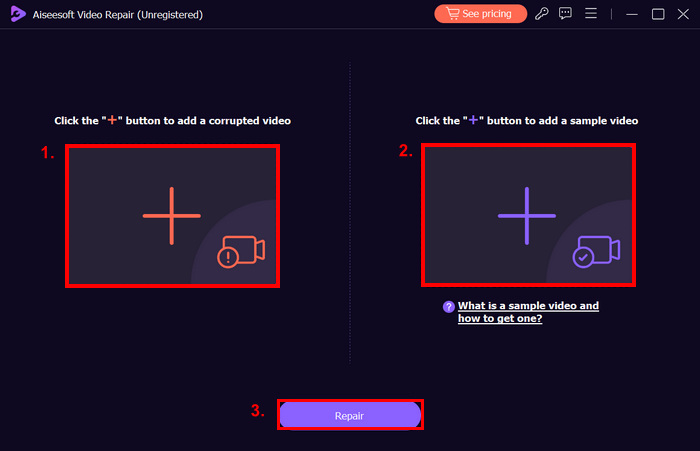
Step 3: After that, click the Repair button.
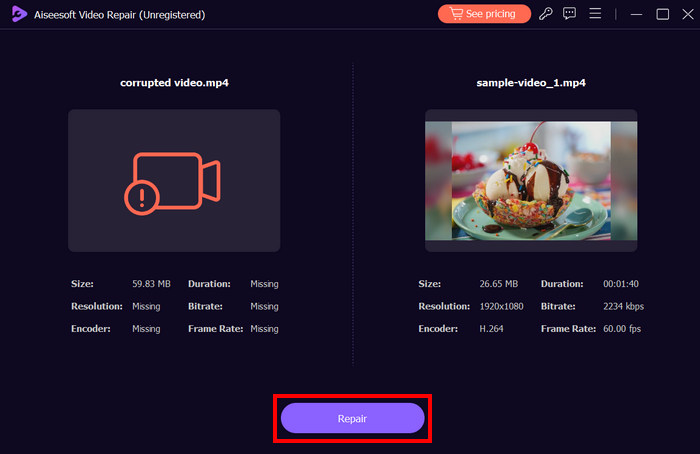
Step 4: Lastly, check if the video is now playable by clicking the Preview button. When you are satisfied with the result, save the video by clicking the Save button.
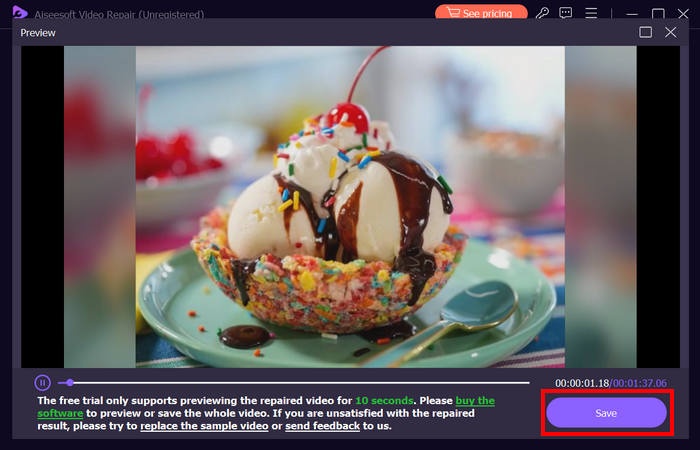
FVC Video Repair is indeed a perfect automated solution, making it less of a hassle for users to rectify specific problems like when an MP4 file won’t play.
Method 2: Using VLC Media Player
Second on the list is using VLC Media Player. This tool is widely known as a media player; however, it also has built-in capabilities that can help fix minor playback issues related to an MP4 file not playing. VLC supports a wide range of codecs, which makes it a reliable option when your MP4 won’t play on default players due to compatibility problems. In some cases, it can even help handle MP4 file not supported errors without needing additional software.
Aside from playback, VLC can also help stabilize or process damaged or partially corrupted video files by using its advanced decoding system. This makes it useful when dealing with downloaded MP4 files not playing properly or videos that lag, freeze, or show no audio.
Steps on How to Use the VLC Media Player:
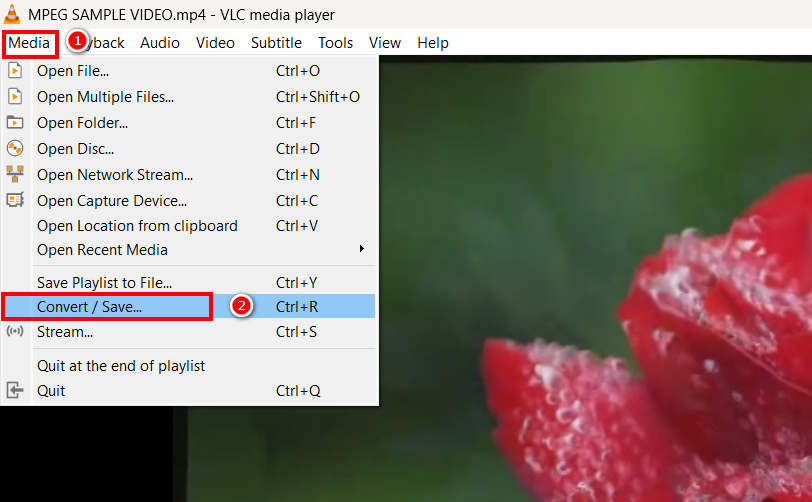
Step 1. Open VLC Media Player, click Media, go to Convert / Save, then click Add to select the MP4 file that is not playing. After selecting it, click Convert / Save.
Step 2. In the Convert window, choose the profile Video - H.264 + MP3 (MP4) from the dropdown list.
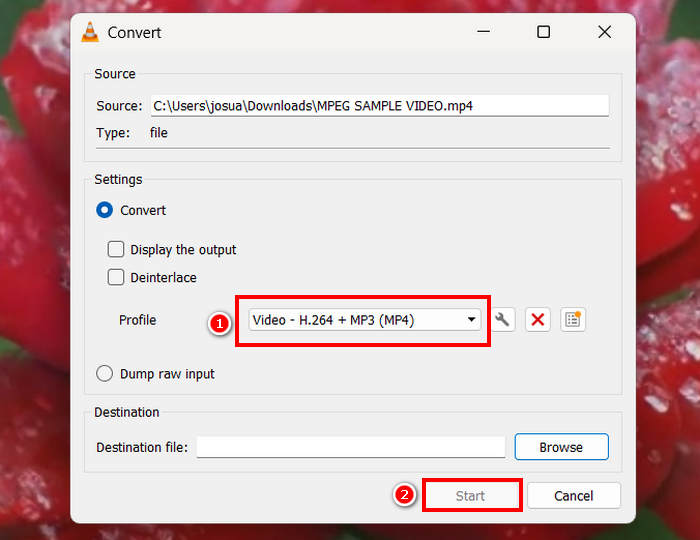
Step 3. Click Browse to select the destination folder and rename the output file to avoid overwriting the original.
Step 4. Click Start to begin the conversion process and wait for it to finish.
Step 5. Open the converted file and check if the issue with the MP4 file not playing is resolved.
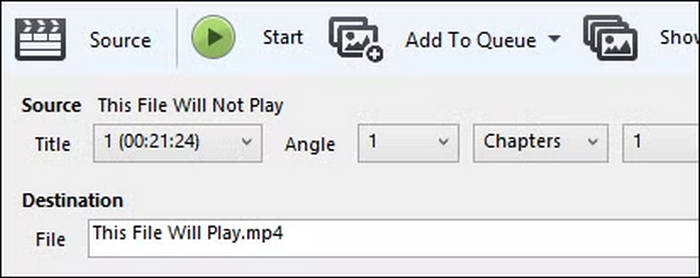
Method 3: Using HandBrake
At last, you can try HandBrake. It is a free, open-source video transcoder. It's mainly designed to convert videos between formats, re-encoding a video with HandBrake also creates a new file with a rebuilt container structure. This process can fix certain playback issues caused by damaged metadata, container errors, or compatibility problems. If your MP4 file won't play because of these issues, converting it with HandBrake may restore normal playback.
Steps on How to Fix MP4 File Not Playing Using HandBrake:
Step 1. First, you need to download and install HandBrake.
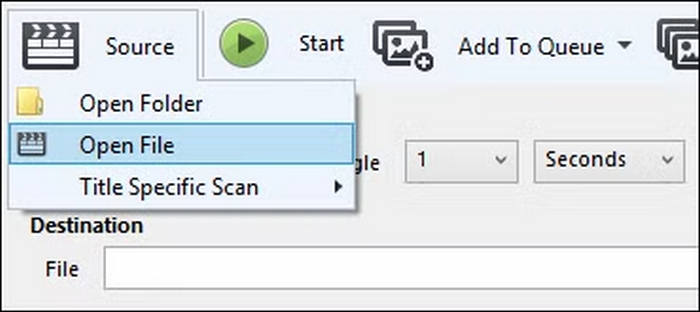
Step 2. Open your HandBrake and go to Open File.
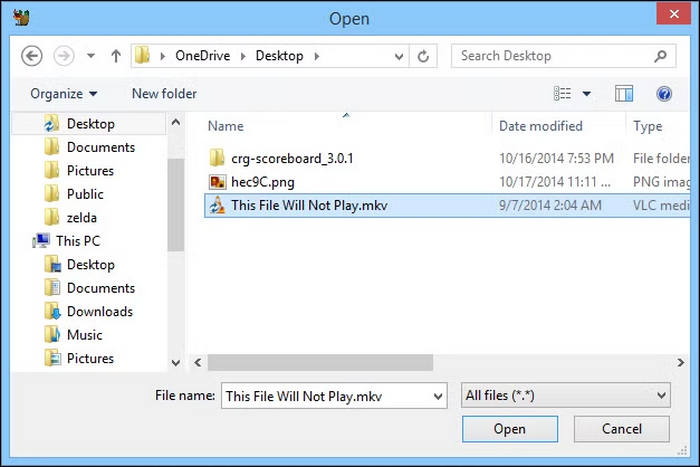
Step 3. After that, select the corrupted MP4 file you want to re-encode.
Step 4. Lastly, choose a preset and click Start Encode.
Part 3. FAQs about MP4 File Not Playing
Why does my MP4 file play video but have no sound?
An MP4 file not playing audio issue is often caused by an unsupported audio codec, a corrupted audio track, or incorrect audio settings in the media player. To fix this, try playing the file in VLC Media Player, updating your media player, or converting the video to another format that uses a more compatible audio codec.
Why are downloaded MP4 files not playing?
Downloaded MP4 files may fail to play if the download was interrupted or incomplete. Missing data can prevent media players from properly reading the file. Try downloading the video again from the original source and verify that the file size matches the expected download size.
Why does my MP4 file play on one device but not another?
Different devices support different video and audio codecs. An MP4 file may work perfectly on a computer with updated software but fail to play on an older phone, TV, or media player that lacks support for the file's encoding format.
Conclusão
It’s really frustrating when your MP4 file won't play, especially when you need immediate access to an important video. Fortunately, there are several ways to fix it. From repairing damaged files with FVC Video Repair to resolving compatibility issues through VLC Media Player or HandBrake. So, with the right method, you can quickly fix the issue and restore smooth playback across your devices.
-
 QuickTime Player Not Playing MP4 Files? Fix It Fast
 QuickTime Player not playing MP4 files? Learn how to fix codec issues, corrupted videos, and outdated QuickTime versions with simple solutions.
-
 Windows Media Player Won’t Play MP4? 4 Easy Fixes for 2026
 Windows Media Player won't play MP4 files? Learn how to fix codec issues, playback errors, and unsupported formats with simple solutions.
-
 Easiest Way to Fix VLC Record Not Working [6 Methods]
 Pressing the VLC record button, but ain’t working? Read this article and be guided on how to fix the VLC Record no video problem, and learn why this happens.
