


 Video Converter Ultimate
 Gravador de ecrã
 Reparo de vídeo
Como adicionar um filtro ao GIF no Windows/Mac/iPhone/Android com etapas
Want to know how to spice your GIF by adding a filter on it? No need to worry because this article will provide the most picked GIF editor you can use on your desktop and phone to have filters. The information we include here will provide credible evidence on adding filters to a GIF. Let's investigate further what GIF filter software you can use on your operating system without further ado.

Parte 1. Por que preciso adicionar filtro ao GIF
Se você estiver compartilhando o GIF na Web, primeiro adicione um filtro ao GIF para aprimorar a cor, dependendo de sua personalização. Segundo pesquisas, GIF filtrado atrai mais o público do que GIFs que não possuem. Portanto, se você deseja atrair um grande público, deve começar a adicionar um filtro em todos os GIFs que criou com o editor de GIFs que possui. Agora, se você não tem ideia de como adicionar um filtro ao seu GIF, sugerimos que você leia o artigo inteiro.
Parte 2. Adicione Filtros ao GIF com o Editor de GIF Fenomenal no Windows e Mac [Maneira Mais Fácil]
Video Converter Ultimate is the best GIF editor we've seen and pick-out on the market. It is known for being your one-stop GIF editor as it offers multiple editing features like adding filters on a video or GIF. With this tool, you won't need to be a pro to use it, but you know what's great? You will have a pro output within a few touches. So now, if you want to add a filter to the GIF, you can follow the tutorial without breaking a sweat.
Step 1. To use the GIF editor, you must push the download button below and choose which operating system you are using. After downloading it, install the software by following the installation process, then open it to begin adding a filter to the GIF.
Free DownloadFor Windows 7 or laterSecure Download
Free DownloadFor MacOS 10.7 or laterSecure Download
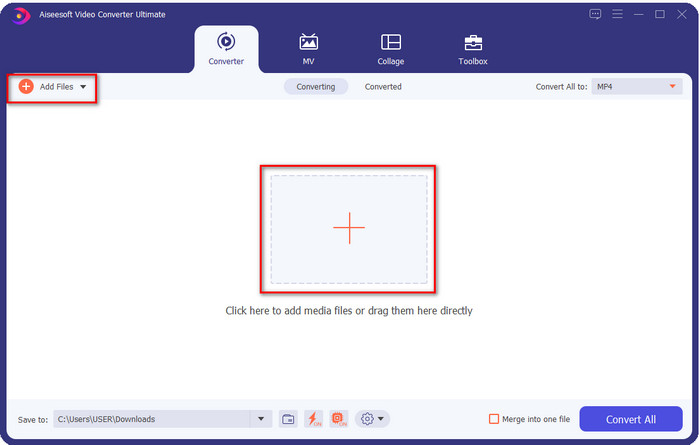
Step 2. Upload the GIF you want by clicking the + icon on the center of the main interface, but you can also click Add Files if you want; whether of the two you choose, they do function the same. Search the .gif on the desktop folder that will show on your screen, and click Open to upload it.
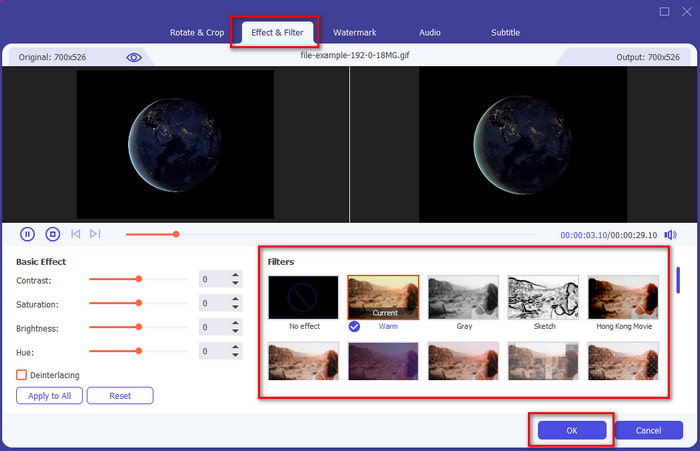
Step 3. Click the wand button to open a new window to add a filter to the GIF. Go to the Effect & Filters under it, and you will see a different set of filters you can use to make your GIF look better than the other GIFs on the web. You can try out all the filters by clicking them individually; if you are happy with the filter, you must click OK to successfully apply the filter on the GIF.
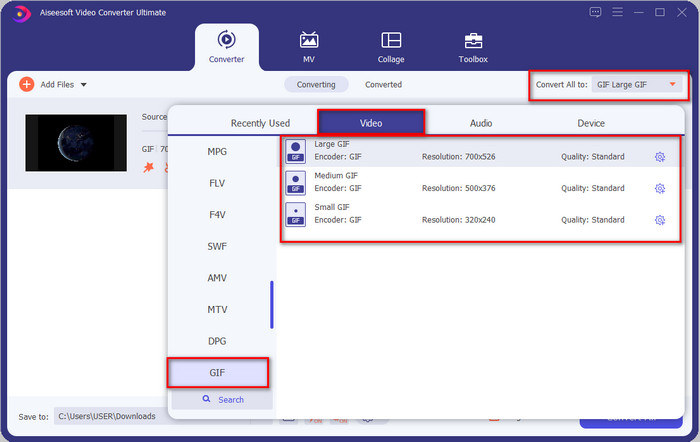
If you want to keep the format of your GIF, click the Convert All to and look for the GIF format. Select the GIF format you want to have and click it.
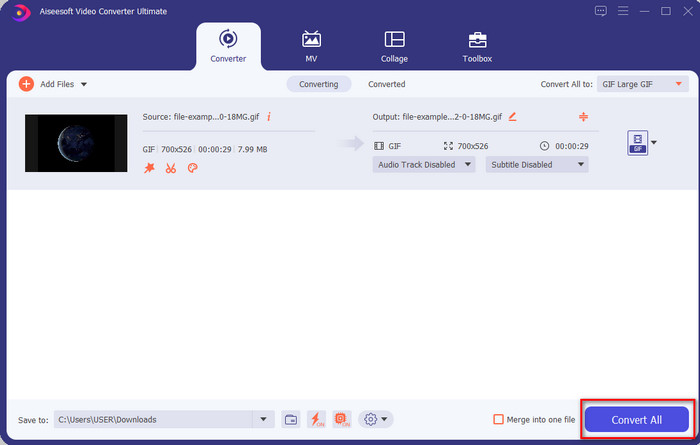
Step 4. And to download the GIF with the filter on it, click the Convert All button. Easy isn't it? With the Video Converter Ultimate, you can almost do everything regarding the GIF without breaking any sweat at all.
Parte 3. Como adicionar filtro em GIF com o GIF Maker- Editor disponível em dispositivos Android
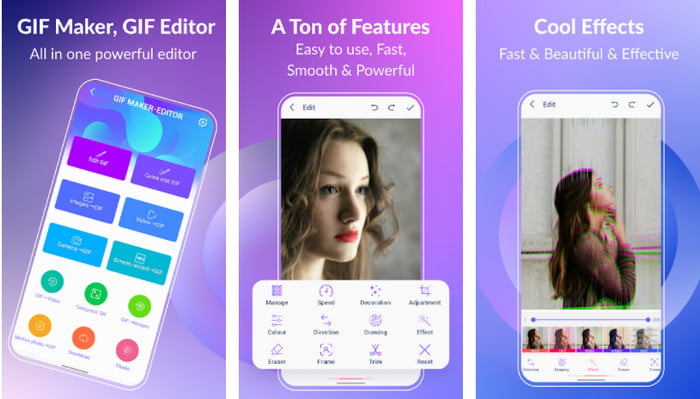
GIF Maker-Editor is an all-in-one tool you can download on your Android. This tool supports different filters to help you create a beautiful GIF. Although the tool is excellent, the ads on this tool are coming out of nowhere; you must be careful not to click them. So now, here are the steps on how to add a GIF color filter to your GIFs.
Step 1. Download the tool on your Play Store and open it.
Step 2. Click Edit GIF and choose the GIF that is on your image library.
Step 3. Look for the effects by sliding the options, then click it. Choose the filter you want, click the check icon, and OK to save the GIF.
Parte 4. Como aplicar o filtro no GIF com o GIF Maker disponível em dispositivos iPhone
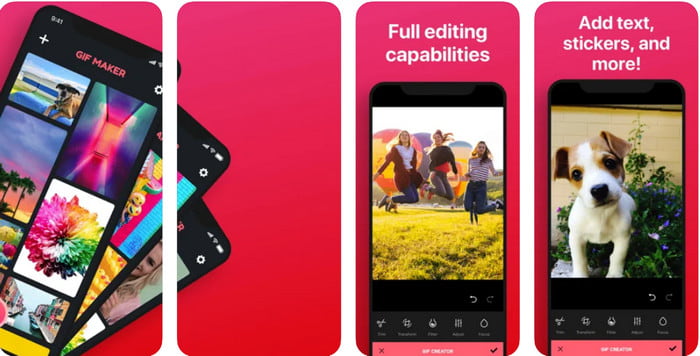
GIF Maker is the one-stop GIF editor you can download on your iPhone. With this tool, you create your custom GIFs within a few clicks. However, you can't directly use a GIF because the format isn't supported, but you can click this link and learn how to convert GIFs into a live wallpaper. After converting the GIF into a live wallpaper, you can follow the next steps to add a filter to the GIFs.
a versão gratuita desta ferramenta deixará uma marca d'água no GIF que você exportar.
Step 1. You can download the app for free on your App Store.
Step 2. Open the tool, click the + icon, click Choose Live Photo From Library, and choose the live photo to upload it.
Step 3. After uploading the live photo, click Filter, and choose which filter you want to add to your GIF. Click check to apply the video, and click the check again to export the file.
Parte 5. Perguntas frequentes sobre como adicionar filtros ao GIF
Os filtros afetam a cor do GIF?
A combinação de cores afetará o GIF ou qualquer mídia se você adicionar o filtro. Esses filtros são usados para corrigir a combinação de cores que você deseja ter, portanto, não se surpreenda se a cor for muito mais profunda ou mais clara do que o visual bruto do GIF.
Quais são os efeitos disponíveis no Instagram?
There are numerous video filters you can use on Instagram, and if you wonder what these are, you can click this link and know the top 10 picks filters on Instagram.
Posso fazer um vídeo de alta qualidade através de filtros?
You can highlight the colors of the video to make it look high quality. However, filters can only enhance the colors of the video and not the overall quality. But if you want to extend the video quality of your video, you can read this and learn how to improve video quality.
Conclusão
E agora que temos uma ideia de como adicionar um filtro ao GIF, você deve experimentar as ferramentas que fornecemos acima. Embora as ferramentas apresentem diferentes pontos fortes na filtragem do seu GIF, ainda acreditamos que o Video Converter Ultimate oferecerá os melhores filtros que você pode usar para criar um ótimo GIF filtrado. Além disso, com esta ferramenta, você pode cortar, mesclar, aparar, criar GIFs pessoais e muito mais. Você não está convencido com as informações que fornecemos? Achamos que existe uma maneira de provar a você que esta ferramenta é a melhor escolha no que diz respeito à edição do GIF, e é clicando no botão de download acima e seguindo o tutorial que apresentamos e divirta-se!
-
 Como adicionar áudio e música ao vídeo gratuitamente em seu computador / telefone
 Este artigo mostra 4 maneiras fáceis de adicionar áudio a vídeo gratuitamente. Não importa qual faixa de áudio você deseja adicionar ao seu vídeo, você pode obter resultados satisfatórios aqui.
-
 Transforme GIF em formato de vídeo: converta memes GIF em vídeo [2021]
 Determine como transformar GIF em formato de vídeo com a ajuda das ferramentas listadas abaixo. Escolha qual deles e aprenda como fazê-lo, à medida que coletamos evidências suficientes sobre eles.
-
 GIF maravilhoso para aplicativos de vídeo para dispositivos Android e iOS
 Você sabia que pode converter GIFs em qualquer formato de vídeo de que goste usando o telefone? Escolha os melhores aplicativos em seu Android ou iOS.
