


 Video Converter Ultimate
 Gravador de ecrã
 Reparo de vídeo
Domine a arte de adicionar marca d'água no iMovie com etapas detalhadas
One of the best editors you can use on Mac is the iMovie. This tool provides a very intuitive interface for Mac users to use. Although the tool is excellent and easy to manage, some users still seek a tutorial on using it. So, if you are a Mac user and want to learn how to add water to video in iMovie, you can follow through the guide we presented below to achieve greatness with the tool.

Parte 1. Tutorial sobre como adicionar marca d'água a um vídeo no iMovie no macOS
Já apresentamos o iMovie, então os detalhes a seguir ensinarão como colocar uma marca d'água em um vídeo no iMovie. Para aprender como adicionar, você pode seguir o guia detalhado abaixo e leia-o completamente para entender toda a ideia.
Step 1. Launch the iMovie on your Mac, and if you can't find it, you can quickly go to the Finder and search it.
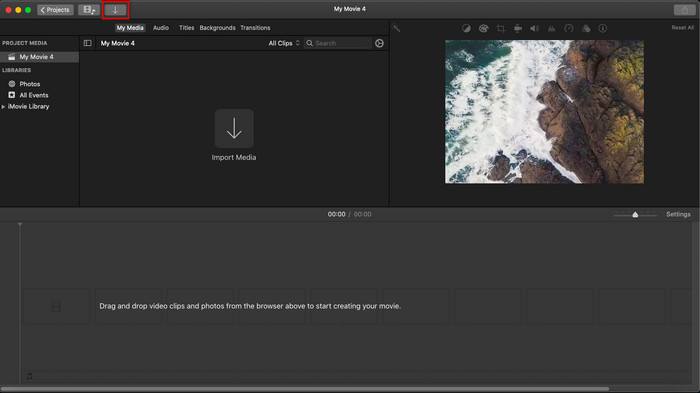
Step 2. Click the Import button to upload the video and the image you want to use as a watermark. Drag the video and image file to the Timeline below, same as the images. Make sure that the video is a the top of the time of the video. Make some adjustments to the image by dragging, resizing, and more.
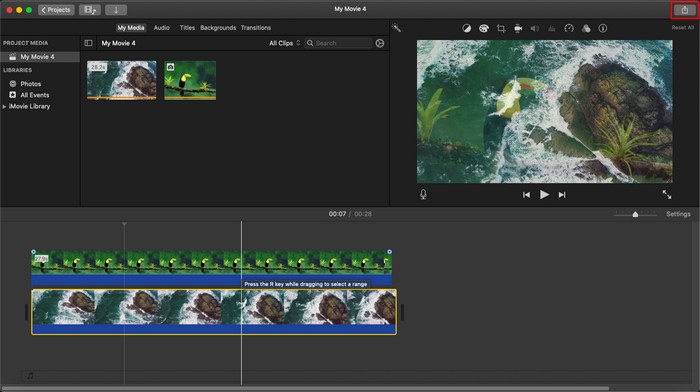
Step 3. If you've already satisfied with the adjustment, click Export at the upper-right part of the tool, then Export File.
Prós
- É gratuito para uso em qualquer dispositivo Apple, como dispositivos macOS e iOS.
- Faça edições rápidas nos vídeos brutos para deixá-los com uma boa aparência.
- Estão disponíveis funções de edição essenciais até médias.
Contras
- Ele suporta menos formato, portanto, se você deseja editar o vídeo aqui, deve convertê-lo para MOV ou qualquer formato compatível com dispositivos Apple.
- Menos suporte para edição profissional.
Parte 2. Melhor ferramenta para usar e colocar marca d'água em vídeo em computadores Mac de maneira menos complicada
If you feel that adding a watermark on iMovie is hard, you can use instead of the best alternative, Video Converter Ultimate. This tool provides a much easier way of adding a watermark to your video. Imagine this: the ultimate tool is more accessible if the iMovie is easy to use. Although it is easy to use, the final output it provides is top-notch, and one of its advantages against the iMovie is that it supports more image formats you can use to upload. Want to know more? Well, you can read the features that we present below for you.

FVC Video Converter Ultimate
Mais de 5.689.200 downloads- Fornece recursos de edição completos que você pode usar para tornar seu vídeo mais notável do que o outro.
- Ele suporta processos ultrarrápidos e aceleração de hardware para importar e exportar rapidamente o vídeo.
- Ele suporta formatos de vídeo como MOV, MKV, AVI, MP4, FLV, RMVB e muito mais.
- Possui uma interface muito interativa para ter a melhor experiência.
- Disponível em todas as plataformas de desktop, como Windows e Mac.
Free DownloadFor Windows 7 or laterSecure Download
Free DownloadFor MacOS 10.7 or laterSecure Download
Não é incrível ter todos esses recursos em uma ferramenta? Se estivermos na mesma página, vamos nos aprofundar nos detalhes de como marcar um vídeo com marca d'água no iMovie, mas de uma maneira mais fácil com a ferramenta definitiva.
Passos sobre como inserir marca d'água em vídeo com a Ultimate Tool
Step 1. Download the software onto your Mac, follow the installation procedure, and press Start Now to launch the tool.
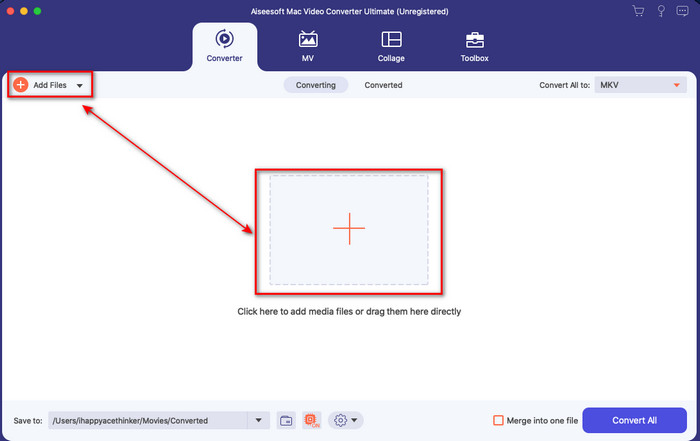
Step 2. Upload the video file you want by clicking the + button or Add Files. Look for the video on the folder that will show on your screen, and press Open to upload it.
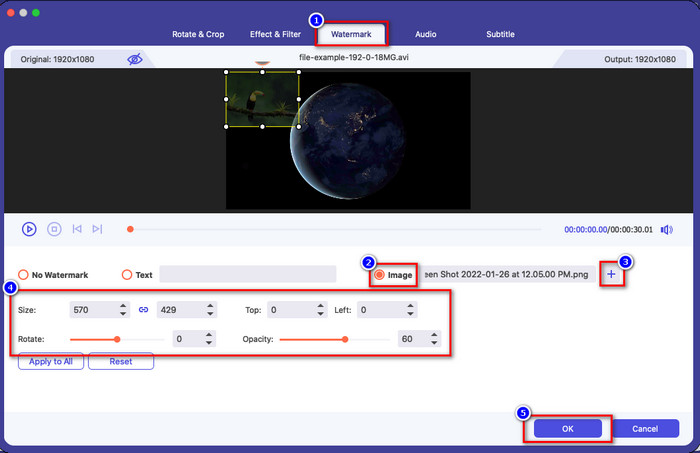
Step 3. Click the wand button to open the editing window on the tool's interface. Then click the Watermark section, tick Image, hit the + button to add the image you want. After that, adjust the image’s opacity or rotate it and click OK to save the change you've made.
Optional. If you want to change the format, click Convert All to pick the format available on the list and click it. If you don't want to change the format, you can proceed to the final step.
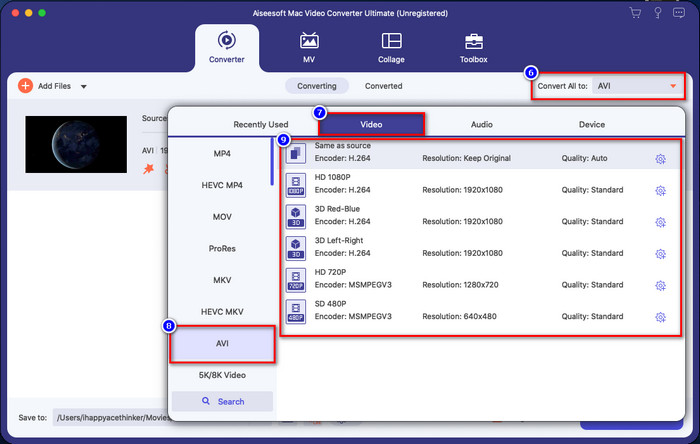
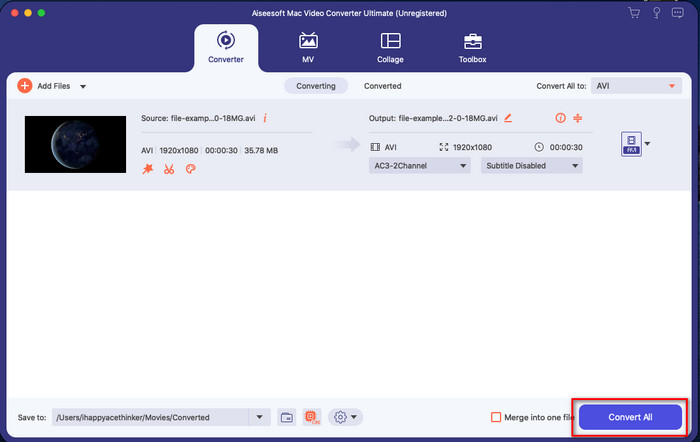
Step 4. To export the video with a watermark, click Convert All. No need to wait for too long because of the ultra-fast conversion process it provides. With that, you already did add the image watermark on your video in less than a minute.
Prós
- É a melhor escolha para qualquer usuário que tenha pouca ou nenhuma ideia de como editar.
- Ele suporta mais formatos de vídeo que você pode enviar para economizar tempo e evitar a conversão.
- Disponível em todas as plataformas como Windows ou Mac para download.
Contras
- Não é gratuito para download, mas não é muito caro.
- É necessário baixá-lo em sua unidade.
Parte 3. Perguntas frequentes sobre como adicionar marca d'água no iMovie
O uso do iMovie é gratuito?
Yes, iMovie is free to use if you are an Apple product, but you can't download it if you use an Android or Windows. Take note that there are no available iMovie on different platforms. So if you download an iMovie on your desktop or phone, that isn't Apple, except that it will not work as effectively as the iMovie or, worse, it has a virus. To avoid this, you can click and read this article to know the alternatives for iMovie.
O iMovie é o melhor editor do Mac?
Podemos dizer que é um dos melhores, mas não o melhor, porque diferentes editores oferecem vários recursos de edição que você não encontra no iMovie. Embora falte em alguns aspectos, ainda é um editor de primeira linha que você pode usar no seu Mac gratuitamente para fazer edição de vídeo para vlogs, negócios, promoção e muito mais.
Depois de exportar o vídeo no iMovie, ele fica com marca d'água?
A partir deste dia, a marca d'água do vídeo não está nos vídeos exportados. Assim, você pode aproveitar os vídeos baixados que edita no iMovie livremente sem a marca d'água irritante.
Posso usar o vídeo .avi no iMovie?
iMovie doesn't support a wide range of formats, but you can click and read this article and learn what you can do to make your AVI file compatible with iMovie.
Conclusão
This article already proves you can use the built-in editor Apple provided to you and add watermarks on videos with the steps we add that you can easily follow. Although you can freely use the iMovie, we still believe that the Video Converter Ultimate is the best tool for this task on any given day. So, if you want help, you can download it on your Mac or Windows by pressing the download button presented above.
-
 3 métodos para converter MPEG em WMV sem perder qualidade
 Você quer assistir seus vídeos no seu player preferido, mas ele não suporta o formato do vídeo? Leia este artigo, pois fornecemos as maneiras mais eficientes de converter MPEG para WMV.
-
 2 das opções de conversores favoritos para converter F4V para WMV [2022]
 Você é um dos usuários que procura a melhor maneira de converter F4V para WMV? Em caso afirmativo, tente ler este artigo para saber melhor como fazê-lo e quais são as ferramentas disponíveis.
-
 Os melhores conversores MXF para WMV para converter MXF para WMV gratuitamente
 Quer saber a maneira mais fácil de alterar seu arquivo MXF para o formato WMV? Se você está pronto para explorar como fazê-lo, você deve ler este artigo com atenção.
