


 Video Converter Ultimate
 Gravador de ecrã
 Reparo de vídeo
 Secure Download
4 maneiras mais fáceis de alterar a velocidade de reprodução do vídeo no desktop, na Web e em telefones
Most users find an effective way to watch an hour-long video but less than an hour. The only solution that could solve this problem is changing the playback speed of the video you are currently watching. The majority of the video editors you will find on the market can help you finish the task, but the question is, are they reliable? While researching each of them, we found out that you can change video speed on desktop, online, iOS, and Android devices. If you want to know how to do it, you must keep reading this blog as we include tools and apps that could help you.

Parte 1. Melhor maneira recomendada de alterar a velocidade do vídeo no Windows e Mac sem esforço
To change video speed easily, you must choose the best tool that provides greatness even in a few simple clicks—introducing FVC Video Converter Ultimate. This tool effectively manipulates the speed of the video you have at any time and anywhere. Also, you can change the video speed even if the formats are MP4, MOV, AVI, FLV, TS, RMVB, and 1000+ formats; uploading your file here is quick and easy. Even if you are a Windows or Mac user, downloading the software on that OS can help you finish the task of changing the playback speed in a few clicks.
Além de sua função de controlador de velocidade de vídeo, a ferramenta também possui uma caixa de ferramentas multifuncional que pode ajudar em outras tarefas. Como adicionar metadados, criar um GIF, remover marcas d'água e muito mais. Embora a ferramenta possa ser baixada, você notará ao usá-la que não precisará de muita experiência em edição, pois é fácil de usar. Existem funções e recursos que ainda não escrevemos que destacarão este produto. Mas se você quiser aprender como alterar a velocidade de um vídeo, leia os detalhes para saber como.
Vantagens de usar o software definitivo como um modificador de velocidade de vídeo:
◆ Interface intuitiva, para que aprendam a usá-la em poucos minutos.
◆ Carregue mais de 1000 vídeos para acelerar a reprodução.
◆ Fácil de usar para ajudar os usuários a aproveitar ao máximo.
◆ Outras funções estão no Toolbox, como edição de vídeo básica e avançada.
◆ É a primeira escolha de quase um milhão de usuários que baixam.
◆ Disponível em Windows e Mac para baixar a ferramenta sem esforço.
Etapas sobre como alterar a velocidade do vídeo usando o software definitivo:
Step 1. You can have the ultimate software on both Windows and Mac systems by clicking the download button. Complete the installation process after clicking the file you download, then launch the software to proceed.
Free DownloadFor Windows 7 or laterSecure Download
Free DownloadFor MacOS 10.7 or laterSecure Download
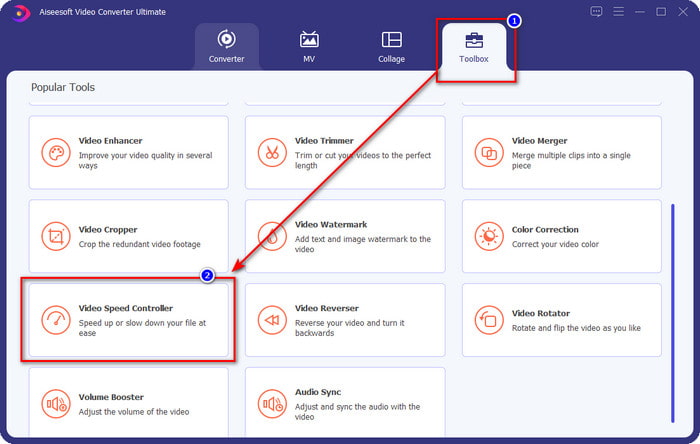
Step 2. Once you've opened the software, you must proceed to the Toolbox section; under it, open the Video Speed Controller. No need to worry; you will not need to download additional resources to use the tool.
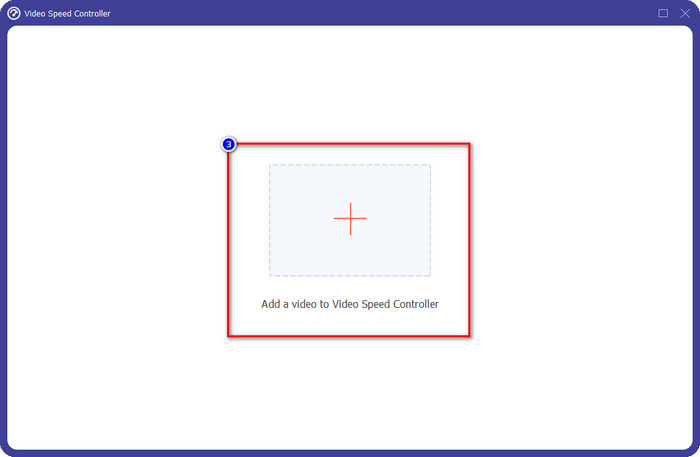
Step 3. Press the + icon, add the file that you have on the folder, click it and press Open to upload the video file you have.
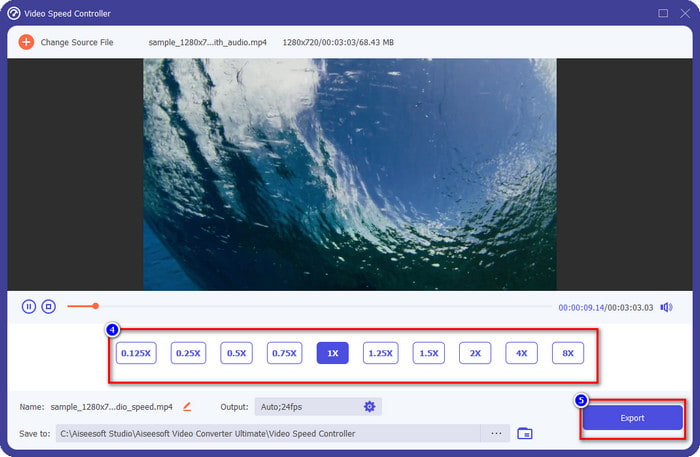
Step 4. Choose from the list the payback speed you want to achieve, and we have different playback we wish to have. Click Export to save the final output of the video you change the video speed. In less than a minute, you have already changed the rate of the video you have. You can now enjoy watching it for a lesser time.
Parte 2. Melhor Maneira Gratuita de Alterar a Velocidade do Vídeo na Web
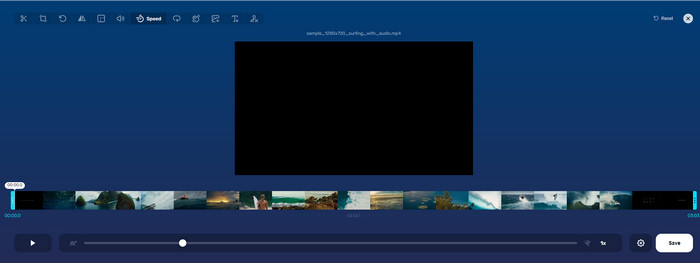
With the help of Online Video Cutter, you can change video speed online for free. Unlike the first tool, you won't need to download additional resources or installer on your desktop to use the web tool. In addition to its function in changing the speed, you can also use this tool to do some basic editing. Even though the tool is great, you can't upload all of the formats you have here because the format it supports is limited. To use this, follow the steps below.
Step 1. Open the browser you want to use and search over the web tool.
Step 2. Open the web tool, click Open File, find the video file you have and upload it.
Step 3. Drag the sliders to the left or the right and change their speed; click the Save button if you are satisfied with the rate.
Parte 3. Melhor editor de vídeo no iOS para alterar a velocidade do vídeo gratuitamente
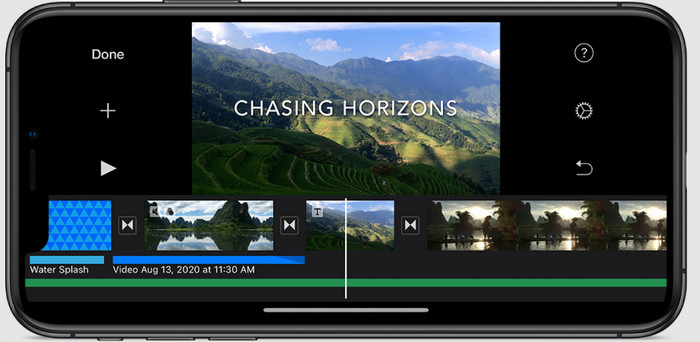
Para usuários do iOS, você pode usar o iMovie para saber como alterar a velocidade do vídeo no iPhone gratuitamente. Mesmo que a ferramenta seja um editor de vídeo nativo no Mac, você ainda tem a opção de baixar o aplicativo no seu dispositivo ou não. Essa escolha prova que os usuários do iOS podem manter o editor ou não, para economizar espaço em seu armazenamento. Mas se você tem o app no seu iPhone, pode seguir os passos que adicionamos abaixo para saber como funciona essa ferramenta.
Step 1. Download then open the app on your iPhone and the Project, click the + sign, then click Movie.
Step 2. Tap the video you want to speed up, then at the bottom of your screen, tap Create Movie to upload it on the timeline.
Step 3. By tapping the footage you've uploaded, click the speed controller icon, and adjust the speed of the video by dragging the sliders on your iPhone. Click Done to save it, then export it if you want to.
Parte 4. Melhor maneira de alterar a velocidade de reprodução do vídeo em dispositivos Android usando o editor integrado
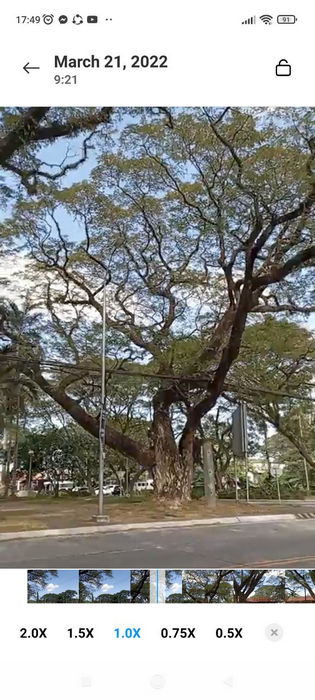
O download de um aplicativo não é o caso se você for um usuário do Android; altere a velocidade do vídeo no seu telefone com o editor de vídeo integrado. Com este editor, você pode fazer a edição básica necessária em seu vídeo para torná-lo melhor do que antes. Você pode encontrar este editor na Galeria ou no Álbum do seu Android. Se você quiser saber como usá-lo, as informações a seguir irão ajudá-lo.
Step 1. Open your Gallery or Album, then tap the video you want to change the speed.
Step 2. Click Edit to proceed.
Step 3. Tap the Playback Speed section, then change the speed according to your needs.
Parte 5. Perguntas frequentes sobre como alterar a velocidade do vídeo
Posso alterar a velocidade no YouTube?
Absolutamente sim, você pode alterar a reprodução do vídeo no YouTube mesmo que não baixe o software para fazê-lo. Siga os passos para saber como alterar a velocidade do vídeo no YouTube. Primeiro abra o YouTube, encontre o vídeo que deseja assistir em um movimento modificado, clique no ícone de engrenagem e, abaixo dele, a Velocidade de reprodução, escolha a velocidade que deseja alcançar e aproveite.
Mudar a velocidade diminui a duração do vídeo?
Depende de como você altera a velocidade; se você desacelerar o vídeo, espere que sua duração se estenda porque você o reproduz em um modo lento. Mas se você alterar a velocidade para alta, a duração do vídeo que você está reproduzindo será menor que a original. Para saber mais sobre como alterar a velocidade do vídeo, você deve ler os seguintes detalhes que adicionamos acima.
Depois de alterar a velocidade, a qualidade terá um efeito?
Dependendo da velocidade de vídeo que você definir, a qualidade pode diminuir ou permanecer. Se você reproduzir um vídeo oito vezes ou mais, espere o vídeo que você reproduzirá. No entanto, você não notaria muita diferença além da reprodução, em termos de qualidade, permanecerá a mesma.
Conclusão
Now that we have an idea of how to change video speed on desktops, online, and phones, it is time to decide which we should use. Suppose you don't want to download software on your desktop to save space and install steps, then you need to read part two of this article. But if you are an iOS or Android user, parts three and four are for you. If you want to use the best video editor on Windows and Mac, you must download the FVC Video Converter Ultimate. It is the best video speed controller to change the video playback you have on your desktop effortlessly. What are you waiting for? Download it now and avail of our promo that is only for you!
-
 Como acelerar o vídeo no Premiere Pro e com suas alternativas
 Quer saber como usar o Premiere Pro para acelerar um vídeo? Então você está no artigo certo, pois fornecemos etapas e outras alternativas acessíveis.
-
 2 maneiras fáceis de como acelerar um vídeo no TikTok
 Quer saber o segredo de como acelerar o vídeo no TikTok? Então leia este artigo para ter a ideia de como fazer e saber quais são as outras 2 ferramentas que vão te ajudar.
-
 Dicas excelentes de 2021: como acelerar um vídeo no iMovie
 Seu amigo sugere o iMovie para ajudá-lo com seu problema de como acelerar um vídeo usando o sistema operacional iOS, mas você não sabe o que fazer? Veja mais sobre isso enquanto você lê mais através deste artigo.
