


 Video Converter Ultimate
 Gravador de ecrã
 Reparo de vídeo
 Secure Download
How Do I Compress a Video on a Mac: Quick Guide to Follow
Compressing video on a Mac is useful in different aspects. Many users want to free up their storage space. Some need it to speed up their uploading and sharing process. Others want better streaming for viewers. Whatever reason you may have for needing to compress video on a Mac, this guide is made for you. Allow us to show you the effective and best tools to use. Read this article now and discover every detail you need here.

User Search Intention
Allow us to guide you in compressing video on a Mac without losing quality, especially with videos that are too large to share, upload, or email. This is the direct instruction you are looking for to shrink the file size easily. You may now explore the five methods made for you.
Summary: Which Mac Video Compressor Should You Choose?
Here is a quick comparison table comparing all five methods based on: Ease of Use, Compression Ratio, Speed, Cost, Best For. Check them to get a bigger picture of which method you are going to use.
For more options, you can also learn how to compress videos online without installing desktop software.
| Método | Fácil de usar | Taxa de compressão | Rapidez | Custo | Melhor para |
| QuickTime Player | Muito fácil | Moderado | Rápido | Livre | The Quick & Simple User |
| Localizador | Muito fácil | Moderado | Rápido | Livre | The Built-in Tools Lover |
| HandBrake | Moderado | Alto | Moderado | Livre | The Quality-First User |
| FVC Video Converter Ultimate | Muito fácil | Alto | Rápido | Paid features may apply | The Batch Compression User |
| FVC Free Video Compressor | Muito fácil | Moderate–High | Depende da velocidade da internet | Livre | The On-the-Go Lightweight User |
If you need to reduce the file size of an MP4 video specifically, see this guide on compressing MP4 videos.
Method 1: Compress Video on Mac with QuickTime Player (Built-in & Free)
Best For: Built-in process on Mac.
Overall Rating: 4/5
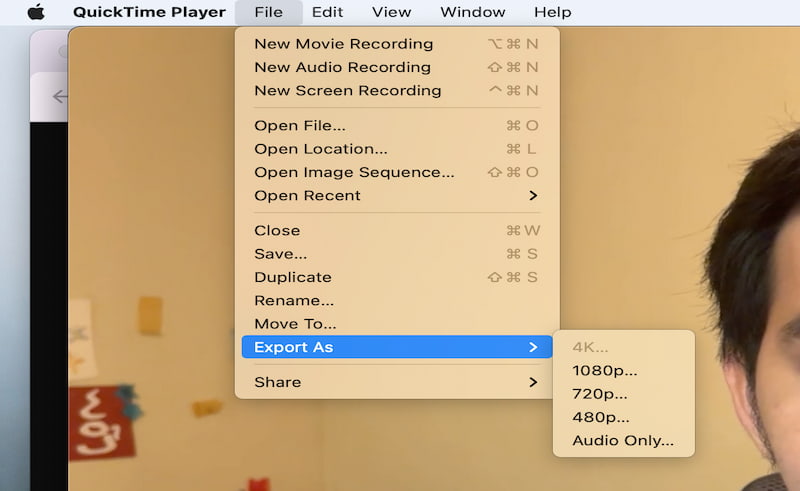
We shall start this guide by giving you a built-in process of compressing video on Mac using QuickTime. This tool has the capability to help you compress your video. Many users love to use it because it allows them to do the process without even needing to install a new tool.
Step 1. You need to open QuickTime Player on your MacBook. Then play the video you want to compress.
Step 2. After that, you need to click the File button and select Open File. From there, select the video you need to compress.
Step 3. After that, click File again and proceed with Export As. Here, you need to choose a lower resolution like 720p or 480p. You can also trim a video in QuickTime to remove unnecessary footage and reduce its overall file size.
Step 4. Next, please select the file destination, then click the Save button.
Method 2: Use Finder's Native "Encode Selected Video Files" Shortcut
Best For: Built-in process in Mac; no tools needed.
Overall Rating: 3.5/5
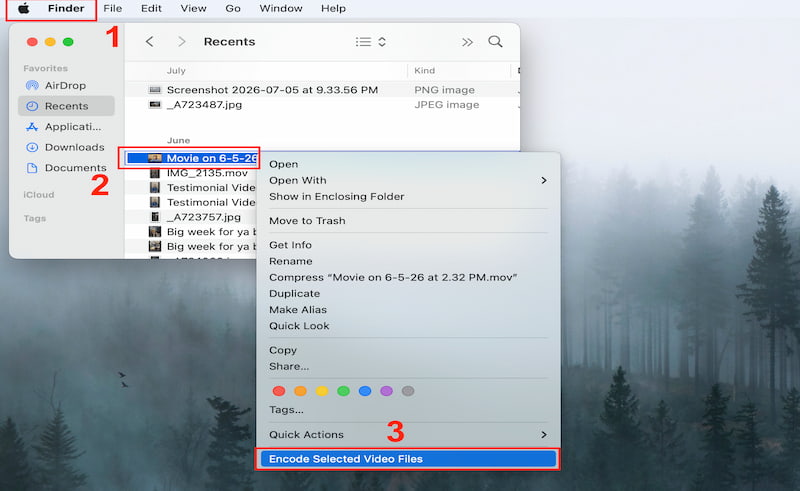
Another built-in method is to use the Finder’s native Encode Selected Video Files shortcut. That can be accessed by using the Quick Actions feature of your MacBook. This lets us do the process without opening any software. Here are the steps to do so.
Step 1. Launch the Finder app on your MacBook and locate the video you want to compress.
Step 2. After that, please right-click on the video file as you’re about to select the Quick Actions from the option on the pop-up menu.
Step 3. From there, select Encode Selected Video Files.
Step 4. Finally, please select the preferred resolutions and settings for encoding. Click Continue to start the compression.
Method 3: Use HandBrake for Mac (Best for Compressing Video Without Losing Quality)
Best For: Advanced users and a variety of features for compressing video on Mac.
Overall Rating: 4/5
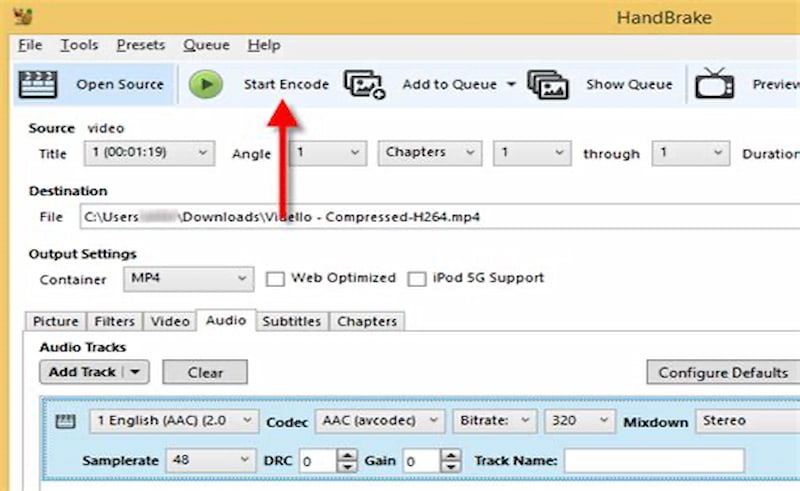
The third method is the use of an advanced tool called HandBrake. This tool is known for offering a wide variety of features that allow us users to compress video on Mac with quality output. Basically, HandBrake can offer you the ability to take full control of the resolution.
Step 1. First, you need to download the HandBrake tool on your Mac. Then, open it immediately and import the video file you need to compress.
Step 2. The tool will now give you an option to select the preset you need, like FAST 1080p30. From there, please choose the MP4 from the Summary Tab to continue.
Step 3. Look for the Video Tab and set the codec to H.264 and set the Constant Quality around 20-24.
Step 4. Now, select your file destination and click the Start Encode as you start to compress the video on your Mac.
Method 4: Use FVC Video Converter Ultimate (Best for Batch Compression & GPU Speed)
Best For: All-in-one solution for compressing on Mac.
Overall Rating: 4.5/5
There is another great tool you can use for compressing video on Mac. FVC Video Converter also offers amazing features with ease of use. That is right; this tool prioritizes ease of use so that users can complete the process instantly. More than that, you can expect it to provide you with high-quality output.
Step 1. Download the official tool for FVC Video Converter Ultimate from their main website. Install it immediately on your MacBook.
Free DownloadFor Windows 7 or laterSecure Download
Free DownloadFor MacOS 10.7 or laterSecure Download
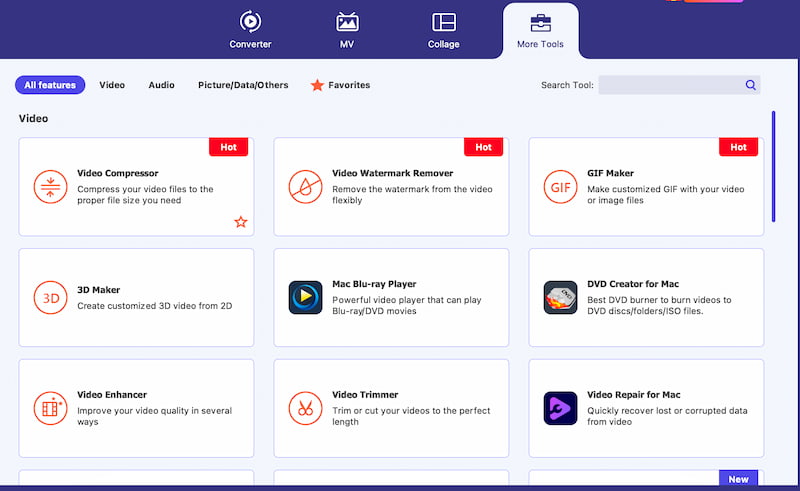
Step 2. On the main interface, access the More Tool feature. Under this feature, choose the Video Compressor feature among the options.
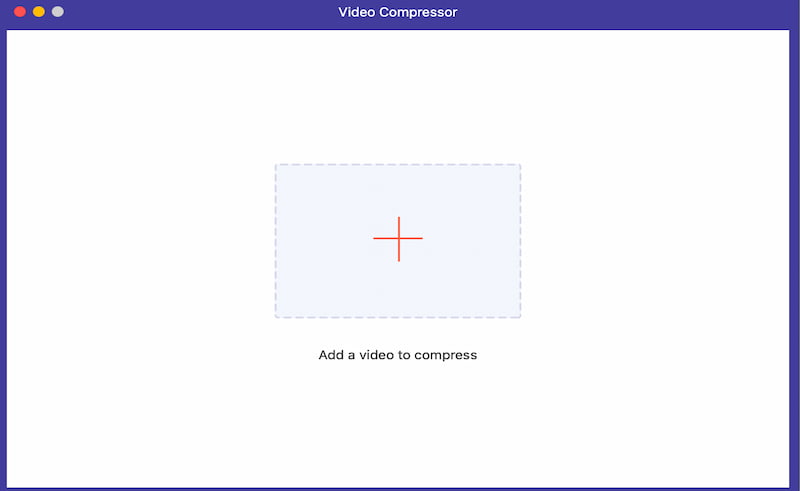
Step 3. On the new tab, click the Add button, then select the media file you want to compress.
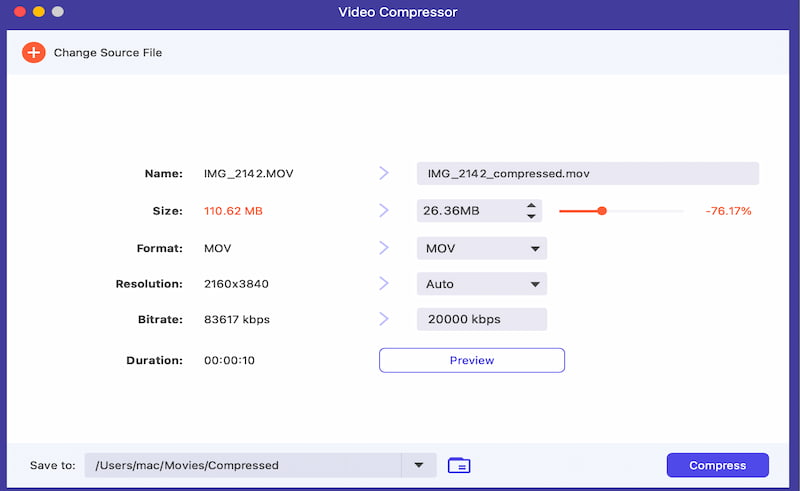
Step 4. Then, the tool will give you the option to set the settings of your video. Lower the resolution, size, bitrate, and more. Click the Compress button and get your video.
Method 5: Use FVC Free Video Compressor (Best Online Tool for Small Clips)
Best For: Easy process of compressing video without installing tools.
Overall Rating: 4/5
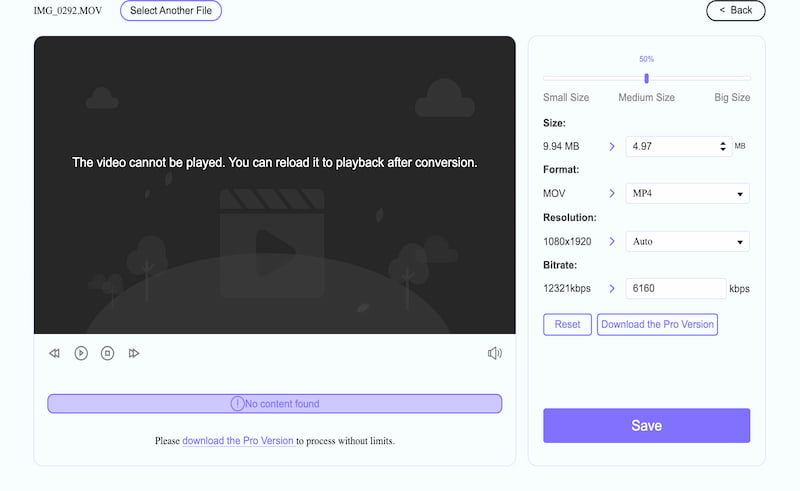
More than great software, FVC can still give you a much easier option by using the FVC Free Video Compressor. This is an online tool that allows you to compress video on a Mac without installing any tools. The tool can be easily used with a drag-and-drop process. Overall, you can also expect a high-quality output and support for a variety of input and output formats despite its simplicity.
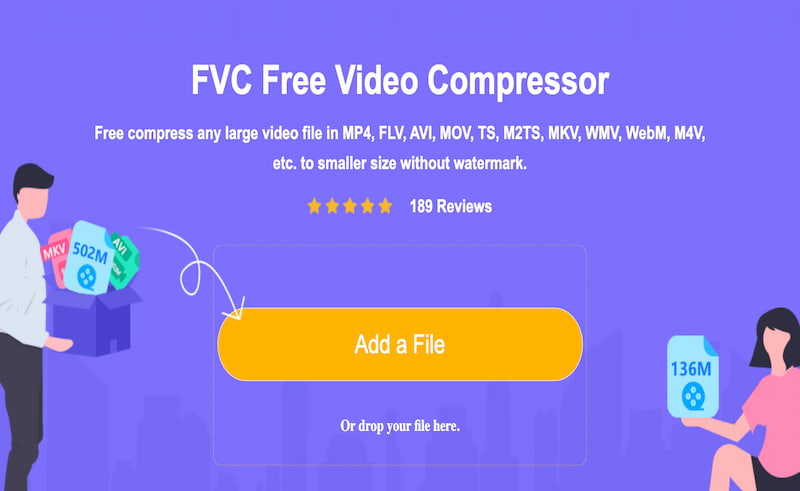
Step 1. Go to the official site of FVC Free Video Compressor. From the main website, click the Add a File button and select the video you need to compress.
Step 2. Wait for the video to be uploaded. Then the site will give you a tab where you can adjust the settings of your media file. From here, set the Size, Resolution, Bitrate, and more in accordance with your preferences.
Step 3. Finally, click the Save button, and the video will now be processed and available for download.
FAQs about Compressing a Video on a Mac
Can I email my compressed video on Mac?
Yes. You just need to remember that your video should be in 720p and 35 MB in file size so that your Email tool will allow you to attach the file. Then after that, you can now send your video without problem.
Is it possible to reduce a 1GB video to 100MB on a Mac?
That is a major process in compressing video that requires a great tool. FVC Video Compressor Ultimate can help you do the process with ease and still maintain the best quality. In this process, it is only important to lower the resolution and file size. Then you can also set the codec to H.265 to ensure a compressed video that still maintains high quality.
How can I compress video from iPhone on Mac?
You need to AirDrop the video from your iPhone to your Mac. Then you can choose any method you want in this article. Follow them properly, and you will be good to go.
Can I compress without losing quality?
You can compress a video on a Mac without having a noticeable loss of quality. It is important here that you set the codec to H.265 or H.264 while the file size and resolution are being reduced. With that, you will see that the video is compressed without noticing the loss in quality.
Why is my video still large after compressing it on Mac?
The video file you just compressed may still have a high bitrate, frame rate, or resolution. That gives you a large video file. You can actually reduce these video settings further, and using a more efficient codec like H.265 can help achieve a smaller file size.
Conclusão
As we get to the conclusion, we can now say that compressing video on a MacBook is now easy to do. We have seen five of the amazing tools and methods you can follow in order to make the process possible. If you are looking for suggestions, many users love to use FVC Video Converter Ultimate because of its ease of use plus the high quality it offers. More than that, FVC Free Video Compressor is another amazing tool to use if you want a process without installing a tool.
-
 Como ripar um DVD em um computador Mac – 5 métodos para tentar
Quer ripar um DVD no seu Mac, mas não sabe qual ferramenta escolher? Neste artigo, apresentamos 5 opções práticas. Leiam e explorem juntos.
-
 Top 4 Mac MP4 Video Converter: Comprehensive Review [2026]
Looking for the best MP4 Video Converter for Mac? Read this in-depth review and be guided with each tool's features, pros and cons, and their performances.
-
 4 métodos para copiar DVD para MacBook [Guia para iniciantes]
Se você está se perguntando como copiar um DVD para um MacBook, continue lendo este artigo e aprenda quatro métodos simples que você pode tentar facilmente por conta própria.
