


 Video Converter Ultimate
 Gravador de ecrã
 Reparo de vídeo
 Secure Download
How to Use HandBrake Upscaling to Improve Video Quality
HandBrake is one of the most popular free video converters, so it's natural to wonder whether it can also upscale videos. This is also the reason why many users search for HandBrake upscaling to convert their videos from 1080p to 4K. The short answer for this is that it can increase the output resolution of a video.
In this guide, we'll clarify what HandBrake is actually capable of when it comes to video upscaling and walk you through the process of adjusting a video's resolution. We'll also explain why traditional upscaling often produces soft or blurry results and introduce a more advanced AI-powered alternative that can enhance video quality more effectively when converting videos to higher resolutions.

Part 1. Can HandBrake Upscale Video?
Yes. HandBrake allows users to increase a video's output resolution, making it possible to export a 1080p video as 4K by adjusting the output dimensions during the encoding process. This capability is why many users consider HandBrake’s upscaling feature when looking for a free way to upscale videos.
However, HandBrake is not a proper video upscaler. Though you can export the video in a larger resolution, the application will not be able to add any details, nor will it enhance the image quality. It only rescales the number of pixels in order to fit the resolution.
For users whose goal is only to change a video's output resolution, HandBrake is a practical solution. However, those seeking noticeable improvements in video quality, clarity, and detail will need an AI-powered video upscaling tool that is specifically designed for video enhancement.
Part 2. How to Upscale Video in HandBrake?
Step 1. Launch HandBrake on your computer Mobile Apps and click Open Source to import the video that needs to be upscaled.
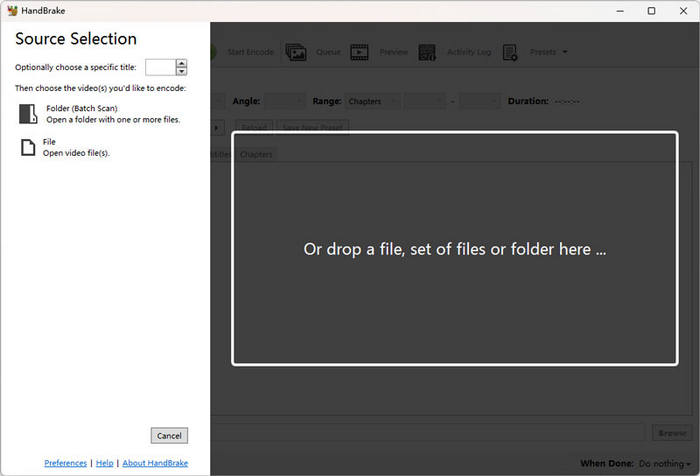
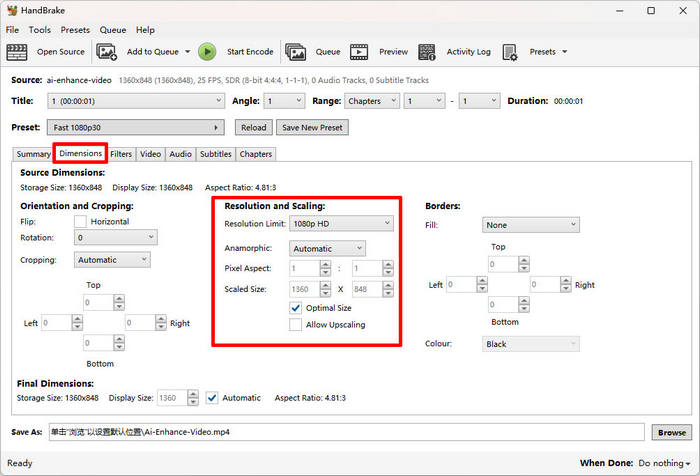
Step 2. After that, go to the Dimensions tab, where the video's resolution settings can be adjusted. Choose the desired output resolution. If manual changes are needed, uncheck Optimal Size to edit the width and height freely.
Step 3. Next, locate the Allow Upscaling option and make sure it is enabled. This setting permits HandBrake to export the video at a higher resolution instead of limiting it to the original dimensions.
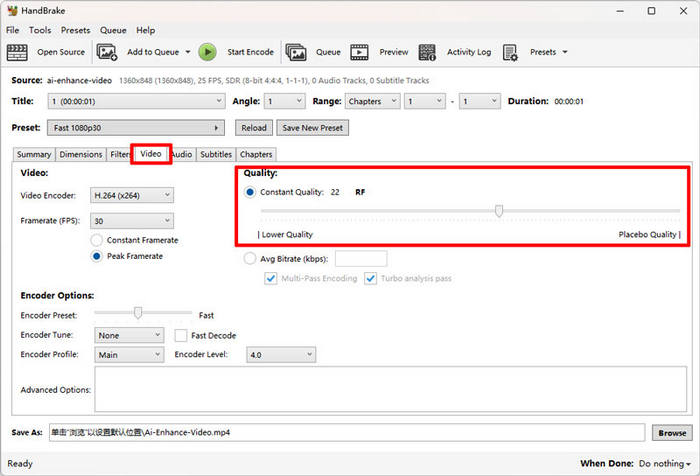
Step 4. Now, open the Video tab and modify the RF Constant Quality value. For most upscaling tasks, an RF setting between 18 and 22 is recommended, as it offers a good balance between video quality and file size. Lower RF values produce higher-quality output but also create larger files.
Step 5. Lastly, once all the settings have been configured, click Start Encode to begin processing the video. After the encoding is complete, the upscaled video will be saved to the selected output folder.
Part 3. Why Does Traditional Upscaling Look Blurry?
Many users expect HandBrake upscaling to make their videos look clearer after increasing the resolution from 1080p to 4K. However, while HandBrake can export a video at a higher resolution, the result often appears soft or blurry rather than noticeably sharper.
This is because traditional upscaling simply enlarges the existing pixels to fit a higher resolution. Because no new visual information is created, the software has to decide what the additional pixels should look like. As a result, fine details, textures, and edges may appear less defined, especially when viewed on larger screens or high-resolution displays.
Another reason is that the original video's quality sets the limit for the final output. If the source video is compressed, noisy, or lacks detail, increasing its resolution alone cannot restore the missing information. It only spreads the same visual data across more pixels.
Part 4. Best AI Upscaling Alternative to HandBrake [Amazing Quality]
If better video quality is the goal, simply increasing the resolution with HandBrake's upscaling feature may not be enough. While HandBrake can export videos at a higher resolution, it does not use AI to restore lost details or improve the overall appearance of the footage. For users who want sharper, clearer, and more natural-looking results, an AI-powered video upscaler is a much better choice.
One of the best alternatives to HandBrake is FVC Video Converter Ultimate. Besides being an all-in-one video converter and editor, it features an advanced AI Video Enhancer that intelligently analyzes footage and improves its quality. Instead of merely stretching pixels, it can upscale video resolution, reduce noise, optimize brightness and contrast, and sharpen details automatically. This makes it an excellent solution for converting 1080p videos to 4K while preserving as much quality as possible.
Principais características
- AI-powered video enhancement for intelligent quality improvement.
- Video upscaling to increase resolution while maintaining better clarity.
- Noise reduction to remove grain and visual artifacts.
- Brightness and contrast optimization for improved lighting and color balance.
- Video sharpening to enhance fine details and edges.
- Supports a wide range of video formats for seamless editing and conversion.
- User-friendly interface that’s suitable for both beginners and experienced users.
Here’s How to Enhance Video Quality with FVC Video Converter Ultimate:
Step 1. First, you need to download and install the tool on your computer.
Free DownloadFor Windows 7 or laterSecure Download
Free DownloadFor MacOS 10.7 or laterSecure Download
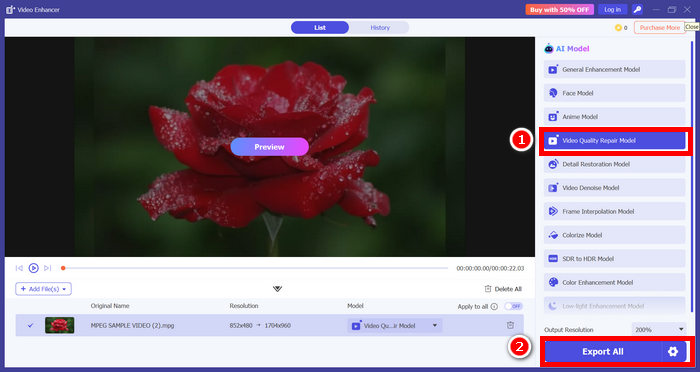
Step 2. Next, click the Enhancer tab and, from there, click Add File and upload your video.
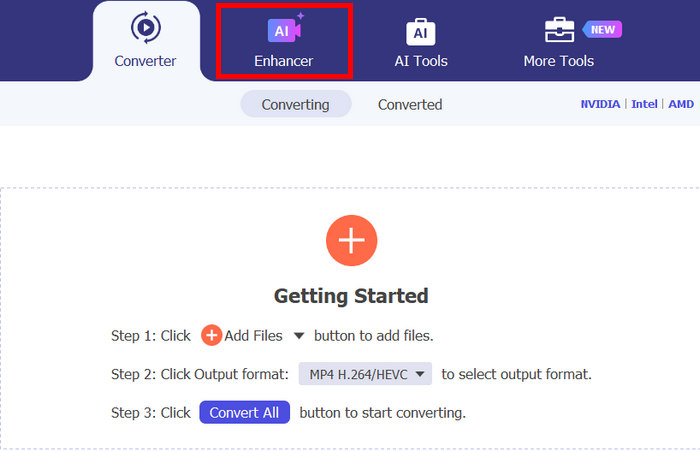
Step 3. Now, choose the AI model you want to use according to the video problem. After that, click Export All and wait for a few seconds; the enhanced video will be saved on your computer.
Part 5. FAQs about HandBrake Upscaling
Can HandBrake convert 1080p videos to 4K?
Yes. HandBrake upscaler can export a 1080p video at a 4K resolution by changing the output dimensions. However, this process only increases the video's resolution and does not add new details or improve the original image quality. If you want a sharper and more detailed 4K video, an AI-powered video upscaler is a better option.
Does increasing the resolution in HandBrake improve video quality?
No. Increasing the resolution alone does not improve a video's quality. HandBrake resizes the existing pixels instead of reconstructing missing details, so the output may have a higher resolution but look similar to, or even slightly blurrier than the original video.
What is the best alternative to HandBrake for AI video upscaling?
If the goal is to genuinely enhance video quality, FVC Video Converter Ultimate is an excellent alternative. Its AI Video Enhancer can upscale resolution, reduce video noise, optimize brightness and contrast, and sharpen details automatically, producing much clearer and more natural-looking results than traditional upscaling.
Conclusão
HandBrake upscaling is a good option for users who just want to export videos to a higher resolution. However, you should know that HandBrake only resizes and stretches the video without adding new details or truly enhancing its quality. This is why traditionally upscaled videos can sometimes appear soft or blurry.
If the goal is to achieve sharper, clearer, and more detailed videos, an AI-powered solution is the better choice. Tools like FVC Video Converter Ultimate use intelligent enhancement technology to upscale resolution while improving clarity, reducing noise, and restoring details. By choosing the right tool for your needs, you can produce videos that not only have a higher resolution but also look noticeably better.
-
 Can HandBrake Combine Videos? What You Should Know [Guide]
 If you’re using HandBrake to combine videos, read this article to learn how. And if you’re looking for the best alternatives, this article has you covered!
-
 Learn How CapCut Can Enhance Video Quality: 3 Easy Methods
 Do you want to enhance your video quality using CapCut but are not sure where to start? Read this article and learn how CapCut enhances video quality easily.
-
 Convert Horizontal Video to Vertical ]Desktop & Mobile Apps[
 Learn 2 easy methods to make horizontal videos vertical, and discover tools that work either on a desktop or a mobile phone, with a guide on how to use them.
