


 Video Converter Ultimate
 Gravador de ecrã
 Reparo de vídeo
 Secure Download
Como fazer um vídeo mais longo no iPhone - Resolvido
Viewers will not enjoy your video if it is only three seconds long and will find it boring. Therefore, the best way to do is to make your video longer. If you are one of the people looking for a solution on how to make a video longer, worry no more because we have the best solutions for you. It is not easy to make a video longer if you do not use any tool. However, in this article, you will know how to make a video longer by adding new clips, slowing down your video, and looping the video multiple times. So, read the full and detailed steps on how to make a video longer on iPhone and other devices, using the three best methods.

Método 1. Como tornar um vídeo mais longo adicionando novos clipes
O primeiro método que você pode fazer é adicionar novos clipes ou imagens ao seu vídeo. Leia as etapas abaixo para tornar um vídeo mais longo no iPhone adicionando novos clipes ou imagens. Esta parte apresentará uma ferramenta de terceiros que pode ajudá-lo a adicionar novos clipes ou imagens ao seu vídeo.
Step 1. Download the iMovie app from Appstore. Follow the installation process, then open the app. iMovie is a default video editor for iPhone and other Apple devices; therefore, you can download it for free on any Apple device.
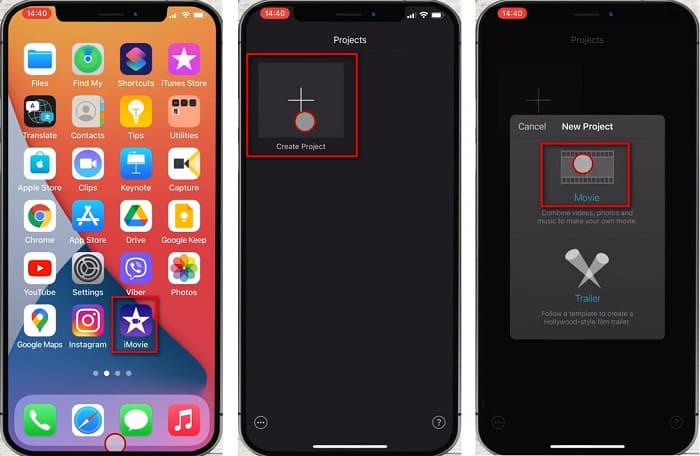
Step 2. On the software’s main interface, tap the plus sign button (+) to create a new project and tap the Movie option. Then another interface will prompt where you will select the videos that you want to merge. Then, tap the Create Movie button.
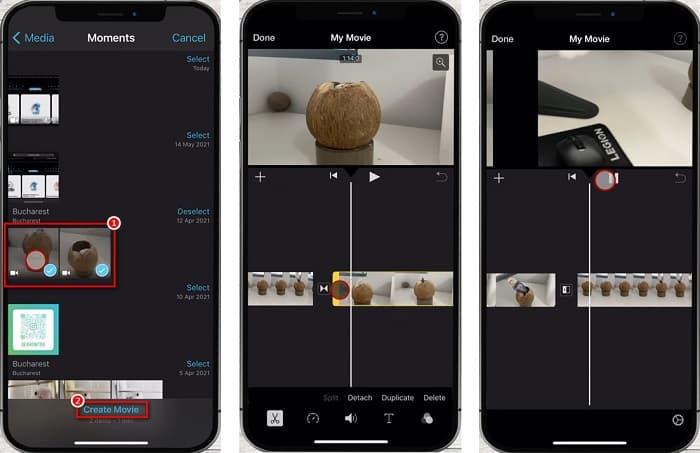
Step 3. Lastly, tap the video clips on your timeline, And then grab the edges of each frame, then drag them to the size you want. And if you are done adding video clips, tap the Done button at the upper left corner of your screen.
Método 2. Como tornar um vídeo mais longo diminuindo a velocidade do vídeo
O método mais fácil de tornar um vídeo mais longo é usar uma ferramenta de vídeo lento. Quando você diminui a velocidade do seu vídeo, o tempo se prolonga, tornando-o mais longo que o original. Portanto, ao usar a leitura deste método, você saberá como tornar um vídeo mais longo usando as melhores ferramentas de mudança de velocidade de vídeo online e offline.
FVC Video Converter Ultimate
The best video speed changer tool that you can find on the market is FVC Video Converter Ultimate. This offline tool allows you to slow down or speed up your video and choose from various speed presets. In addition to that, it contains many advanced editing features, like GIF maker, volume booster, audio sync, and many more. You do not need to worry about the supported file formats of this tool because it supports numerous file formats, including MP4, AVI, M4V, FLV, MKV, MOV, WebM, and 1000+ more formats. Moreover, many people use this application because it is free to use and has an easy-to-use software interface. So, if you are interested in using this ultimate tool to slow down your video, follow the simple steps below.
Step 1. To use this app, download FVC Video Converter Ultimate by clicking the Download button below for Windows or Mac. Follow the installation process, then open the app.
Free DownloadFor Windows 7 or laterSecure Download
Free DownloadFor MacOS 10.7 or laterSecure Download
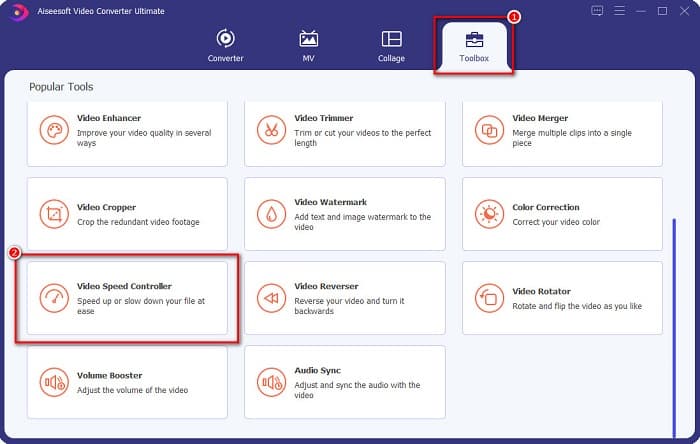
Step 2. Then on the software’s main interface, select the Toolbox panel. And then, click the Video Speed Controller.
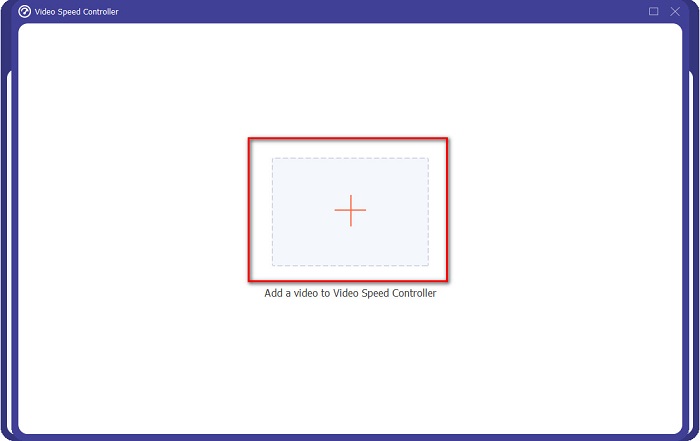
Step 3. Next, click the + sign button to upload your video. Your computer folders will appear where you will select the video that you want to slow down and then upload it.
Step 4. And then select the speed preset that you want for your video. If you want to slow down your video, select speed presets from 0.125x, 0.25x, 0.5x, and 0.75x.
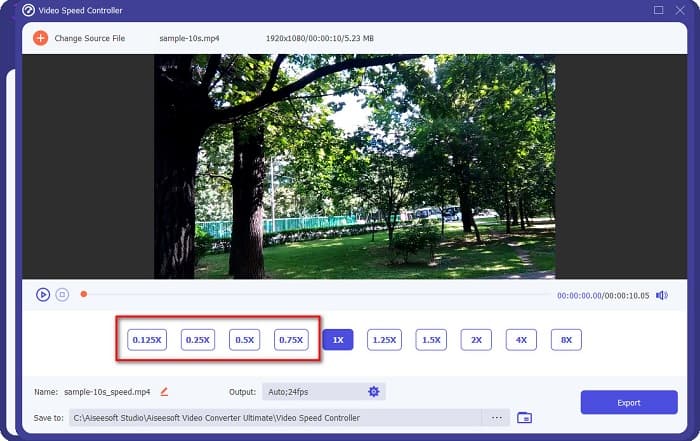
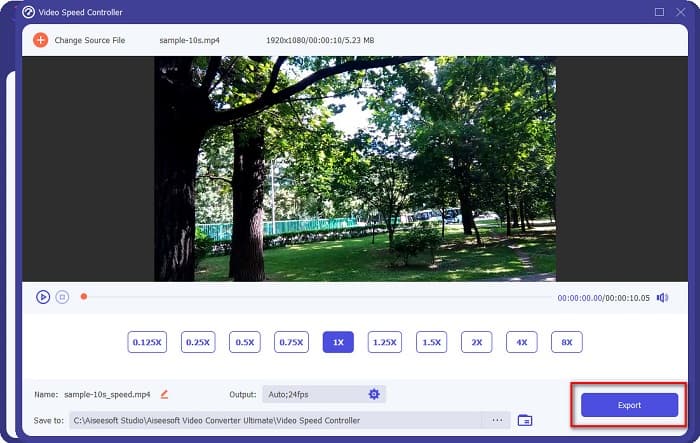
Step 5. Finally, click the Export button to change the speed of your video. Your output will automatically save to your computer folders.
Prós
- Possui uma interface de usuário intuitiva.
- Ele pode desacelerar ou acelerar seu vídeo facilmente.
- Ele suporta muitos formatos de arquivo, como WMV, AVI, FLV, MKV, MOV, MPEG e mais de 1000.
- Possui recursos avançados de edição.
- Disponível em todas as plataformas de mídia cruzada, incluindo Windows, Mac e Linux.
Contras
- Você deve comprar o aplicativo antes de acessar seus recursos exclusivos.
Clideo
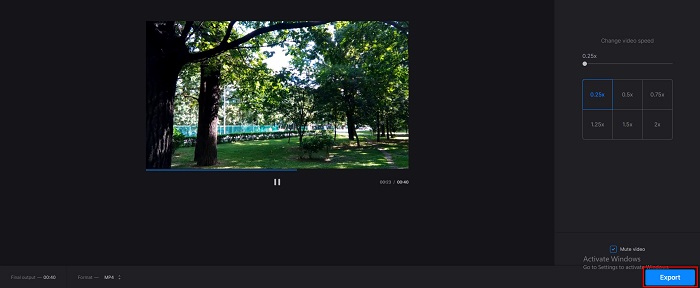
Clideo is an online video speed changer known for its simple user interface. This video speed changer allows you to change your video speed by the six most common speed presets. In addition to that, this tool is safe to use and free. And if you are looking for a video speed changer that allows you to change the output format, this tool has that feature. Furthermore, it also supports the most common file formats found on the internet, including MP4, AVI, MPG, VOB, MOV, and more.
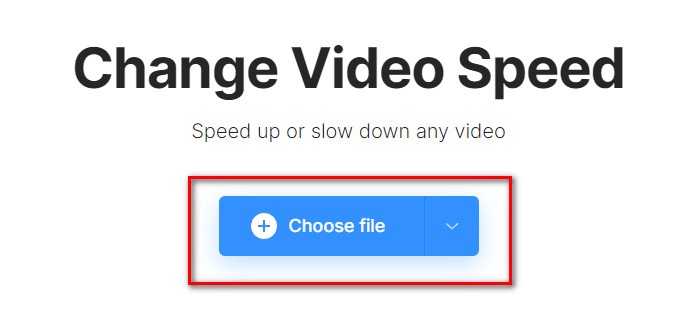
Step 1. On the browser, you use, search Clideo, and go to their webpage. On the main interface, click the Choose file button. Your computer folders will appear where you will select and then upload your video.
Step 2. After uploading your video, choose the speed preset that you want for your video. Pick from 0.25x to 0.75x if you want to slow down your video.
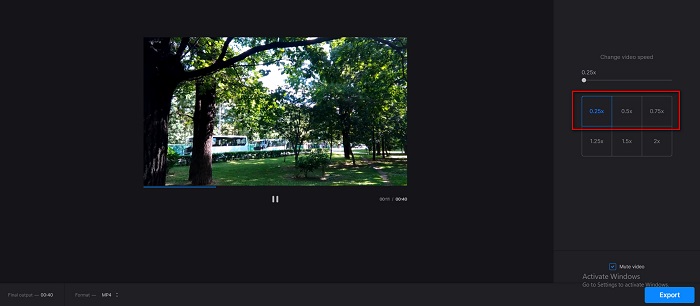
Step 3. Then, click the Export button for the final step.
Prós
- Tem uma interface fácil de usar.
- Ele suporta os formatos de arquivo mais comuns, incluindo MP4, AVI, MPG, VOB, etc.
- É seguro usar.
Contras
- Tem um processo de carregamento lento às vezes.
EzGif.com
EzGIF is another answer on how to make a video longer. This online video speed changer can effortlessly slow down and speed up your video. Moreover, it is safe and free to use. However, this online tool contains ads that might be disturbing to you. Nevertheless, many people still use this converter because of its convenience.
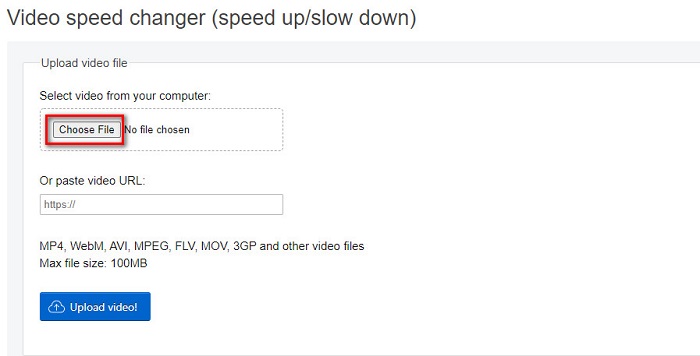
Step 1. On your browser, search EzGIF.com. Then, click the Choose File button on the software’s main interface to upload your video.
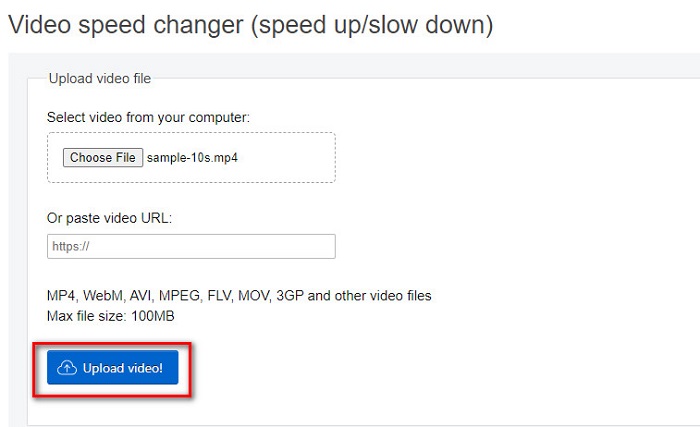
Step 2. After uploading your video file, click the Upload video button.
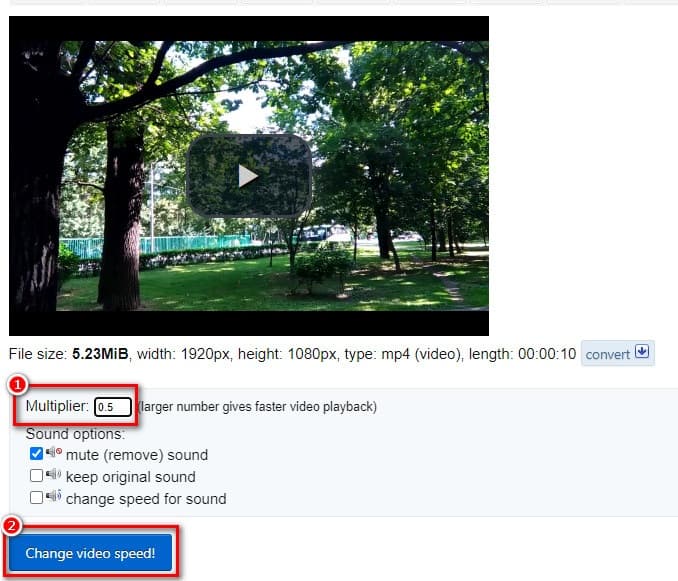
Step 3. Then, on the multiplier, type the video speed that you want to have your video (The lower the number, the slower it becomes). And then, click Change Video Speed.
Parte 3. Perguntas frequentes sobre como tornar um vídeo mais longo
O tamanho do arquivo aumenta quando o vídeo é mais longo?
Sim. Quanto mais longo for o seu vídeo, maior será o tamanho do arquivo. Portanto, diminua a velocidade do seu vídeo se quiser ter um tamanho de arquivo pequeno.
Você pode desacelerar um vídeo no TikTok?
Felizmente, sim. O Tiktok possui um alterador de velocidade de vídeo integrado. Você pode fazer um vídeo em câmera lenta no Tiktok e até fazer um vídeo em sua câmera mais lento.
Você pode desacelerar um vídeo sem perder a qualidade?
Sim. As ferramentas de alteração de velocidade de vídeo podem diminuir a velocidade do seu vídeo sem perder sua qualidade.
Conclusão
Now, your question about how to make a video longer on iPhone and other devices is solved. It is now in your hands what method and tool you will use to get the job done. But if you prefer a video speed changer that many professional users use, download FVC Video Converter Ultimate, and try its best and amazing features.
-
 Como acelerar o vídeo no Premiere Pro e com suas alternativas
 Quer saber como usar o Premiere Pro para acelerar um vídeo? Então você está no artigo certo, pois fornecemos etapas e outras alternativas acessíveis.
-
 2 maneiras fáceis de como acelerar um vídeo no TikTok
 Quer saber o segredo de como acelerar o vídeo no TikTok? Então leia este artigo para ter a ideia de como fazer e saber quais são as outras 2 ferramentas que vão te ajudar.
-
 Dicas excelentes de 2021: como acelerar um vídeo no iMovie
 Seu amigo sugere o iMovie para ajudá-lo com seu problema de como acelerar um vídeo usando o sistema operacional iOS, mas você não sabe o que fazer? Veja mais sobre isso enquanto você lê mais através deste artigo.
